
Work the Dispatch Board sidebar
Find work orders, filter them, select several at once, and promote or email them from the Dispatch Board sidebar.
The left side of the Dispatch Board lists the work your office is scheduling: what's waiting for a visit, what's already booked, and what's blocked. Use it to find a work order, narrow the list, and act on several work orders at once.
Before you start
- The Owner, Admin, Operations Manager, or Operations User role.
- To hide the sidebar and give the calendar more room, click the panel icon at the top left of the board. Click it again to bring the sidebar back.
What the sidebar lists
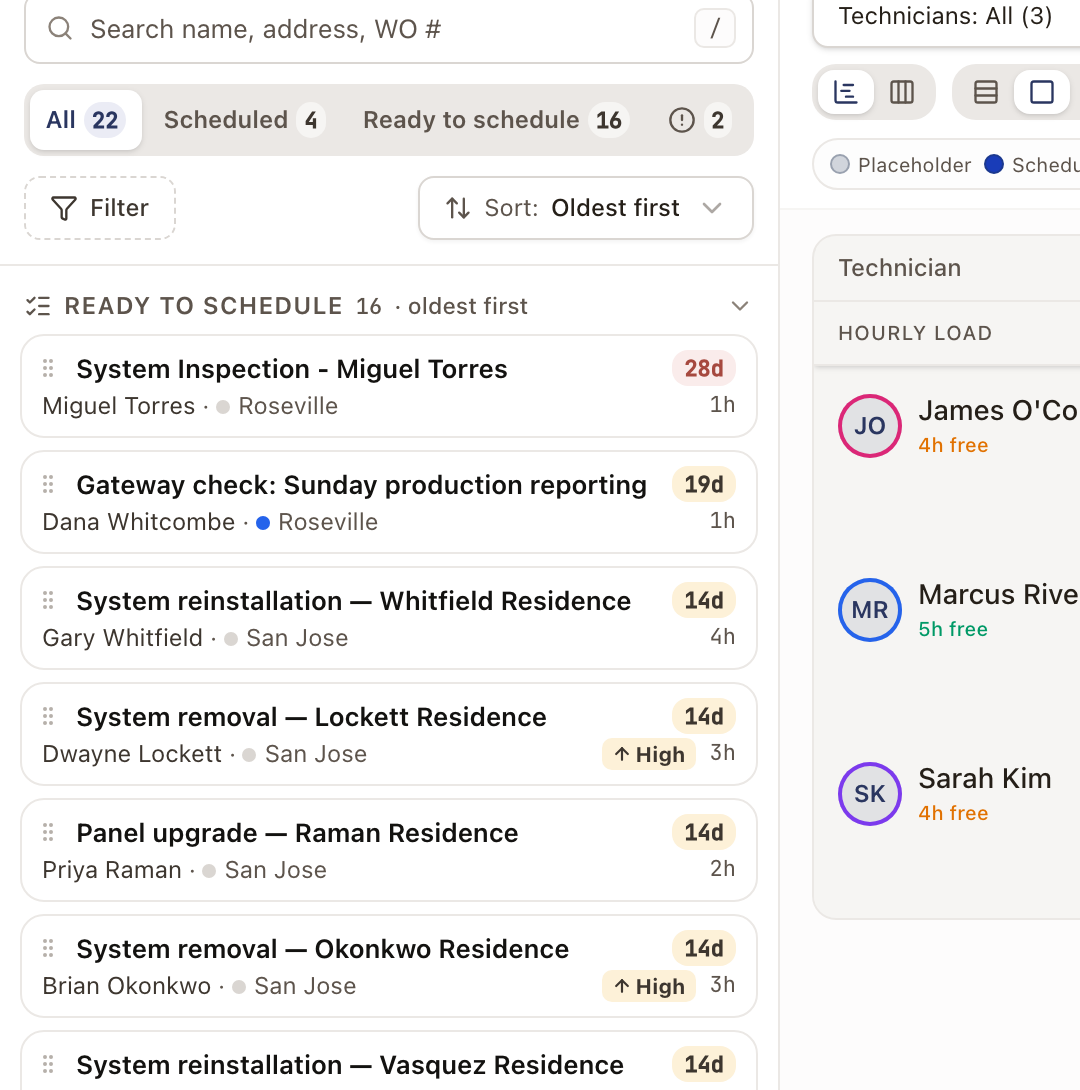
Each work order appears once, in one of three lists. Choose which to show with the buttons under the search box: All, Scheduled, Ready to schedule, and a button with an exclamation mark for Blocked. Each button shows how many work orders it holds.
| List | What's in it | Order |
|---|---|---|
| Ready to schedule | Work orders that are ready to schedule and have no upcoming visit. Each card shows how long it has been waiting, for example 3h or 13d, counted from when it became ready. | Oldest waiting first. Change it with Sort. |
| Scheduled | Work orders with an upcoming visit, from today on, grouped by day. A day that is showing on the calendar is tagged On board. | By day, then start time. |
| Blocked | Work orders with a block on them. Each card shows the block reason. | Earliest expected resolution date first. |
A blocked work order stays in Blocked even when it has an upcoming visit. Click a section heading to collapse or expand it. The footer shows how many jobs the current lists hold.
Find a work order
- Click the search box, or press / from anywhere on the board. Type part of a customer name, an address, a work order number, or a case number. The sidebar searches all dates, whichever day the calendar shows, and says so under the box.
- Press Esc or click x to clear the search.
- Pick All, Scheduled, Ready to schedule, or the Blocked button to show one list.
- Open Sort to order the ready list by Oldest first, Newest first, or Priority. Sort only applies to ready work.
Click a card to expand it. A ready card shows the work order number, address, territory, priority, how long it has waited and since when, the date it was created, and the estimate. A scheduled card shows the visit time, the technicians, and the visit status. A blocked card shows the reason, the expected resolution date, and any notes.
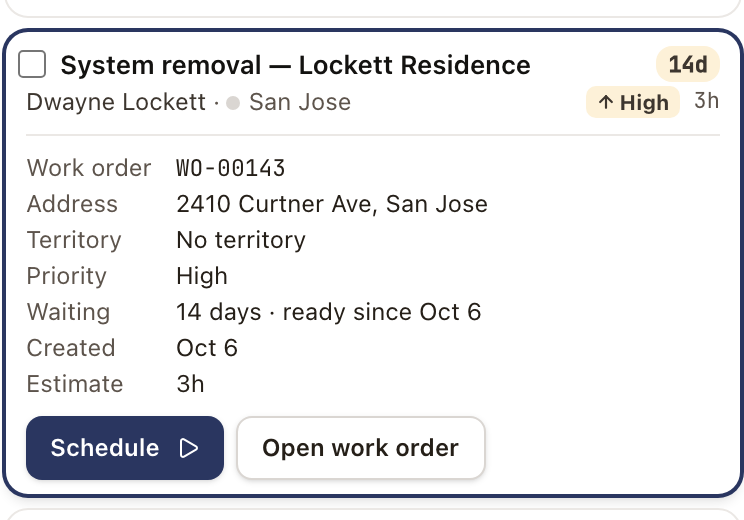
Each card has one main button:
- Schedule on a ready card opens the Schedule Appointment drawer. See Schedule a service visit.
- Go to day on a scheduled card moves the calendar to that visit's day.
- Open work order opens the work order in a side panel. See Work a work order from its side panel. It is the only button on a blocked card. To clear a block, see Work order statuses and blocking.
Narrow the list with Filter
Click Filter above the list.
- To reuse a saved filter, pick it under My filters or Shared.
- Otherwise choose a field and pick values. The fields are Territory, Owner, Technician, Scheduling Confidence, Priority, Hide projects on hold, Origin, Work type, Materials ready, Ready to bill, Created, and Modified. Type in Search filters to find one. Hide projects on hold is a switch: turn it on to leave out work whose project has a hold. Cards for that work show On hold with the reason.
- The Filter button then shows what you applied. Click the x next to it to clear the filters.
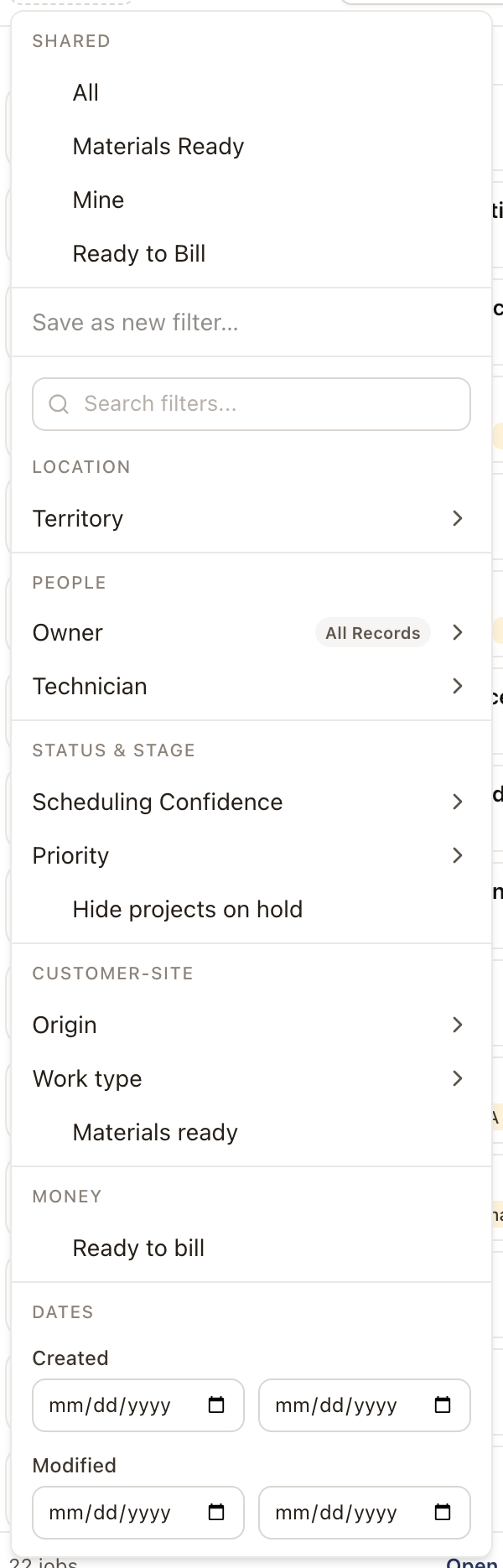
To keep a set of filters, choose Save as new filter, name it, and choose Just me or Share with org. A saved filter also appears on the Work Orders table. Turn on Make this my default to have the sidebar open with it applied.
The Territory field is the same setting as the Territory button above the calendar: changing one changes the other. It isn't saved with a saved filter.
Select several work orders
- Hover a card and tick its checkbox. Once one card is ticked, every card shows a checkbox.
- To select everything on the calendar, click Select all displayed at the right end of the calendar's controls. It selects every open work order showing for the current view and date, and switches the sidebar to Selected only.
- A bar appears at the bottom of the sidebar: N selected, Selected only, Actions, and Clear.
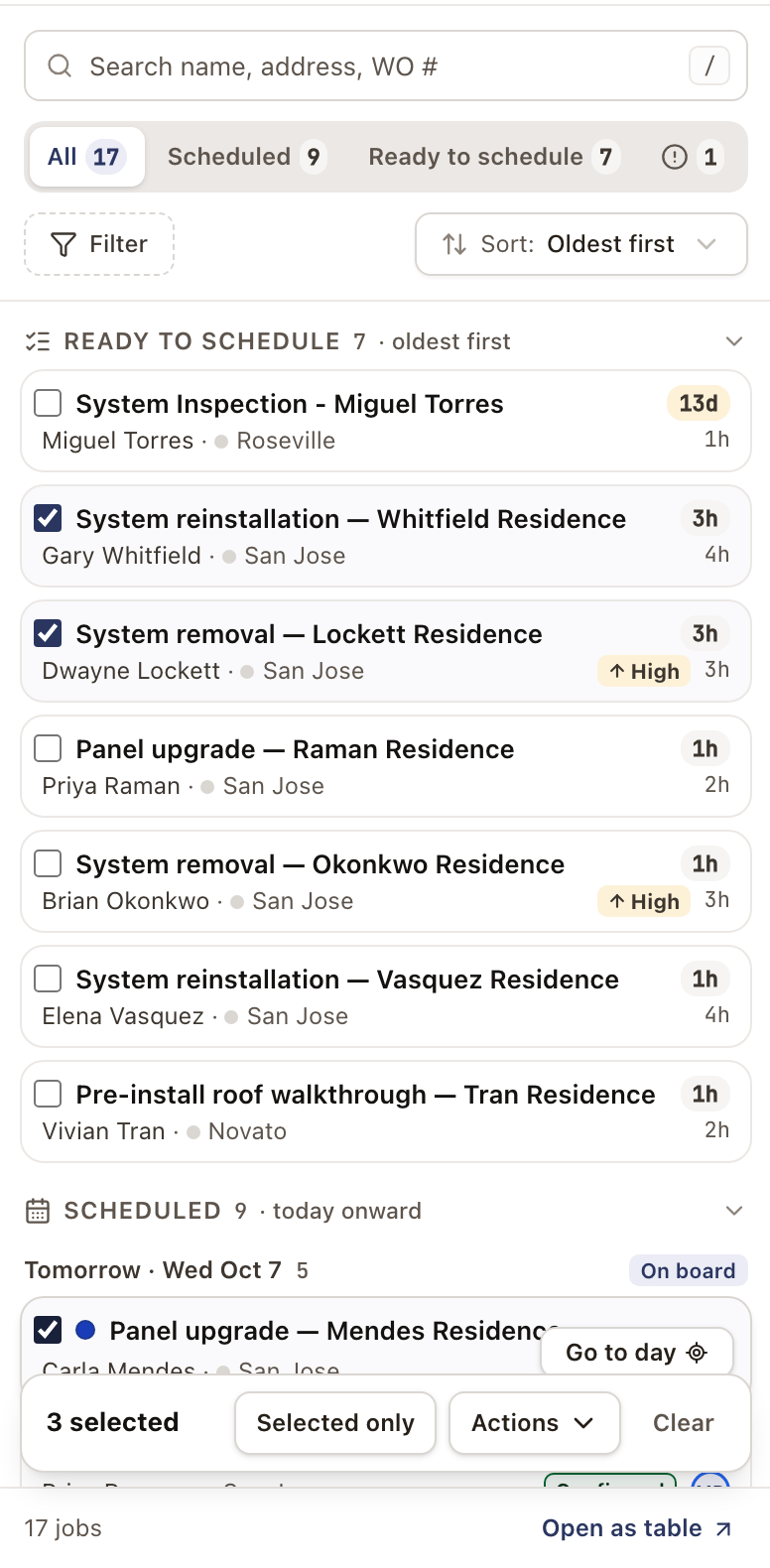
Selected only lists exactly the work orders you ticked, on every date, ignoring the search, filters, and territory. That makes it easy to check the selection before you act. Click it again to go back to the full list. Clear unticks everything.
Act on the selection
Open Actions.
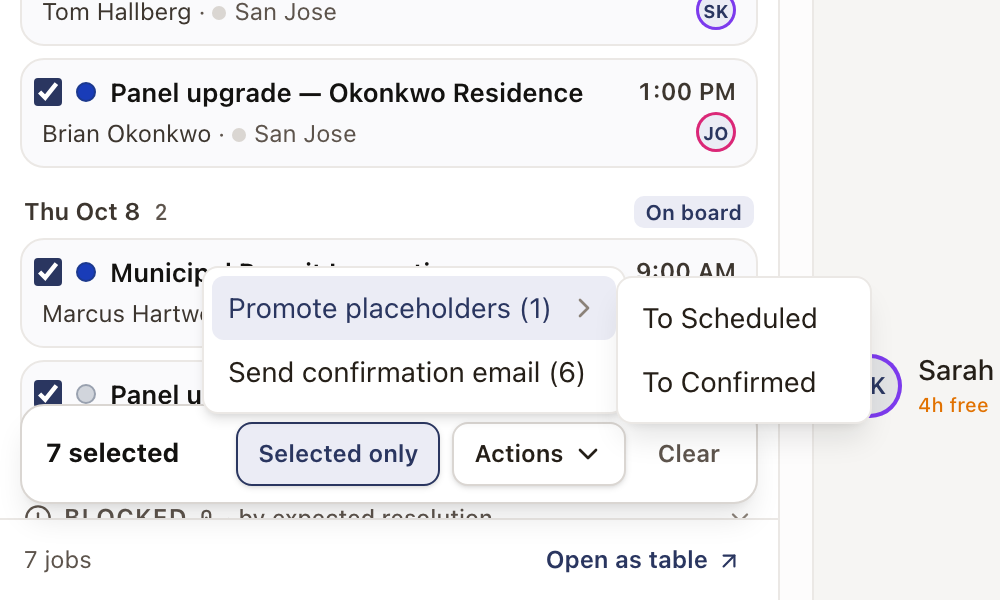
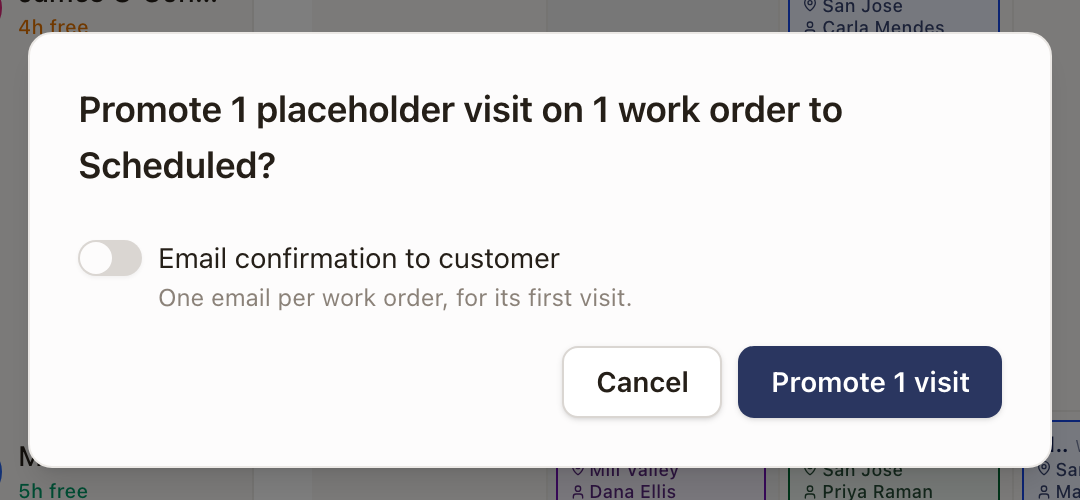
- Promote placeholders moves every open placeholder visit on the selected work orders to To Scheduled or To Confirmed. The number in brackets is how many placeholder visits it will change. A dialog asks you to confirm and has an Email confirmation to customer switch. When it's on, each work order's customer gets one email, for its first visit.
- Send confirmation email emails each selected work order's customer a confirmation for its next visit. The dialog counts how many customers will be emailed and lists work orders it will skip: ones whose only visit is a placeholder, and ones with no upcoming visit. Work orders without a customer email are skipped too.
An action with nothing to do shows (0) and can't be chosen. When the action finishes, a message tells you how many visits were promoted or how many customers were emailed. For the email itself, see Send an appointment confirmation.
Check it worked
- After you schedule a ready work order, it leaves Ready to schedule and appears under Scheduled on its day.
- After you promote placeholders, the visits change color on the calendar to match Scheduled or Confirmed with Client.
Common problems
- A work order isn't in the list. Look at the Filter button and the search box: either may be narrowing the list. Work orders that aren't ready to schedule yet appear only if they are blocked or already scheduled.
- You can't drag a card. Dragging works only for ready cards, and only in the Day and Week views.
- Select all displayed is greyed out. Nothing open is showing on the board for that view, date, and technician filter. Change the date or view.
- A work order in the selection was skipped. The dialog names why: a placeholder visit, no upcoming visit, or no customer email.
To see the same work as a table, click Open as table at the bottom of the sidebar. Each row has one button that depends on the work: Schedule, Convert Placeholder, Mark Confirmed, or Preview. See Use the Dispatch work table and Work Orders table.