
Use the Dispatch work table and Work Orders table
Read, filter, and act on work orders in the Dispatch work table and the Work Orders table, which share their columns and filters.
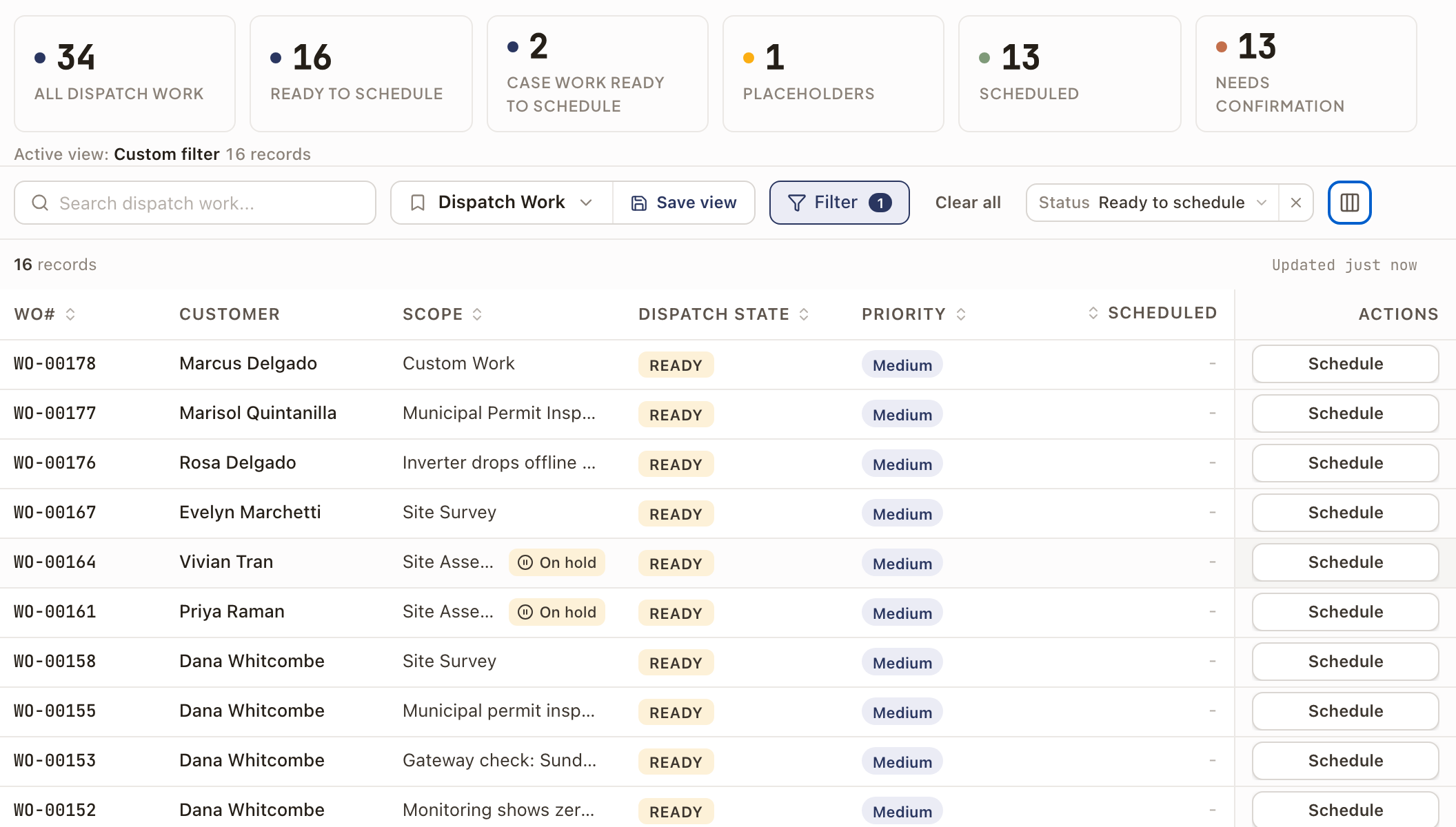
Two tables list work orders: Dispatch Work, which opens from the Dispatch Board, and Work Orders, under Operations. They read a work order the same way, with the same columns and filters. Use Dispatch Work to schedule and confirm visits. Use Work Orders to look across all work.
Before you start
- The Owner, Admin, Operations Manager, or Operations User role.
Open the tables
- Dispatch Work: go to Operations → Dispatch Board and click Open as table at the bottom of the sidebar. It opens as a panel over the board and starts on Ready to Schedule work. Click Close to go back to the board with your sidebar search and filter as you left them.
- Work Orders: go to Operations → Work Orders.
Pick a group of work
The cards across the top of each table count work and filter the table when you click one.
- Dispatch Work: All Dispatch Work, Ready to Schedule, Case Work Ready to Schedule, Placeholders, Scheduled, and Needs Confirmation.
- Work Orders: All, Ready, Blocked, Scheduled, In progress, and Completed.
To keep your own combination, set filters, click Save view, and name it. Saved views show under the view menu next to Save view.
Read the columns
Click Columns (the column icon at the right of the toolbar) to show or hide a column, move it with the arrows, or click Reset columns. WO# always stays. Drag a column's edge to resize it. Click a heading with arrows to sort by it.
| Column | What it shows |
|---|---|
| WO# | The work order's number, such as WO-00175. |
| Customer | The customer on the work order's property. |
| Scope | The work order's name. It carries an On hold flag when its project has a hold. |
| Status | The work order's status. Shown by default in Work Orders only. |
| Dispatch State | Where the work stands for scheduling. Dispatch Work only. See the next section. |
| Priority | Low, Medium, High, or Urgent, in the same colors as the work order's page: Low in yellow, Medium in blue, High in green, and Urgent in red. |
| Scheduled | The next visit on one line, such as 10/28/2026 8:00am–10:00am. |
| Technician | The technicians on that visit. |
| City | The property's city and state. |
| Territory | The Operations territory. It appears only when your company has territories. |
| Project, Address, Value, Materials, Owner, Created, Modified | Hidden until you turn them on. |
| Block Reason, Block Notes, Block Resolution Date, Blocked Since | Hidden until you turn them on. Filled in only for blocked work orders. |
Turn on the four block columns to see why work is blocked and when it should clear, without opening each work order. See Work order statuses, blocking, and cancelling. For project holds, see Place and resolve a project hold.
Read Dispatch State
Dispatch State is one of five values:
- Ready: no visit is booked.
- Placeholder: a visit is saved as a placeholder.
- Needs Confirmation: a visit is booked but the customer hasn't confirmed it.
- Scheduled: a visit is booked and confirmed with the customer.
- Blocked: the work order is blocked.
Act on a row
Each Dispatch Work row has one button on the right. It depends on the work:
- Schedule opens the Schedule Appointment drawer for ready work. See Schedule a service visit.
- Convert Placeholder changes the work order's placeholder visits to Scheduled.
- Mark Confirmed changes visits that need confirmation to Confirmed With Client.
- Preview opens the work order in a side panel. It is the button on blocked work. See Work a work order from its side panel.
Click anywhere else on a row to open the same preview. When you convert or confirm, a message says so. If Automatic confirmation emails is on, the customer is emailed as for any promotion. See Send an appointment confirmation.
In the Work Orders table, click a row to open the work order.
Filter the table
Click Filter and pick a field. Both tables offer the same fields: Territory, Owner, Technician, Status, Scheduling Confidence, Priority, Hide projects on hold, Origin, Work type, Case-linked, Imported from v1, Materials ready, Ready to bill, Created, and Modified. Applied filters show as chips next to Filter. Click Clear all to remove them. Type in the search box to search customers, addresses, and numbers.
Check it worked
The record count above the table matches the group and filters you chose. After you click Schedule, Convert Placeholder, or Mark Confirmed, the row's Dispatch State changes.
Common problems
- The Territory column is missing. Your company has no Operations territories set up.
- You expected to see scheduled work and the table is short. Dispatch Work opens on Ready to Schedule. Click All Dispatch Work or Clear all.