
Send an appointment confirmation
Email a customer the date, time, and technician for their scheduled visit, by hand or automatically.
Send the customer an email confirming their visit, with the service, date, time, address, and technician. You can send it yourself from an appointment, send it to several customers at once, or have solarOS send it whenever you schedule a visit.
Before you start
- The Owner, Admin, Operations Manager, or Operations User role.
- An appointment at Scheduling Confidence: Scheduled or Confirmed With Client. You can't send a confirmation while an appointment is still a Placeholder; promote it first.
- To turn on automatic emails for your company, the Owner or Admin role.
Steps
1. Open the appointment's popover
Click the appointment on the Dispatch Board calendar, then click Send Confirmation. When the customer has already confirmed the visit, the button reads Resend Confirmation.
2. Review the email
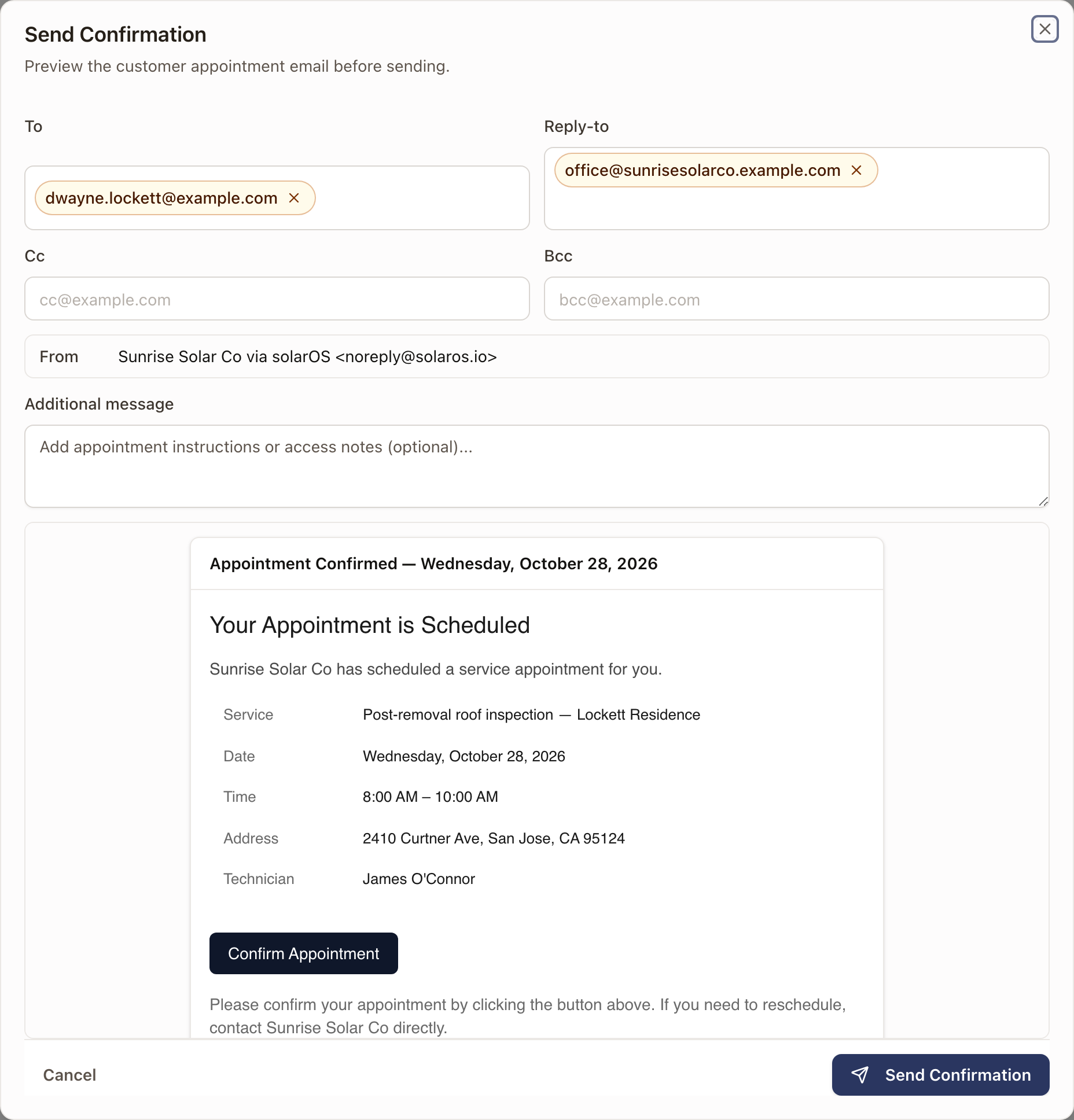
The Send Confirmation dialog previews the email before it sends: the customer's address in To, Reply-to, Cc, Bcc, and From, and the message body with the service, date, time, address, and technician. Add an Additional message if you want to include access notes or instructions.
3. Send it
Click Send Confirmation.
Check it worked
The dialog closes and the email goes to the customer's address on file.
Email customers automatically
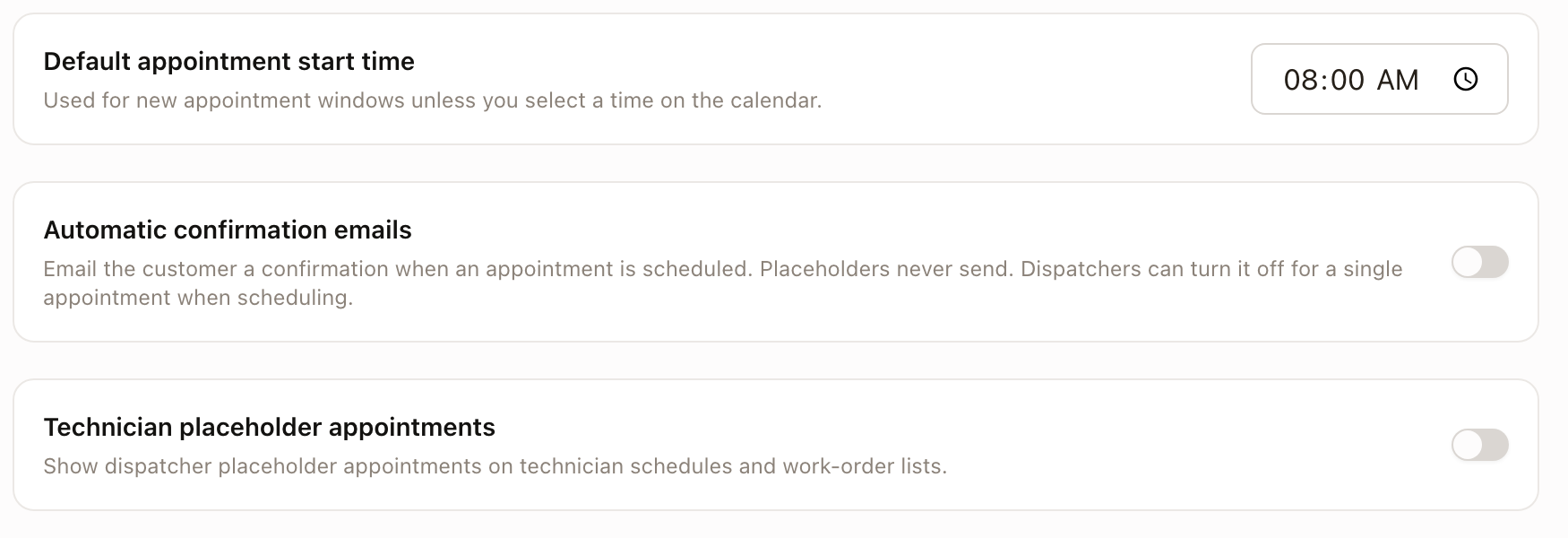
Turn this on when you want new visits confirmed with less work. See Dispatch settings for the rest of that page.
- Go to Settings → Operations → Dispatch.
- Turn on Automatic confirmation emails.
- Click Save dispatch settings at the bottom of the page.
With it on, the customer is emailed when you:
- schedule a visit by dragging a card or from the map,
- promote a placeholder to Scheduled or Confirmed, or
- move a visit to a new start time. The customer's earlier confirmation is cleared, so they can confirm the new time.
In the Schedule Appointment drawer the setting only decides whether the Email confirmation to customer switch starts on. The drawer shows you the Send Confirmation preview after you book, and nothing is sent until you click Send Confirmation there. Placeholders never send. Changes that keep the same start time, such as swapping a technician, never send either.
The header of the Dispatch Board shows the current setting as Confirmation emails: Auto or Confirmation emails: Manual. Click it to open the setting.

Change it for one appointment
Every place you schedule has an Email confirmation to customer switch. It starts from your company setting, and you can flip it either way for that one appointment. Turn it on to confirm a single visit while the company setting is off, or turn it off to skip one while it's on.
- In the Schedule Appointment drawer it sits at the bottom, after Save as placeholder. After you click Schedule, the Send Confirmation dialog opens and the email goes only when you click Send Confirmation there. On a multi-day job it reads Email confirmation (first day) and previews the first day.
- In the Confirm schedule change dialog after a drag, and in the slot-in review on the map, it sits above the buttons. See Slot in work from the map.
- In the Edit Appointment drawer it reads Email the new time to the customer and appears when you change the start time. See Reschedule or reassign an appointment.
After you save from a drag, the map, or the Edit Appointment drawer, a message says whether the email went out, was skipped, or failed. A skipped email names the reason, such as a placeholder or no customer email on file. If it failed, the visit is still saved. Open the appointment and click Send Confirmation to try again.
Email several customers at once
- On the Dispatch Board sidebar, tick the work orders, or click Select all displayed.
- Click Actions, then Send confirmation email.
- Check the count in the dialog and click Email N customers.
Each work order's customer gets one email, for its next visit. Work orders with only a placeholder, with no upcoming visit, or with no customer email are skipped. To confirm placeholders as you promote them, use Promote placeholders and turn on Email confirmation to customer. See Work the Dispatch Board sidebar.
Common problems
- Send Confirmation is disabled. The appointment is still at Placeholder confidence, so the customer hasn't been told about it yet. Change its Scheduling Confidence to Scheduled or Confirmed With Client from the popover, then try again.
- A customer didn't get an automatic email. Check the message shown when you saved. The visit may have been a placeholder, the customer may have no email on file, or the switch may have been off for that appointment.