
Reschedule or reassign an appointment
Change an appointment's date, time, or assigned technicians from one drawer.
Change the date, time, or technicians on an appointment that's already scheduled. Rescheduling and reassigning are the same action in solarOS: one drawer handles both.
Before you start
- The Owner, Admin, Operations Manager, or Operations User role.
- An appointment with status Scheduled or Dispatched. Appointments that are En Route, In Progress, or finished don't offer Edit.
Steps
1. Open the appointment
Click the appointment on the Dispatch Board calendar, or open it from the work order's Schedule card, to open its popover.
2. Click Edit
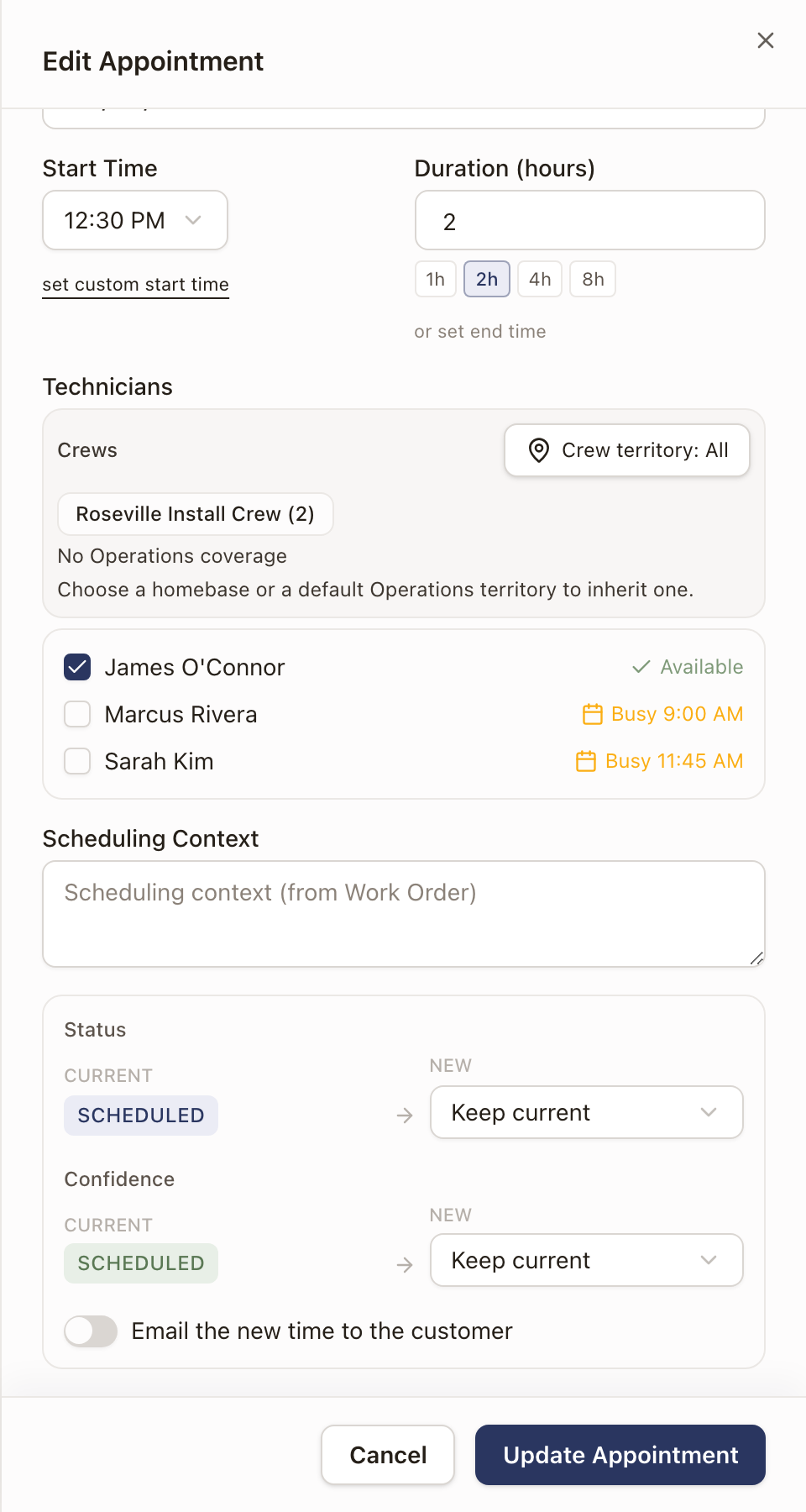
In the popover, click Edit. The Edit Appointment drawer opens with the current date, time, duration, and technicians.
3. Change what's needed
- Update the Date, Start Time, or Duration.
- Check or uncheck names under Technicians to reassign the visit. Each name shows Available, Busy with a time, or Off hours. Checking a technician who already has a conflict shows an inline warning, the same as when you first scheduled it.
- Optionally change Status or Confidence from the dropdowns; leave them on Keep current if you're only moving the time or swapping technicians.
- If you move the visit to a new start time, an Email the new time to the customer switch appears at the bottom. Turn it on to tell the customer the new time. It starts from your company setting. Changing only the technicians, the duration, or the confidence never sends an email.
- If you change a Placeholder to Scheduled, the switch reads Email confirmation to customer instead.
4. Save
Click Update Appointment.
Check it worked
The appointment moves to its new date and time on the Dispatch Board, and shows the technicians you assigned. If you turned the switch on, a message confirms the email was sent to the customer.
Common problems
- There's no Edit button on the appointment. Edit is only offered while the appointment is Scheduled or Dispatched. Once a technician has started the visit, reassigning it isn't offered from this drawer.
- You want to move it to a completely different work order. This drawer only changes date, time, and technicians on the same appointment. Unschedule it and schedule a new one against the other work order instead.
- The email switch isn't there. It appears only when the start time changes or a placeholder is being promoted.
Was this page helpful?