
The technician app
What a technician sees and does on their phone, from their schedule to a submitted report.
Technicians work from a separate, mobile-first surface, not the main desktop app. It has exactly two tabs at the bottom: Schedule and Work Orders.
Schedule
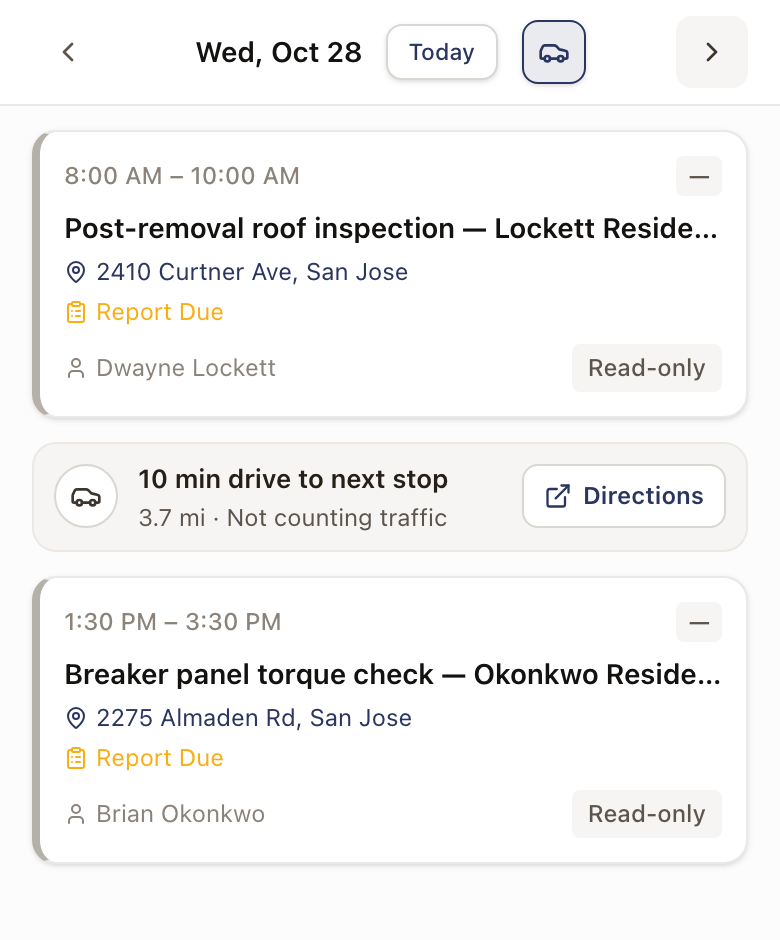
The Schedule tab lists a technician's appointments for the day, with the date, time window, address, and customer. Tapping a card opens the work order for that visit.
Work Orders
The Work Orders tab lists every work order assigned to the technician, with a badge showing how many need attention.
From schedule to report
Opening an appointment takes a technician to its work order, where they move the visit along: Mark En Route, then I've Arrived, then fill in and submit the required report, then Mark Complete. If a visit can't be finished, they tap the ⋯ beside Post Job Update, then Log Issue / Cannot Complete.
Post a job update
A technician uses Post Job Update to tell the office where a job stands. The button sits under the visit's status button at every status, and again in the Notes card.
- Tap Post Job Update.
- Type the update. Text is required.
- To add photos, tap Camera or Gallery. Once a photo is attached, Save to work order files appears, turned on. Turn it off to keep the photo on the update only, out of the work order's files.
- Tap Post.
The update shows in the Notes card and in the work order's activity. If your company has a Job update posted rule in Slack, it posts there too. See Connect Slack.
Viewing a technician's app as the Owner
As Owner, you can preview a technician's Schedule tab without touching their phone. From Settings → Team → Users, open a technician's row menu and choose View schedule. It opens their Schedule tab with a banner across the top and an Exit button; it's read-only, so you can look but not act on their behalf.
Guides in this section
- See your schedule and open an appointment
- Fill in and submit the report
- Mark an appointment as cannot complete
For how appointments get onto a technician's schedule in the first place, see How scheduling works.