
Fill in and submit the report
Write up the visit, add photos, and submit the report your work order requires.
Every appointment has a report attached to it, created automatically when the visit was scheduled. Fill it in before you mark the visit complete. If the office deletes the visit before anyone has started the report, the empty report is removed with it. A report with work in it stays on the work order, and you can still finish it.
Before you start
- The Technician role, and an appointment you're assigned to, marked In Progress.
Steps
1. Open the report
From the work order, tap Add Report, Complete report, or Finish report on the report card.
2. Write the Work Summary and add photos
Fill in Work Summary: what you did and how it went. This is required. Add any Photos for the visit below it.
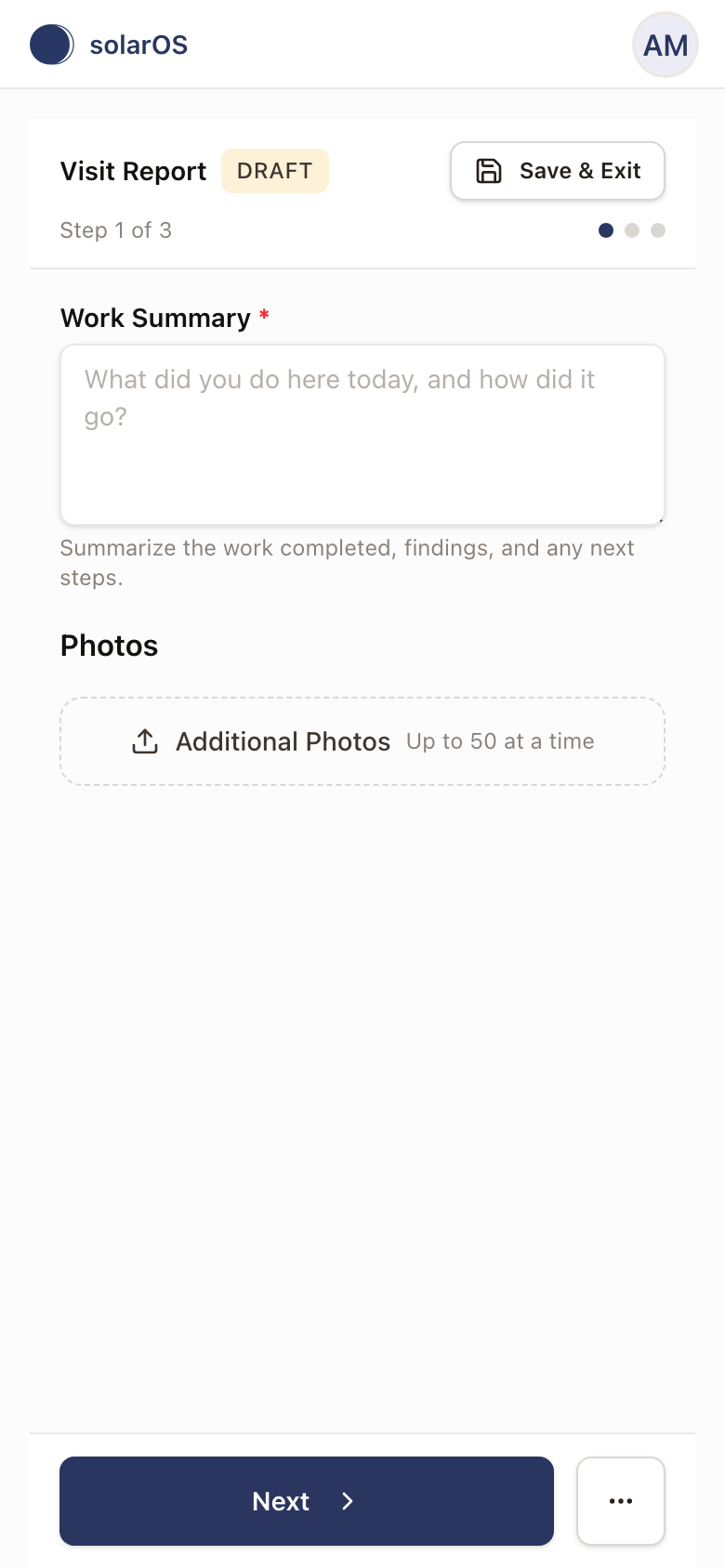
Some work types add their own sections here, for example fields specific to an inspection. Fill those in the same way, then tap Next. A permit inspection report ends its sections with Inspector. Type the inspector's name there.
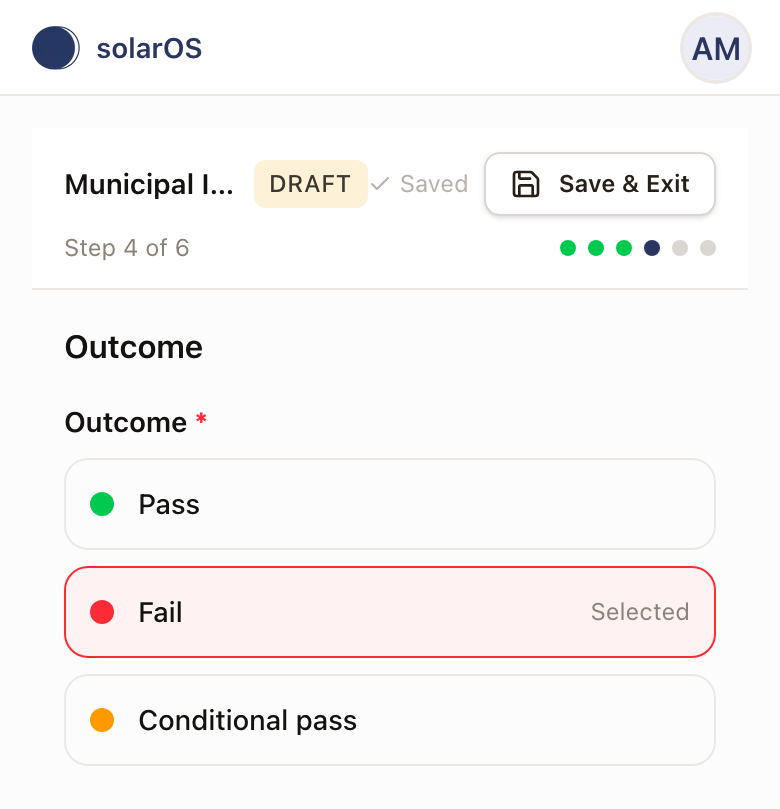
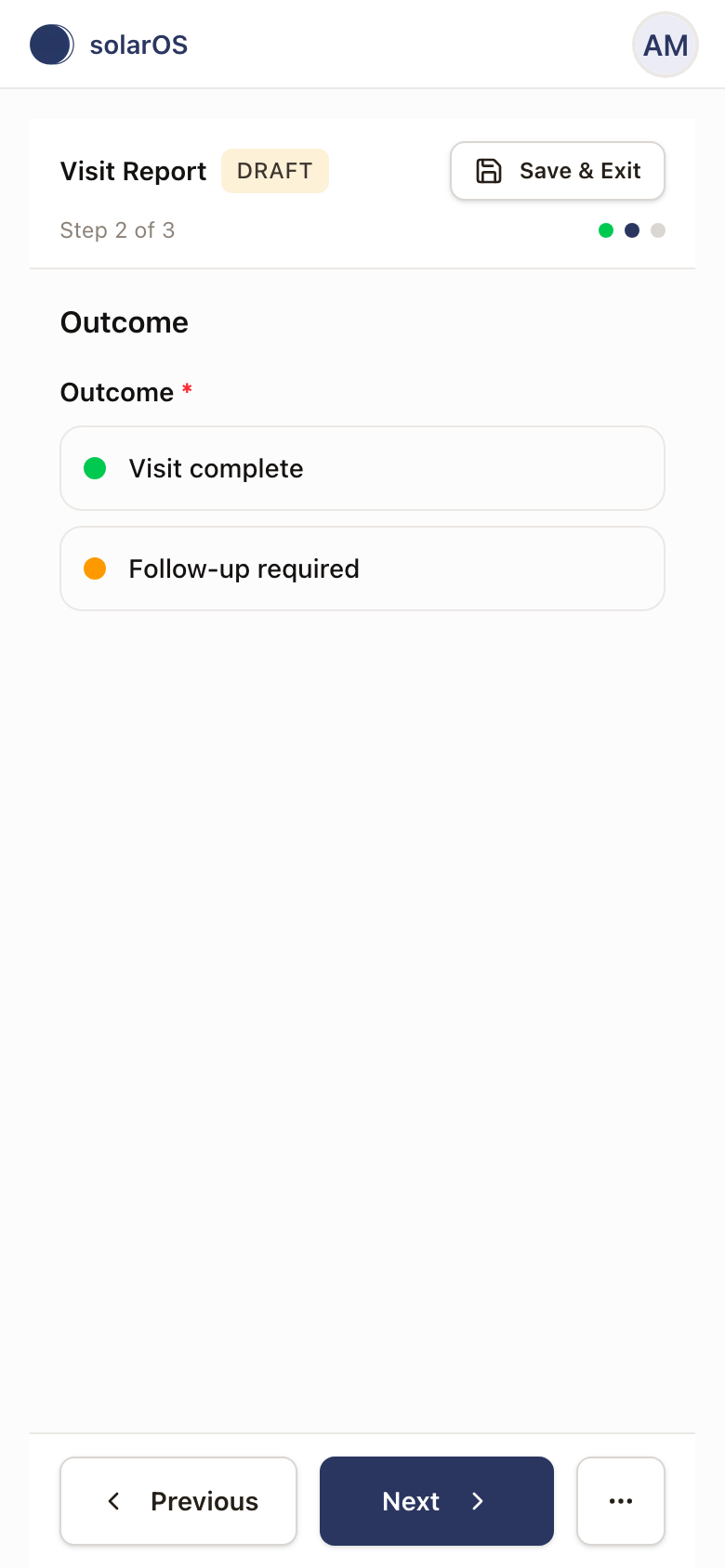
3. Set the Outcome
Choose Visit complete or Follow-up required.
On a permit inspection report the choices are Pass, Fail, and Conditional pass. Fail and Conditional pass add a Corrections step after the outcome. Tap Add Correction and give a Description. Choose Plans or Field work. If your company has subcategories under it, pick a Subcategory if one fits. Tap Add photos to take photos of the problem, or Choose photos to pick photos already on the report or the work order. A Fail needs at least one correction before you can continue. A Pass has no corrections.
4. Review and submit
The last step shows everything you entered. Check it, then tap Submit Report.
Check it worked
You'll see "Report submitted successfully." If the appointment isn't marked Complete yet, the app takes you straight into the Complete Work Order flow so you can finish the visit in the same pass.
On an hourly project, the Complete Work Order flow includes an Hours step before you confirm. Enter the hours each technician worked on the visit, in quarter hours, or choose Didn't attend for anyone who wasn't there. See Hourly pricing and billing.
Common problems
- I submitted the report but the visit still shows open. Submitting a report and completing the appointment are two separate steps. Go back to the work order and tap Mark Complete.
- I need to step away before finishing. Tap Save & Exit at the top of the report to keep your progress as a draft.
- I can open another technician's report but can't change it. A report another technician submitted is view-only for you. Ask the office to make the changes.
- "This report can't be saved from your account. Contact the office." The form is locked and won't save your changes. Contact the office.