
See your schedule and open an appointment
Find today's visits and move one from Scheduled to on-site.
See your appointments for the day and open one to start the visit.
Before you start
- The Technician role, and an appointment assigned to you.
Steps
1. Open the Schedule tab
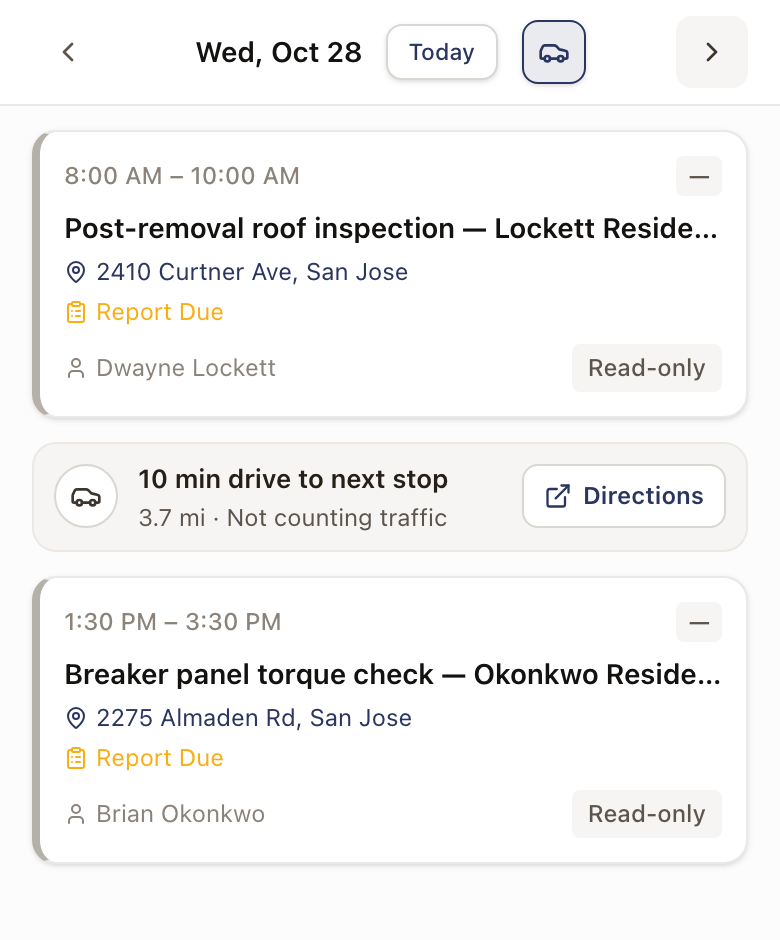
Tap Schedule at the bottom of the app. It shows today's appointments by default; use the arrows next to the date to look at other days.
2. Tap an appointment
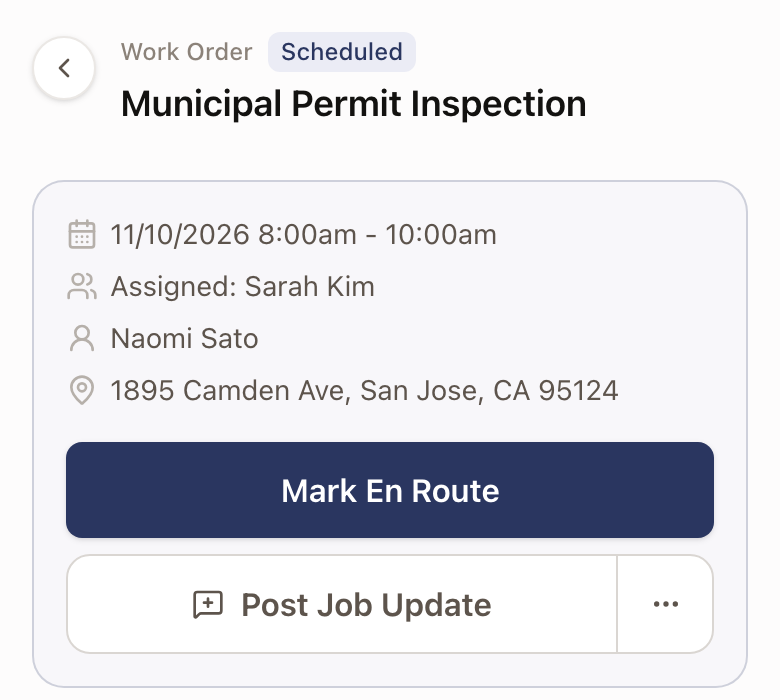
Tap a card to open its work order. It shows the customer, address, the current status, and the scope of the job. Lower on the page, the Project snapshot lists your company's answers for the project, such as site details the office recorded. It starts open. Tap its heading to fold it to a short summary, and tap again to open it. See Project snapshot.
3. Move the visit along
The button changes with where the visit is:
- Scheduled → tap Mark En Route.
- En Route → tap I've Arrived — Check In.
- In Progress → fill in and submit the report, then tap Mark Complete. See Fill in and submit the report.
If you tap En Route or Arrived by mistake, use Undo En Route or Undo Arrival to step back. There's no undo once a visit is marked Complete.
Drive times between visitsBeta
When you have two visits on one day, a card between them shows the drive to the next stop: the drive time and the distance, with Directions to open driving directions. The estimate doesn't count traffic. A drive over an hour shows in red.
Tap the car button next to Today to turn the drive cards off and on. Contact solarOS support to turn this on for your company.
Check it worked
The status badge at the top of the work order updates to match, and the same change shows up on the office's Dispatch Board.
Common problems
- I don't see today's appointment. Confirm you're looking at the right date. Also check that the office didn't leave it as a Placeholder: technicians don't see Placeholder appointments until the office promotes them to Scheduled.
- The visit needs to end early. Use Cannot Complete, not the status buttons. See Mark an appointment as cannot complete.