
How scheduling works
What an appointment is, who can be assigned to one, and how work moves from the Dispatch Board sidebar to a completed visit.
Scheduling is how a work order becomes a visit on a technician's calendar. This section covers appointments, technicians, and the Dispatch Board, the screen your office uses to place and track that work.
Appointments
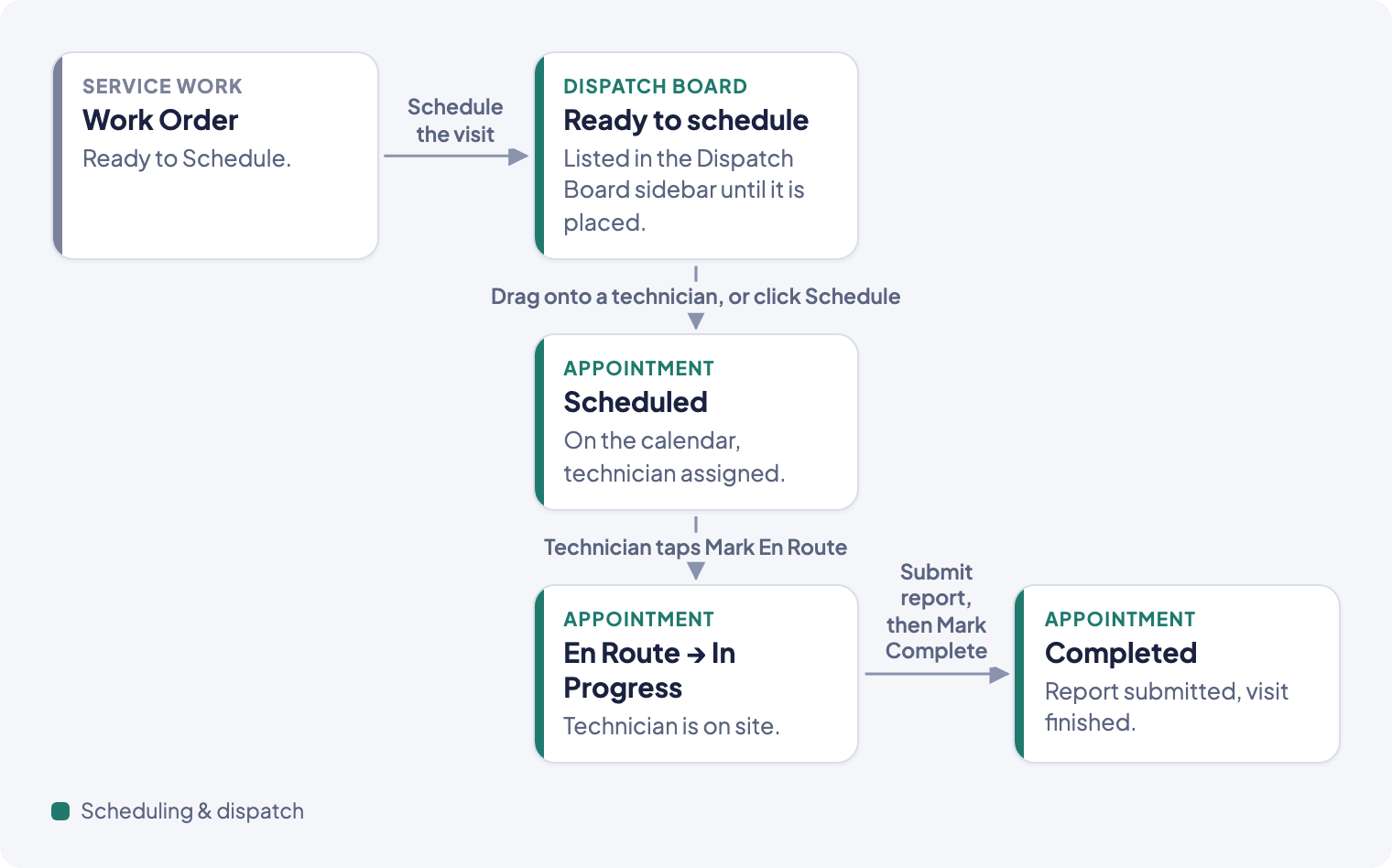
An appointment is one visit by one or more technicians, scheduled against a work order. Creating an appointment also creates the report the technician will fill out during the visit.
Every appointment carries two things:
- Status, which tracks the visit itself: Scheduled, Dispatched, En Route, In Progress, Completed, Cancelled, or Could Not Complete. A technician moves it from Scheduled through to Completed from their phone.
- Scheduling Confidence, a separate signal for how firm the booking is: Placeholder (a draft; the customer isn't notified, and the technician doesn't see the slot unless your company shows placeholders to technicians under Settings → Operations → Dispatch), Scheduled (committed; the technician sees it and you can notify the customer), or Confirmed With Client.
Technicians
A technician is a team member with the Technician role who can be assigned to appointments. Assign more than one technician to the same appointment for jobs that need two people, for example a removal-and-reinstall visit.
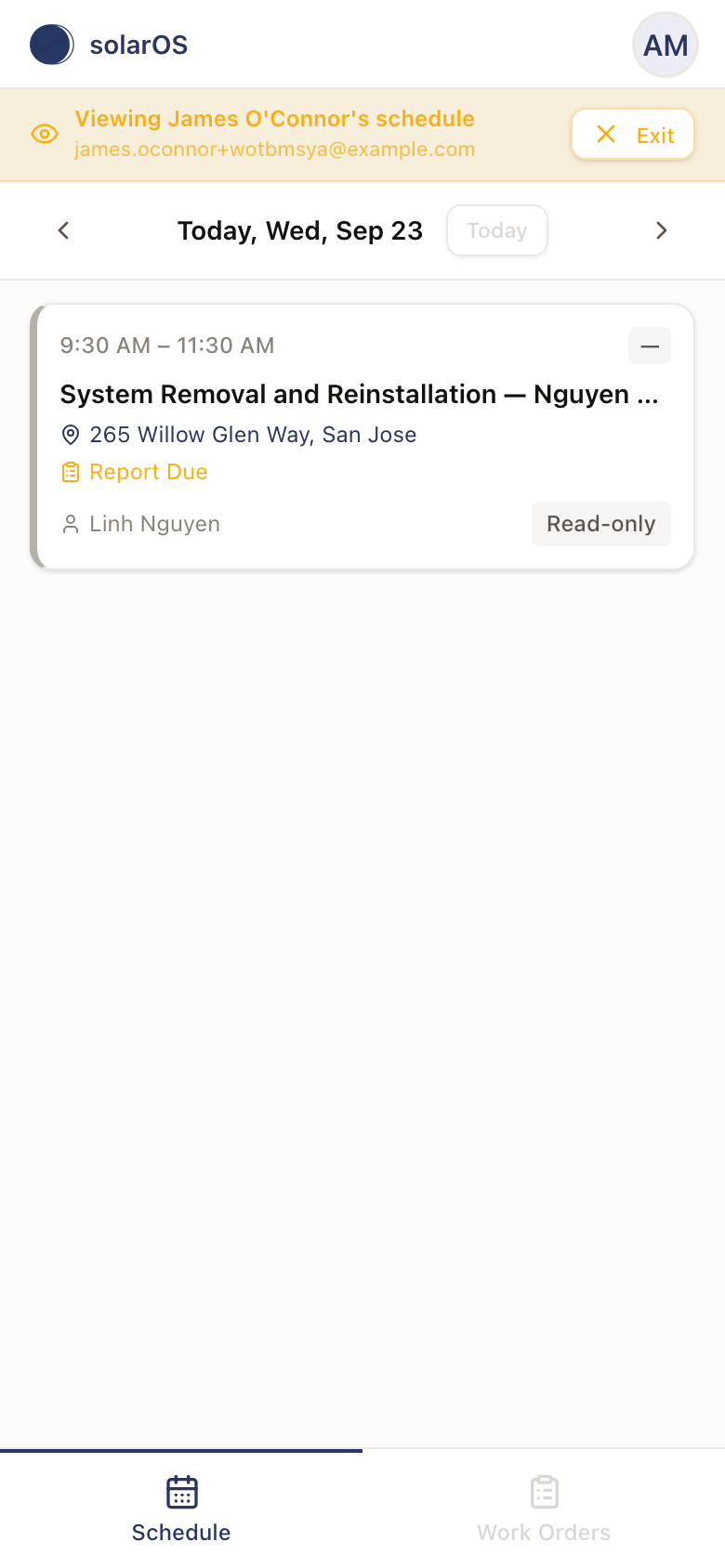
As Owner, you can preview what a technician sees without asking them to share their screen. From Settings → Users, open a technician's row menu and choose View schedule. It opens their Schedule tab in a read-only preview, with a banner showing whose schedule you're viewing and an Exit button.
The Dispatch Board
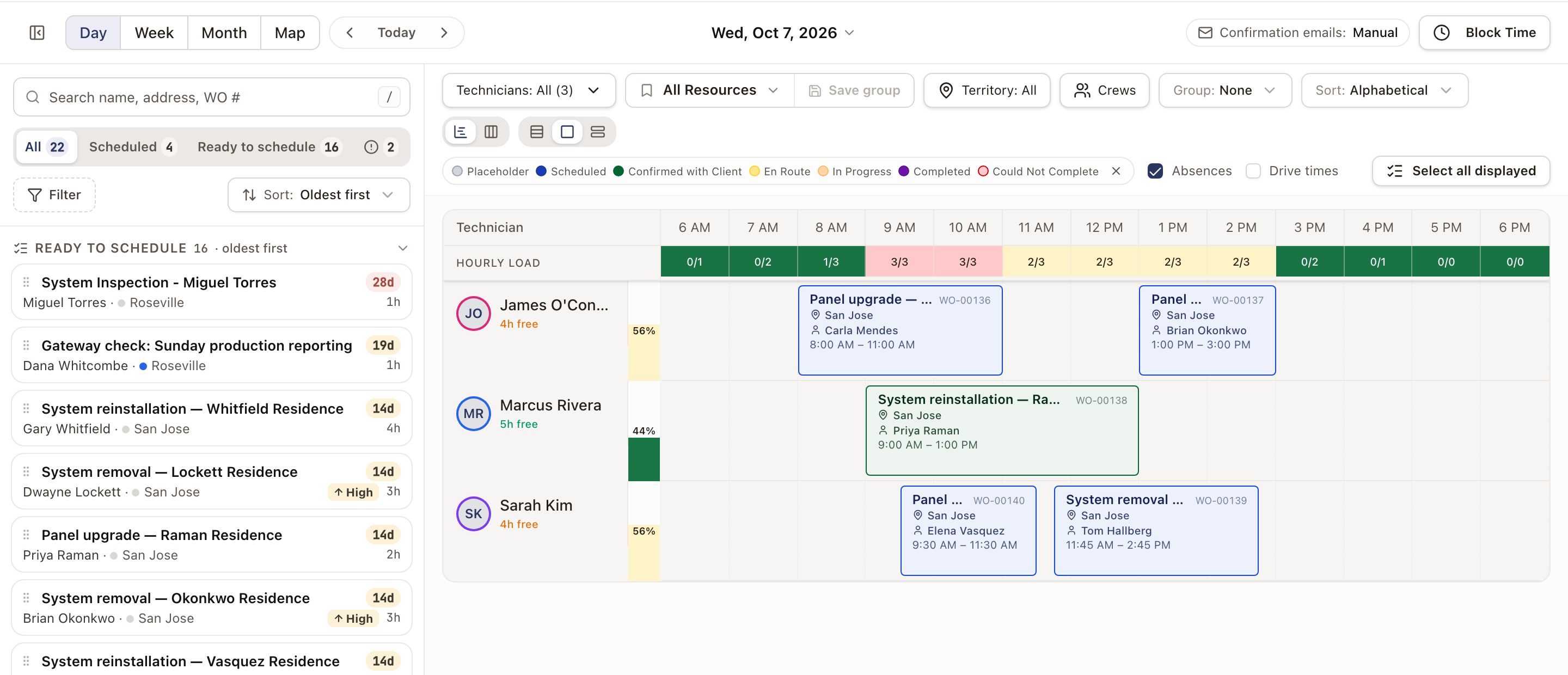
Operations → Dispatch Board is where your office places and tracks appointments. It has a sidebar on the left where you search for work and see what's ready to schedule, already scheduled, or blocked, and a calendar on the right showing every technician's day, week, or month. A map view lets you place unscheduled work by where it is.
Guides in this section
- Schedule a service visit
- Plan the day on the Dispatch Board
- Work the Dispatch Board sidebar
- Use the Dispatch work table and Work Orders table
- Slot in work from the map
- Reschedule or reassign an appointment
- Cancel or unschedule an appointment
- Send an appointment confirmation
- CrewsBeta
For what a technician does with an appointment once it's scheduled, see The technician app.