
Plan the day on the Dispatch Board
Use the Dispatch Board's sidebar, calendar, and map to place and track appointments.
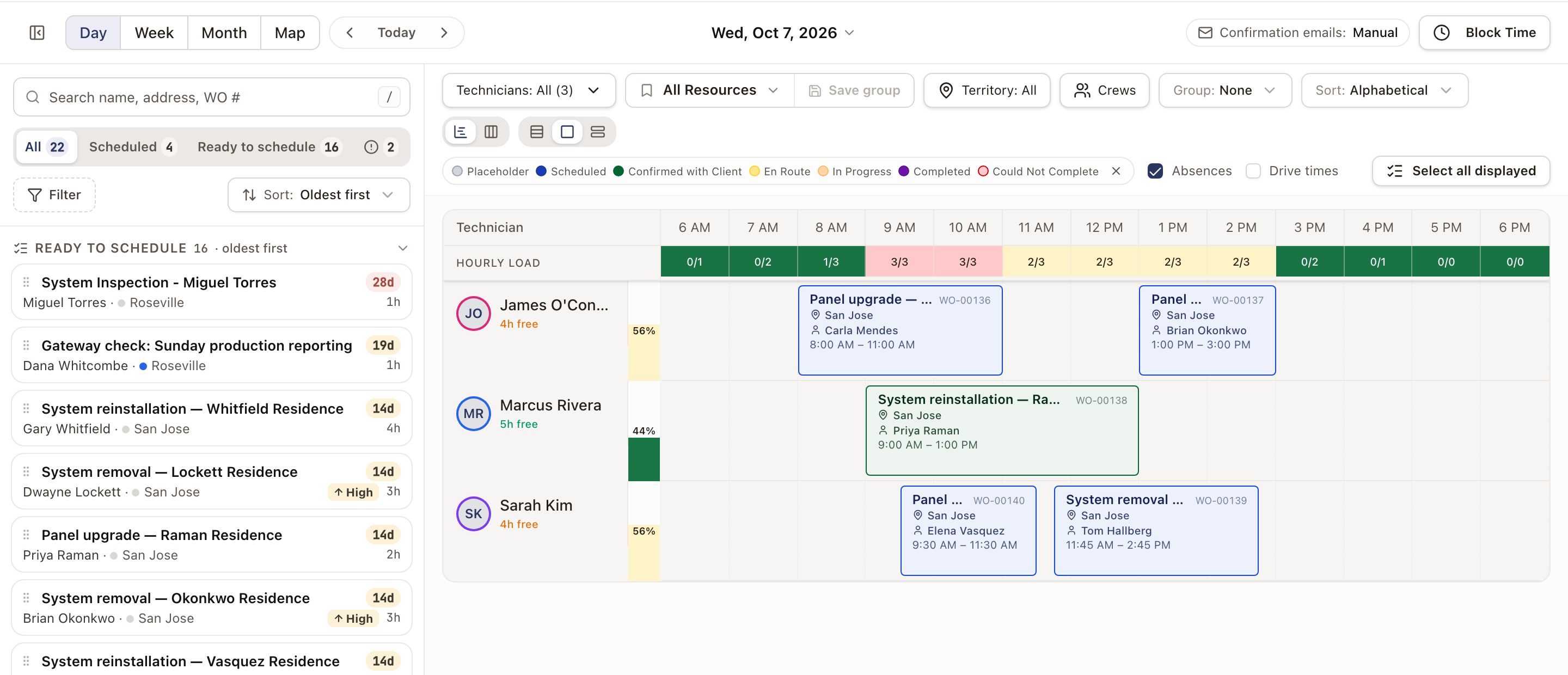
Operations → Dispatch Board is where your office places work on the calendar and keeps an eye on the day. It lists work that needs a visit next to every technician's calendar.
Before you start
- The Owner, Admin, Operations Manager, or Operations User role.
Steps
1. Choose a view
Use the Day / Week / Month / Map toggle at the top left. Day and Week show a calendar grid with a lane for each technician. Week runs Sunday to Saturday. Month shows the whole month. Map shows technician stops for the selected day and lets you schedule from white pins. With drive paths on, hover a route line on the map for its drive time, or click it for directions in Google Maps. See Slot in work from the map. Dragging a card onto the calendar only works in Day or Week view.
The board reopens on the view and date you last used in this browser, unless you open it from a link that names a view.
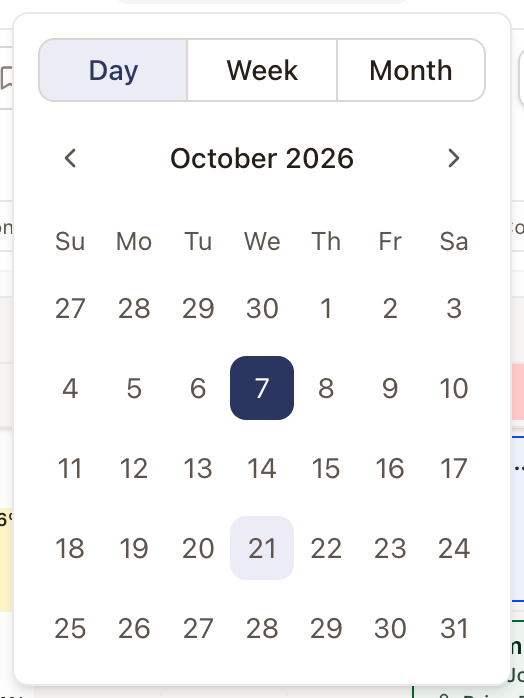
To jump to another date, click the date at the top of the board. Choose Day, Week, or Month, then pick a day, a week, or a month. A day you pick opens in Day view, including when you were on Map.
The controls above the calendar narrow what you see:
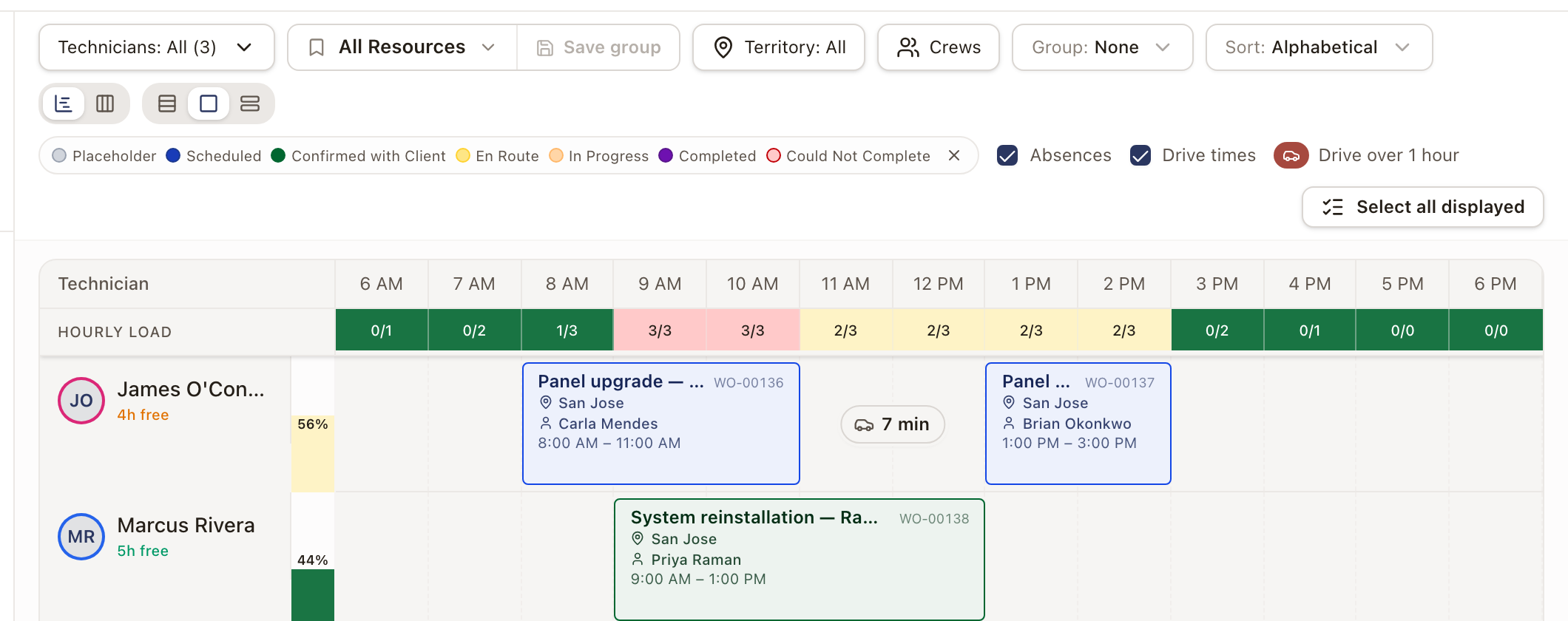
- Technicians: All (3) lets you tick which technicians to show.
- All Resources applies a saved group of technicians. After you choose technicians and filters, click Save group to keep them under a name.
- Territory shows only technicians who cover the territories you tick, or No coverage for technicians no territory covers. The same setting is in the sidebar's Filter menu.
- Group groups the lanes by Territory.
- Sort orders the lanes: Alphabetical, Utilization ↓, Utilization ↑, or Free hours ↓.
- The legend names the appointment colors: Placeholder, Scheduled, Confirmed with Client, En Route, In Progress, Completed, and Could Not Complete. Click the x on the legend to hide it, and Show legend to bring it back.
- Absences shows or hides blocked time on the lanes.
- Drive times appears in Day view when your company has drive paths on. See Drive times between visits below.
- Select all displayed selects every open work order showing on the board. See Work the Dispatch Board sidebar.
2. Work the sidebar
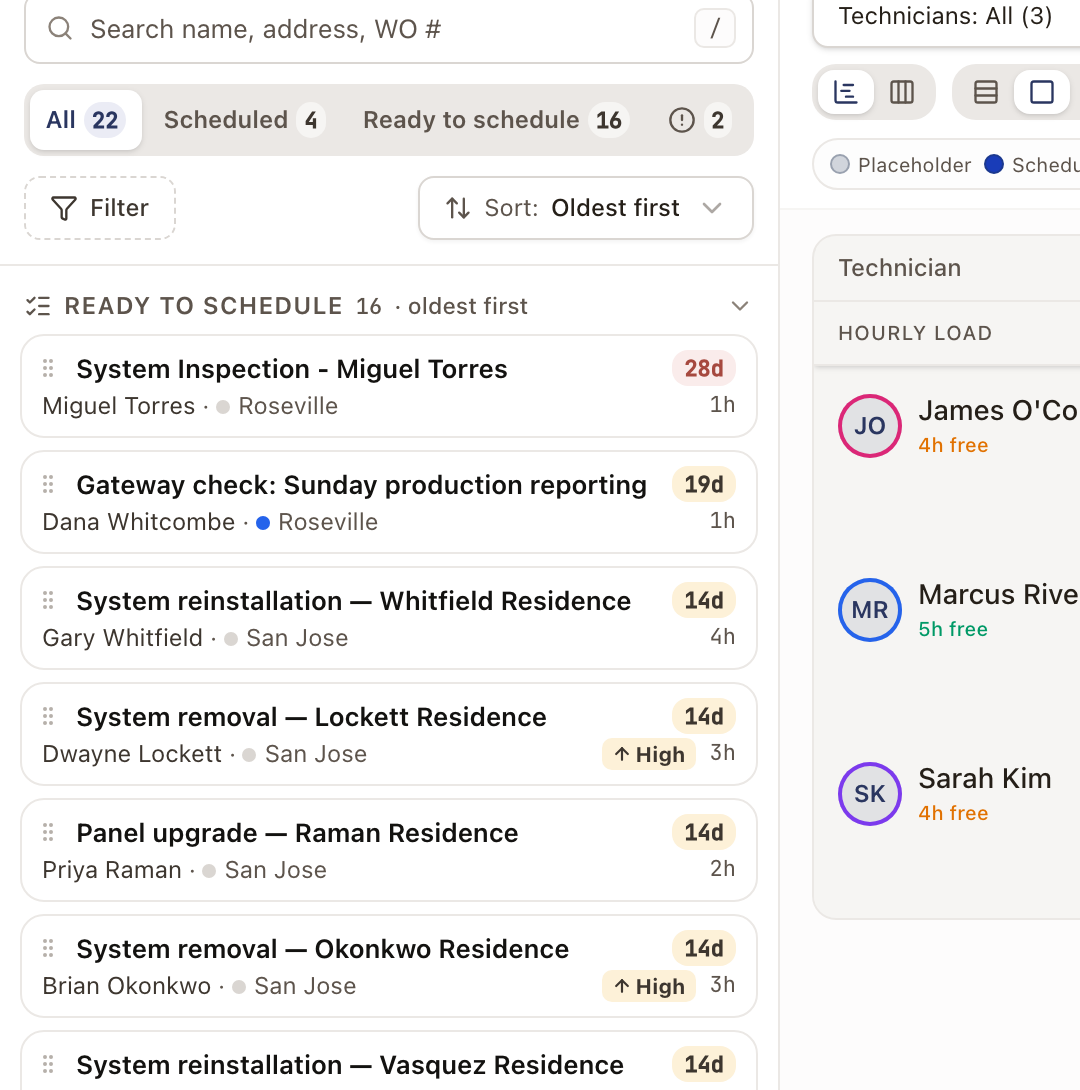
The sidebar on the left lists work that's ready to schedule, work already scheduled from today on, and blocked work. It starts with a search box and buttons for All, Scheduled, Ready to schedule, and blocked work. Ready work is listed oldest first, and each card shows how long it has been waiting. Click Schedule on a card to open the Schedule Appointment drawer, or drag the card onto a technician's slot. See Work the Dispatch Board sidebar for searching, filtering, and acting on several work orders at once.
3. Drop and confirm
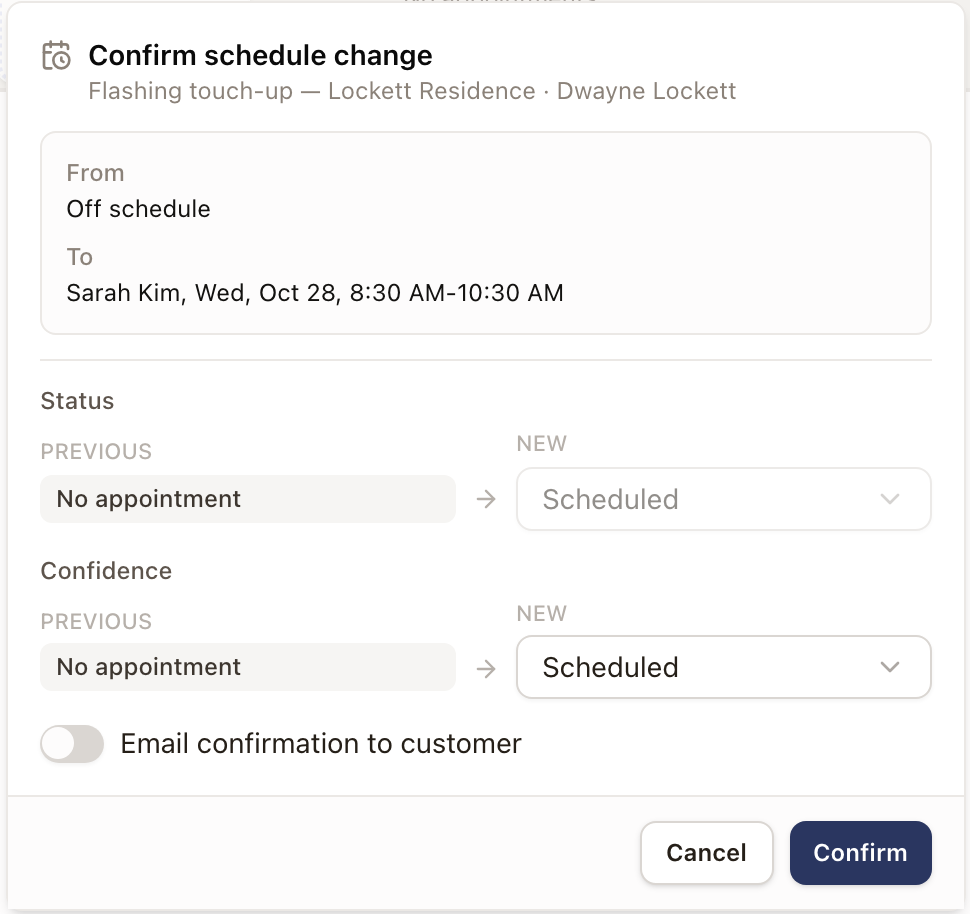
When you drop a card onto a slot, a Confirm schedule change dialog shows the technician, date, and time before anything is saved. It also shows the status and confidence the visit will have, and an Email confirmation to customer switch that starts from your company setting. If the customer has unpaid invoices, the same unpaid-invoices pill as on the scheduling drawer sits under the work order's title, for people with billing access. Check it, then click Confirm.
4. Open an appointment from the calendar
Click any appointment on the calendar to open its popover: customer contact details, the visit window, assigned technicians, and the Scheduling Confidence dropdown. From here you can Edit, Unschedule, or Cancel it, jump to View Work Order, open Schedule Follow-up to book another visit on the same work order, or Send Confirmation. See Reschedule or reassign an appointment and Cancel or unschedule an appointment for what those do.
5. Block time for a technician
Click Block Time in the header to open Block Time Off. Choose the Technician and an Absence Type (PTO, Sick, Training, Personal, or Away), set All Day or the times, and set the Start Date and End Date. It shows as a block on their calendar and keeps them out of scheduling conflicts for that window.
Switch the Day layout and row size
In Day view the board has two layouts. Use the first group of icon buttons, above the legend:
- Rows puts each technician in a row, with time running across.
- Columns puts each technician in a column, with time running down.
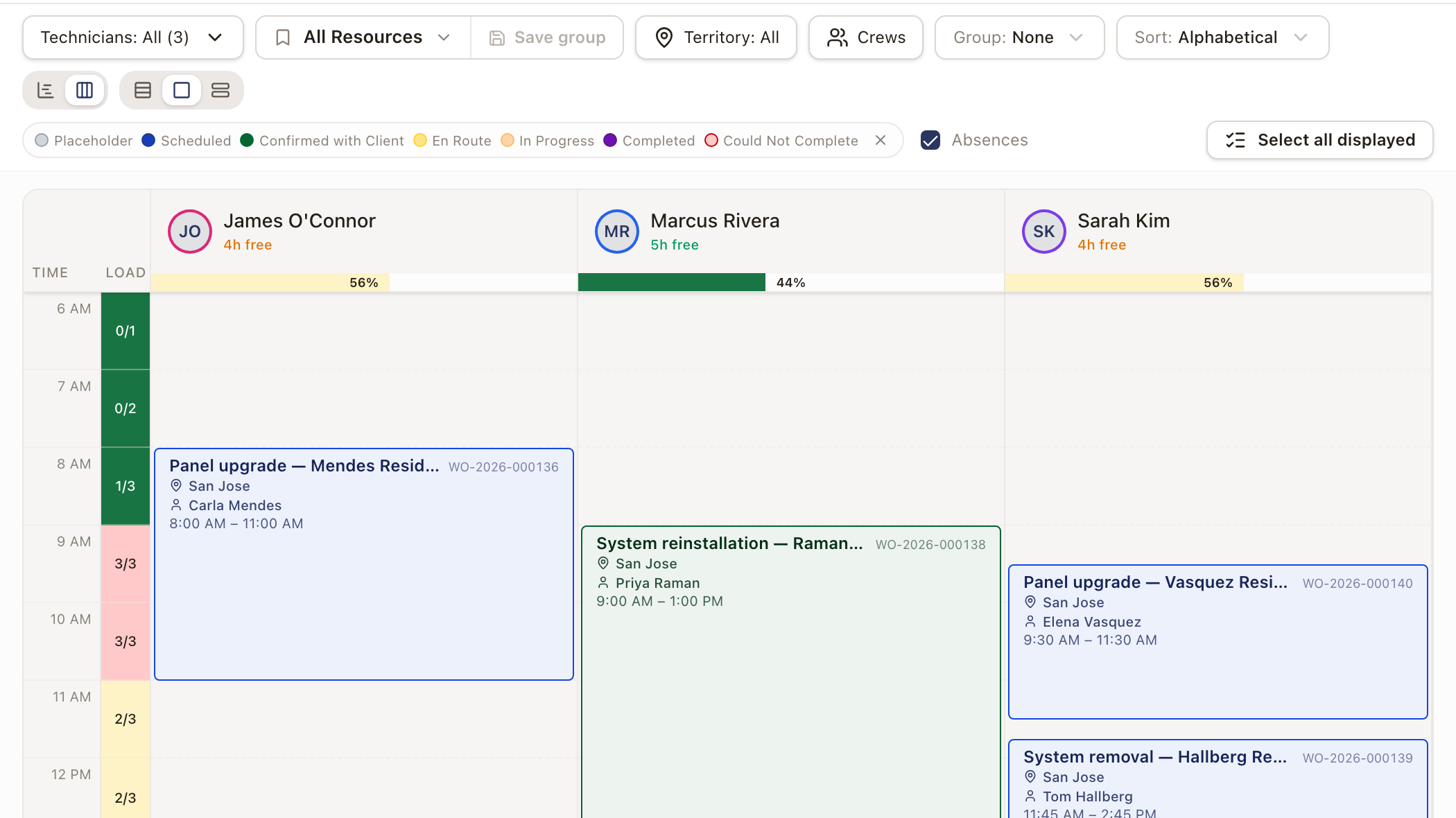
The second group of three buttons sets the size: Compact, Standard, and Comfort. In Rows they change the row height, and in Columns the column width. Week view has the size buttons only. The board remembers your layout in this browser.
See a technician's setup and choose their color
Click a technician's initials at the start of their lane, or at the top of their column. A card opens with:
- Color on the board and map: Automatic, or one of the colors. A small dot on a color means another technician already uses it.
- Working hours, with the days and time zone.
- Territories: the Operations territories they cover. The default is marked.
- Homebase.
- Next time off.
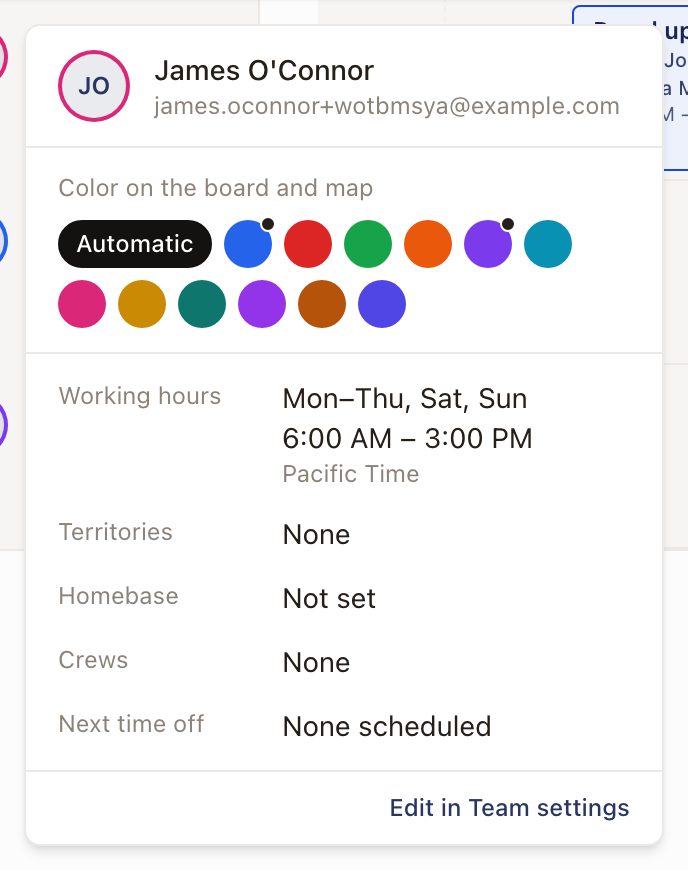
Anyone who can schedule can pick the color. It rings the technician's initials on the board, in the sidebar, and on their pins and routes on the map. Automatic lets solarOS pick one.
To change anything else, click Edit in Team settings at the bottom of the card, or open Settings → Users, choose Edit user from the row menu, and use the Scheduling section. The color is under Dispatch color there. See Set up technicians for scheduling.
Drive times between visitsBeta
Contact solarOS support to turn it on for your company.
With drive paths on, tick Drive times next to Absences in Day view. A marker between each pair of visits in a lane shows the drive between them. Drives over an hour show in red, and the legend adds Drive over 1 hour. Hover a marker for the miles, which don't count traffic. Click it for directions in Google Maps. A marker reads No drive time when an address can't be placed or the drive can't be looked up. Drive times starts off, and the board remembers your choice in this browser.
Crews on the boardBeta
Contact solarOS support to turn it on for your company.
With crews on, a Crews button appears among the calendar controls and opens a panel for managing standing teams. Group gains a Crew option, and the technician card lists the crews a technician belongs to. See Crews.
Check it worked
Placed work moves from Ready to schedule to Scheduled in the sidebar and shows as a card on the technician's calendar, colored by its current status.
Common problems
- Dragging doesn't do anything. Switch to Day or Week view; Month and Map don't support drag scheduling. Only cards under Ready to schedule can be dragged. On the map, use a white pin instead.
- A technician doesn't show up in the calendar. Check Technicians and Territory above the calendar; either may be narrowed to a subset.
- The board opens on a different day than today. It remembers the day you last looked at. Click Today, or click the date and pick a day.