
Set up technicians for scheduling
Add a technician, make them schedulable, and set which territory they cover.
A technician needs a Technician role to work from the Technician app, and needs to be marked schedulable before they show up on the Dispatch Board.
Before you start
You need the Owner or Admin role.
Add a technician without a login yet
If the technician doesn't need to sign in right away, add them as a placeholder first:
- Go to Settings → Users and click Invite User.
- Click Add without login access. The drawer switches to Add User.
- Fill in First Name, Last Name, Email Address, and Phone.
- Click Add User.
To give them the Technician role, open the user's row menu on Settings → Users, choose Edit user, and open Role & access. Set Role to Technician and confirm the change.
If they're ready to sign in now instead, use the regular Invite User flow and pick Technician as the role from the start; you can skip the extra step.
The Edit user drawer saves your changes as you make them. The header shows All changes saved when it's done.
Make them schedulable
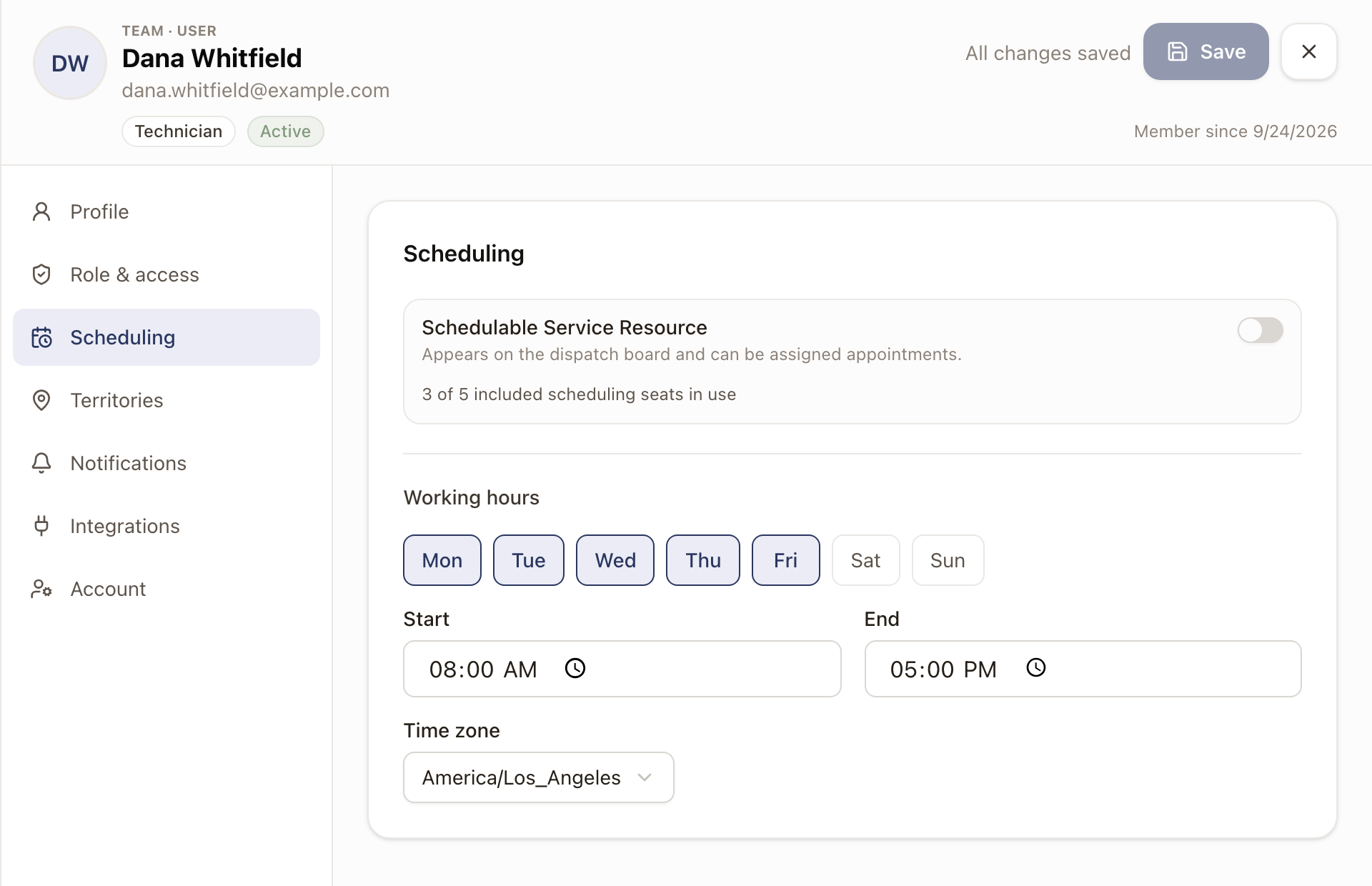
In the same drawer, open Scheduling. Turn on Schedulable Service Resource.
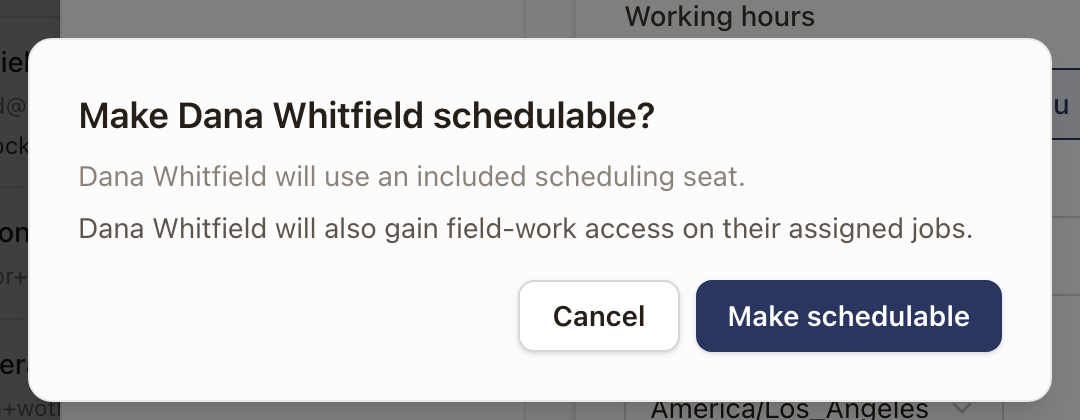
A dialog asks you to confirm. If your organization still has included scheduling seats, it is titled with the technician's name, for example Make Dana Whitfield schedulable?, and uses one of them:
If your organization is already at its included seat limit, the dialog instead offers to add a paid scheduling seat, with its price, before continuing. Only click Add paid seat if you mean to add billed seat capacity. Click Cancel to leave the technician off the dispatch board for now instead.
Below the switch, set their Working hours: the days they work, a Start and End time, and a Time zone. The Dispatch Board uses these to show each technician's free hours and to warn you when a visit falls outside them. Once someone is schedulable, the section also has a Dispatch color, which sets their color on the board and map, and Upcoming time off.
Set which territory they cover
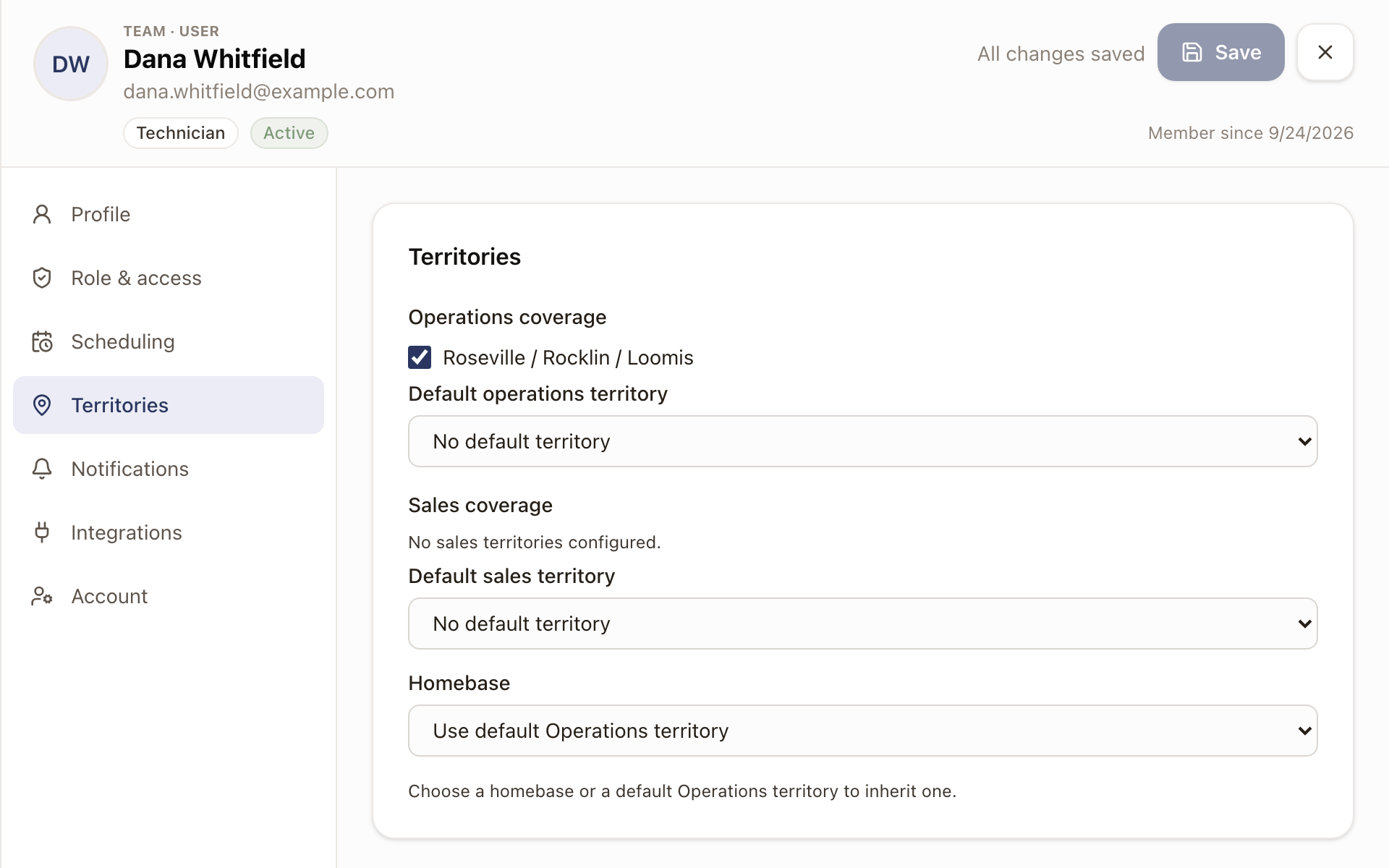
In the same drawer, open Territories. Under Operations coverage, check the territories this technician should be assigned work in. This is what actually drives which technicians the Dispatch Board considers for a job in a given area. Choose a Default operations territory if one of them is their main area. A Homebase is where their route starts, and it can come from the default territory.
How a technician signs in
Once they accept their invitation, a technician signs in at the same solarOS address as everyone else, but lands on the mobile-first Technician app instead of the main app. See The technician app for what they see there.
Check it worked
The technician appears on the Dispatch Board's technician list, with their free hours for the day. Their territory shows up under the Territory button above the calendar. Click their initials on the board to see their working hours, territories, and homebase. See Plan the day on the Dispatch Board.
Common problems
Turning on Schedulable asks for a paid seat. Your organization is already using its included scheduling seats. Add a paid seat if you want this person actively dispatched, or leave them off the schedule.