
Set up customer emails
Set who your emails come from, see what solarOS sends customers automatically, and check what went out.
solarOS sends a set of transactional emails to customers on its own; you only need to set where they appear to come from.
Before you start
You need the Owner or Admin role.
Set your sender identity
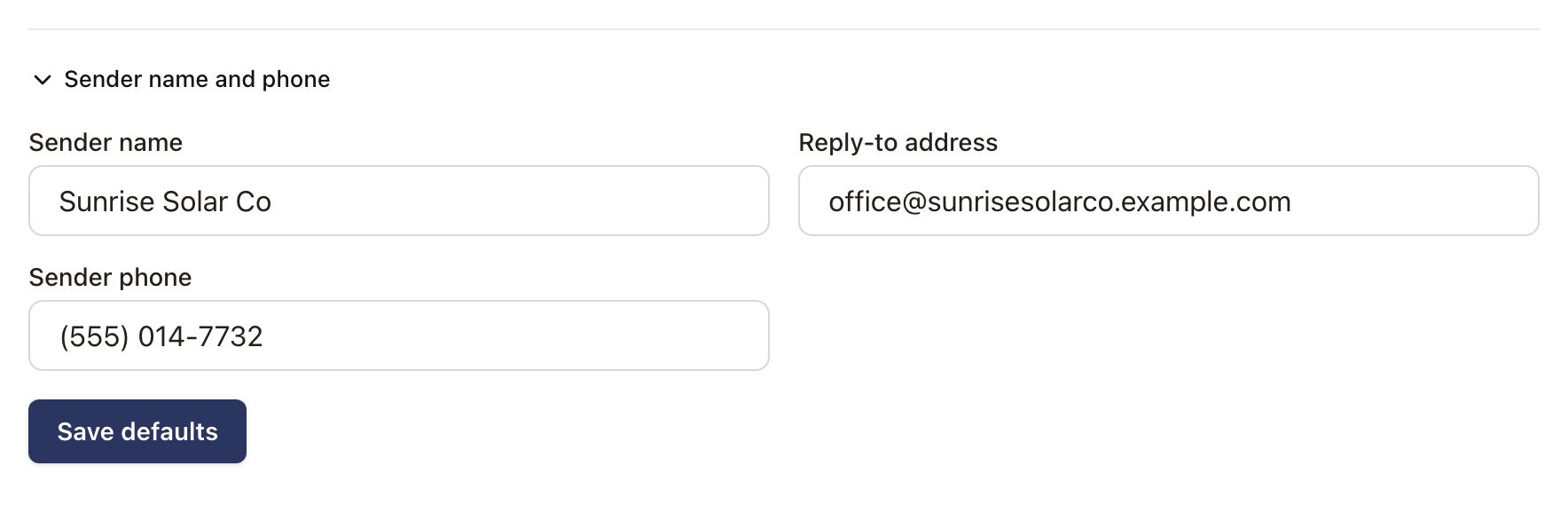
Go to Settings → Communications → Sender identity and fill in:
- Sender name: how your organization appears as the sender.
- Reply-to address: where a customer's reply goes.
- Sender phone: shown alongside your emails.
Click Save defaults.
If your company sends from its own email domain (see below), this page is named Email domains instead. Open Sender name and phone on that page to reach the same fields.
Customer-facing emails always show solarOS as a fallback sender. Emails without a customer-facing preview, like team invitations and password resets, stay on the solarOS domain no matter what you set here.
Send from your own email domainBeta
Settings → Communications → Email domains lets you add the domains your team and shared addresses use. Click Add domain, verify each domain once, then choose an address in any customer email preview. See Send from your email domain. Contact solarOS support to turn it on for your company.
What solarOS sends customers, automatically
You don't build these; they go out on their own as work happens. The Email log's Type filter lists them:
| Goes out when | |
|---|---|
| Quote sent | A rep sends a quote. |
| Quote acceptance confirmation | A customer accepts a quote. |
| Quote not selected | A quote is marked not selected. |
| Appointment confirmation | A service visit is scheduled. |
| Agreement for signature | An agreement is ready for the customer to sign. |
| Fully executed agreement | Every signer has signed. |
| Report sent | A visit report is shared with the customer. |
| Invoice sent / Invoice resent | An invoice goes out. |
| Payment receipt | A payment is collected. |
| Checkout confirmation | A customer completes checkout. |
| Portal invitation | Staff invite a customer to the portal, or send a login link. |
| Monitoring alert outreach | Staff email a customer about a monitoring alert. |
| Monitoring connection outreach | Staff nudge a customer to connect or reconnect a system. |
| Monitoring health alert | A monitored system needs attention. |
| Monitoring performance report | Staff send a performance report. |
| Plan offer sent | A gifted or discounted monitoring plan offer goes out. |
These go to customers. For what your own team gets notified about, see Choose which notifications your team gets.
Check what went out
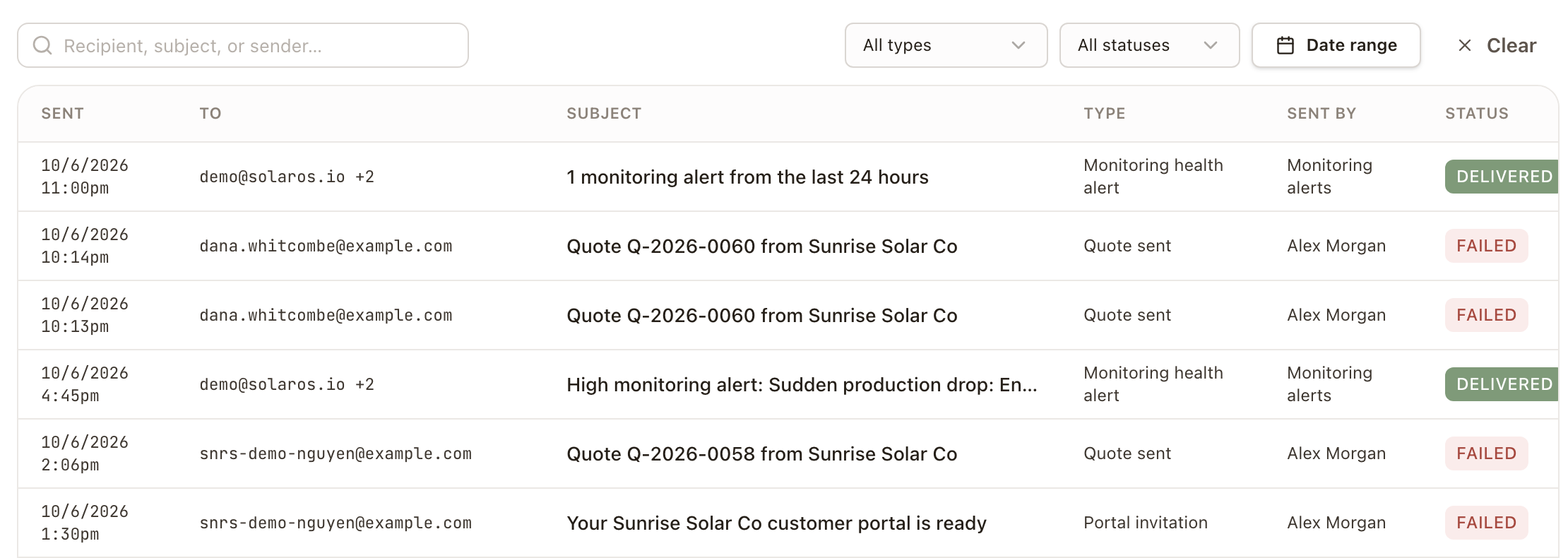
Go to Settings → Communications → Email log. Every email is listed with its recipient, subject, type, who sent it (or which automated process), and its delivery status (Sent, Failed, Delayed, Delivered, Opened, Bounced, Marked as spam). Search by recipient, subject, or sender, or filter by type, status, or Date range. Click Clear to remove the filters.
Check it worked
Your sender name, reply-to, and phone appear on the next customer-facing email your organization sends. The Email log shows it, with a status.