
How projects work
The project record chain, stages, work items, dependencies, and statuses, as they appear on screen.
A Project is the install work a customer bought: a solar and battery install, a panel cleaning visit, a system inspection, and similar jobs. It belongs to a Customer and a Property, and it's where a project manager tracks everything from signed contract to finished, paid work.
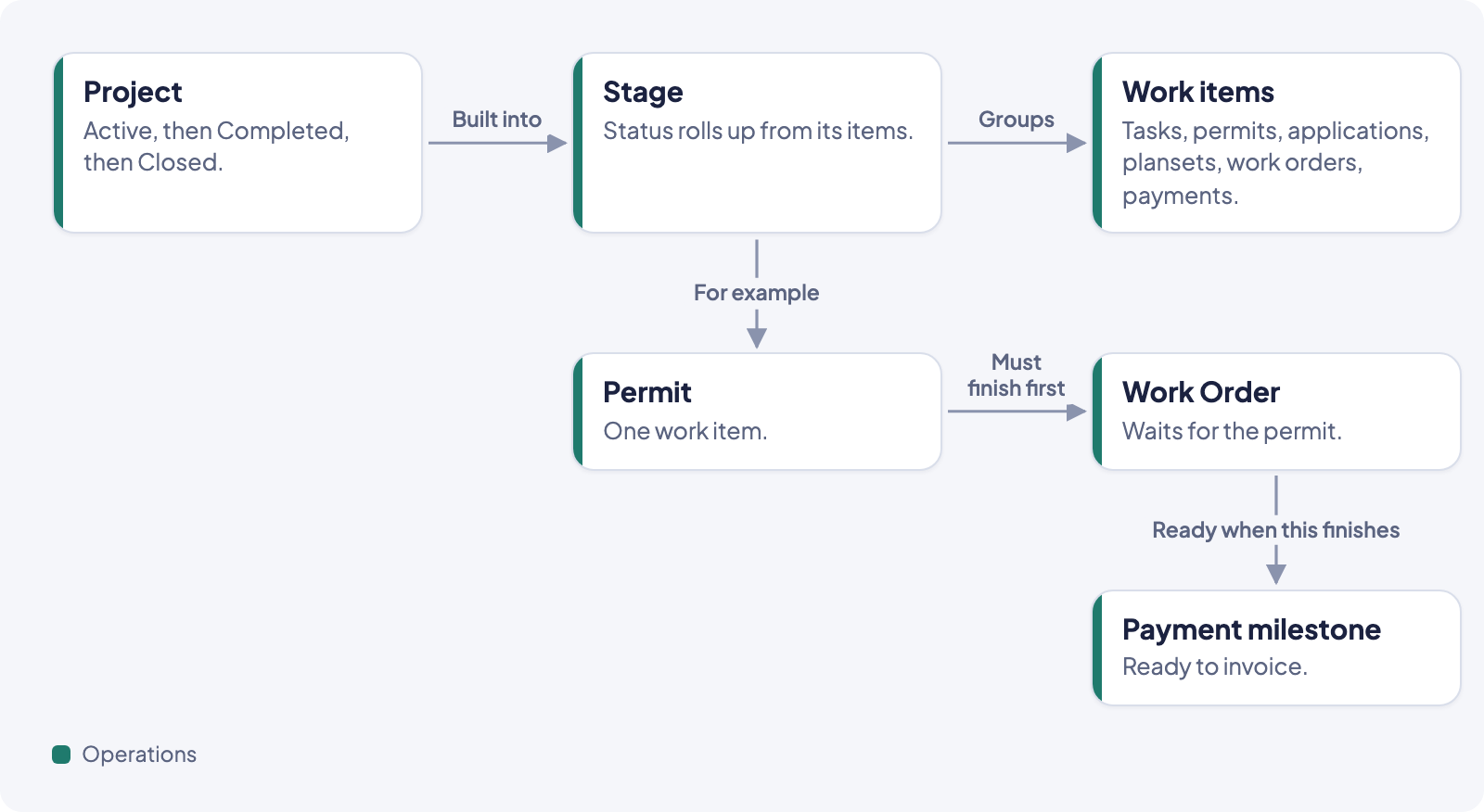
How a project gets built
Most projects are built from a Project Template: a preset list of Stages, each holding work items (tasks, permits, applications, plan sets, work orders, payments, and more). A project can come from four places, shown as the Origin filter on the Projects list:
- From Quote: a sales Quote is marked Accepted. See Create a project.
- Manually Created: someone clicks New Project, picks a project template or none, and enters what a quote would have carried. See Start a project without a quote.
- From Case: office staff start resolving a service issue directly, without a quote.
- Subscription Fulfillment: work owed under a maintenance plan.
A project template is built in Template Studio, and which template applies to which kind of quote is set in template mappings. Both are done by an Owner or Admin.
Stages and work items
A project's Stages run in order (for example: Onboarding, Design, Permitting, Procurement, Installation, Inspection & PTO, Closeout). Each Stage holds a set of work items. A Stage's own status (Not Started, In Progress, Completed, or Skipped) rolls up automatically from the status of its items. Nobody sets a Stage's status by hand.
Work items come in several types, each with its own record and set of statuses:
| Type | What it tracks |
|---|---|
| Task | A simple to-do: Pending, In progress, or Completed. |
| Permit | A jurisdiction permit, submitted and approved. |
| Permit inspection | A required inspection of a permit. Each attempt is a visit work order, and the step completes when an inspection passes. |
| Application | A filing such as a loan, utility interconnection, or HOA review. It's worked through its milestones. The Application step is milestone 1, and each later milestone is a step of its own. |
| Planset | The engineering plan set, through design review. |
| Work Order | A visit or job on site, scheduled and worked like any other work order. |
| Payment | Money you're waiting on. The step waits for the payments due at one event, or for one payment on the project's payment schedule. |
| Material Request | Materials ordered for the job. |
See Add and manage project items for how to work each type. Permit inspections come from the project template, so they aren't in the Add work menu. Application is in the menu, but an application's later milestone steps aren't: they come from the project template, or from Add to plan on the milestone in the application drawer. See Work permit inspections on a project and Work an application and its milestones.
Dependencies
A work item can depend on another one finishing first. Open the item's ⋯ menu on the Work tab and click Show dependencies to see Needed first (what has to finish before this can start) and, from the other side, Then unlocks (what this one is blocking). Until its dependencies clear, an item isn't ready and can't be worked. See Edit project structure and dependencies.
The project team
Each project has a Team: an Owner (the project manager), a Salesperson, and other roles your organization uses (for example Designer, Permit Coordinator, Procurement, Scheduler, Finance). Each role is filled by a person, or shown as Queue when nobody's claimed it yet. You can see who's on a project from the Team box on the project page.
Working a project day to day
The project page's Work tab is where a project manager spends most of their time: the list of work items grouped by stage, with the one next action as the button at the top right of the page and problems marked on the steps they affect. Work view at the right of the tab bar switches between List and Flow, which lays the project out along its dates. See Work a project day to day.
Money
A project's Billing tab holds its money: a summary of the contract value, what's invoiced and collected, and the balance due, then Payment schedule, Invoices, and Payments tabs, and the project's pricing. In the payment schedule, milestones become ready to invoice either automatically, when a chosen stage or work item finishes, or manually. See The Billing tab and Add and manage project items.
Find your projects
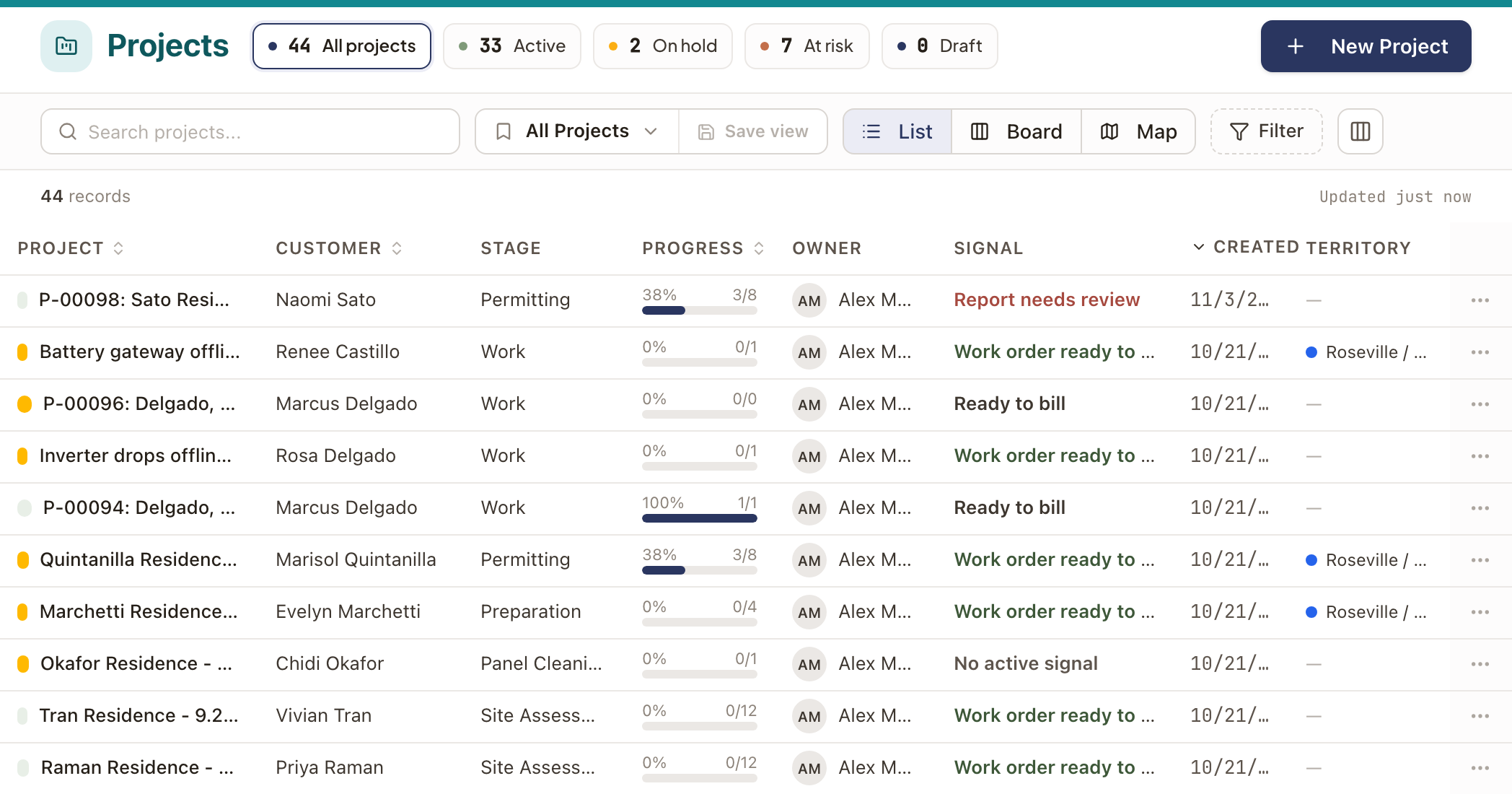
Operations → Projects lists every project except drafts, with its Customer, Stage, Progress, Owner, Signal (what's currently true about it, such as "Work order ready to schedule" or "Report needs review"), and the date it was Created. Drafts are under the Draft chip. Switch between List, Board (grouped by the selected template's stages), and Map (pins at each project's property) from the top of the page. Filter narrows by Owner, Status, Health, Origin, template, and more, including On hold and Open change order. A date filter, such as Created or Modified, counts each day on your company's clock, and a range includes its last day.
The chips at the top count your projects, for example Active, On hold, At risk, and Draft. Click one to filter the list to it. The columns button adds more columns: Number, Status, Template, Modified, and Open change order, which shows the number of a draft or sent change order on the project. Search matches a project's number as well as its name.
Permits and Applications lists
The Operations sidebar has lists under Projects for Permits and Applications, among others. These two show every permit and every application across all your projects, so you can see what's waiting on a jurisdiction, lender, or utility without opening each project.
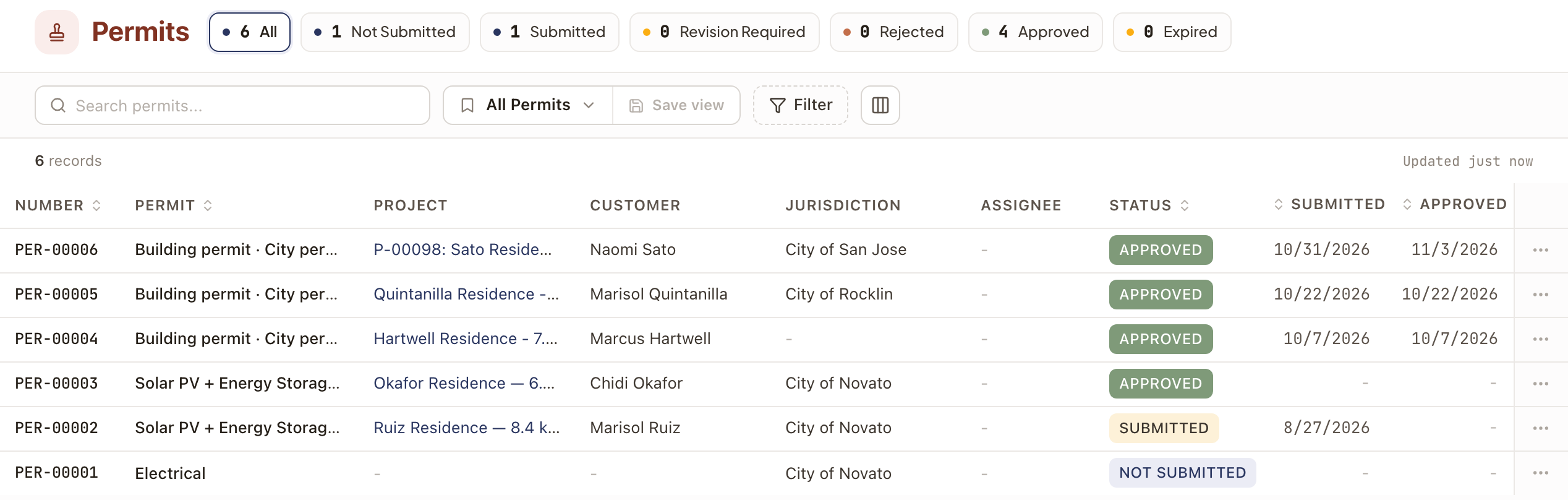
- Permits: Number, Permit, Project, Customer, Jurisdiction, Assignee, Status, Submitted, and Approved dates.
- Applications: Number, Application, Submitted to, Reference #, Project, Customer, Assignee, Status, and the Submitted and Approved dates.
- Plansets: plan sets across projects. See Plansets.
- Holds: the open holds on every project. See Place and resolve a project hold.
Each list's Number is the record's own number, such as PER-00004, and search matches it. Assignee is the person on the record's first step in the project plan. Click the project name to open the project.
Next to the page title, one chip per status narrows the list to it, beside All. Permits has Not Submitted, Submitted, Revision Required, Rejected, Approved, and Expired. Applications has Not submitted, In progress, Needs more, Approved, Denied, and Expired. Plansets has Draft, With design, Ready, Sent to client, Revision required, and Approved. To find cancelled records, use the Status filter.
Click Filter to narrow further. Status takes several choices at once on all three lists.
| List | Other filters |
|---|---|
| Permits | Assignee, Project owner, Permit type, Jurisdiction, Territory, and dates for Submitted, Approved, Expires, and Created |
| Applications | Assignee, Project owner, Application type, Submitted to, Territory, and dates for Submitted, Approved, and Created |
| Plansets | Assignee, Project owner, Territory, and dates for Approved, Updated, and Created |
Territory shows only if your company has territories. The type, jurisdiction, and recipient choices are the values your records use.
Statuses
A project is Draft until you click Move to production, and Active while it's being worked. From the project's ⋯ menu, an active project can be Cancelled. When every required item is finished, Complete Project moves it to Completed. Closing it out fully is done from the Closeout section on the project's Work tab, once billing is settled. See Complete a project.
There is no On hold status. Place hold in the ⋯ menu pauses the project without changing its status: an On hold tag shows beside the status and the project appears in Operations → Projects → Holds. See Place and resolve a project hold.
Guides in this section
- Create a project
- Start a project without a quote
- Work a project day to day
- Read the Operations dashboard
- Read and reset the clock on waiting work
- Add and manage project items
- Edit project structure and dependencies
- Place and resolve a project hold
- Change orders
- The Billing tab
- Hourly pricing and billing
- The project snapshot
- Complete a project
- Work permit inspections on a project
- Work an application and its milestones
- Plansets
- Edit planset sheets and place equipmentBeta
- Track tasks and work across projects