
Read and manage a project's Billing tab
See what's sold, invoiced, and paid on a project, and manage its payment schedule, invoices, and pricing.
The Billing tab on a project shows the money for that job: what was sold, what has been invoiced and collected, and what's left. You also schedule payments, invoice them, and change pricing here.
Before you start
To see the Billing tab, you need access to the project and one of these: View All Billing, View Own Billing on a project you own, or access to the quote the project was sold from. Owner, Admin, Sales Manager, Operations Manager, and Operations User have View All Billing by default. Technicians don't see the tab.
Changing the schedule or pricing needs both Edit Projects and Manage Payments. Owner, Admin, and Operations Manager have both by default. Sending an invoice and recording a payment need Manage Payments. Creating an invoice needs Create Invoices.
The page
Open a project and click Billing. Three parts run down the page.
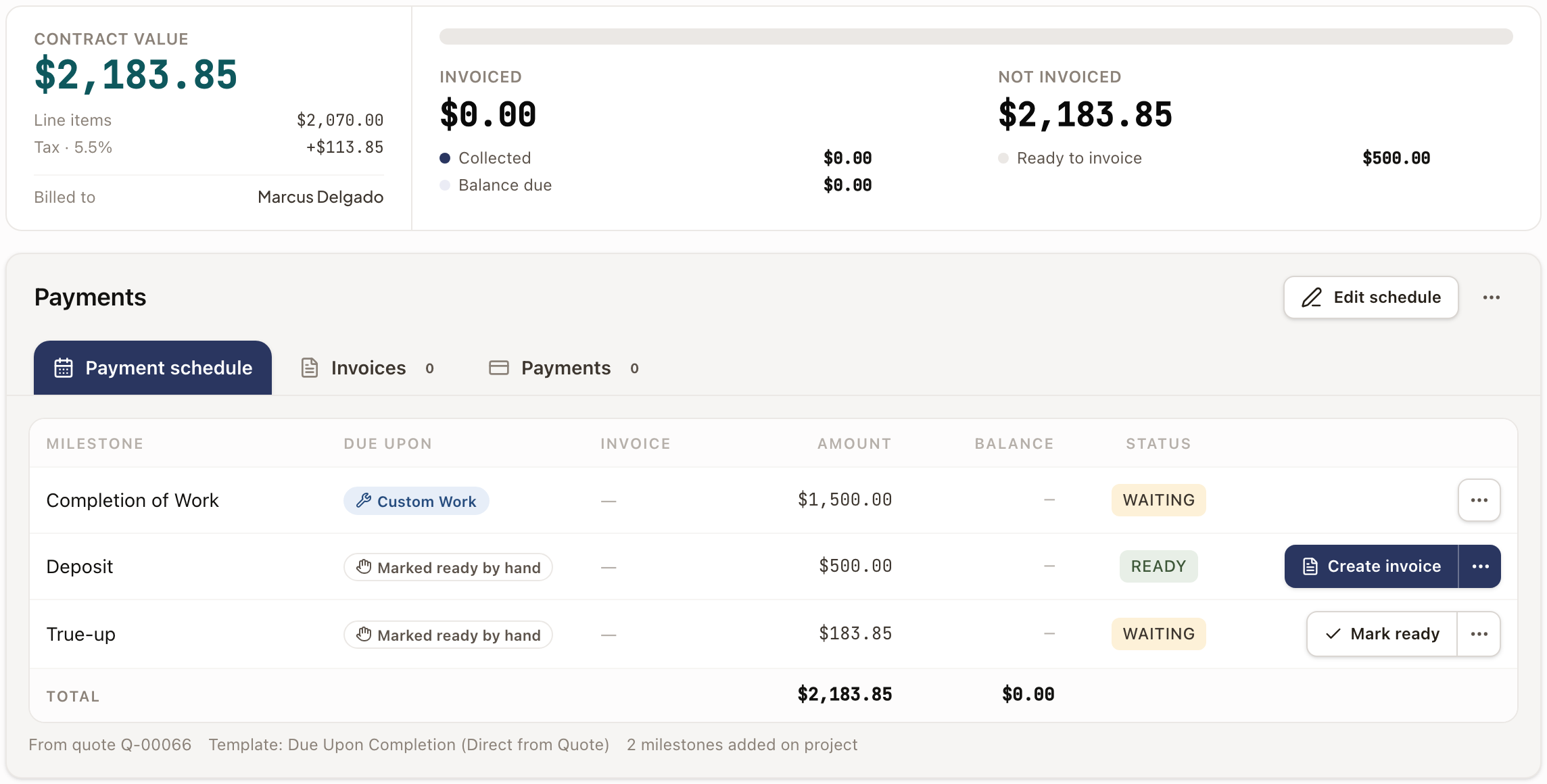
Summary. The left side shows the Contract value with the Line items, tax, and anything else it's made of, and who the project is Billed to. The right side shows a bar and two totals: Invoiced (with Collected, Balance due, and Drafts, not sent) and Not invoiced (with Ready to invoice and Not scheduled). An hourly project shows Billable to date, Spending limit, and Unbilled instead.
Payments. One card with three tabs: Payment schedule, Invoices, and Payments.
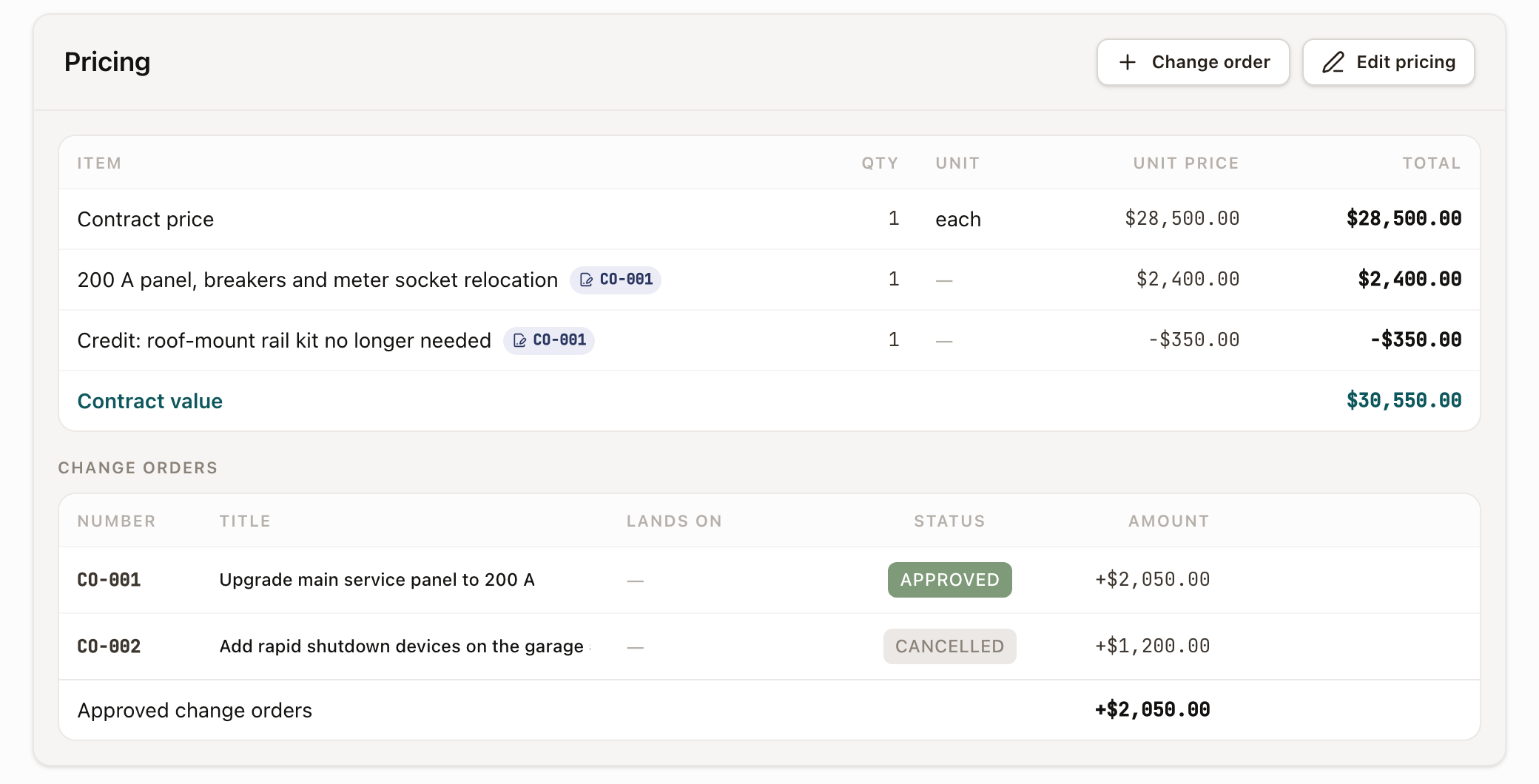
Pricing. The line items the contract value comes from, then change orders.
Work the payment schedule
Each milestone row shows what it's Due upon, its Invoice, Amount, Balance, and Status. An invoice that was created but not sent reads Not sent, on the schedule and on the Invoices tab. The last cell is its one next action, such as Mark ready, Create invoice, Send invoice, or Record payment. The ⋯ menu next to it holds the rest, such as Edit milestone, Open invoice, Download PDF, Copy pay link, Waive, and Void invoice. When you arrive from a Payment step's Open in billing, that payment is highlighted and brought into view.
- Click Edit schedule to change milestones. Click Done when finished.
- Click ⋯ beside Edit schedule, then Add milestone, to add one.
- Give it a Name and an Amount, choose when it's ready to invoice, and click Save.
- When a milestone is Ready, click Create invoice. See Create and send an invoice.
Invoices and payments are on the Invoices and Payments tabs. Record or collect a payment from the invoice. See Record and collect payments.
Change how the customer pays
Use this when the customer's financing changes after the sale, such as a declined loan or a switch to cash.
- Click ⋯ beside Edit schedule, then Change financing.
- Under Pay with, pick Cash or the new plan. Fill in the other amounts it asks for.
- For a prepaid plan, enter the Provider funding. To pass less than your company allows to the customer, enter that amount under Passed to the customer. Leave it blank to pass the most. The line under the box shows the limit, and a larger amount is refused.
- Check New payment plan. The provider's payment covers the part passed to the customer, and the provider is expected to pay its funding in full. Payments already invoiced, paid, or waived stay as they are.
- Enter a Reason and click Change financing.
Keep the schedule equal to the contract
A fixed-price project's unbilled payments always add up to the contract value less what's already invoiced. When an edit leaves a difference, a dialog asks Where should $X go?:
- Add it to the last unbilled milestone (the default).
- Add a True-up milestone at the end.
- Spread across unbilled milestones.
- Make a milestone absorb differences automatically.
Cancel change undoes the edit. Invoiced or paid milestones never change.
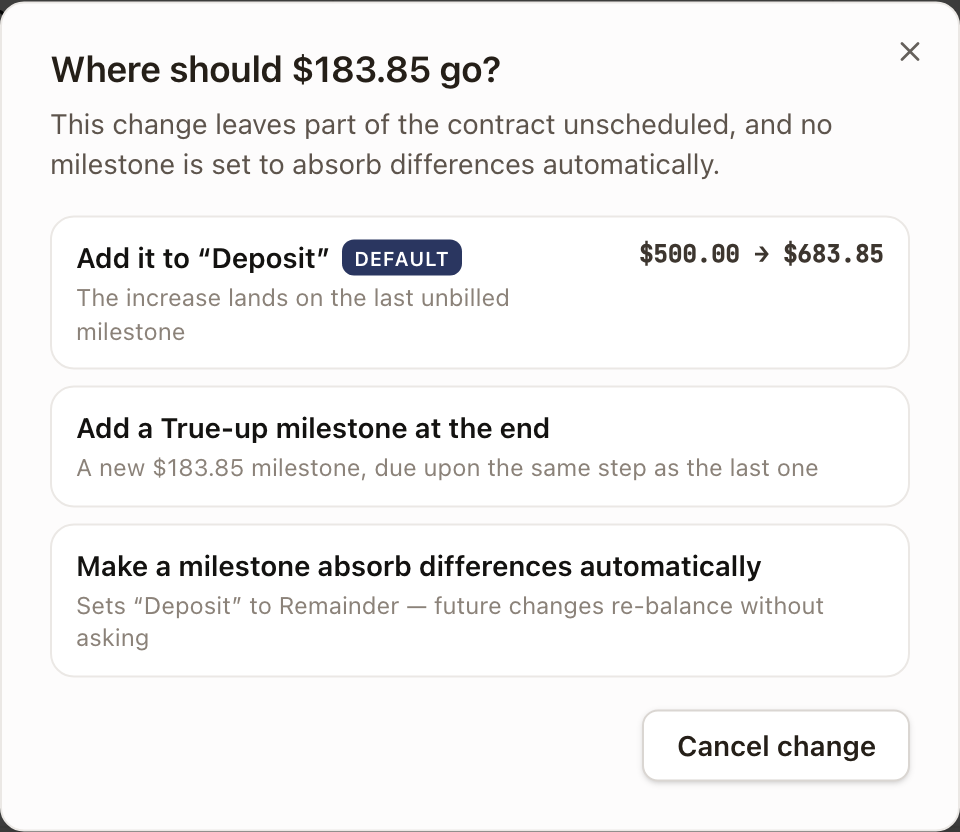
A project that was already out of balance shows a not scheduled row with the same choices.
Change pricing
On the Pricing card, click Edit pricing to change line items, or Change order to add a change order. Each edit saves as you make it. The lines from each approved change order follow the sold lines, tagged with the change order's number, such as CO-001. Click the number to open the change order. A line that came from an adder or a discount is tagged Adder or Discount. A change order line that adds an adder or a discount carries a green + tag, and one that takes it off carries a red − tag. The Change orders list below shows each one's Number, Title, Lands on, Status, and Amount. The same green and red tags follow the title, naming each adder the change order adds or takes off. With two or more change orders, the list ends with Approved change orders, the total of the approved ones.
Below the lines, the table shows Line items, tax, and a discount only when they apply, and ends with the Contract value (Billable to date on an hourly project). A project with one line and nothing else has no total row. See Change orders.
Check it worked
After an edit, Not invoiced and the Total row of the schedule equal the contract value, and no not scheduled row remains.
Common problems
- No Edit schedule button. You need both permission to edit projects and to manage billing.
- Create invoice is missing on a milestone. It's still Waiting. Complete the work it's due upon, or click Mark ready.
- No Billing tab. You can't see this project's billing or the quote it was sold from. Ask an Owner or Admin.
- Change financing isn't in the ⋯ menu. You need both Edit Projects and Manage Payments. Hourly projects don't offer it.