
Read the project snapshot
See the project's answers on a work order or planset, and choose which fields show there.
The project snapshot is a card on a work order or planset that shows what the project already knows, so the person doing the work doesn't open the project to find it. It shows answers only. It never shows prices or totals. If your company chooses a money field to show, only people who can see the project's billing or the quote it was sold from see it on a work order or planset. A permit's Fields section follows the same rule.
Where it shows
- Work orders: on the work order page, in the work order's drawer on the Dispatch Board, and in the technician app.
- Plansets: on the page and in the drawer, and in the project panel on the right of My Work.
An application and a permit show their own Fields section instead. See Work an application and its milestones and Add and manage project items.
A record that isn't on a project has no snapshot.
Read the card
The card is headed with the project's number and name.
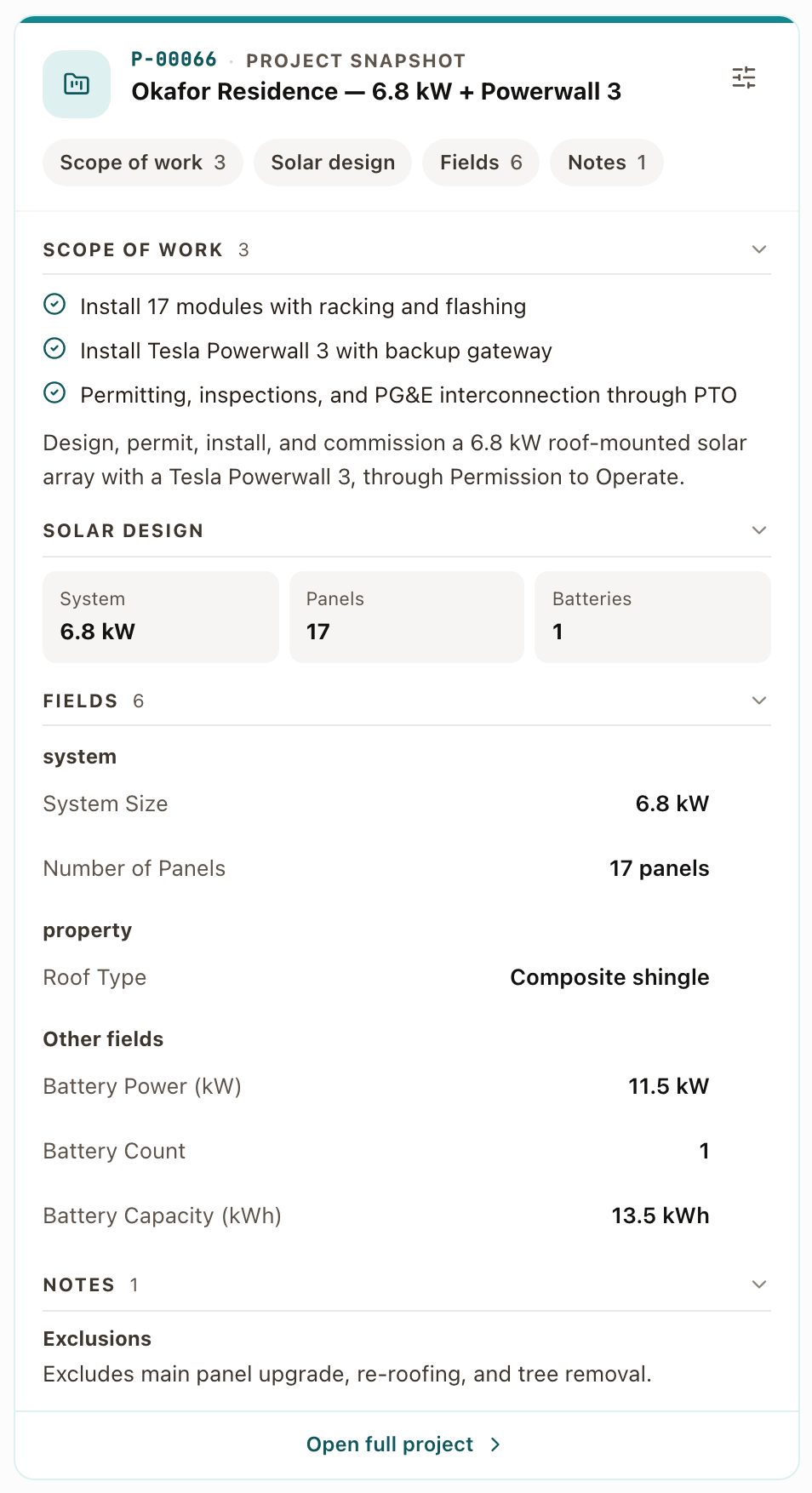
On a work order, the card has these sections, in this order. A section appears only when it has something to show.
- Scope of work: what was sold, with its description.
- Solar design: system size, panels, batteries, backup, inverter, arrays, and yearly production.
- Fields: the project's answers to the fields your company shows on work orders. Answers to fields the property keeps sit first, under Property, and show the property's current answer. The rest sit under the section names from your project template, then under Other fields.
- Notes: Exclusions and Internal notes. Technicians don't see these.
On a planset, the card shows only the fields your company shows there, grouped the same way. It shows the project's own answer for every field, including the ones the property keeps.
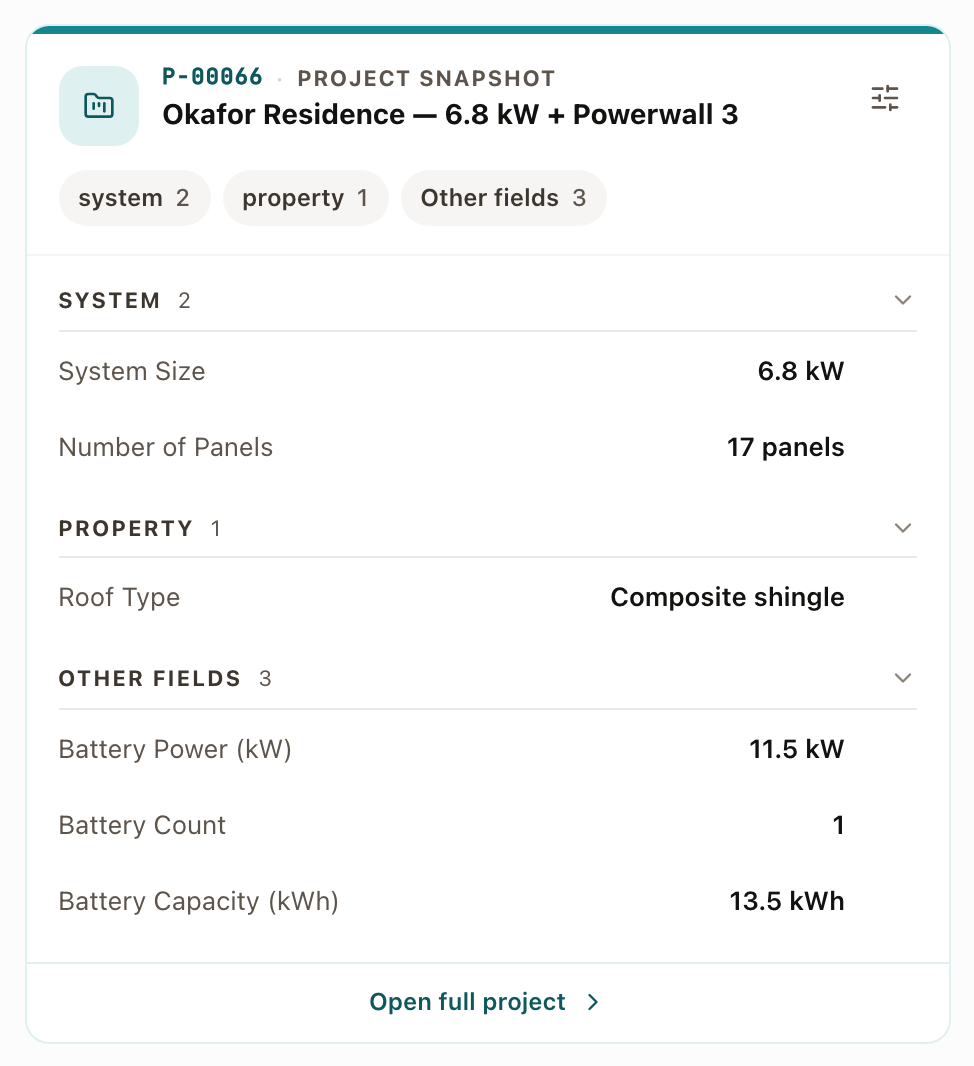
What you can do on the card:
- With three or more sections, a row of buttons at the top jumps to a section.
- Click a section's heading to collapse or open it.
- A group shows six answers. Click Show N more to see the rest.
- Point at an answer and click the copy button to copy it.
- Click Open full project at the bottom to go to the project.
A field with no answer on the project doesn't show. When nothing is answered, the card reads No answers yet for the fields shown on work orders.
In the technician app
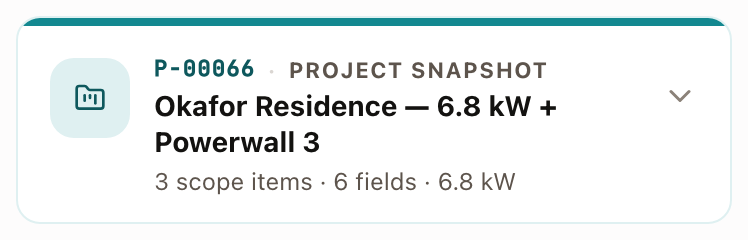
The card shows as one line, for example 3 scope items · 6 fields · 6.8 kW. Tap it to open the sections. It has no Open full project link and no field choices.
Choose which fields show
You choose fields once for the whole company, by kind of record.
Before you start
You need permission to manage fields. Owner and Admin have it by default.
Steps
- On any snapshot, click the sliders icon at the top right of the card, or Choose fields when the card is empty. The Field library opens on that kind of record.
- Click a field to open it.
- Under Where it shows, tick Work Orders, Permits, or Plansets. Each change saves on its own. A field ticked for Permits shows in the Fields section of the project's permits, not on a snapshot.
You can also go to Settings → Sales → Field library and use the Work Orders, Permits, or Plansets filter to see what each one shows. See Set up the field library.
Check it worked: open a work order or planset on a project that has an answer for that field. The field shows on the card. On a permit, it shows in the Fields section.
Common problems
- The card says there are no answers yet. The project hasn't answered any field shown on that kind of record. Answer the field on the project's Scope tab, or choose other fields.
- A field I ticked isn't on the card. The project has no answer for it. Blank fields don't show.
- The sliders icon is missing. You don't have permission to manage fields. Ask an Owner or Admin.