
Place and resolve a project hold
Pause a whole project for a blocker such as an HOA or a customer's payment, edit the hold, and resolve it when the blocker clears.
A hold records that a whole project is paused because of a blocker outside your control: an HOA that hasn't approved the plans, a customer who hasn't paid the deposit, a backordered inverter. A hold sits beside the project's status. The project stays Active, and its hold is listed until you resolve it.
What a hold does
While a project has an open hold:
- Nothing new opens. No step becomes ready, and no work order becomes Ready to schedule, until the last hold is resolved.
- Work that was already ready stays workable, and you can still add work to the project.
- Visits that are already booked stay booked. The Place hold drawer tells you how many there are. Reschedule or cancel them yourself if the pause means they can't happen.
- A banner under the project header names the hold, and the work lists that show this project's work mark it On hold.
A project can have more than one hold at a time. It is on hold until every hold is resolved.
Before you start
You need the Edit Projects permission (Owner, Admin, Sales Manager, Operations Manager, and Operations User have it by default). The project must not be Completed, Closed, or Cancelled: finished projects don't offer Place hold.
The reasons you can choose come from your company's list. An Owner or Admin keeps that list in Hold reasons.
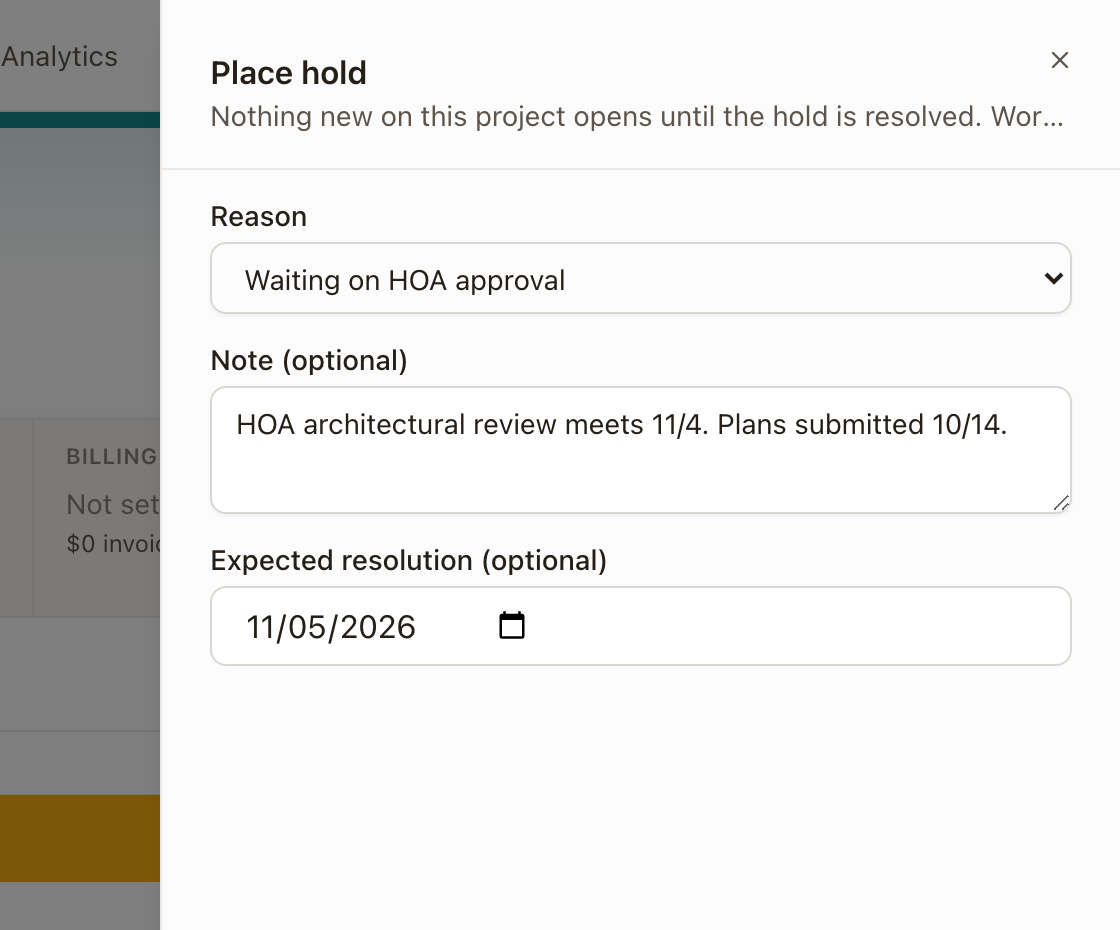
Place a hold
- Open the project and click the ⋯ menu at the top right.
- Click Place hold.
- Choose a Reason. Reasons are grouped as Money, Customer, Approvals, Other trades, and Operations. If none fits, choose Other.
- Add a Note. It's optional for every reason except Other, which needs one.
- Optionally set Expected resolution, the date you expect the blocker to clear.
- Click Place hold.
Check it worked: a banner under the project header reads On hold: followed by the reason and note, and the project header's main button now reads On hold: with the reason. The Work tab gains a Holds section.
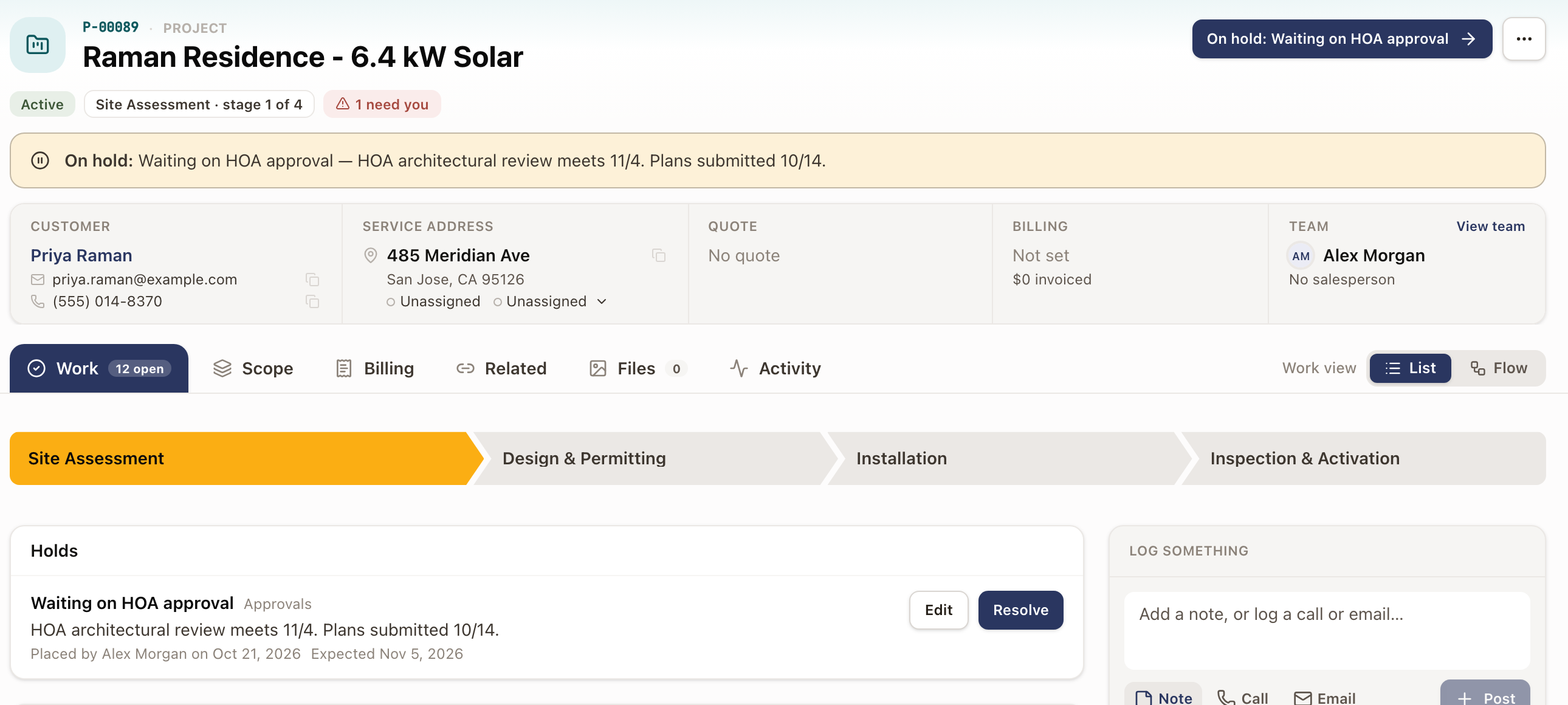
With more than one open hold, the banner reads On hold for N reasons and lists each one.
Edit a hold
If the reason, the note, or the expected date changes, update the hold instead of placing a new one.
- On the project's Work tab, find the hold in the Holds section.
- Click Edit.
- Change the Reason, Note, or Expected resolution.
- Click Save changes.
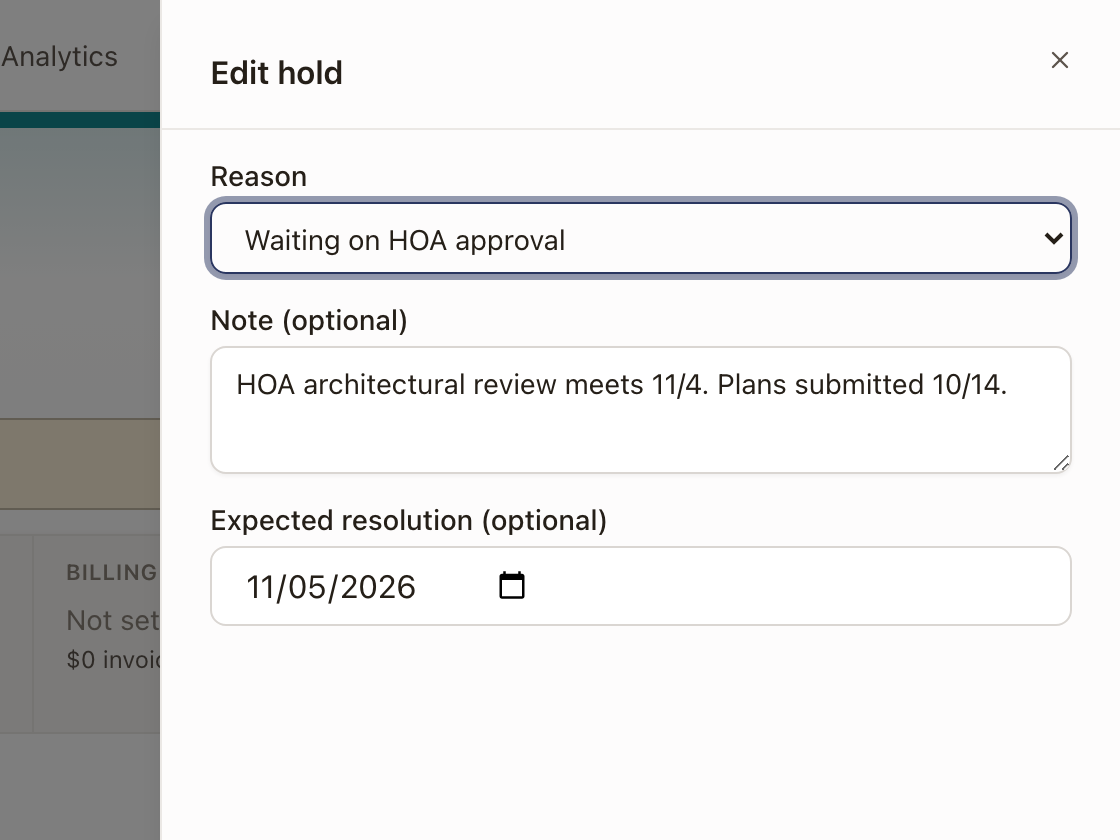
An expected date that has passed shows in red as Was expected.
Resolve a hold
- In the Holds section, click Resolve. You can also click the project header's main button while it reads On hold:.
- Choose Resolved if the blocker cleared, or Placed by mistake if the hold shouldn't have been placed.
- Optionally add a Note.
- Click Resolve hold.
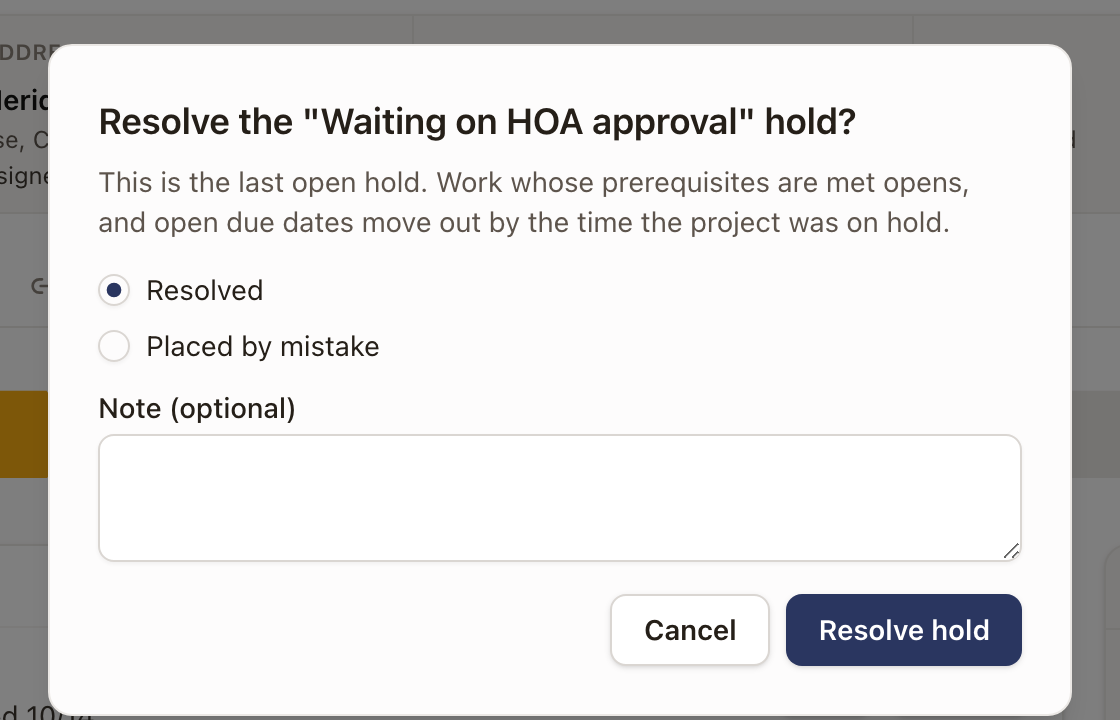
If other holds are still open, the project stays on hold. When you resolve the last open hold:
- Steps whose earlier steps are finished open, including ones that finished during the hold. Blocked steps stay blocked until the record that blocked them clears.
- Open due dates and the project's target end date move out by the time the project was on hold.
Check it worked: the banner disappears, and the hold stays in the Holds section as history, marked Resolved or Placed by mistake with who resolved it and when. Holds are never deleted.
Finish a held project
A project with an open hold can't be completed or cancelled. Complete Project and Cancel Project show this message until you resolve its holds: "Resolve this project's open holds first. A completed, closed or cancelled project can't stay on hold."
See every hold in one list
Go to Operations → Projects → Holds to see the open holds on every project you can see.
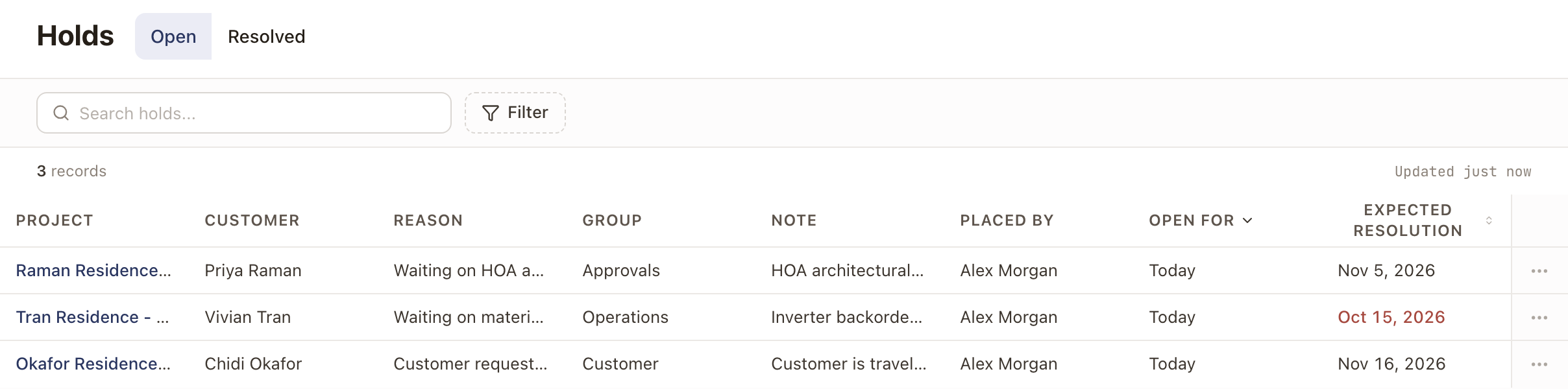
- Switch between Open and Resolved. Resolved holds show when they were resolved and the outcome.
- Search holds matches project, customer, reason, and note. Filter narrows by Reason, Group, Open for, and Expected resolution.
- Click a column heading to sort. A past expected date shows in red.
- Use a row's ⋯ menu to Open project, Resolve hold, or Edit hold. Resolve hold and Edit hold need the Edit Projects permission.
Some report outcomes and automations place a hold for you. Those holds read Placed automatically or Automation instead of a person's name, and you edit and resolve them the same way.
Hide held projects from work lists
When a project is on hold, its work stays in your work lists, marked On hold. To leave it out, turn on Hide projects on hold in the Filter menu of Operations → My Work → All Work, Operations → Projects → Work Orders, and the Dispatch Board's work list.
On Operations → Projects, the On hold chip at the top shows how many projects are on hold and filters the list to them. The Filter menu has an On hold choice too. Turn on the Status column from the columns button to see an On hold tag beside each held project's status.
Common problems
- There's no Place hold in the ⋯ menu. You need the Edit Projects permission, and the project must not be finished.
- The reason you need isn't in the list. Choose Other and write the reason in the note, or ask an Owner or Admin to add it in Hold reasons.
- Complete Project or Cancel Project says to resolve holds first. Resolve every open hold in the Holds section, then try again.
- A step you expected to open is still waiting. Check the Holds section. Nothing new opens until the last open hold is resolved.