
Write and approve a change order
Record a change to the price, payments, scope, or schedule of a project, send it to the customer, and see what it changes once it's approved.
A change order records a change to a project after the customer agreed to the work: more or less equipment, a new price, different payments, changed scope, or extra days. It takes effect only when the customer approves it, so the contract and the payment schedule never change until then.
Before you start
- You need the Edit Projects permission to write, send, edit, or cancel a change order. Owner, Admin, Sales Manager, Operations Manager, and Operations User have it by default.
- You need the Approve Change Orders permission to mark a change order approved on the customer's behalf. Owner, Admin, and Operations Manager have it by default.
- To send a change order for signature, your company needs a change order template. See Templates for change orders. Without one, customers approve online.
Write a change order
- Open the project and click the Scope tab.
- In Change Orders, click New change order.
- Enter a Title. Add a Description of the change.
- Under Financial Impact, click Add line item for each cost or credit. Enter a description and an amount, and set the Type to Cost or Credit. To use a price you already set up, choose it from Add from pricing…. A line you pick that way keeps the adder's name, so the Billing tab tags it with a green + when it adds the adder and a red − when it takes it off. A Cost line adds an adder and a Credit line takes it off. For a discount it's the other way around. If you rename the line, the tag goes away. Net Impact shows the total change to the contract.
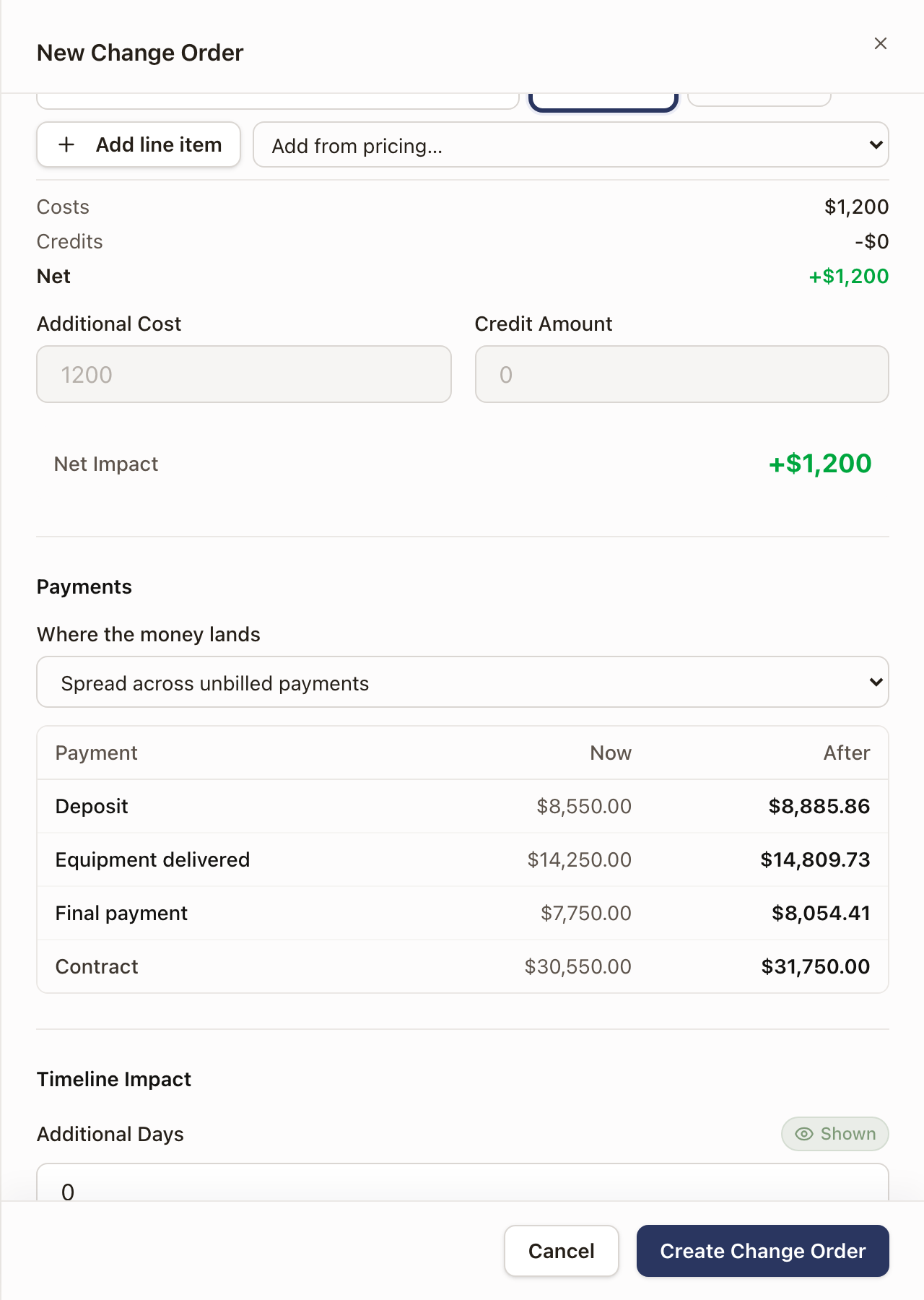
- Under Payments, choose where the money lands in Where the money lands. See Where the money lands below.
- Under Timeline Impact, enter Additional Days if the change moves the end date.
- If the project has fields your quote captured, Scope Changes lists them with their current value. Enter the New Value for each field the change affects.
- Click Create Change Order.
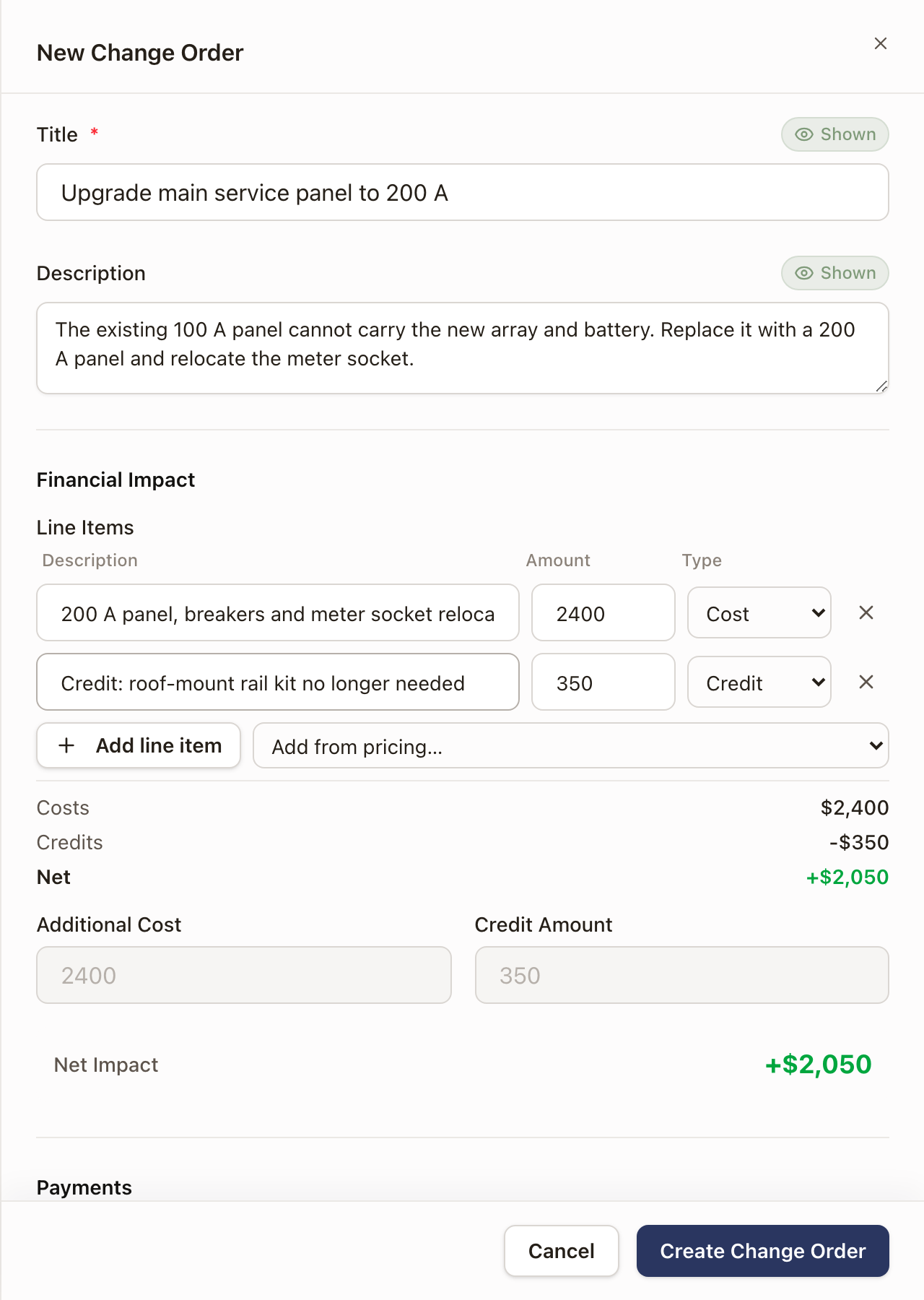
The change order gets the next number on the project (CO-001, then CO-002) and starts as a Draft. It appears in the Change Orders table on the Scope tab.
Next to Title, Description, and Additional Days, Shown and Hidden control whether the customer sees that part. A part marked Hidden stays on the change order for your team and is left off what the customer gets.
You can also start one from the Billing tab: click Change order in Pricing. It opens the same drawer. To open a change order that already exists, click its number or title in the Change orders list on Billing, its tag in Pricing, or its row on the Related tab.
Where the money lands
Where the money lands decides which payments absorb the change. The table underneath shows each payment before and after, and the Contract line shows the new total. Approving the change order lands exactly what the table shows.
- Add to a named payment puts the whole change on that payment.
- Remainder payment puts it on the payment that holds whatever is left. This is the default.
- Spread across unbilled payments divides it across every payment that hasn't been billed yet.
- Add a True-up milestone at the end creates a new payment for the change. Enter a Payment name, and choose Due upon: When it's marked ready, or when a step on the project is complete.
A payment that's already billed or paid doesn't change, and shows Billed or Paid by beside its name. If a lender pays part of the project, a note says the lender may need its own change.
Send it to the customer
- Open the change order from the Change Orders table.
- Click Send to customer.
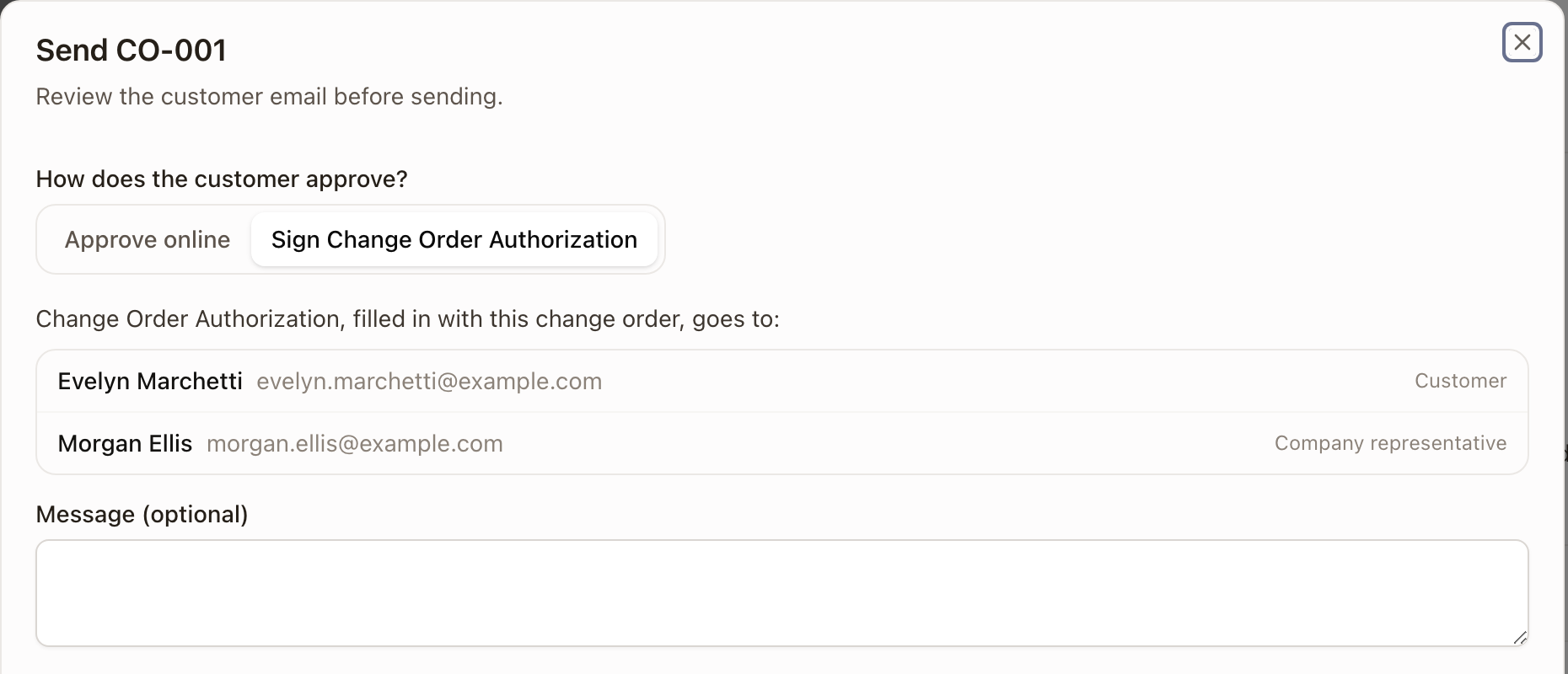
- Under How does the customer approve?, choose how:
- Approve online: the customer gets an email with a Review change order button. It opens a page that shows the work, price, contract value, payments, and timing. The customer signs by typing their name or drawing a signature, ticks the approval statement, and clicks Approve change order, or clicks Decline and gives a reason.
- Sign your change order template (the button carries the template's name): the customer and your company's signer receive your own change order document, filled in with this change, to sign. The dialog lists who it goes to. This choice is available once your company has a change order template.
- Check the recipient and message, then click Send email or Send for signature.
The change order moves to Sent. When the customer approves it, it moves to Approved and takes effect. When the customer declines, it returns to Draft with their reason, and the project owner is told.
A change order sent for signature also appears in Sales → Agreements, in the Change orders view, with a link back to the change order. See Send an agreement for signature.
Use the ⋯ menu on the change order to Preview a draft as the customer will see it, Copy approval link or Open approval page on a sent one, or Resend.
Mark it approved when the customer agreed another way
If the customer agreed by phone, in person, or on paper, someone with the Approve Change Orders permission can record it.
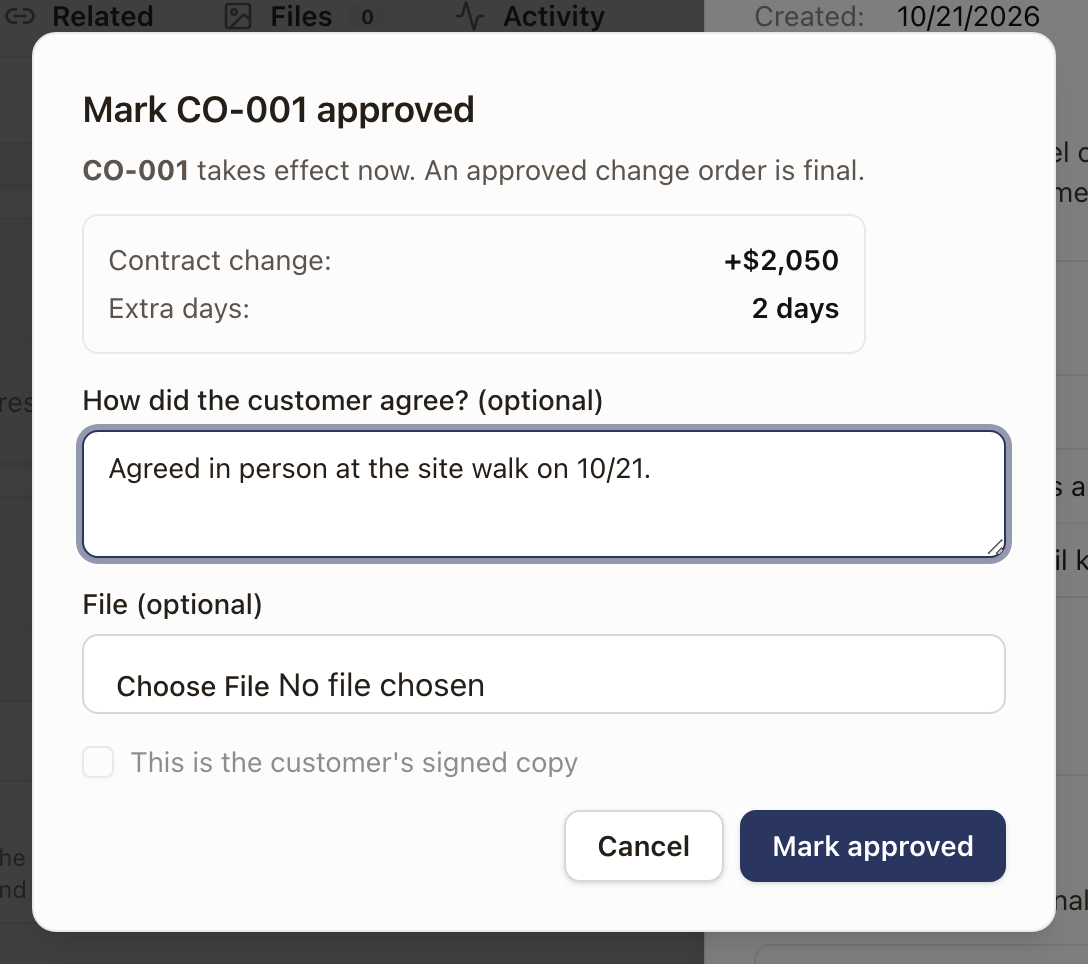
- Open the change order and click Mark approved.
- Under How did the customer agree?, note how, for example "Agreed in person at the site walk".
- To keep the customer's signed paper, choose a File and tick This is the customer's signed copy. The file is added to the project's files.
- Click Mark approved.
If the money can't land where the change order says any more, for example because that payment has been invoiced since, the dialog asks Where the money lands now before it approves.
To record that the customer already has the change order without emailing anyone, click Mark as sent in the send dialog, or Mark sent in the ⋯ menu.
If a change order you sent is still waiting on a signature when you mark it approved, the signature request is withdrawn.
What an approval changes
An approved change order is final. To correct it, write another change order.
When a change order is approved:
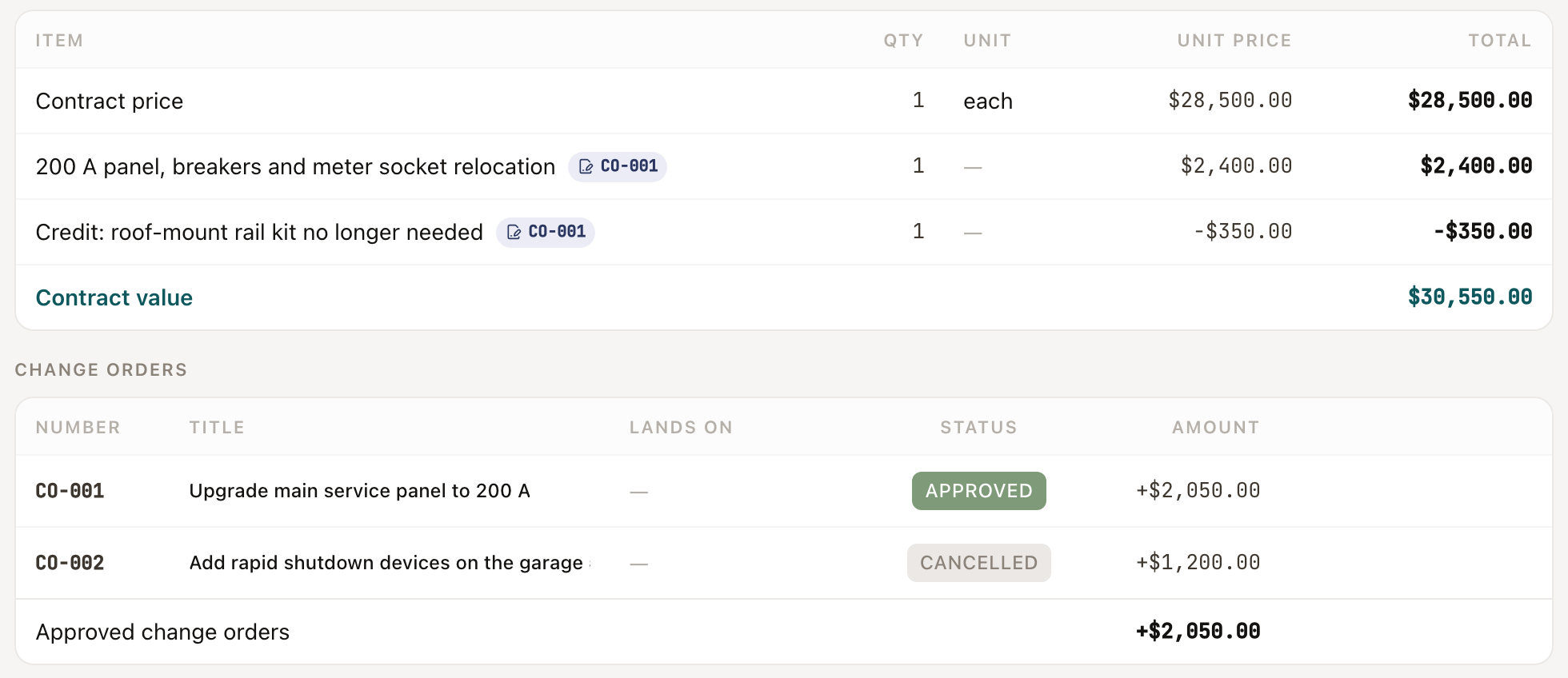
- The Contract value goes up or down by the Net Impact, and the payments change as the table showed.
- If you entered Additional Days and the project has an end date, the end date moves out by that many days.
- Fields you changed under Scope Changes update on the project, and on the customer's property where they belong there.
- A task, Check change order updates (CO-001), goes to the project owner to update equipment, design, and permits where they changed.

The Billing tab lists the change order's lines in Pricing, after the sold lines and tagged with its number, and shows the new Contract value. The Change orders list shows its Amount, and, once there are two or more change orders, an Approved change orders total.
Edit a sent change order
Click Edit on a sent change order. A prompt says it goes back to draft and has to be sent again before the customer can approve it. Click Edit change order to continue, or Keep it sent to leave it as it is.
Cancel a change order
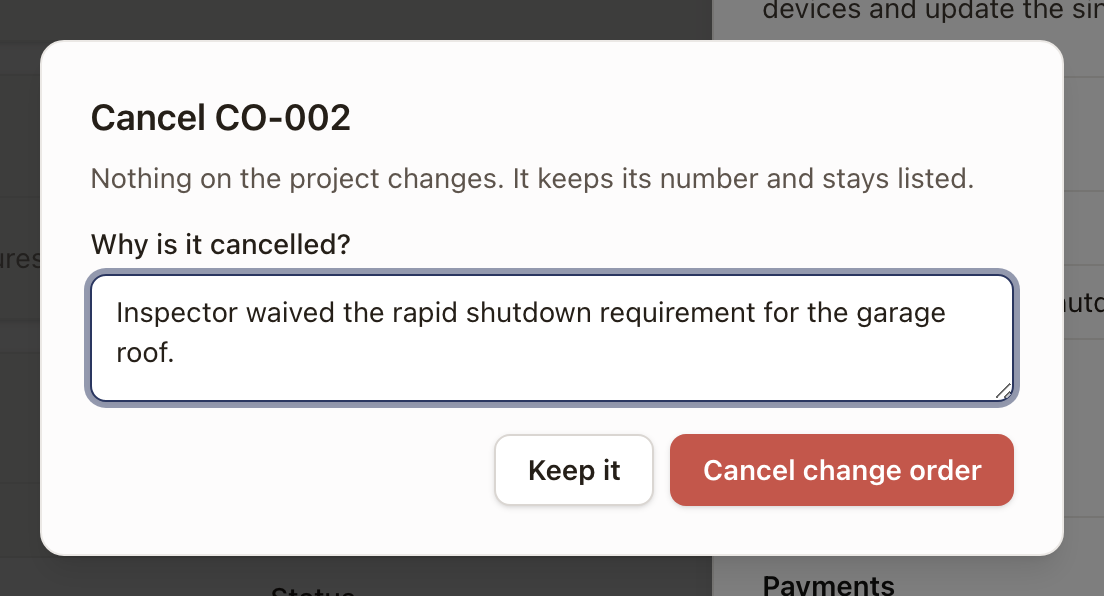
- Open the change order and click ⋯, then Cancel change order.
- Enter Why is it cancelled?.
- Click Cancel change order.
Nothing on the project changes. The change order keeps its number and stays listed under Cancelled change orders on the Scope tab.
Open change orders
A change order that is a Draft or Sent is open. While a project has one:
- The project's page shows Open change order under its name, with each open change order's number and title. Click one to open it.
- The Projects list can show an Open change order column, and you can filter the list to projects with an open change order.
- On the project's Work tab, a change order left as a draft for more than 14 days, or sent more than 7 days ago and not approved, appears under Needs you.

An open change order doesn't stop the project. It only stops a step that you've set to wait.
Make a step wait for change orders
Some work shouldn't start while the price or scope might still change, such as ordering equipment. In the project template, you can make a step wait.
- Go to Settings → Operations → Project templates and open the template.
- Click the step, then open Advanced.
- Turn on Waits for change orders.
- Click Save changes.
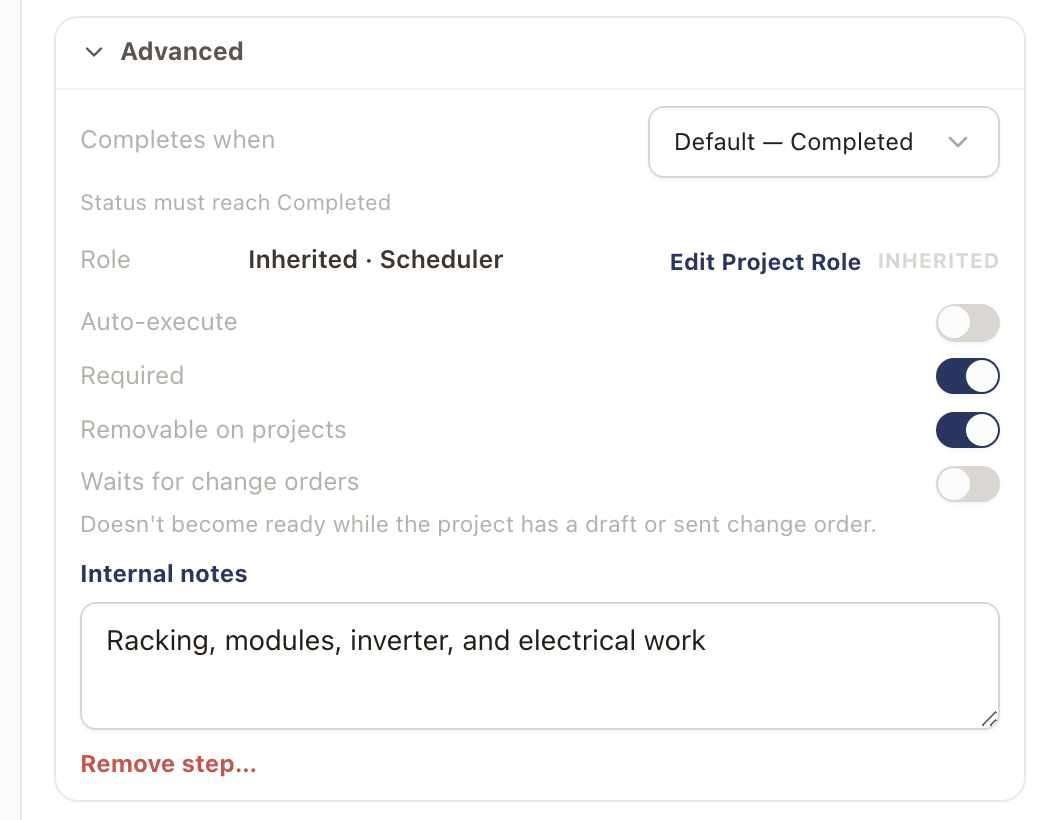
On projects made from the template, that step doesn't become ready while the project has a draft or sent change order, and it carries the open change order's number. When the last open change order is approved or cancelled, the step is checked again and becomes ready if everything before it is done. Work that's already ready or scheduled isn't pulled back.
Check it worked
The change order shows as Approved in the Change Orders table, and the Contract on the Billing tab shows the new total. The Open change order line leaves the project's page once no change order is open.
Common problems
- There's no Mark approved button. You need the Approve Change Orders permission, and the change order must be a draft or sent.
- The customer can't sign the change order document. Sign is only available once your company has a change order template that's active and set as the one projects use.
- I need to change an approved change order. Write a new change order that corrects it.
Place and resolve a project hold
Pause a whole project for a blocker such as an HOA or a customer's payment, edit the hold, and resolve it when the blocker clears.
Create, check, and review a planset
Set up a permit planset from a project's quote design, generate the drawing sheets, acknowledge warnings with a reason, and move the planset through review.