
Track tasks and work across projects
Browse every task in one list, and work what needs you next from My Work.
Two screens let you look at work across every project instead of one at a time: Tasks for the Task item type specifically, and My Work for every kind of open work item.
Browse Tasks
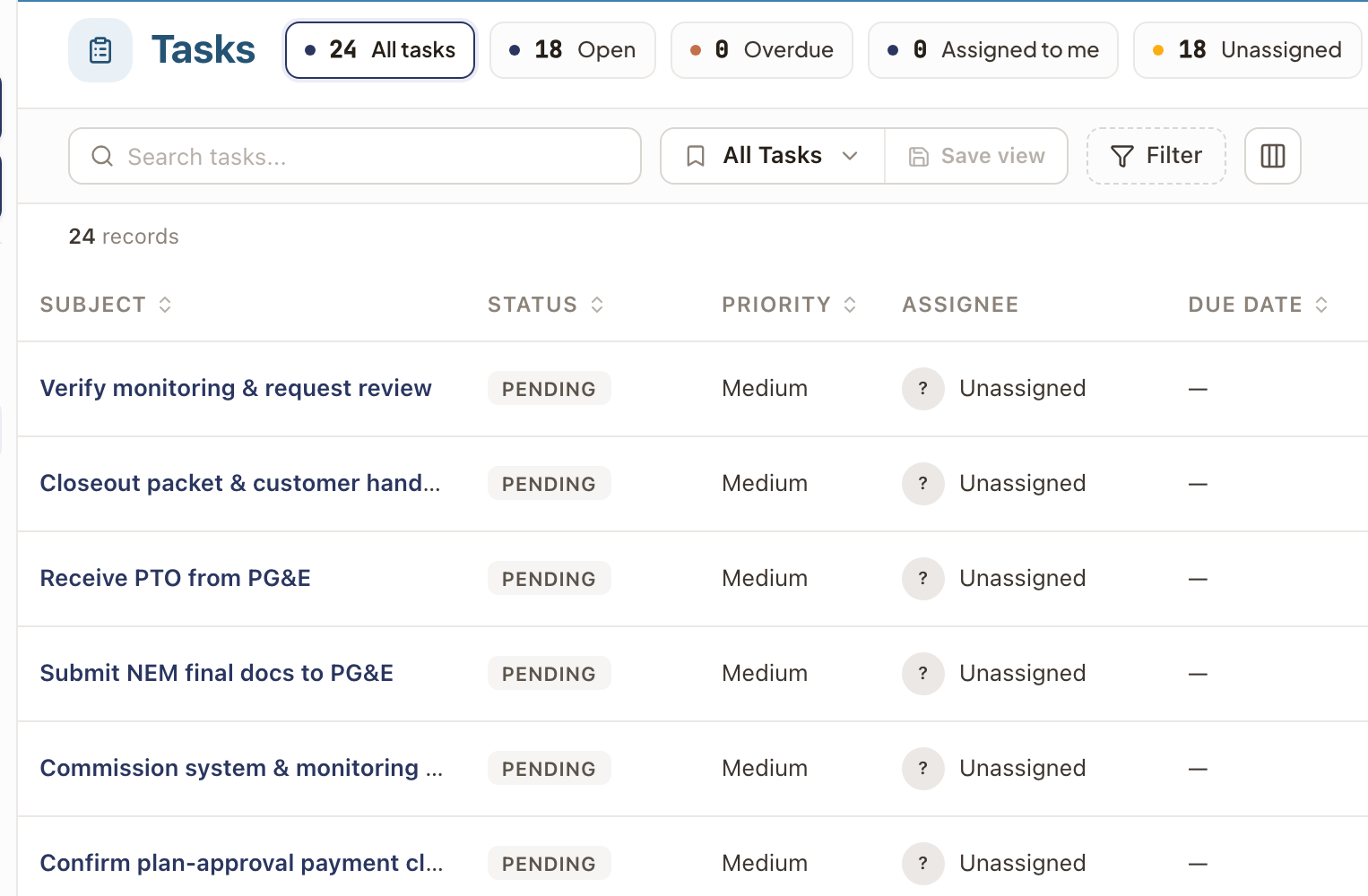
Operations → Tasks lists every Task record across every project, with its Status, Priority, Assignee, Due date, Project, and Case. Filter by Owner, Assignee, Created by, Status, Priority, Category, or Due date. Click New Task to create one directly from this list.
My Work
Operations → My Work opens the Focus view: a queue of the work that needs you, the next step to take on the selected item, and the project it belongs to.
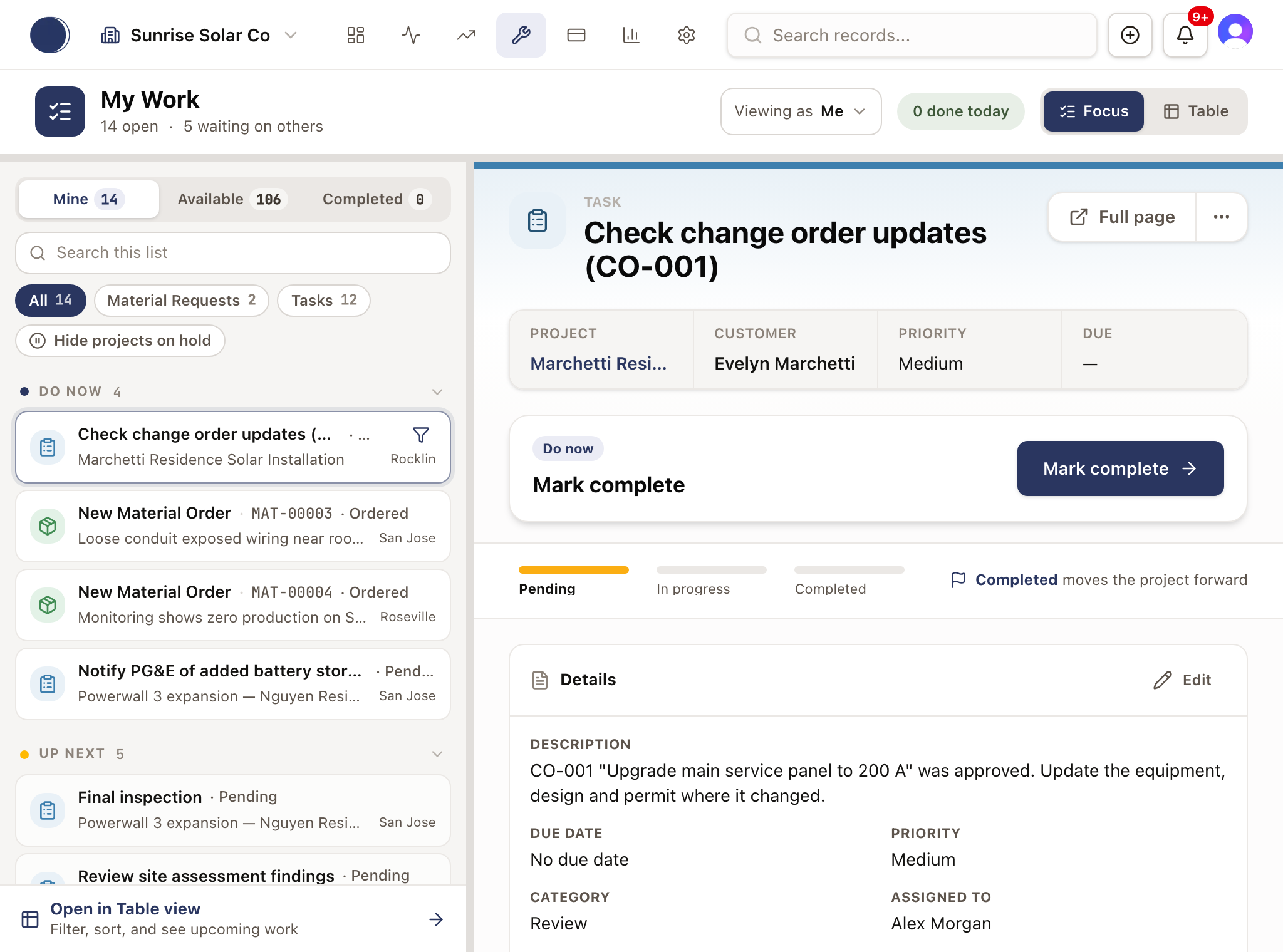
The header counts what's open, for example 14 open, and what's waiting on others. When something needs you, it adds N need you. Done today opens what you finished today. Focus and Table at the top right switch between the queue and a table of the same work. Click Open in Table view at the bottom of the queue to filter and sort your work.
Each card in the queue names the step first, then its project. On the right it shows the city. On work that has an Expected time, it shows the clock instead, such as 3 of 7 days or Waiting 9 days. See Read and reset the clock on waiting work.
Look at a teammate's My Work
If you can see all work items, a Viewing as button sits at the top right of the header. Click it and pick a person from the list, or search for one. The page then shows that person's queue under their name, and the header reads N need Dana with their first name. Claim and Release to queue are off while you view someone else's work. Pick My work in the list to come back to your own queue.
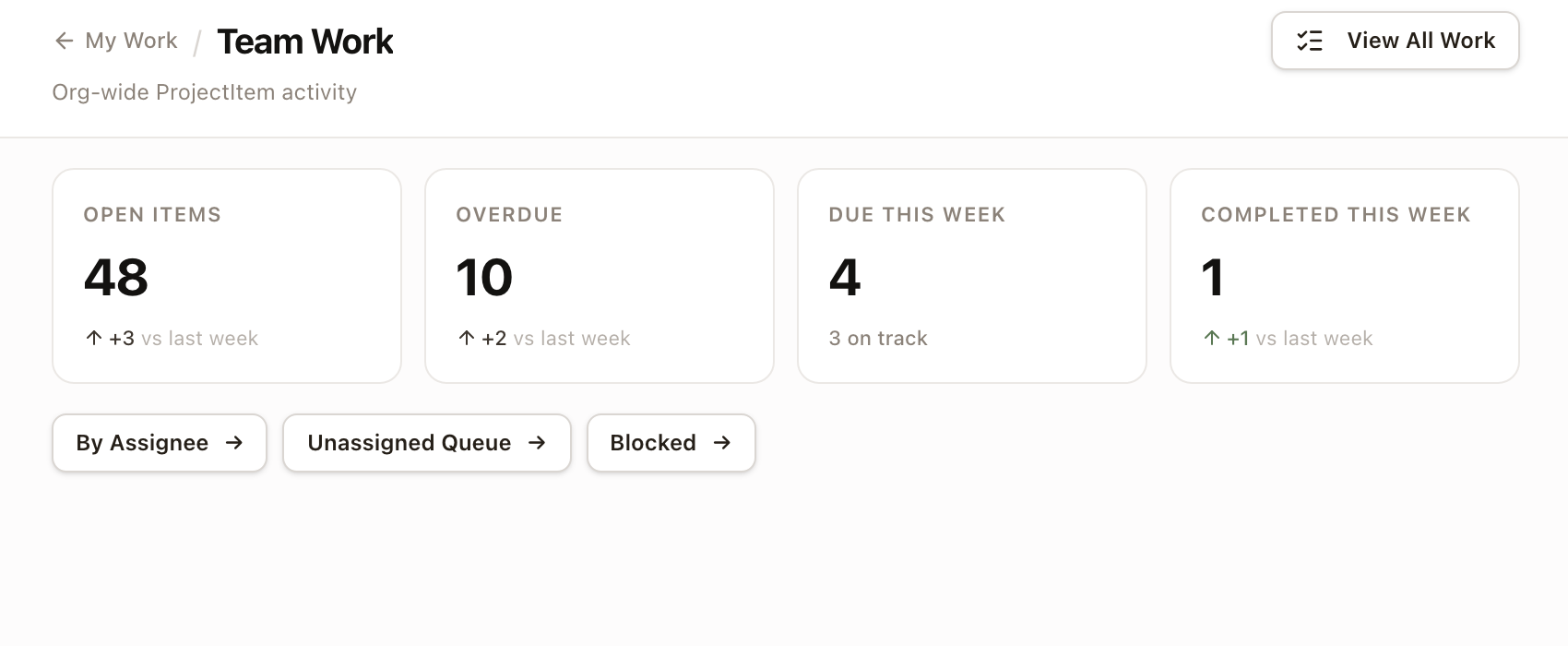
Under My Work in the sidebar, Tasks opens the task list above, All Work opens a table of every work item across projects, and Team Dashboard (managers) shows org-wide activity: tiles for Open Items, Overdue, Due This Week, and Completed This Week, plus quick links By Assignee, Unassigned Queue, and Blocked.
To see a team's work in All Work, click Filter, then Assignee. Departments is listed above People. Pick one or more people and departments, and they add up. A department shows the steps assigned to its people.
Steps on a draft project don't appear in My Work, Tasks, All Work, or Team Dashboard until the project moves to production. They still show on the project's own page. See Start a project without a quote.
Mine, Available, and Completed
The queue has three tabs:
- Mine: work assigned to you.
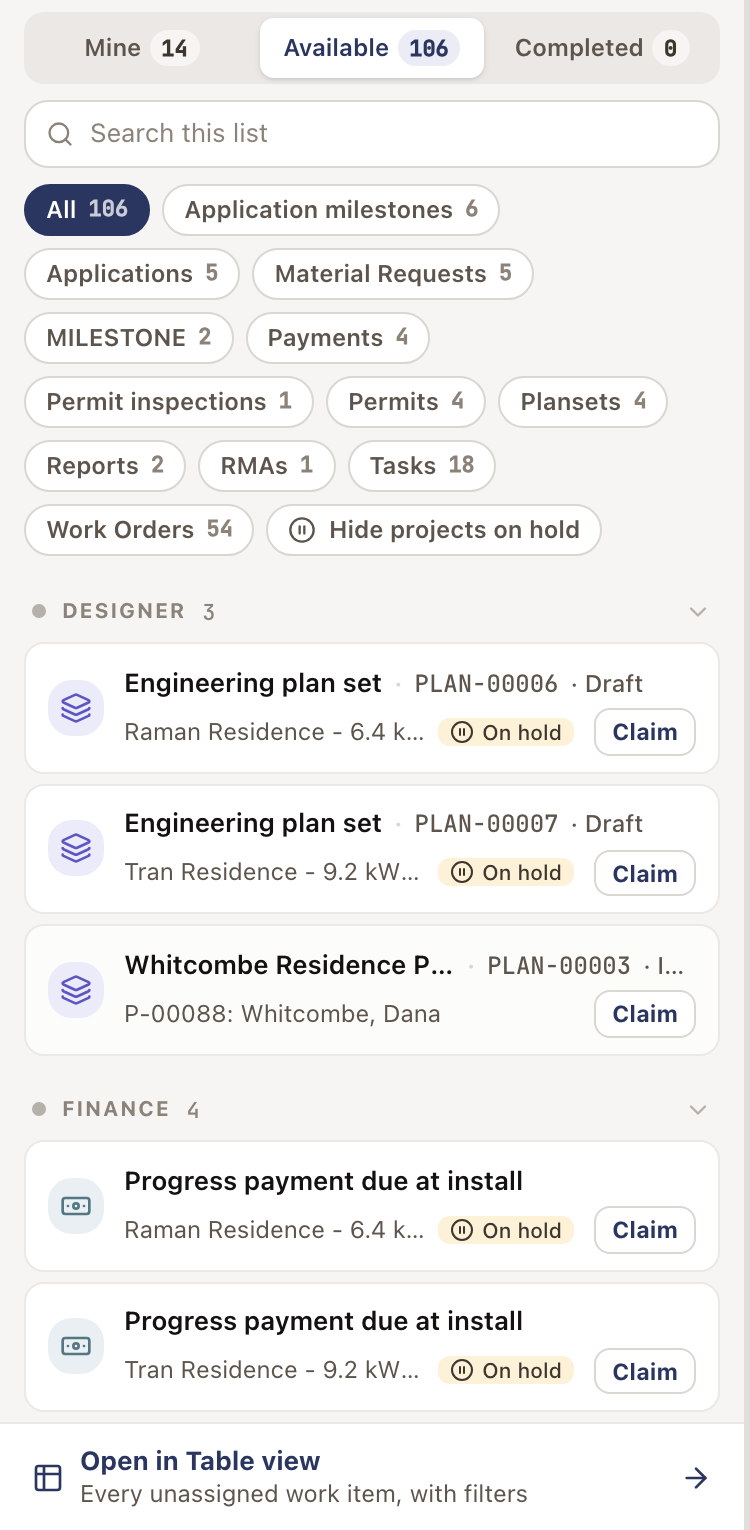
- Available: work that isn't assigned to a person yet. It's grouped by the project role that owns it, such as Permit coordinator or Scheduler. Click Claim on an item to take it.
- Completed: what you finished in the last seven days, grouped by Today, Yesterday, and Earlier this week.
Chips under the search box narrow the list by kind of work: tasks, permits, applications, application milestones, permit inspections, work orders, material requests, plansets, reports, and RMAs. Hide projects on hold leaves out work on projects that are on hold.
Show one project's work
To see only one project's work, click the funnel icon on the selected card. The ⋯ menu on the card also has Filter to this project. With no card selected, click Filter by project and pick a project from the list.
Every tab and the Table view then show only that project. A Filtered to banner names the project. Click Show all projects to clear it. The filter stays in the page address, so a copied link opens the same view.
Work states
Each item is in one state, shown in its group and on its card:
| State | Meaning |
|---|---|
| Needs you | Something is wrong or stuck, such as a failed inspection. Work that has waited past its Expected time also needs you. Its card says how long it has waited, for example Permit BP-2231 has waited 16 days, and the line under it gives the Expected time and where it came from. |
| Do now | Ready, and it's your turn. |
| Scheduled | A visit is booked. |
| Up next | Later in the plan, and not ready to start yet. A step that waits on unfinished steps stays here, however far back it sits, and is never late. An application milestone that isn't ready reads Not ready. |
| Waiting | Out of your hands for now: a submitted permit or application, a plan set sent to the client, a work order blocked on a customer, RMA, or contractor, a step held for an open change order, or a step marked Waiting. |
| Done | Finished. |
In the All Work table, a locked icon marks work that depends on unfinished steps, and pointing at the icon lists what it waits on. When nothing is in Needs you or Do now, the page reads Nothing needs you right now. A very long list keeps the most urgent steps and says so, for example Only 500 of 942 are in this list. Click See all in All Work to see the rest.
Act on an item
Click an item in the queue. The middle shows its record and one main button for what to do next, for example Mark complete for a task, Submit to AHJ for a permit, or Record payment for an invoiced payment.
- A work order shows its details, visits, reports, materials, photos, and history. The main button is Schedule on Dispatch Board while it waits to be scheduled, and Schedule visit when it has no open visit. With a visit booked, the button is that visit's next step, such as Mark complete. Edit is in the ⋯ menu, with the visit's other actions.
- A Payment step shows the payment schedule with its payments highlighted, the invoice, and the activity. The main button is the payment's next step. See Work a Payment step.
- A report shows its fields, photos, and review, with a button such as Open the report editor, Mark reviewed, or Draft follow-up quote.
- A material request or RMA shows its record, with the next step as the main button. An RMA still waiting for its number shows Add RMA number, which opens the edit form. Edit is in the ⋯ menu.
An application or application milestone opens on its milestone instead, with the milestone's status bar and its own buttons, such as Mark submitted and Needs more. A milestone that isn't ready reads Not ready on its card and status bar and has no Mark submitted. Below that are the application's Fields, counted for that milestone, and its Instructions. See Work an application and its milestones. Moves that can't be undone, such as Approve and Mark complete, ask you to confirm. Scroll down and the same button stays pinned at the top.
A permit opens on its Overview, Corrections, and Inspections tabs, with its Fields and AHJ first. A permit inspection opens on its inspection table. After a fail, click Schedule corrections there to choose how each correction gets done. Its main button is Open work order, and Open permit sits under the table.
A task for a correction shows where it came from on a card headed Permit Corrections, Inspection corrections, Application correction, or Planset revision. Any files logged with it are listed under Related files, and each opens in a new tab.
A permit, plan set, or application milestone shows its clock beside the status bar. Click it to reset the clock or change the Expected time. Clicking a status on the bar asks you to confirm the move and has an Expected box. See Read and reset the clock on waiting work.
The right side shows the project: its customer, address, the other work on it, its team, and the latest activity. For a planset, it also shows the Project snapshot. See Read the project snapshot. Click the arrow at the top to open the full project.