
Work a project day to day
Reading the Work tab, following the next action and the flags on each step, switching to the Flow view, and placing a hold.
The project page's Work tab is the day-to-day view of a project: what's done, what's next, and what's stuck.
Before you start
You need project visibility to see a project's Work tab. Changing items or placing a hold needs the Edit Projects permission (Owner, Admin, Sales Manager, Operations Manager, and Operations User have it by default). Assigning a step to someone else needs the Assign Work Items permission.
Read the top of the page
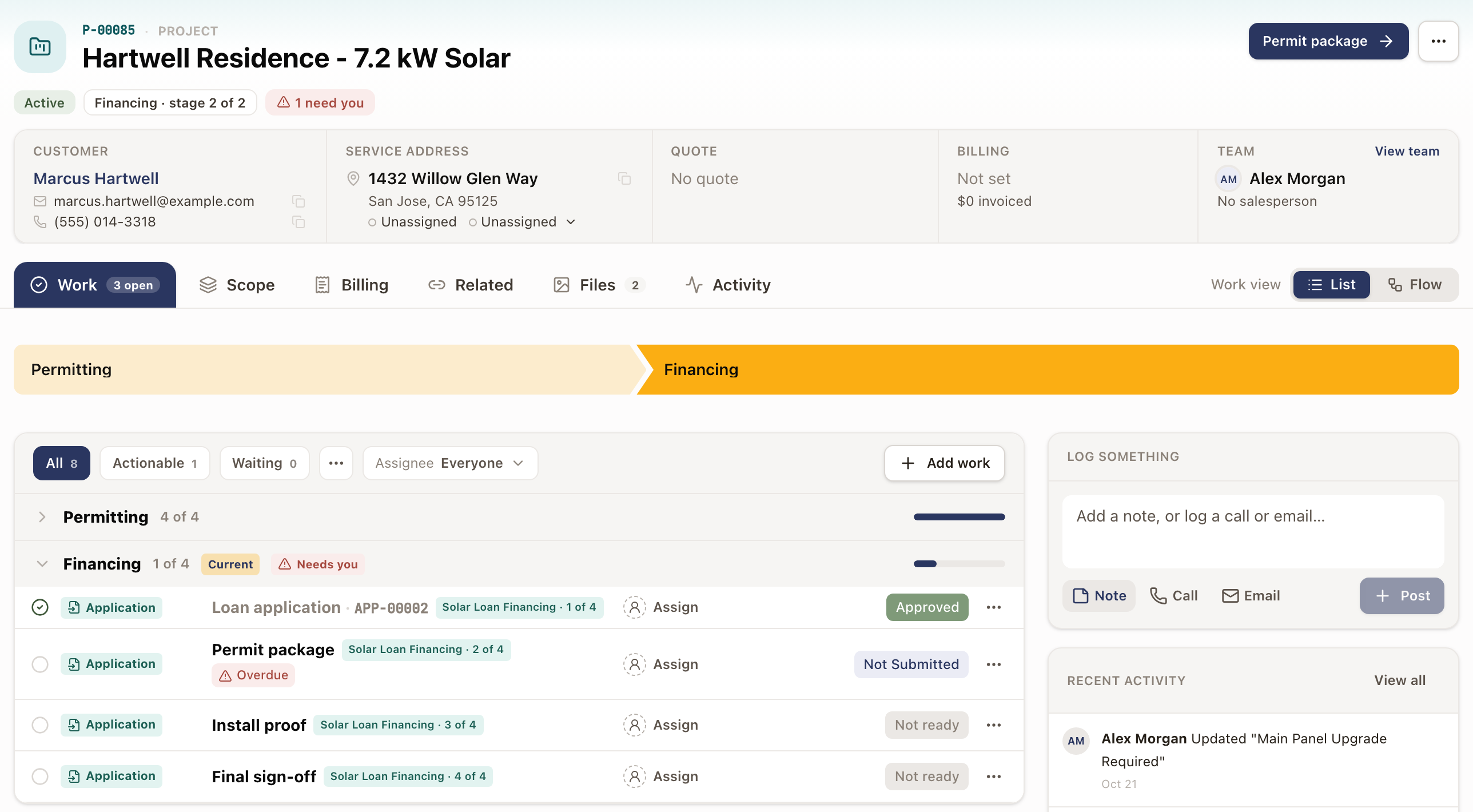
Under the project name, a status strip shows the project's status (for example Active), its current stage (for example Financing · stage 2 of 2), and, if anything's wrong, an N need you pill. Below it, a summary row shows the Customer, Service Address, Quote, Billing, and Team. Under the summary row, the tabs run Work, Scope, System, Billing, Related, Files, and Activity. System shows only on a project that has a system: one sold from a solar quote, or one entered on the System page of New Project. Below the tabs, the project's stages appear in order as a stepper, with the current stage highlighted.
If you can't see the project's billing or the quote it was sold from, the project shows no prices. You see no Billing tab, no Billing field in the summary row, and no contract price, line-item prices, change order amounts, payments, financing, or signed agreement.
The one next action is the button at the top right of the header. It's named for the step to work, for example Permit package, and clicking it opens that step. Hover it to see why it's next. When a project is on hold, the button reads On hold: and the reason, and opens the hold so you can resolve it. When money is ready to bill it reads Create invoice, and on a completed project it reads Review closeout. When nothing is unblocked it reads No next action. On a draft project it reads Move to production.
Problems are marked where they are, not in a separate block:
- A step that needs you carries a marker under its name: Overdue or Waiting on review.
- A permit, application, plan set, or step marked Waiting shows a clock under its name when an Expected time applies to its status. Within the time it reads, for example, 3 of 7 days. Past it, the step needs you and the clock reads how long it has waited, such as Waiting 9 days, in amber, and in red at twice the Expected time. See Read and reset the clock on waiting work.
- A stage with a step that needs you shows Needs you beside its name.
- A hold and an open change order each get a banner under the header. See Place and resolve a project hold and Change orders.
Read the work list
Below the stepper, work items are grouped by stage. Three filters sit above the list: All, Actionable, and Waiting. The ⋯ menu next to them adds Open, Scheduled & ready, Needs you, and Done. Actionable lists the steps to do now, the scheduled steps, and the steps that need you. Needs you lists the steps that need you now, such as an overdue step, a returned permit or plan set, or work that has waited past its Expected time. Waiting lists steps that are out of your hands for now: a submitted permit or application, a plan set sent to the client, a work order blocked on a customer, RMA, or contractor, a step held for an open change order, and a step marked Waiting. To see one person's steps, pick them under Assignee. Choose Everyone to clear it.
Each item is one row. It shows the item's type (Task, Permit, Application, Planset, Work Order, Payment, Material Request, or Report), the step's name followed by its record number when it has one (for example WO-00161), an Assign control, and a status that matches the item's own type (for example a Task shows Pending, a Work Order shows Ready to schedule). A finished step shows green with the status that finished it, such as Approved, or Done. An Application milestone step also shows its place in the application, for example Solar Loan Financing · 2 of 4.
- Assign opens a list of your team. Type to find someone, pick them, or choose Unassign.
- A row's ⋯ menu has Open, Add note, Show dependencies, Claim or Release, and Delete.
- A note you leave on a step also shows on the project's Activity tab and under Recent activity on the project page. It reads, for example, Dana Reyes left a note on Submit Permit. On the Activity tab, a note on a step with a record, such as a permit, links to that record. In My Work, it shows under Latest on this project.
- A payment row's ⋯ menu has Open billing and Show dependencies.
- A Payment step stands for the payments due at the event it waits for, so those payments show on the step and not again as their own rows. Click the step to open its payment drawer. See Work a Payment step.
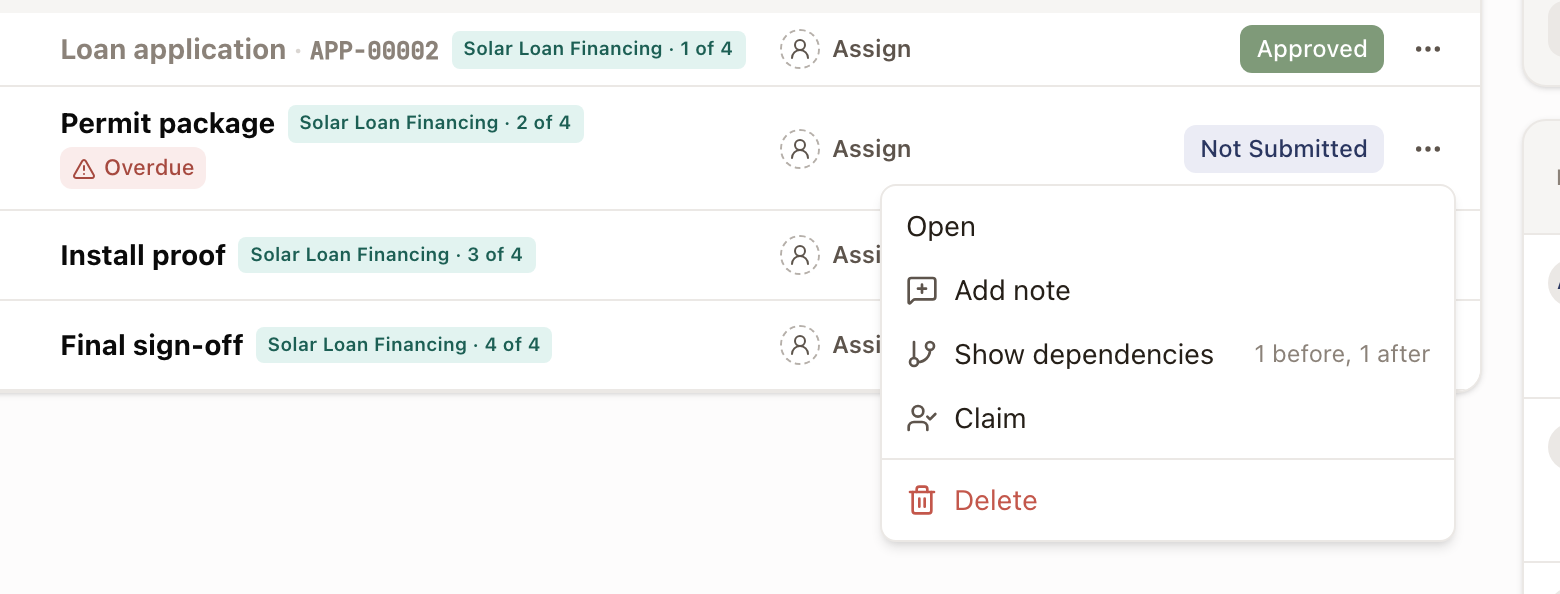
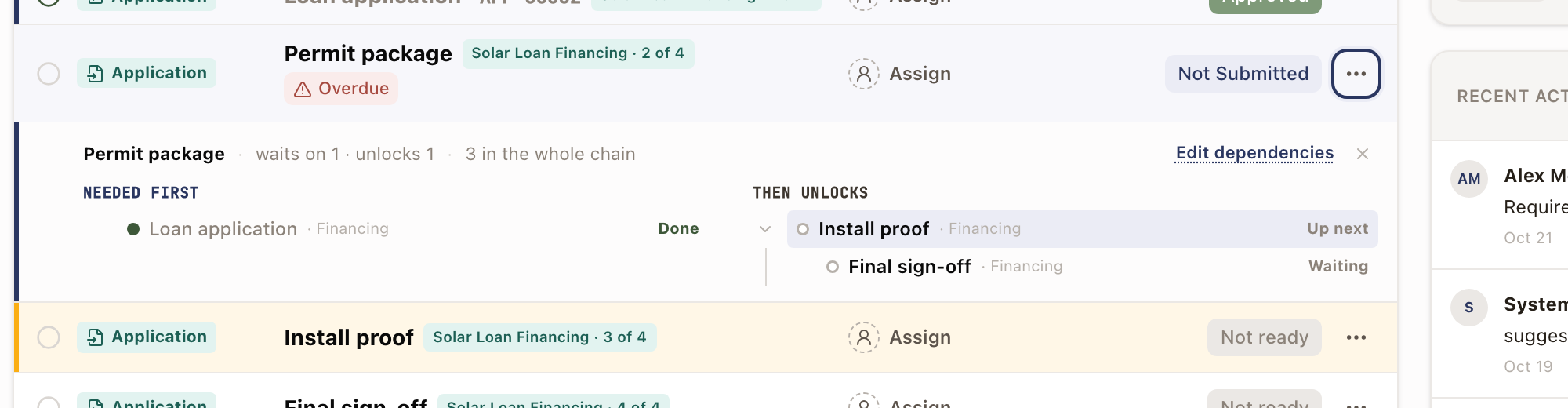
Show dependencies opens a panel under the row. Needed first lists what has to finish before this step can start, and Then unlocks lists what it's holding up. Edit dependencies opens the project structure page.
On the page or drawer of a record that is a step in a project, the ⋯ menu has Project step details. It shows the stage and the step's place in it, what the step is Done when, and Then unlocks. Open in project goes back to the project.
A failed inspection visit stays on the list as a read-only row above its step, with its work order number and a red Failed. Click it to open that work order.
A stage that's fully complete collapses to a summary line (the stage name and its item count, for example Permitting 4 of 4); click it to expand and see its items again.
Switch to the Flow view
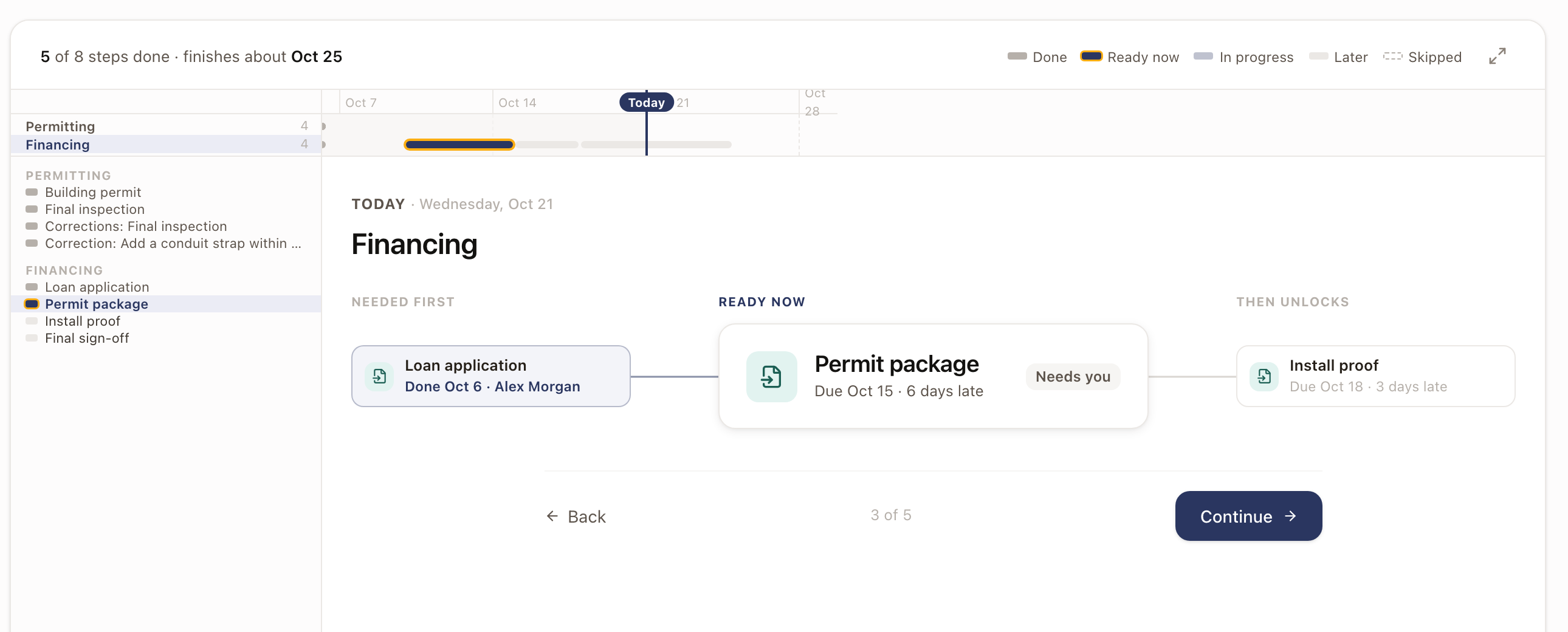
At the right end of the tab bar, Work view has two buttons: List and Flow. Flow lays the project out step by step along its real dates. It opens on today. Click Continue to walk what's coming and Back to walk what happened.
A strip at the top shows each stage against a calendar, with a Today marker. A legend names the step colors: Done, Ready now, In progress, Later, and Skipped. The line at the left reads, for example, 5 of 8 steps done · finishes about Oct 25. Click any step to open it, and click the full screen button at the right of the legend to fill the window.
The Work view buttons appear only in a wide window and on a project that has at least one step that isn't skipped.
Find a project's work orders and reports
The Related tab lists the records tied to the project, grouped by kind, with a count for each. A list of record types jumps to a kind. Type in Search related records to find one by name or number. Click a row to open it.
Work Orders lists every work order on the project once, in step order. That includes each earlier try at an inspection and any follow-up visit created from a report, even when no step in the plan points at it. A work order with no step shows a dash under Steps. Each row opens its own work order. Reports lists the reports filed on all of them, inspection reports included.
Read the System tab
A project sold from a solar quote, or started on New Project with a system, has a System tab. It shows the system as it was sold, and later changes to the quote don't change it. As sold names the quote and the date it was accepted. On a system entered on New Project, it reads Entered by hand. That tab has no Array details, Battery details, Pricing breakdown, or Documents.
- As sold: the system in one line, its System size, Panels, Battery, Annual production, and Contract price, and the design image.
- Equipment: each panel, inverter, and battery with its quantity. Array details and Battery details open the rest.
- Energy, Savings, and Price and financing: the production, usage, savings, price, and payment terms that were sold. Pricing breakdown lists the price lines.
- Payments: each payment that was sold, with its status on the project.
- Changes since the sale: approved change orders. Click one to open it.
- Documents: links to the Signed agreement, the Proposal PDF, and the Design image.
For anyone who can't see the project's billing or the quote it was sold from, the tab leaves out the price, financing, payments, change order prices, signed agreement, and proposal.
Create the home's system
The Home's system card on the System tab turns the sold equipment into the home's installed system. Monitoring, warranties, and service cases use that system. The badge on the card says where it stands:
- Planned: waiting for the installation. The card says what completes it, for example "Becomes this home's system when the Install work order is completed." Click Create now to create it early, or Edit to change it first.
- Ready to confirm: the installation is done, and the project's owner gets a notification. Click Confirm and create system, or Edit first.
- Created: shows the system's name, panels, batteries, and size. Click Open the home's system to see it.
Edit and Edit first open Confirm installed equipment. Change the Qty of anything that went in differently, enter each Serial number, and set Installed on and Installed by. Click Save to the home's system. The sale itself doesn't change. A battery-only sale on a home that already has a system adds its batteries to that system, so the drawer doesn't ask for an install date or installer.
You need Edit Projects and Edit Customers to see these buttons. Owner, Admin, Sales Manager, Operations Manager, and Operations User have both by default.
Your company chooses what makes the system ready under Settings → Operations → Project settings, in the Home's System card. Choose Create it when and pick the work type that finishes the installation, or choose When the project starts or Only by hand. Click Save Home's System. A work order step in a project template can be marked Creates the home's system. On projects from that template, that step takes the place of this setting.
Delete a project
Delete a project that was started by mistake or won't go ahead. You need the Delete Projects permission. By default, the Owner, Admin, and Operations Manager roles have it.
- Open the project, click the ⋯ button, then Delete project.
- Read Delete project?. Deleted counts what goes with the project, such as steps, work orders, permits, plansets, reports, and files. Scheduled visits on those work orders are canceled, so they leave the Dispatch Board and technicians' schedules. Kept, no longer linked to this project counts what stays: quotes, opportunities, invoices, cases, child projects, and records on a case or another project.
- Type the project name to confirm, then click Delete project. This can't be undone.
If the dialog says This project's hours are on an invoice. Void the invoice for these hours first., void that invoice, then delete the project.
Common problems
- An item isn't ready even though you expected it to be. Open its ⋯ menu and click Show dependencies. Needed first lists what hasn't finished yet. If the project is on hold, nothing new opens until the hold is resolved. See Edit project structure and dependencies.
- A permit, application, or plan set was rejected or needs revision. It counts under Needs you, its row shows the returned status, and the header's next-action button points to it. Click through to the item and resubmit.
- An inspection failed. The header's next-action button reads Schedule corrections. Click it to choose how each correction gets done. Once they're scheduled, the button moves on to whatever is next on the project. See Work permit inspections on a project.
Place a hold on the project
Use a hold when the whole project is blocked, such as a permit delay or a customer who's gone quiet. Open the project's ⋯ menu, click Place hold, choose a Reason, and click Place hold. Nothing new opens until you resolve the hold. Ready work stays workable and booked visits stay booked. The Work tab then shows a Holds section where you edit or resolve it. See Place and resolve a project hold.
Start a project without a quote
Start a project from a project template with its answers, system, price, payments, and files, and move it to production when it's ready.
Read and reset the clock on waiting work
See how long a permit, application, plan set, or waiting step has been in its status, and reset the clock or change its Expected time.