
Create a project
How a project is created automatically when a quote is accepted, and how to create one by hand.
Most projects don't need to be created by hand: they're built automatically the moment a quote is accepted. Create one manually only when there's no quote behind the work, such as a favor visit or work you're tracking before sales is involved.
Before you start
Creating a project manually needs the Create Projects permission (Owner, Admin, Sales Manager, Operations Manager, and Operations User have it by default). No role is needed for the automatic path: it happens on its own when a quote is accepted.
A project is created automatically when a quote is accepted
When office or sales marks a Quote Accepted, solarOS creates a project for that customer right away. If your organization has a project template mapped to that quote type, the project comes in already structured: its stages and work items are built from the template, along with its payment schedule from the quote.
Check it worked: a new project appears in Operations → Projects for that customer. Opening it shows its stages, and the button at the top right of the header names the next step to work. The project's number, such as P-00089, sits above its name. Under the project name, a summary row shows the Customer, Service Address, Quote, Billing, and Team. A box with nothing yet reads No quote, Not set, or No salesperson. Under the quote, Sold shows the date it was accepted.

Common problem: if nobody has mapped a project template to that quote type, the project is still created, but without stages or items to work. An Admin sets up the mapping in template mappings; existing bare projects aren't restructured after the fact.
Create a project manually
- Go to Operations → Projects.
- Click New Project.
- Search for the Customer, or click New Customer to create one. Then choose the Property.
- Check the jurisdiction. Under the property, the jurisdiction row names the property's jurisdiction. Click it to pick another. The change applies to the property and to its open projects. A project with no property has a plain Jurisdiction list instead.
- Choose a Project template, or No template at the bottom of the list.
- With a template, fill in the pages across the top of the drawer. Click Save as draft on any page, or Create in production on the last one. See Start a project without a quote.
- With No template, type a Name. Set the Owner, Date sold, and Description if you want to. Click Create Project.
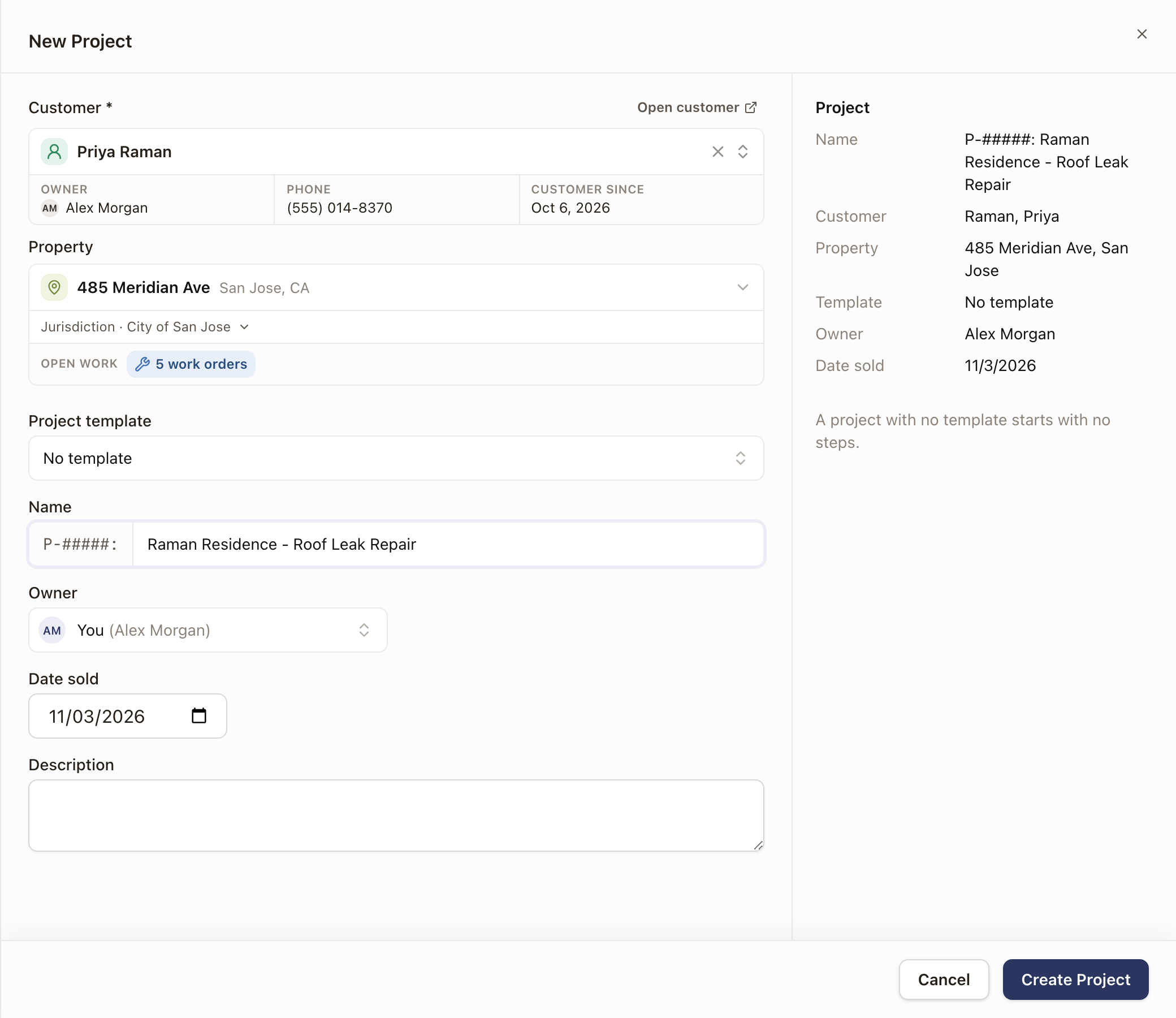
Check it worked: the new project opens. With a template, its stages and steps are already built. A project saved as a draft, or made with no template, reads Draft until you click Move to production. Find it under the Draft chip on Operations → Projects.
Update a project from a newer quote
If a customer's scope or price changes after their project already exists, you don't have to rebuild it by hand. Open the project's ⋯ menu and choose Re-onboard from quote to pick a newer accepted quote as the project's new source of truth. This updates scope, budget, and payment schedule; it doesn't rebuild the project's stages or work items.
To change an existing project's price, payment schedule, or scope with the customer's agreement, add a change order from the project's Scope tab instead. See Change orders.