
Connect quotes to project templates
Set which project template a quote type hands off to when a quote is accepted and signed.
When a quote is accepted (and signed, if it needs an agreement), solarOS creates a project from a project template automatically. Template mappings is where you tell it which template to use, per quote type.
Before you start
You need the Owner or Admin role to save a mapping. Anyone with settings access can view this page. You'll also need a quote type (called a Quote family under Settings → quote setup) and at least one Enabled project template to map it to.
Steps
- Go to Settings → Template mappings.
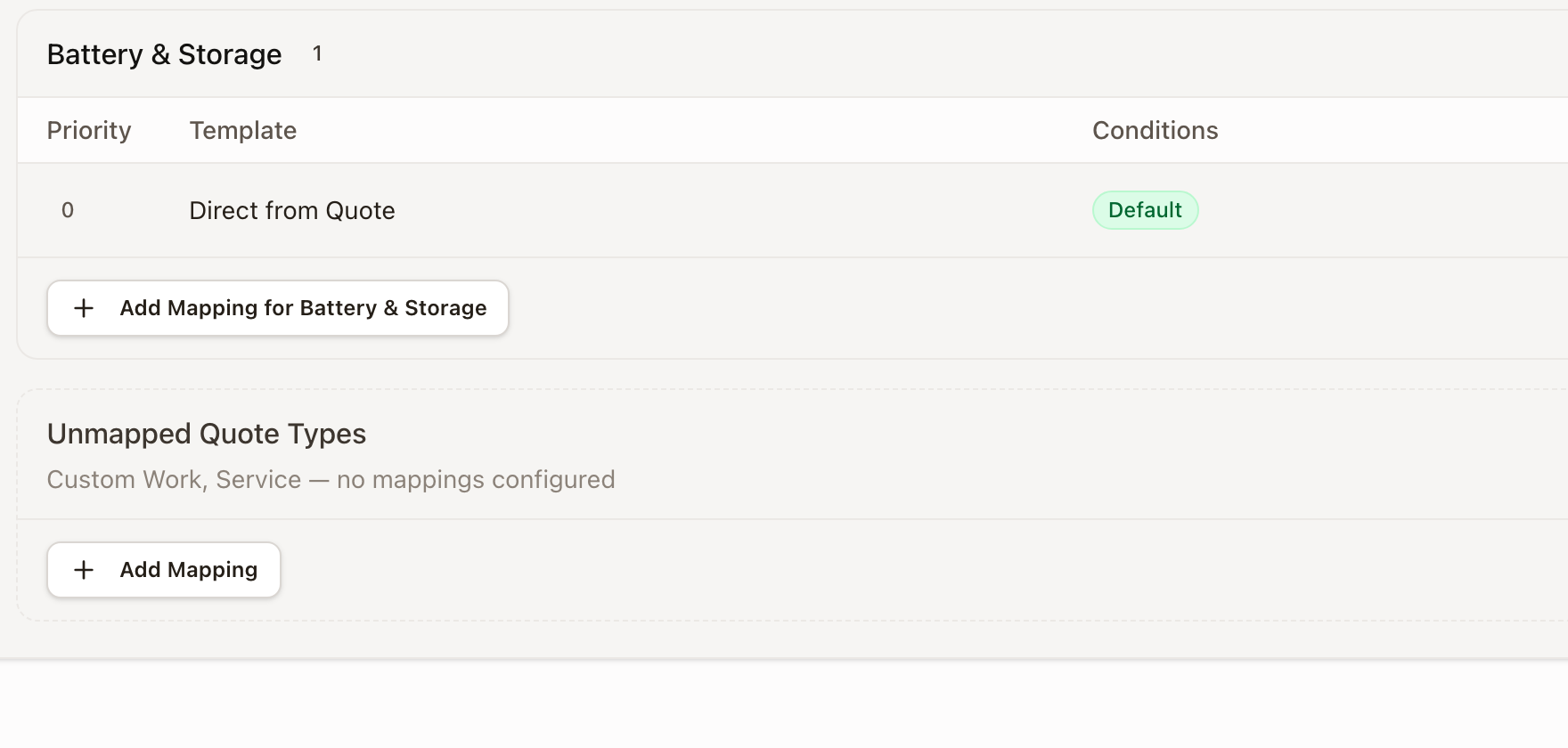
- Each quote type with a mapping already shows a card listing its mappings by Priority, Template, and Conditions. Quote types with none show under Unmapped Quote Types.
- Click Add Mapping (on a quote type's own card) or Add Mapping under Unmapped Quote Types.
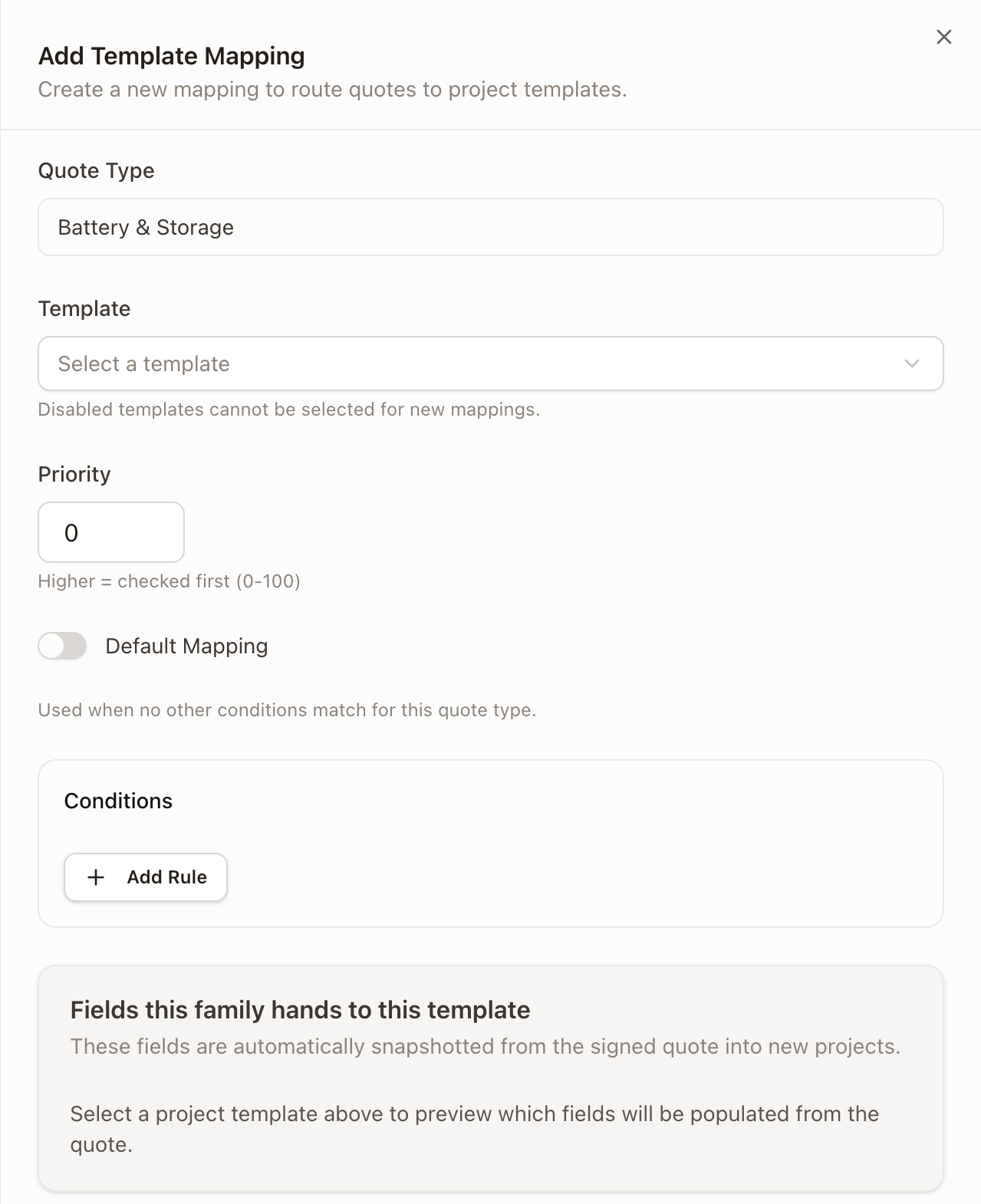
- Pick the Quote Type and the Template. Disabled templates can't be picked; go enable it first if you don't see the one you want.
- Set a Priority (0 to 100; higher is checked first).
- Either turn on Default Mapping (used when nothing else matches for this quote type), or add a Condition the quote has to meet.
- Click Save Mapping.
How it picks a template
Mappings for a quote type are evaluated in priority order. The first one whose conditions match wins. If nothing matches, the mapping marked Default is used. A quote type can have several mappings, for example a higher-priority one that only applies when the system includes a battery, and a plain default underneath it for everything else.
The dialog also shows a read-only preview of which fields the quote type hands to the template you picked, so you can confirm the project will actually receive what this template expects.
Check it worked
The quote type's card now lists the new mapping. A quote type with no default and no matching condition anywhere shows as Unmapped, meaning accepted quotes of that type won't create a project automatically; someone will need to create one by hand.
Common problems
"This mapping has no conditions and is not a default: it will never be used." You saved a mapping with no conditions and Default left off. Either add a condition or turn on Default.
"Disabled templates cannot be selected for new mappings." Go enable the template first; see Finish, enable, and publish a project template.
A quote type shows no mappings at all. This is normal until you add one; it just means accepted quotes of that type currently hand off to nothing.