
Share a record between steps
Let two steps in a project template work on the same permit, planset, application, material request, or report.
By default every Permit, Planset, Application, Material Request, and Report step creates its own record when a project starts. Sometimes two steps belong to the same record. For example, one step marks a permit as submitted and a later step waits for the same permit to be approved. Use the Record control to point the second step at the first step's record, so the project has one permit instead of two.
Before you start
You need the Owner or Admin role, and a template with at least two steps of the same type. See Build a project template.
Make a step use another step's record
- Go to Settings → Project templates and open your template.
- On the Steps tab, click the step that should use the existing record. This is the second step, for example Building permit approved.
- Find Record in the step panel. Open it and choose Uses the permit from followed by the step that creates the record.
- Set Completes when under Advanced on each step to the status where that step is done. For a permit, the first step can finish at Submitted and the second at Approved. See Finish, enable, and publish a project template.
- Click Save changes.
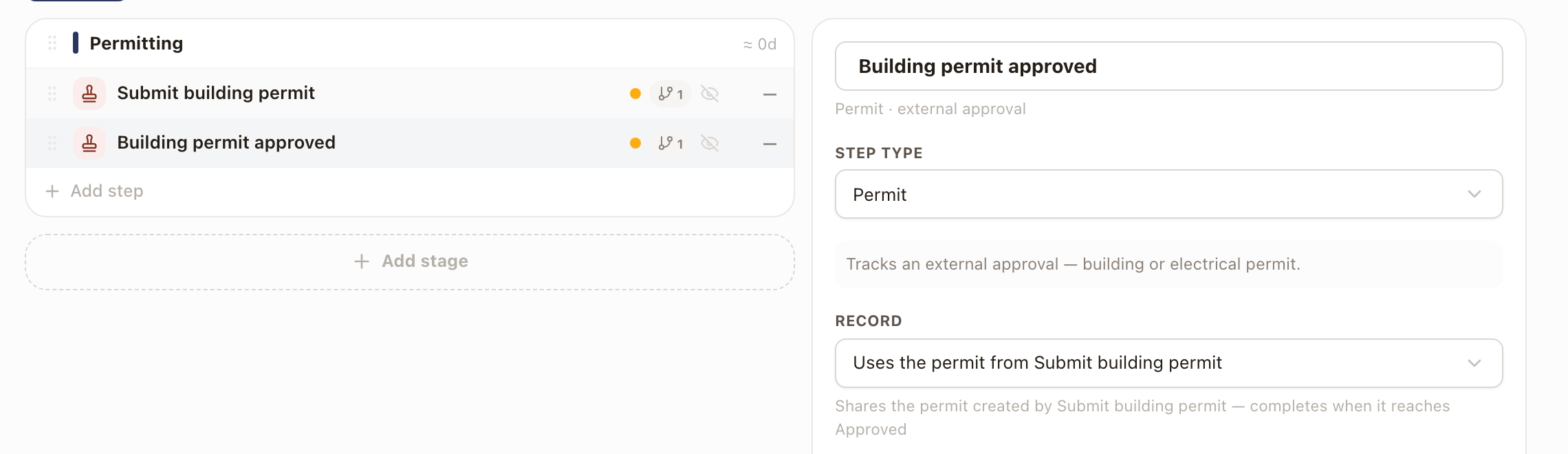
To go back, set Record to Creates a new permit.
Things to know:
- The choices are steps of the same type. A Permit step can only use a permit from another Permit step.
- When a template has exactly one other step of that type that creates its own record, a new step uses it automatically. Change Record if that's not what you want. A Report step never picks one for you, because its report type is chosen after you add it.
- Choosing a record adds a sequence rule so the step comes after the step that creates the record, unless the two steps are already ordered.
- Sharing goes one level deep. A step that other steps use can't use another step's record itself, and its Record control is locked. The panel lists the steps that use it.
- An Application step that uses another step's application takes that step's Application type. An Application step that has milestone steps always creates its own application, so its Record control is locked.
- A step that doesn't name a source creates its own record, so templates you built before this control existed keep working the same way.
- If a step is left out more often than the step it shares from (it has an Include when rule the other doesn't), the step row shows "Left out more often than its permit". Give both steps the same rule, or the shared record may be missing when it's needed.
See the records a template creates
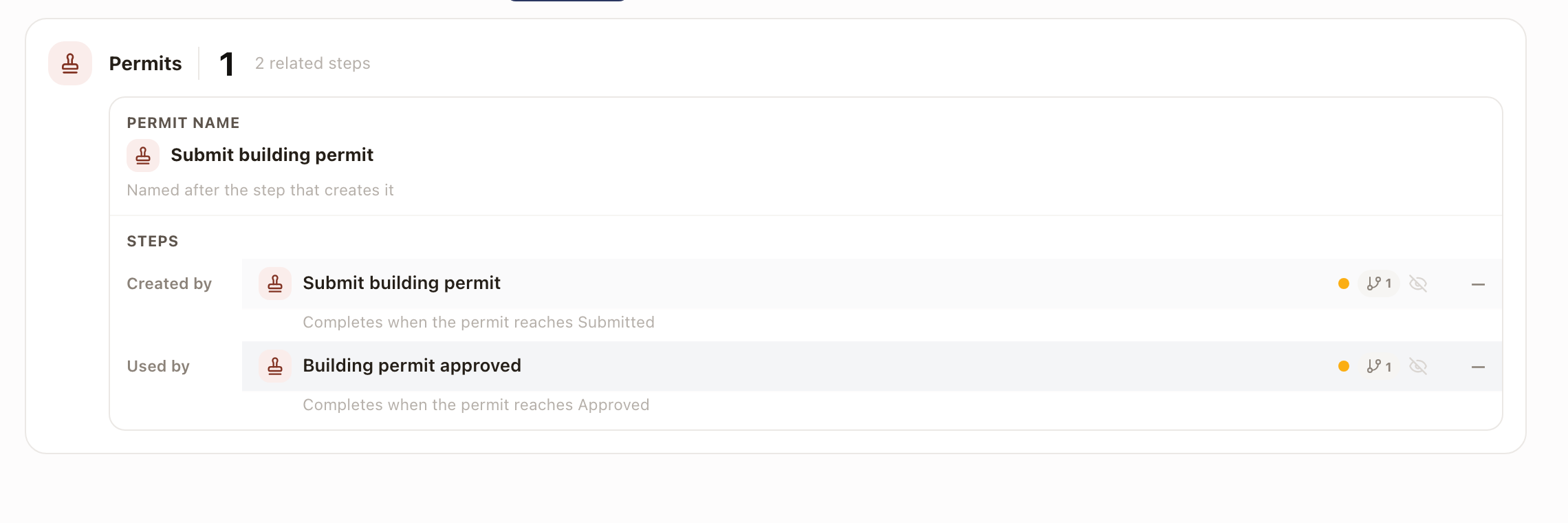
Click the Records tab. It lists the records the template will create, grouped as Permits, Plansets, Applications, Material requests, Reports, Work orders, Tasks, RMAs, and Payments. Each group shows how many records there are and how many steps relate to them. Two steps that share a permit count as one permit.
Each record shows the step that creates it (Created by), the steps that use it (Used by), and when each step completes. The view is read only. To change a step, go back to the Steps tab.
Check it worked
- The second step's Record control reads Uses the permit from and the step's name, with a note that it completes when the permit reaches the status you chose.
- The Records tab shows one record with both steps under it.
Common problems
The step shows "Choose which permit this step uses, or set it to create a new one." The step it pointed to was removed. Open Record and choose another step, or Creates a new permit.
The Record control is locked. Other steps already use this step's record, or it's an Application step with milestone steps. The note under the control says which.