
Set up case categories and case resolutions
Choose the categories your team sorts cases into and the outcomes it records when a case is closed.
Every case gets a category when it's opened and a resolution when it's closed. You choose both lists. Use them to match how your office talks about service problems and how it finishes them, so the Cases list and your reports sort the way you expect.
Before you start
You need the Owner or Admin role to add or change categories and resolutions. Other roles that can open Settings can view the lists.
Add a case category
- Go to Settings → Operations → Case categories.
- Click Add category.
- Type a Label, up to 60 characters. This is the name people pick from.
- Add a Description if it helps your team choose the right one.
- Click Add category.
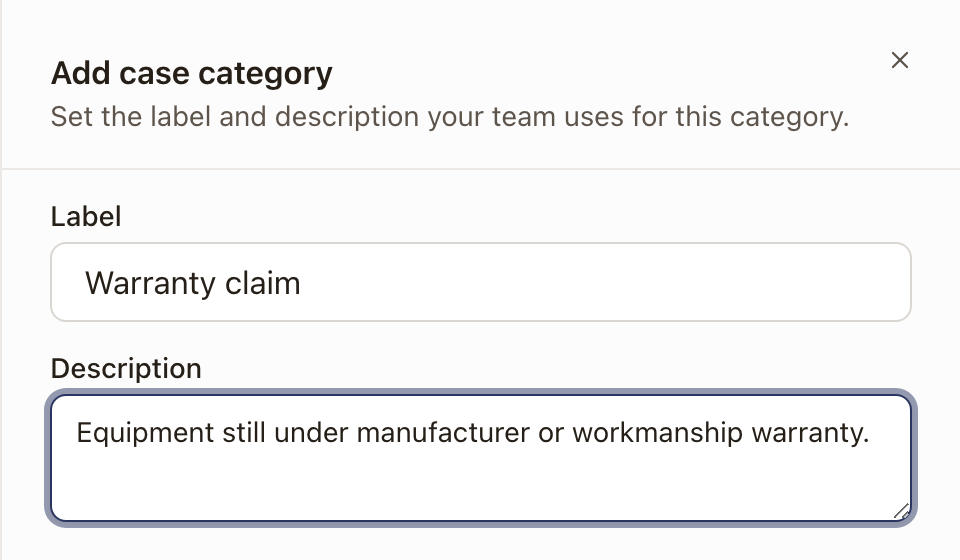
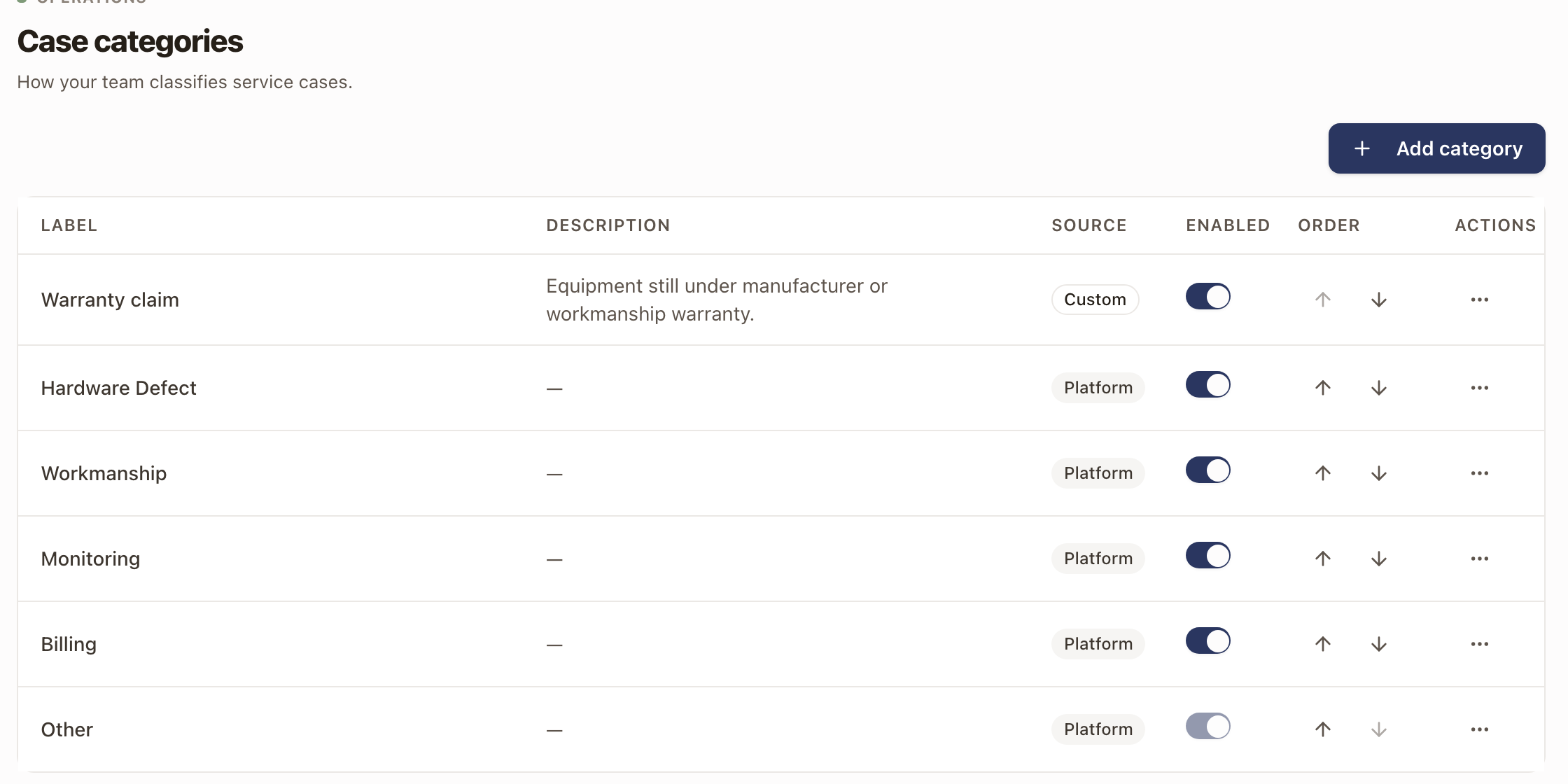
A new category is on and ready to pick when someone opens a case. A company starts with Hardware Defect, Workmanship, Monitoring, Billing, and Other.
Add a case resolution
- Go to Settings → Operations → Case resolutions.
- Click Add resolution.
- Type a Label, up to 60 characters, and add a Description if you like.
- Click Add resolution.
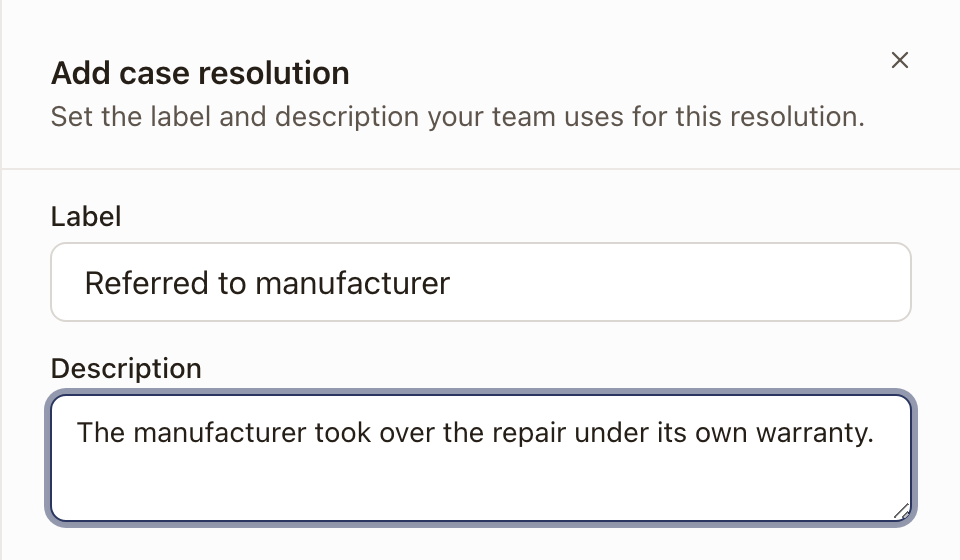
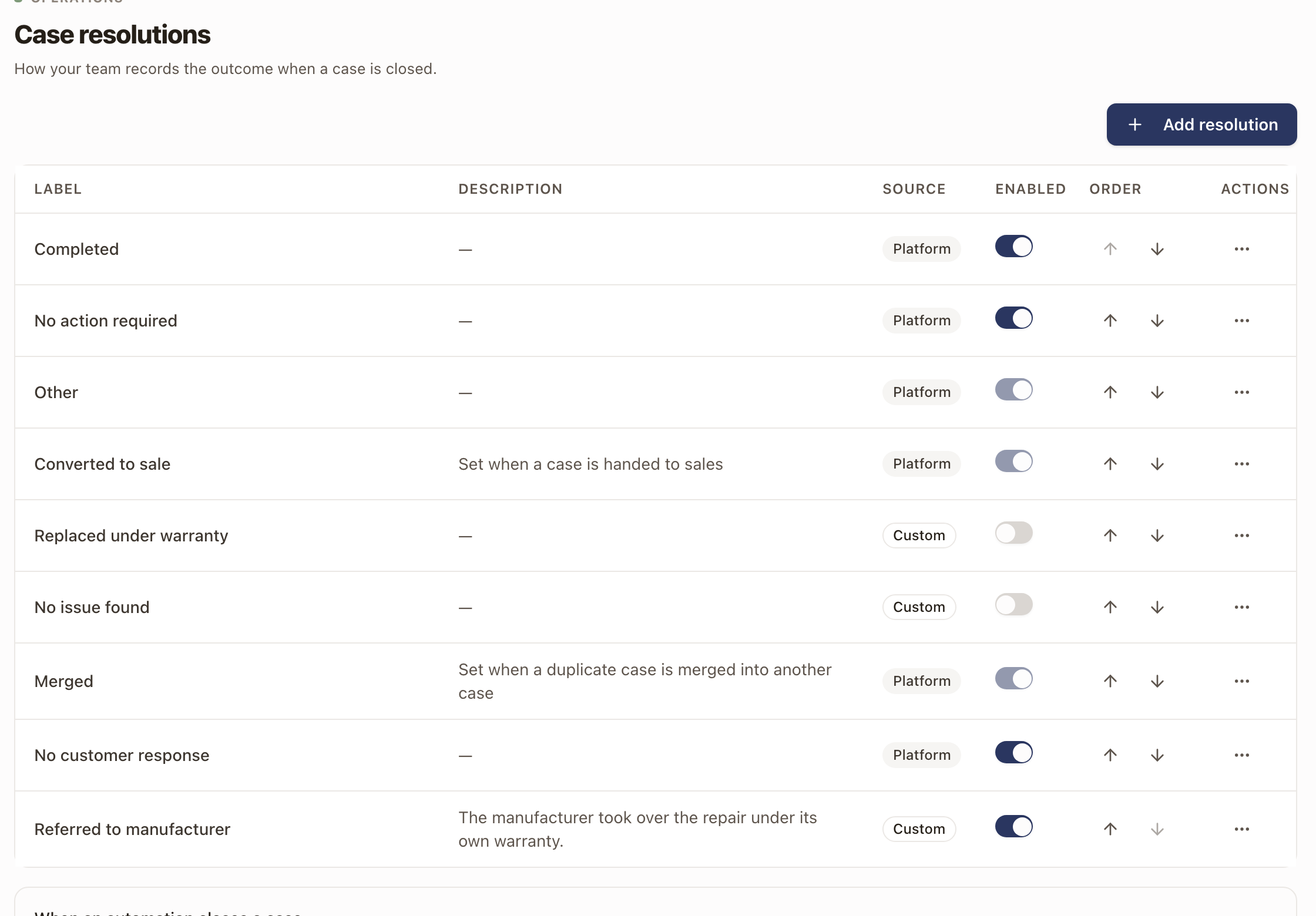
The new resolution is on and appears in the Resolution list of the close dialog. A new company starts with Completed, No action required, Other, and No customer response. Converted to sale and Merged are in the list too, but solarOS sets them: Converted to sale when a case is handed to sales, and Merged when duplicate cases are merged. They never appear in the close dialog.
Change a list
On either page you can:
- Turn an item off or on with the switch under Enabled. A turned-off category or resolution can't be picked on new cases. Cases that already use it keep it.
- Reorder with the up and down arrows under Order. The list shows in this order wherever people pick from it.
- Rename with ⋯ → Edit, which changes the label and description.
- Delete with ⋯ → Delete. Only the ones you added can be deleted.
Other can't be turned off in either list, and neither can the resolutions Converted to sale and Merged. Closing a case as Other requires a note that describes the resolution.
Check it worked
Open Operations → Cases and click Create Case. Your category is in the Category list. Open a case and click Resolve & close. Your resolution is in the Resolution list. See Open a case and Work a case and close it out.
Common problems
- I can't delete a category or resolution. One that's used by existing cases can't be deleted. A message says how many cases use it. Turn it off instead.
- I can't turn a category off. It's on your service request form. Remove it from the form first.
- I can't delete one of the standard entries. The ones marked Platform can't be deleted. Turn them off if you don't want them picked, except the ones listed above that can't be turned off.