
Open a case
Log a customer's problem as a Case so it can be tracked and worked.
A Case is the record of a customer's problem: an underperforming system, a broken part, a question about their bill. Open one whenever a customer reports an issue so the office can track it, work it, and close it out.
Before you start
You need the Owner, Admin, Operations Manager, or Operations User role.
Steps
- Go to Operations → Cases.
- Click Create Case.
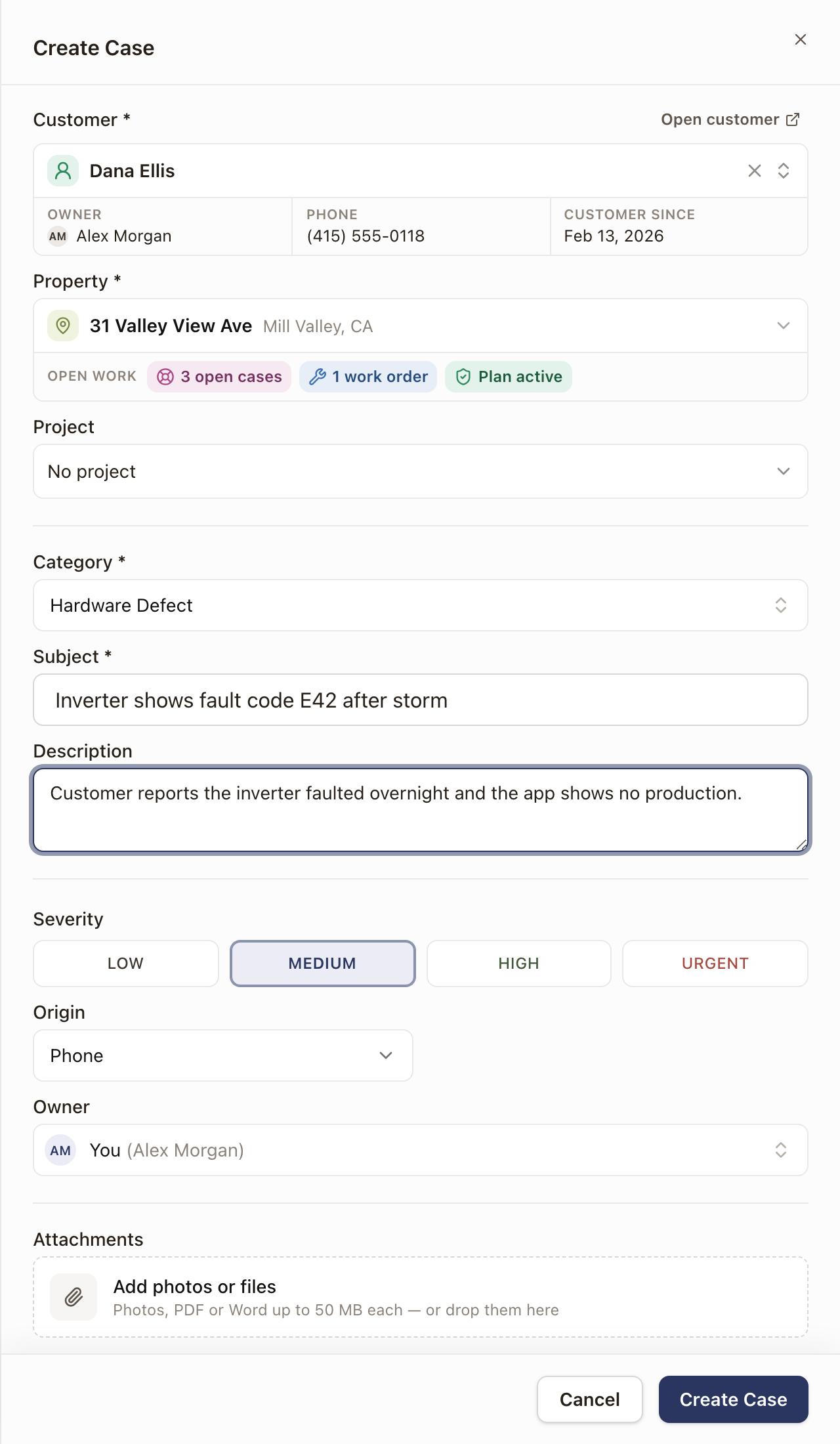
- Under Customer, search for and select the customer. A card shows their Owner, Phone, and Customer since date. Click Open customer to see their record in a new tab.
- Under Property, pick the address the problem is at. If the customer has only one property, it's already chosen.
- Check the Open work row on the property. It shows what's already going at that address: chips such as 1 open case, 2 quotes sent, 7 work orders, or Plan active. The row doesn't appear when there's none. Click a chip to list those records. Each one opens in a new tab, so the drawer stays as you left it. Use it to spot an existing case before you create a second one.
- If the problem belongs to one of the customer's projects, pick it under Project. It reads No project until you pick one. The list shows each project's status, owner, and created date, and a picked project's card shows its status, Owner, and Created date. Cancelled and closed projects are hidden: click Show beside the closed count to list them. Changing the customer clears the project.
- Pick a Category. It's required and has no default. Open the list and pick the one that fits, for example Hardware Defect, Workmanship, Monitoring, Billing, or Other. Your company can add its own; see Set up case categories and case resolutions.
- Fill in Subject, a short summary. Description is optional: add what's happening, including anything the customer reported.
- Pick a Severity: Low, Medium, High, or Urgent.
- Pick the Origin: Phone, Email, or In Person.
- Leave Owner as You, or choose Unassigned (triage queue) to leave the case in the queue. With the Operations Manager, Admin, or Owner role, you can also choose a teammate.
- To attach photos, a PDF, or a Word file, click Add photos or files or drop them on the drawer. Each file can be up to 50 MB.
- Click Create Case.
A case you enter starts as already responded. How soon it needs to be resolved comes from your company's targets for that severity; see Set case SLA targets.
Check it worked
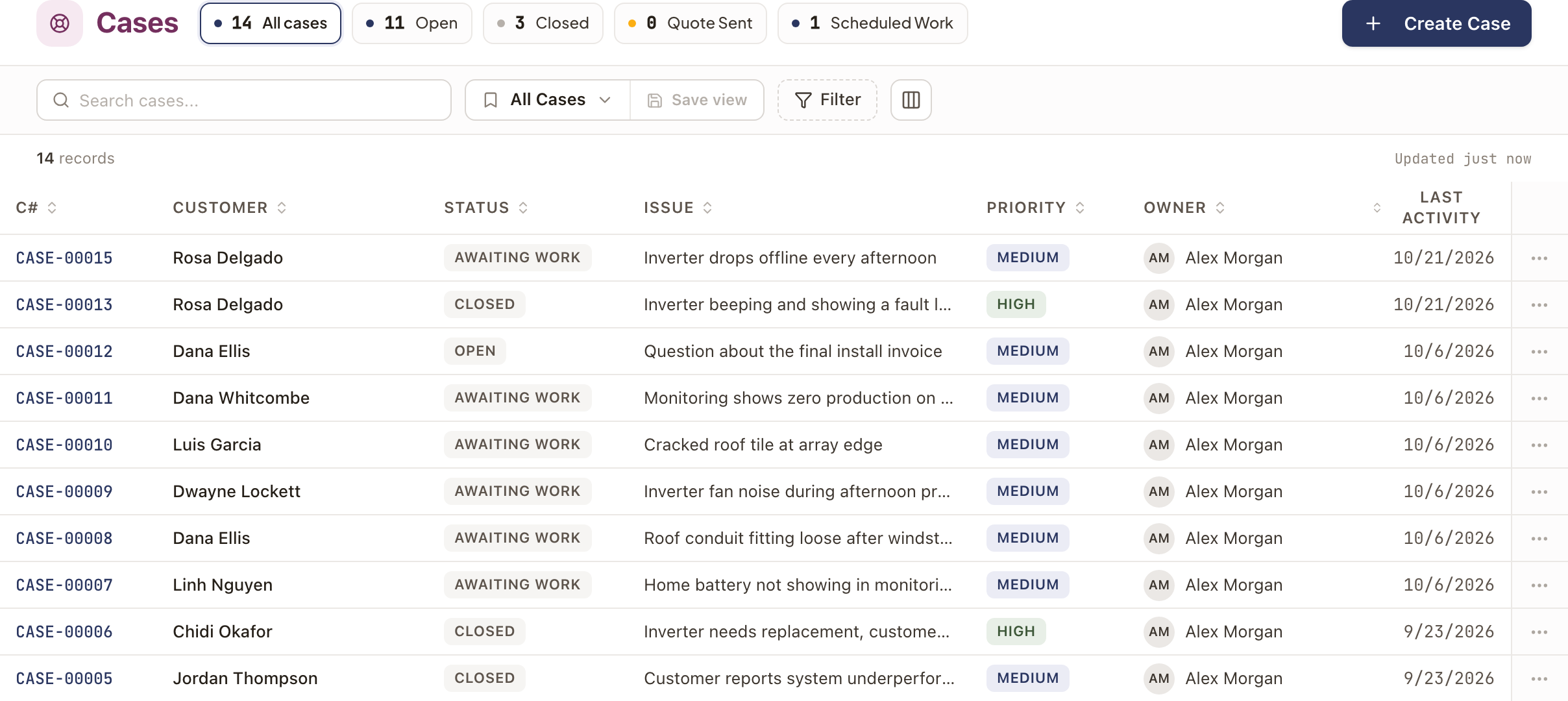
The case opens at Open status and appears in the list at Operations → Cases with its case number, such as CASE-00042. If you chose Unassigned, it shows as Unassigned in the list. To find cases again later, see Work the Cases list.
Common problems
- "Please fix the highlighted fields." The drawer shows this when a required field is empty. Pick a customer and a Category, then click Create Case again.
- A file didn't upload. The case is still created. A message names the file that failed: add it again on the case's Attachments tab. A file over 50 MB is turned away by name.
- A case for the same issue already exists. Open either case, click the ⋯ menu, and pick Merge duplicates…. See Merge duplicate cases.
Was this page helpful?