
Get paid before the customer sees the report
Hold a report until the customer pays an invoice, or list their unpaid invoices above the report with a way to pay.
A customer opens their report when you send it. You can use that moment to get paid. When you email a report, you can hold it until the customer pays one of their invoices, or you can list what they owe above the report so they can pay from there.
Before you start
- You need the Owner, Admin, or Operations Manager role. The choices need permission to email reports and to view billing. Other roles don't see them.
- The customer needs an unpaid invoice. An invoice counts when it has been issued and has a balance: Created, Partially Paid, or Overdue. A Draft doesn't count.
- Customers pay online through solarOS. Connect Stripe first, so each invoice has a Pay button. See Connect Stripe.
Choose when you send the report
- Send the report from Complete Review or Email on the report drawer, or from Mark reviewed in Review Work. See Find and work with reports.
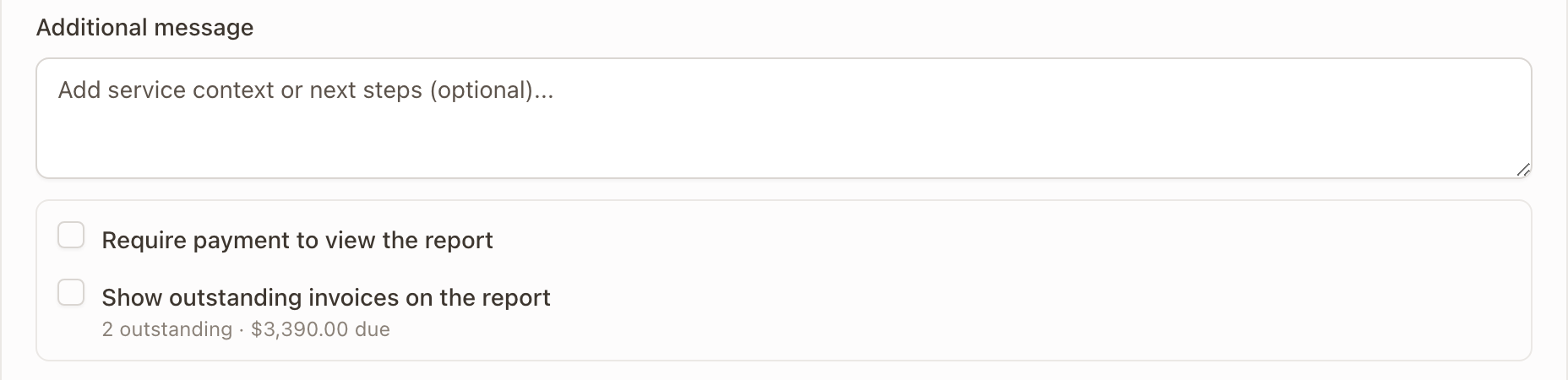
- In the email, under Additional message, pick what you want:
- Require payment to view the report: the customer can't open the report until the invoice is paid. If the customer has several unpaid invoices, pick one from the list. Each shows the invoice number and the amount due. An invoice for this work order comes first and is marked this work order.
- Show outstanding invoices on the report: the report lists everything the customer owes, with a Pay button on each invoice. The line under it shows how many invoices are unpaid and the total.
- Send the email.
Require payment to view the report is unavailable when the customer has no unpaid invoices. The box says No unpaid invoices for this customer. If online payments aren't set up, the box says Customers can't pay online until you set up payments.
What the customer sees
With Require payment on, the customer's link opens a page that says You have an outstanding invoice and Please pay this invoice to view your report. It shows the invoice number, the due date, and the amount due, with View invoice and Pay invoice. A past-due invoice is marked Past due. If you haven't connected online payments, the page gives your company phone number and email so they can pay another way.
The report opens as soon as the invoice is paid. After paying, the customer taps View your report. A partial payment keeps the report locked. An invoice that is voided or written off opens it. The report's PDF stays closed while the report is locked.
With Show outstanding invoices on, the report opens as usual. Above it, the customer sees You have an outstanding invoice, or You have the number of invoices outstanding invoices with the total due. Each invoice shows its due date and amount, with a Pay button.
Change the choices after you send
You don't need to send the report again. Open the report's page or drawer and change the two boxes beside Outcome & work summary. Each change saves right away and shows a message, for example Report locked until 000008 is paid, Report unlocked for the customer, or Outstanding invoices shown on the report.
While the report is locked, the report shows Locked for the customer and names the invoice it waits on. In Review Work, the boxes show on a job only while one of them is on.
Show outstanding invoices on every report
- Go to Settings → Billing & payments → Invoicing. You need the Owner or Admin role.
- Under Customer Reports, turn on Show outstanding invoices on reports.
- Click Save Changes.
New report emails then start with Show outstanding invoices on the report ticked, until someone chooses for that report. You can still untick it for one report. Require payment to view the report is always your choice for each report.

Check it worked
The report page or drawer shows the choice you made, and Locked for the customer appears when you required payment. The customer's link shows the invoice or the list of invoices.
Common problems
- The two choices aren't there. Your role can't email reports or view billing, or the report is still a Draft.
- The customer paid, but the report is still locked. A partial payment keeps the report locked. The customer needs to pay the full amount due.
- The customer has no Pay button. Online payments aren't set up. Connect Stripe, or have the customer use the contact details on the page.