
Work the Cases list
Find cases, see which need attention today, and choose the columns, filters, and views that fit how you work.
The Cases list is where you find a case, see what's waiting on you, and pick the next one to work. Use the search box, the filters, and the saved views to narrow it, and add columns to see each case's SLA and its related work, quote, and task without opening it.
Before you start
You see the cases your role allows. The Owner, Admin, Operations Manager, and Operations User roles can open and work them. To add a case, see Open a case.
Find a case
- Go to Operations → Cases.
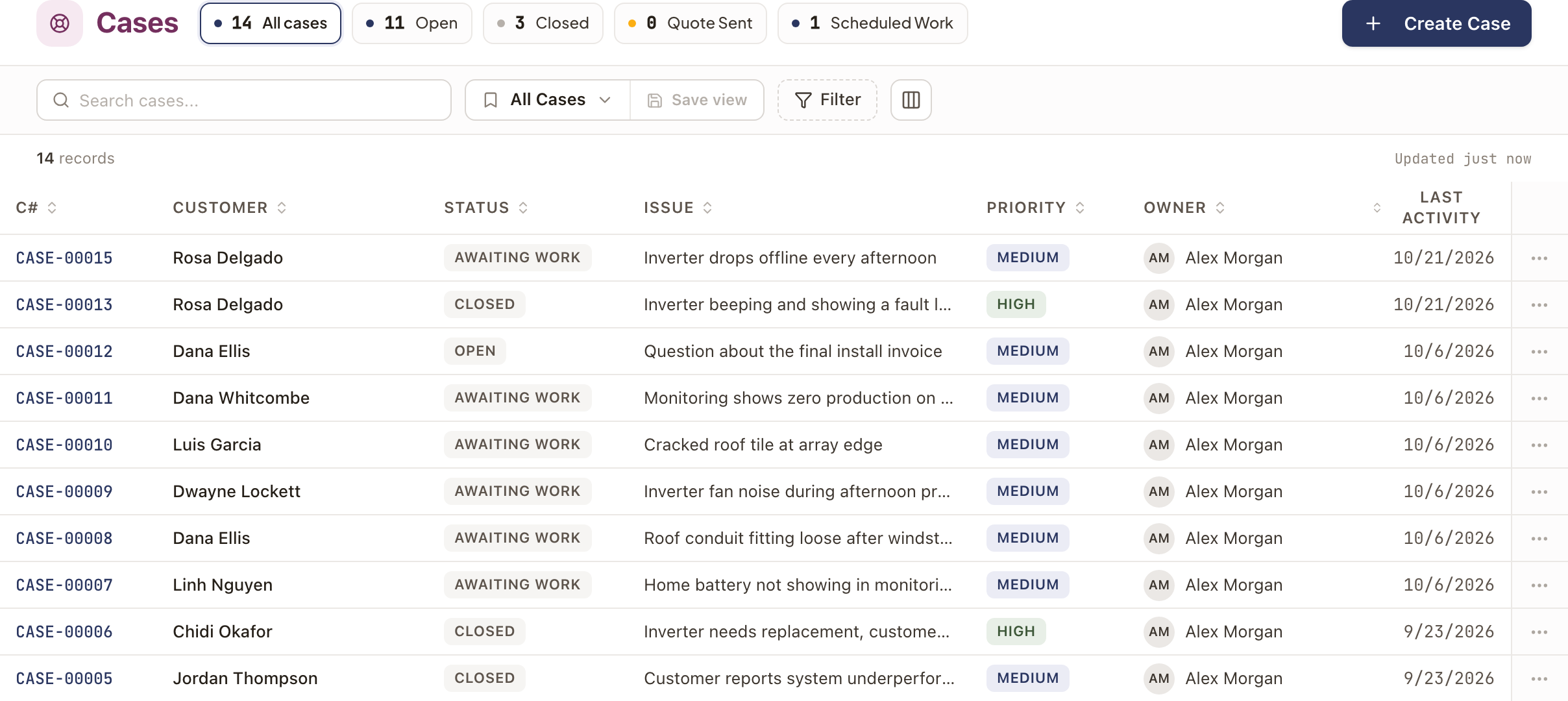
- Type in Search cases.... It matches the case number, the subject, the description, and the customer's first or last name.
- Click a row to open the case. Click a column heading to sort by it.
The buttons beside Cases at the top are quick views with a count on each: All cases, Open, Closed, Quote Sent, and Scheduled Work. Click one to switch to it.
Use a saved view
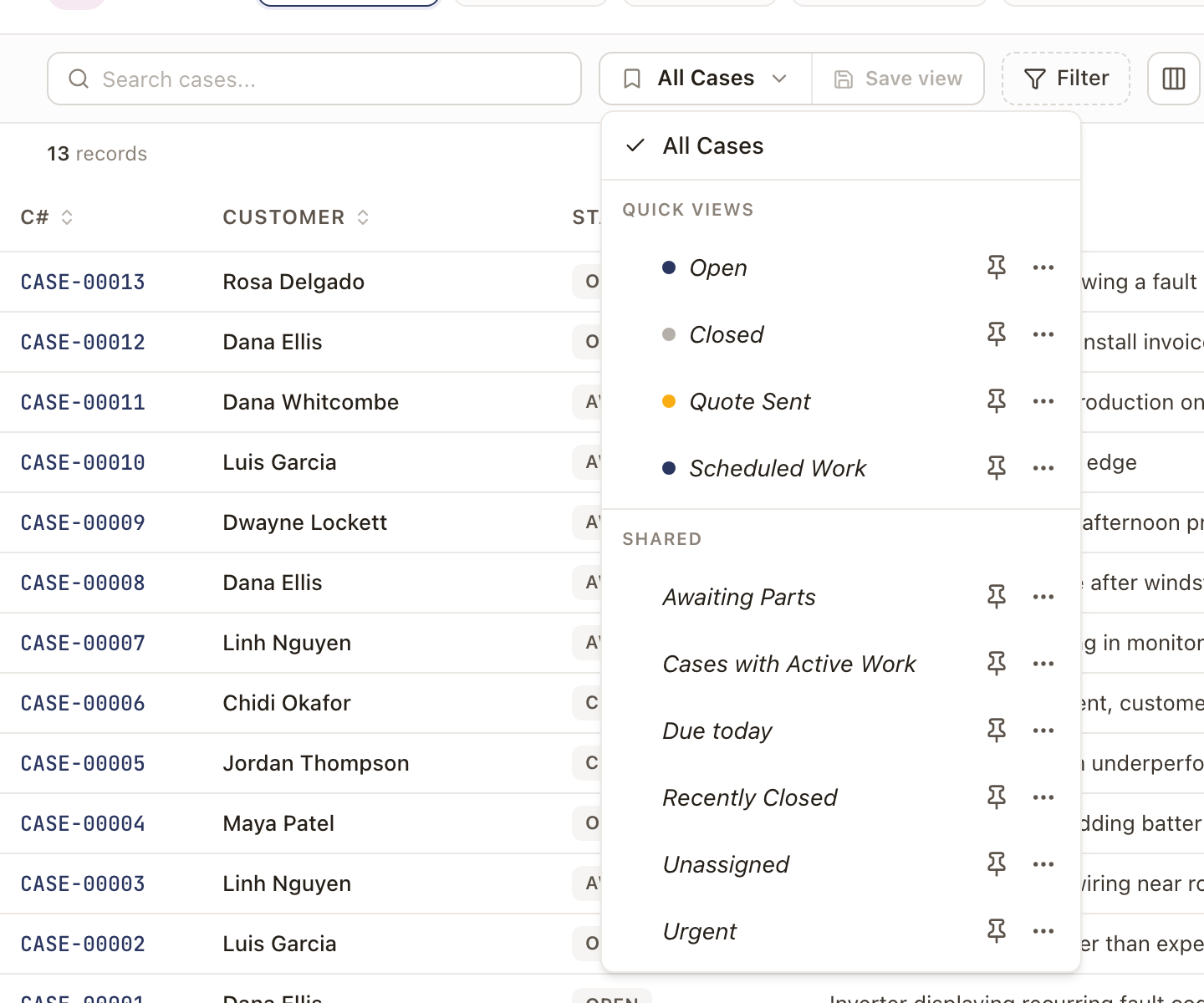
Click the views menu, which reads All Cases until you pick another, to see the views you can switch to:
- Quick views: Open, Closed, Quote Sent, and Scheduled Work.
- Shared views that come with solarOS: Urgent, Due today, Unassigned, Awaiting Parts, and Recently Closed. Awaiting Parts lists cases in Awaiting Vendor. Your company may have added others.
Due today is the one to start the day with. It lists open cases whose SLA is overdue or runs out today, soonest first, and shows the SLA column.
To keep your own combination of filters and columns, set them up and click Save view, then name it. The ⋯ beside a saved view has its actions, such as Edit and Update from current filters.
Filter the list
- Click Filter.
- Pick a filter from the list, then pick the values you want.
- The filters you applied show as pills above the table. Remove one with its X.
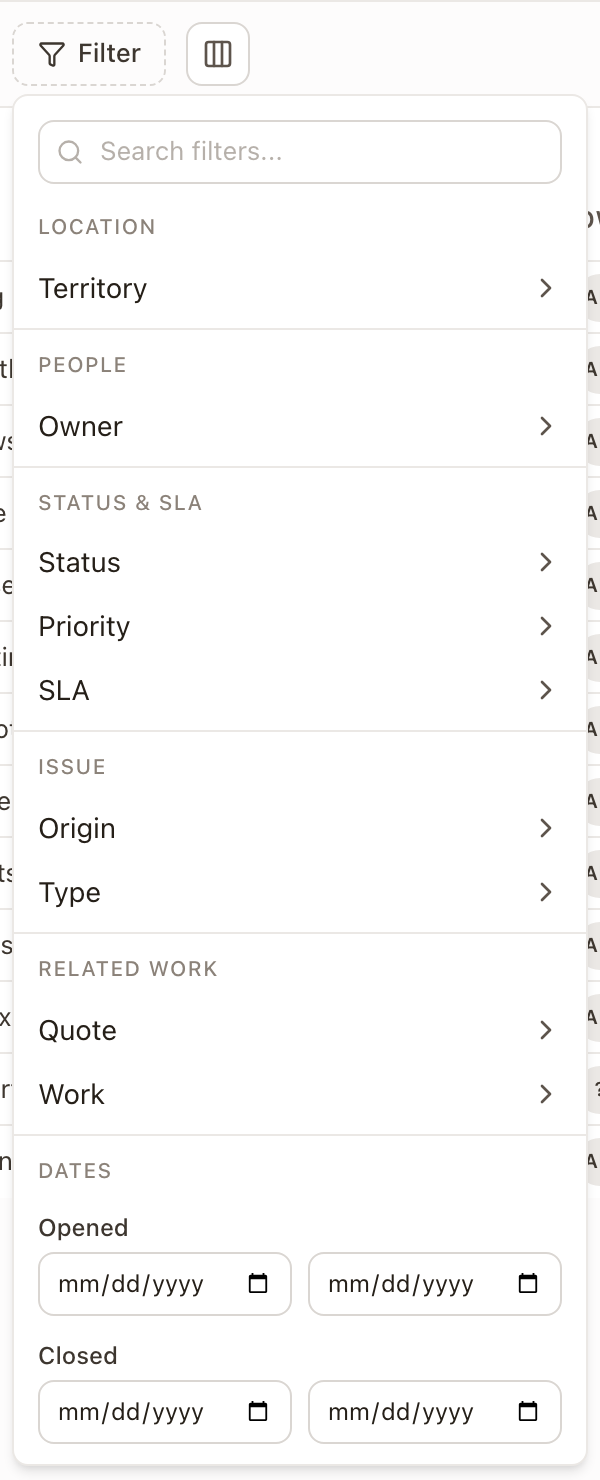
| Filter | What it narrows by |
|---|---|
| Territory | The case's territory. It appears only when your company uses territories. |
| Owner | The person who owns the case, or Unassigned. |
| Status | One or more case statuses. |
| Priority | Low, Medium, High, or Urgent. |
| SLA | Overdue, Due today, or Needs first response. |
| Origin | How the case came in. |
| Type | The case's category. |
| Quote | Has active quote, Has accepted quote, or Active or accepted quote. |
| Work | Has scheduled work. |
| Opened and Closed | A range of dates. |
You can pick more than one value for most filters.
Choose your columns
Click the columns button beside Filter to turn columns on and off. Reset columns puts back the standard set.
The standard columns are C#, Customer, Status, Issue, Priority, Owner, and Last Activity. These are off until you turn them on:
| Column | What it shows |
|---|---|
| Source | How the case came in. |
| Site | The system the case is about, when it has one. |
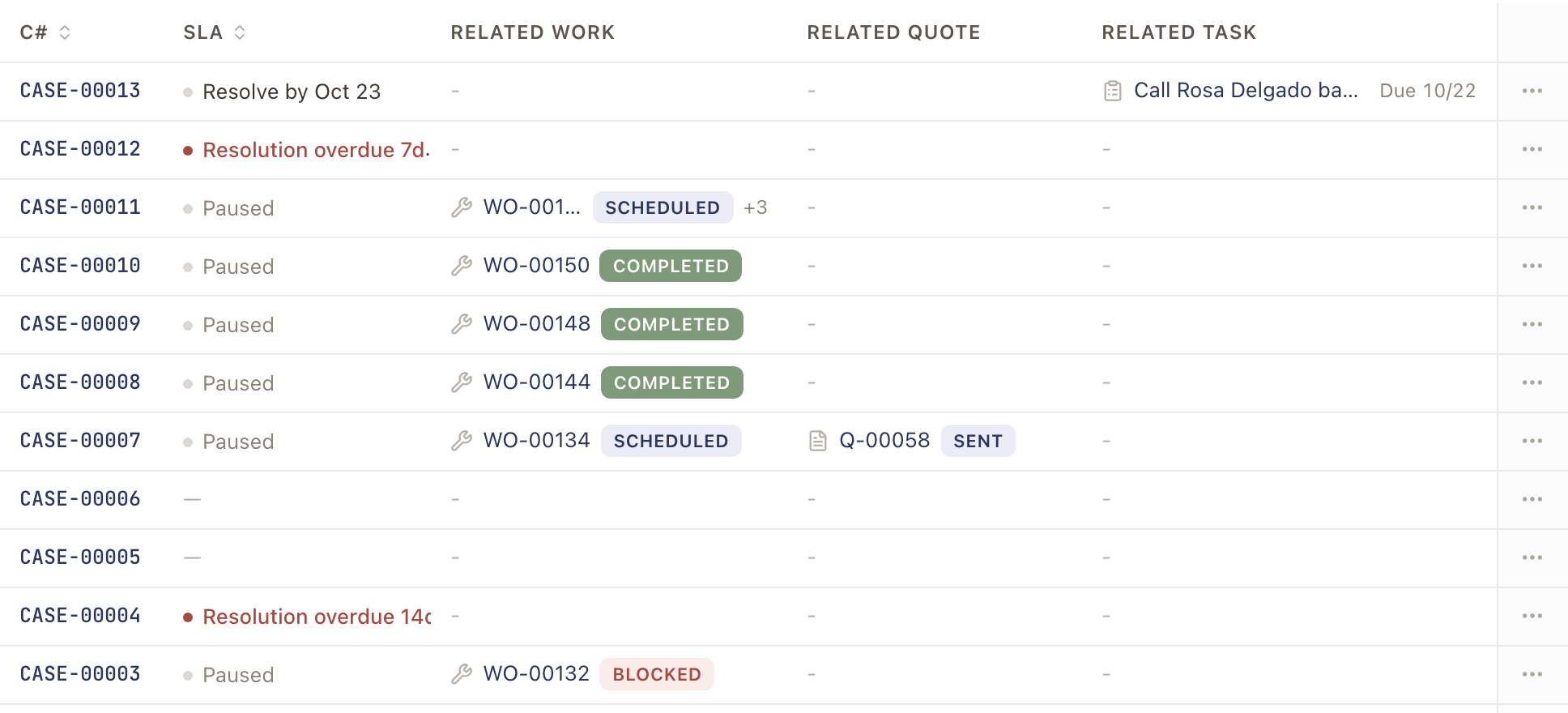
| SLA | The deadline that's running, or Paused. Red means overdue and amber means it runs out today. |
| Type | The case's category. |
| Age | How long the case has been open. |
| Related Work | The work order that matters most right now, with its status, and a count of the others. |
| Related Quote | The quote that matters most right now, with its status, and a count of the others. |
| Related Task | The open task due soonest, with its due date, and a count of the others. |
| Created | The date the case opened. |
| Territory | The case's territory. It appears only when your company uses territories. |
Related Work shows the work order in progress first, then a scheduled one, then work that isn't scheduled yet, then finished work. Related Quote shows a quote waiting on the customer first, then one being prepared, then an accepted one. Click any of them to open that record.
Check it worked
The list shows only the cases that match, with the count above the table. The filter pills tell you what's applied.
Common problems
- A case I know exists isn't listed. A filter or a saved view is narrowing the list. Check the filter pills, or switch to All Cases. A case that was merged into another is hidden; search for the case it was merged into.
- There's no SLA column. It's off until you turn it on, or pick the Due today view, which shows it.