
Create a work order
Create the job a technician will do, standalone or from a case, and see how the Work Type sets its report.
A Work Order is the job a technician does on site. It always belongs to a Project, carries a Work Type that sets its scope, and requires a Report the technician has to fill in.
Before you start
You need the Owner, Admin, Operations Manager, or Operations User role. The project you're adding the work order to needs an open stage to place it in.
Steps
- Go to Operations → Projects → Work Orders.
- Click New Work Order.
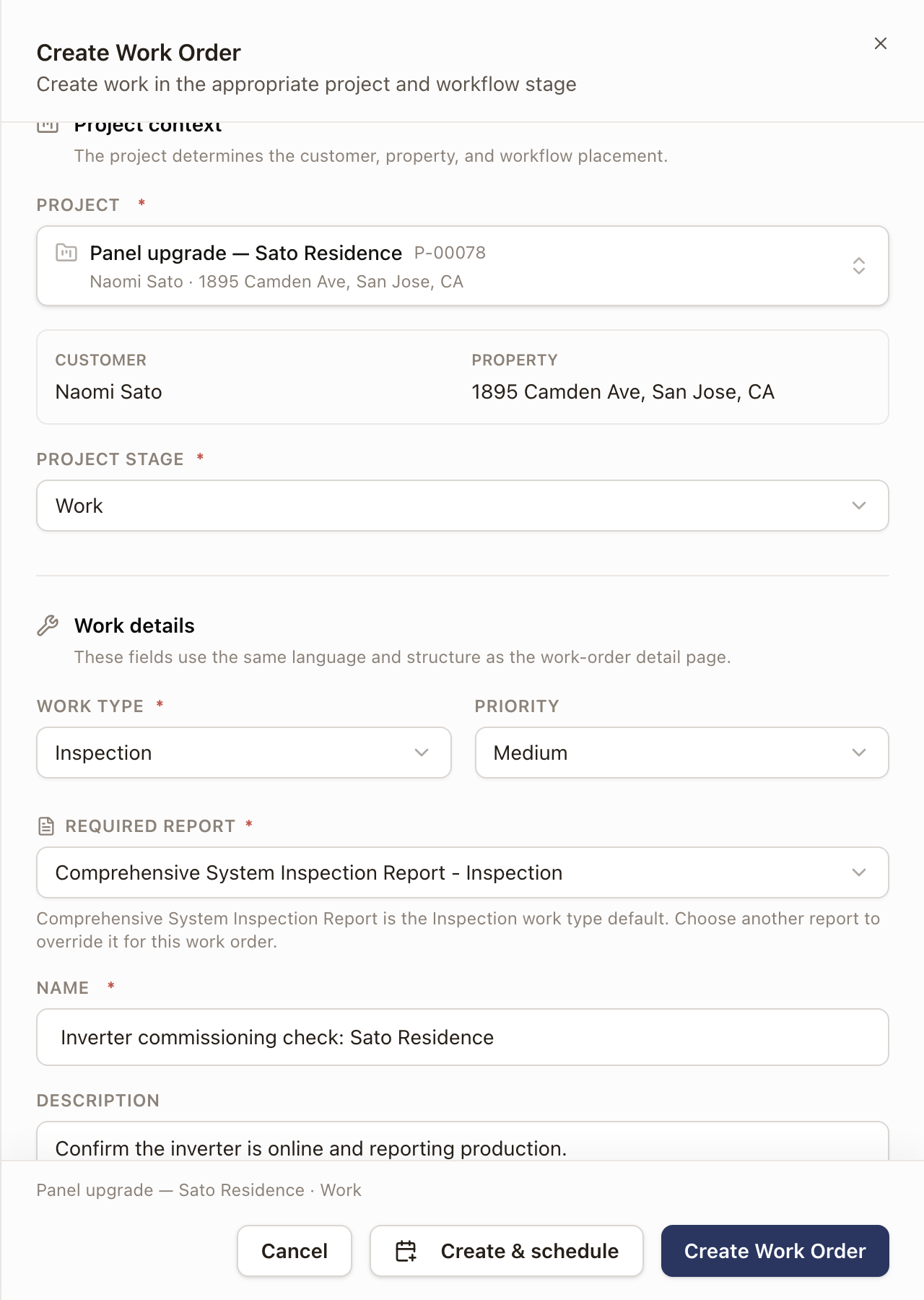
- Under Project, search for and select the project. The customer, property, and Project stage fill in from it.
- Pick a Work Type. This fills in a default Priority, Required Report, and Estimated Hours, and seeds the Work Order Scope.
- Change the Required Report if this job needs a different one than the work type's default.
- Name the work order and add a Description and Scheduling Context if useful. The technician sees the Description. Scheduling Context holds timing or coordination details from the customer, and technicians don't see it.
- Review the Work Order Scope (the technician's punchlist) and add or remove items.
- Click Create Work Order, or Create & schedule to also schedule a visit.
Check it worked
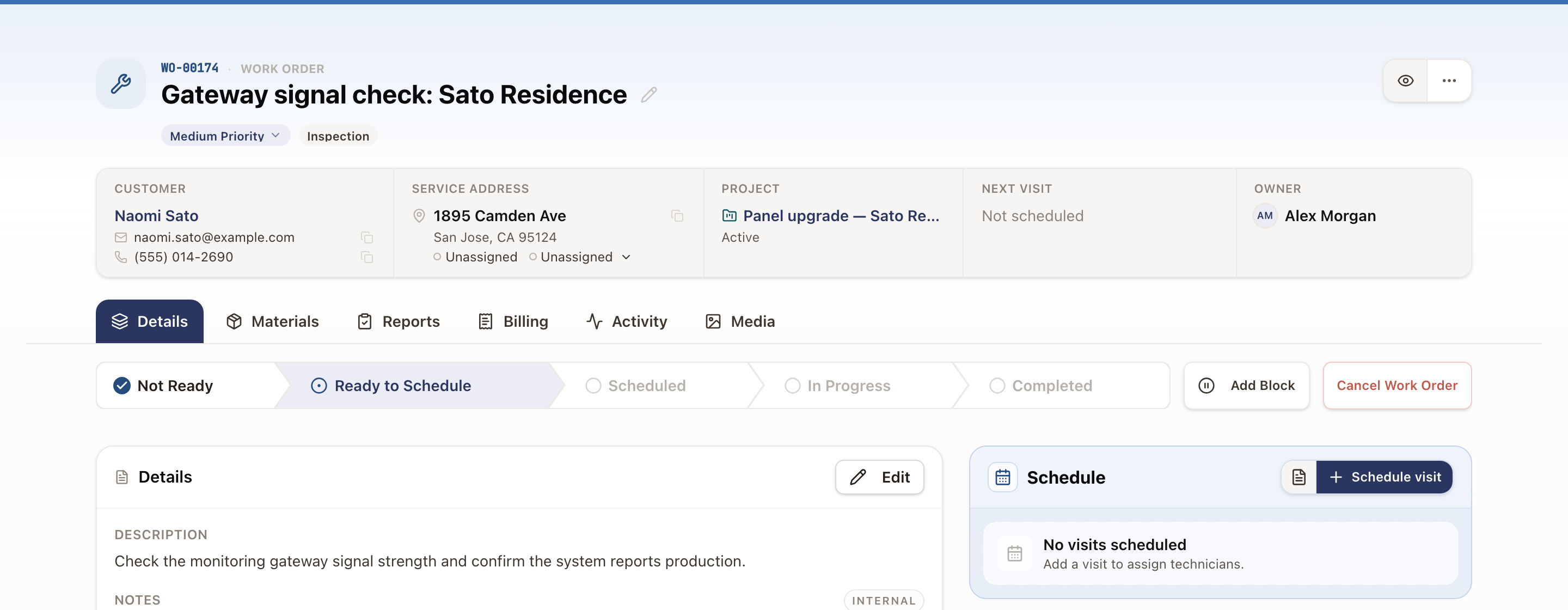
The work order opens at its detail page. Its status starts at Not Ready or Ready to Schedule, depending on whether everything it needs is set.
The right column has a Project snapshot card. It lists the answers your company shows on work orders, taken from the project. A field the property keeps shows the property's current answer. Technicians see the same card in the app, without internal notes. See Project snapshot.
On a project billed by the hour, the page also has a Service hours card with each technician's hours for each visit. To change a technician's hours, click Edit, enter the new hours and a reason, and click Save. Hours that are already billed can't be changed. See Hourly pricing and billing.
From a case instead
Most warranty and no-charge work orders come from a case's Start resolving work action instead of this form. See Work a case and close it out. The work order it creates works the same way from here on: same statuses, same Materials and Reports tabs.
Common problems
- "This project has no open stage where new work can be placed." Every stage in the project is already completed or skipped. Add a stage to the project, or pick a different project.
Merge duplicate cases
Combine two or more open cases about the same problem into one, and choose what moves to the case you keep.
Work a work order from its side panel
Open a work order beside the Dispatch Board or a project, then schedule, complete, reschedule, or cancel its visit without leaving the page.