
Work a work order from its side panel
Open a work order beside the Dispatch Board or a project, then schedule, complete, reschedule, or cancel its visit without leaving the page.
The side panel shows a work order and its next action without taking you off the page you're on. Use it to schedule a visit, complete the work order, reschedule or cancel the visit, or edit the details. Click Full detail to open the work order's own page.
Before you start
You need the Owner, Admin, Operations Manager, or Operations User role to edit a work order or complete it.
Open the panel
- Dispatch Board: click Open work order on a sidebar card, or Preview or a row in Open as table.
- Project: click the work order's step on the Work tab.
Read the panel
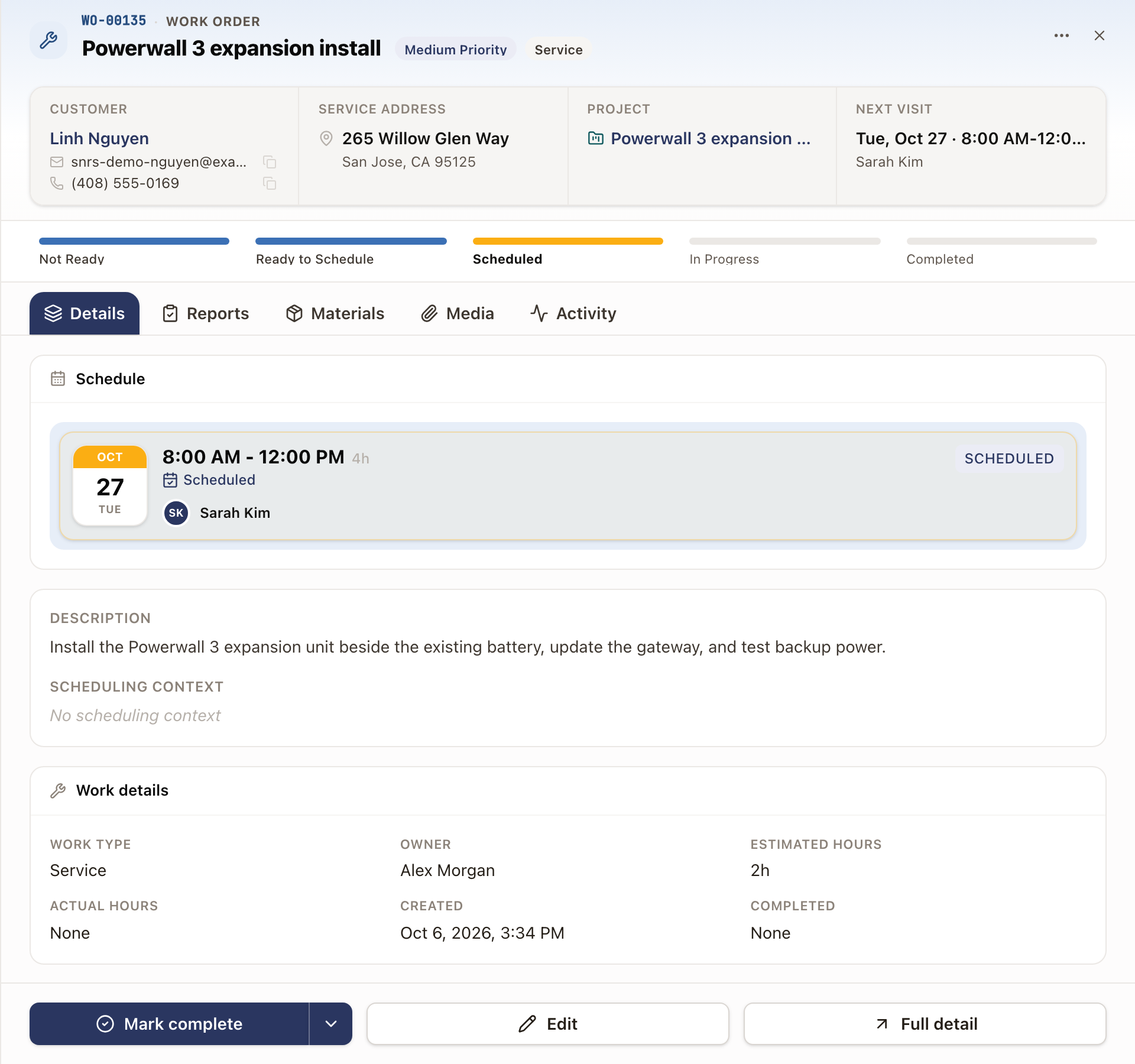
The header shows the work order's number and title, its priority, work type, and case, and Inspection failed when a permit inspection visit failed. Under it are the Customer, Service Address, Project, and Next Visit. A line under Next Visit reads Placeholder or Confirmed with client when it applies.
The status path shows where the work order stands: Not Ready, Ready to Schedule, Scheduled, In Progress, or Completed. You can't move it from the panel.
The tabs are Details, Reports, Materials, Media, and Activity. Details lists the visits under Schedule, then the Description, the Work order scope, and the Scheduling Context, then Work details. If the customer has unpaid invoices, a pill under Scheduling Context shows how many and the total owed. Click it to list them. It shows only for people with billing access, and not while you edit. The Project snapshot starts folded to the project's number, name, and a one-line summary. Click its header to open it. See Read the project snapshot.
Edit is at the bottom of the panel. On a work order that is a step in a project, a ⋯ menu next to the close button also has Edit and Project step details.
Work the visit
The buttons at the bottom follow the visit.
No visit booked. Click Schedule visit. The Schedule Appointment drawer opens over the panel. See Schedule a service visit.
A visit booked. The main button is Mark complete. The arrow beside it opens Reschedule and Cancel visit. These act on the earliest open visit. To reach a later one, click Full detail.
- To finish the work order, click Mark complete. The Complete Work Order dialog opens, the same one the work order page uses. A required report that isn't submitted shows Fill out report. Fill it in and submit it, and you return to the dialog. On an hourly project, enter the hours and click Continue. Then click Complete Work Order. See Price and bill work by the hour.
- To move the visit, click the arrow, then Reschedule. The Edit Appointment drawer opens. See Reschedule or reassign an appointment. Reschedule is there only while the visit is Scheduled or Dispatched.
- To drop the visit, click the arrow, then Cancel visit. A box asks Cancel this visit? and names the visit's time and technician. The work order stays open. Click Cancel visit, or Keep visit to leave it.
If you can't complete work orders, Reschedule is the main button instead. A completed or canceled work order has no main button.
Edit the details
Click Edit. You can change the title, priority, description, scheduling context, and estimated hours. Click Save.
Check it worked
After Mark complete, the status path moves to Completed and the button disappears. After Reschedule or Cancel visit, Next Visit and the board update to match.
Common problems
- There's no Mark complete. The work order must be Scheduled or In Progress with an open visit, and you need permission to complete work orders.
- There's no Reschedule. The technician is already on the way or on site. Only a Scheduled or Dispatched visit can move.