
Work order statuses, blocking, and cancelling
What each work order status means, how to record why a job is stuck, and how to cancel one.
A work order moves through a set path from creation to completion. This page covers what each status means and how to record a work order as stuck, on hold, or cancelled.
Before you start
You need the Owner, Admin, Operations Manager, or Operations User role to block or cancel a work order. Deleting one needs Owner, Admin, or Operations Manager.
Statuses
The status strip on a work order's Details tab shows: Not Ready, Ready to Schedule, Scheduled, In Progress, Completed. Blocked appears in the strip after the current step while the work order is on hold.
- Not Ready: something the work order needs isn't set yet. A Waiting on card at the top of the work order lists what it is waiting on, such as an earlier step, an unpaid payment, or an open change order. A work order whose step waits for change orders stays Not Ready while its project has an open change order. See Change orders. A payment in that list shows its amount only to people who can see the project's billing or the quote it was sold from.
- Ready to Schedule: it's ready for a visit to be scheduled. See Scheduling & dispatch.
- Scheduled / In Progress: set automatically as the appointment moves through its own statuses.
- Completed: the technician finished the visit and the office confirmed it. After that, the job moves through review and billing in Review Work; see Review submitted reports.
Block a work order
Use this to record why a job can't move forward right now, for example while you're waiting on a part.
- On the work order, click Add Block on the status strip.
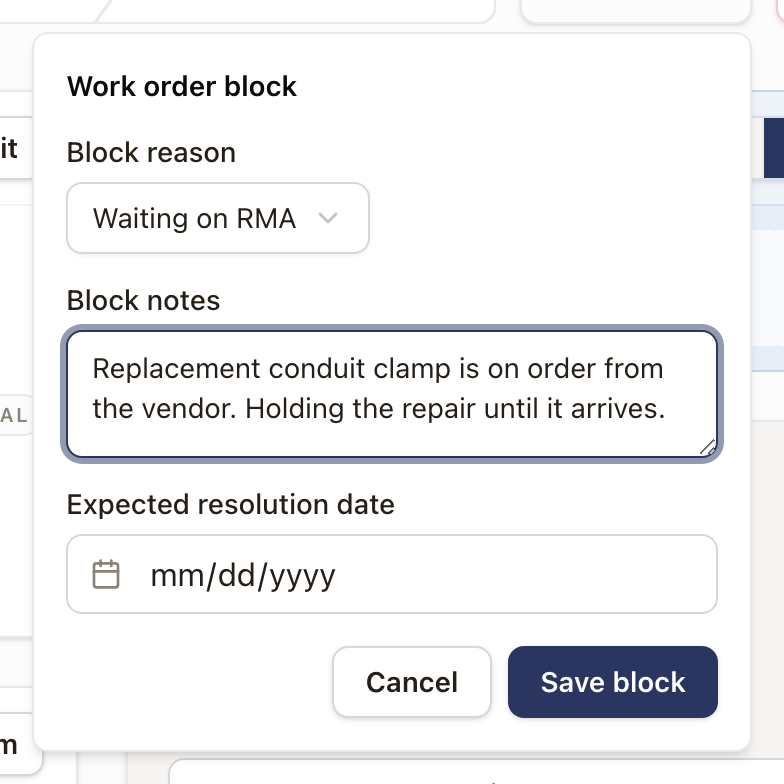
- Pick a Block reason: Waiting on Customer, Waiting on RMA, or Waiting on Contractor.
- Add Block notes and, if you know it, an Expected resolution date.
- Click Save block.
The work order shows Blocked with the reason, notes, and resolution date on a card at the top of the Details tab.
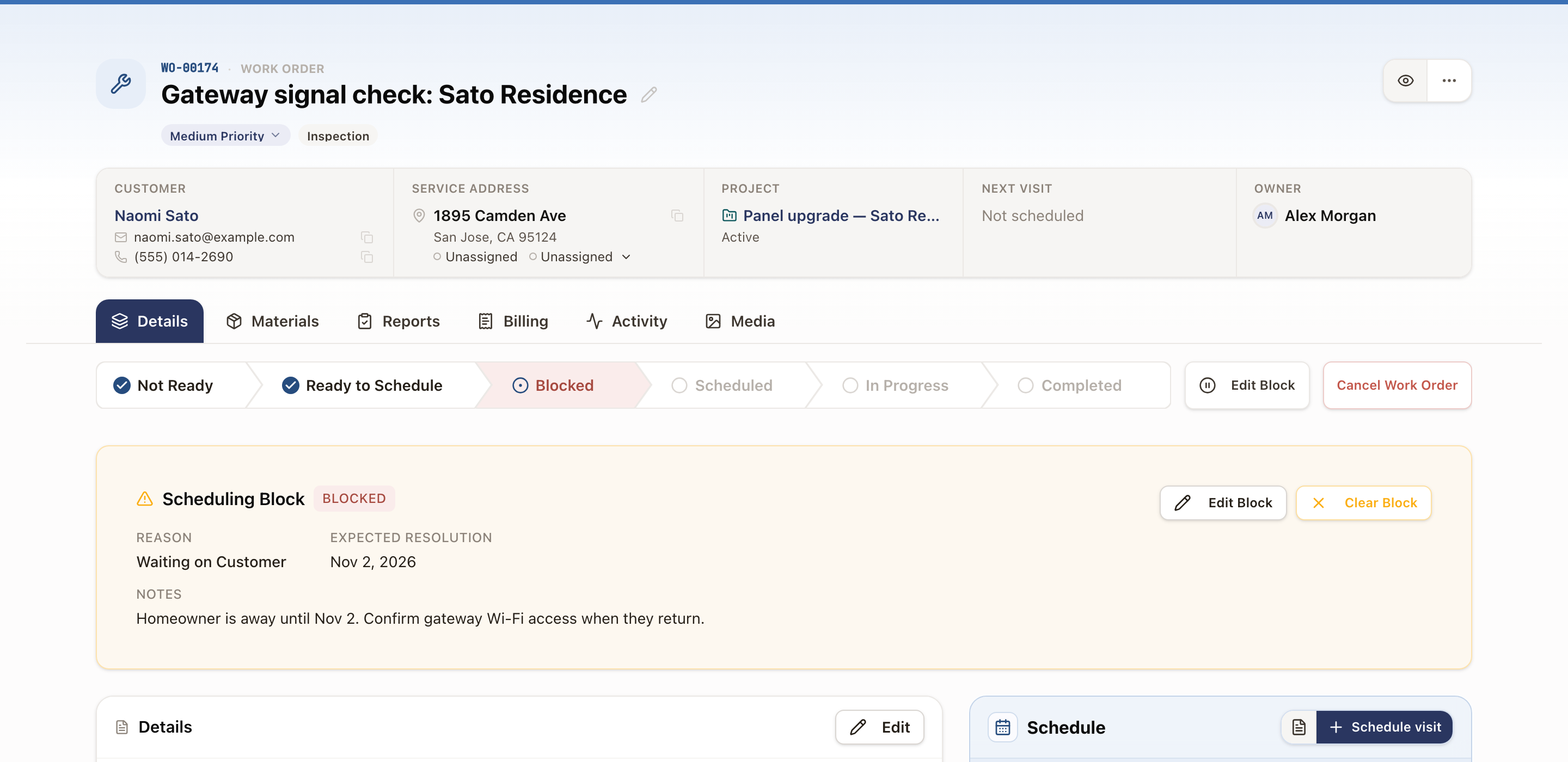
To lift it, click Edit Block to change the reason or notes, or Clear Block once the hold-up is resolved.
Blocked work orders show up in other places too:
- Operations → Review Work → Blocked lists them with the reason, notes, expected date, and days blocked. Click Unblock on a row to lift the block. See Review submitted reports.
- On the Dispatch Board, blocked jobs are listed under Blocked. Expand a job's card to see the reason and how long it has been blocked.
- The Work Orders list has optional Block Reason, Block Notes, Block Resolution Date, and Blocked Since columns. Turn them on from the columns button.
Adjust a work order's ready date
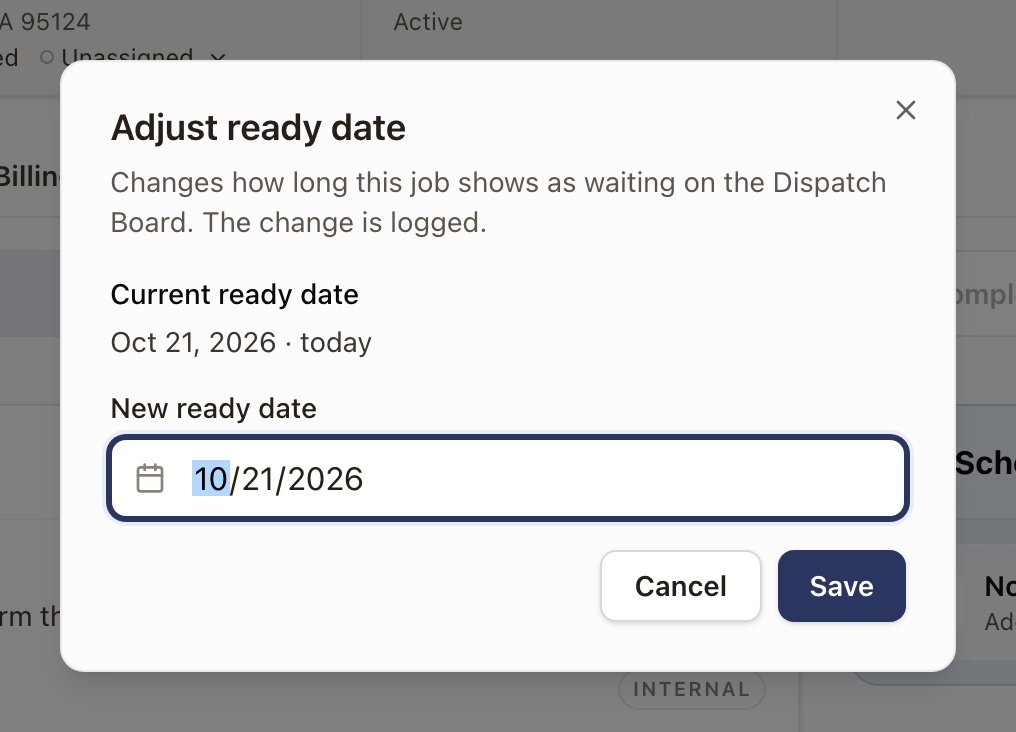
A work order that's Ready to Schedule shows on the Dispatch Board with how long it has been waiting. That count starts from its ready date. Change the date when the job really became ready earlier or later than the screen shows.
- On the work order, open the ⋯ menu at the top right.
- Click Adjust ready date….
- Pick the New ready date. It can be today or earlier.
- Click Save.
The page shows "Ready date updated", and the work order's Activity tab records "Ready date changed from" the old date "to" the new one. The menu item only appears on work orders that are past Not Ready and not yet Completed or canceled.
Cancel a work order
- On the status strip, click Cancel Work Order.
- Confirm.
Cancelling doesn't cancel any appointment already scheduled against it; unschedule or cancel that separately from the Dispatch Board.
Common problems
- A blocked work order's appointment is still on the schedule. Blocking the work order doesn't touch its appointment. Reschedule or cancel the visit yourself if the block means the technician shouldn't go out.
- Delete removes the work order for good. The ⋯ menu on a work order has a Delete option, limited to Owner, Admin, and Operations Manager. Unlike most records in solarOS, this is a permanent delete, not a soft one you can recover; it also removes any linked appointments. Use Cancel instead unless you genuinely need the record gone.
Work a work order from its side panel
Open a work order beside the Dispatch Board or a project, then schedule, complete, reschedule, or cancel its visit without leaving the page.
Review submitted reports
Use Review Work to follow finished visits through Visit, Review, Follow-up, and Billing, and mark a technician's report reviewed.