
Work a case and close it out
Claim a case, move it forward, hand it to sales or to a work order, and close it once it's resolved.
Once a case is open, work it: claim it, move its status forward as you make progress, and send it to sales or straight to a work order. When the customer's problem is resolved, close the case and record why.
Before you start
You need the Owner, Admin, Operations Manager, or Operations User role. Reassigning a case to someone else needs Operations Manager, Admin, or Owner.
Claim or reassign a case
- Open the case from Operations → Cases.
- In the header, click Claim to take an unassigned case, or Reassign to hand it to someone else.
Move the case's status
The status strip on the case's Overview tab shows Open → Triaging → In Progress → Quote Sent → Awaiting Vendor → Awaiting Work → Closed.
- Click the step you want to move to.
- Click Confirm on the popover.
Two steps usually move on their own. The case moves to Quote Sent when the first quote sent from the case goes out, and to Awaiting Work when you start resolving work or when an accepted quote from the case creates work. A later quote doesn't move the case again. The strip lets you set any step by hand as well.
Respond on time
The SLA field in the case header shows which deadline is running: Respond by until the customer hears from you, then Resolve by. It turns amber on the day it runs out and red once it's overdue. The deadlines come from your company's targets for the case's severity; see Set case SLA targets.
- A case your team enters starts as already responded, so only Resolve by runs.
- A case that arrives on its own, from the service request form, an emailed-in case, or the API, starts waiting on its first response. Logging a Call, Email, or Meeting on the case counts as that response. A note doesn't.
- If you reached the customer outside solarOS, click Mark responded under the SLA field, set when you reached them, and click Save.
- The clock pauses, and the field reads Paused, while the case is in Quote Sent, Awaiting Vendor, or Awaiting Work.
To find cases that need attention today, open the views menu on the Cases list and pick Due today. See Work the Cases list.
Start a quote
Use this when the fix is billable work you want to quote the customer for.
- From the case, click Start a quote.
- Choose an Opportunity Type, and add a Description of what the customer needs.
- Check the Owner and Originator. Both start as you. See Create an opportunity for what each one means and who you can choose.
- Turn on Create initial quote if you already know which quote template to use.
- Click Create Opportunity.
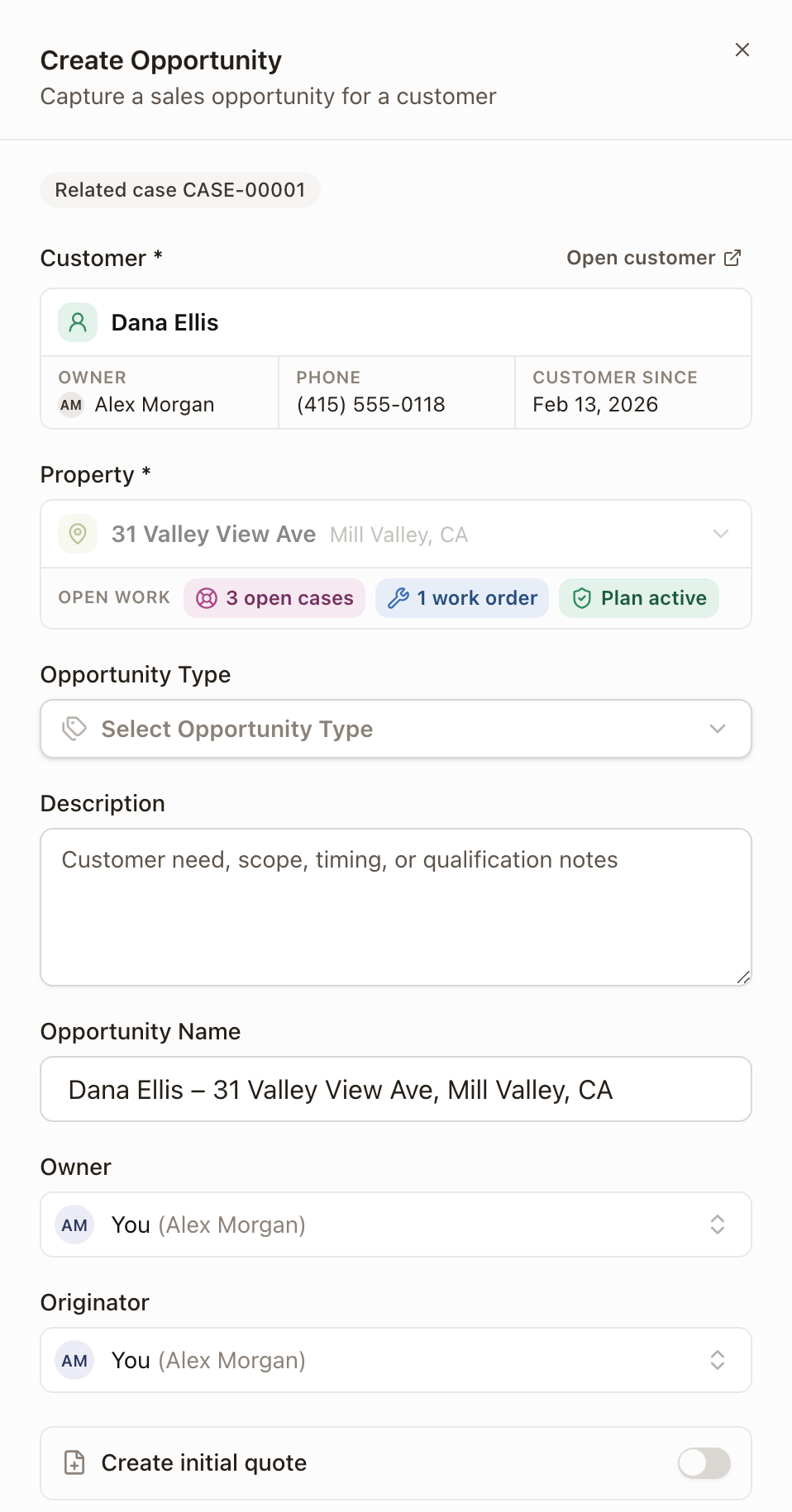
This creates a sales Opportunity linked to the case and opens it. If you turned on Create initial quote, it opens the new quote instead. Creating the opportunity doesn't change the case's status. Work it and Sales work it side by side. When the first quote is sent, the case moves to Quote Sent, and when an accepted quote creates work, it moves to Awaiting Work.
Start resolving work
Use this for warranty or no-charge repairs that don't need a customer quote.
- From the case, open the ⋯ menu and click Start resolving work.
- Under Project setup, pick Custom Work Order (a project with one work order you define here) or Project template.
- Pick a Work type, name the work order, and describe it.
- Add any Work Order Scope items the technician should complete, and adjust Estimated Hours if needed.
- Click Start work.
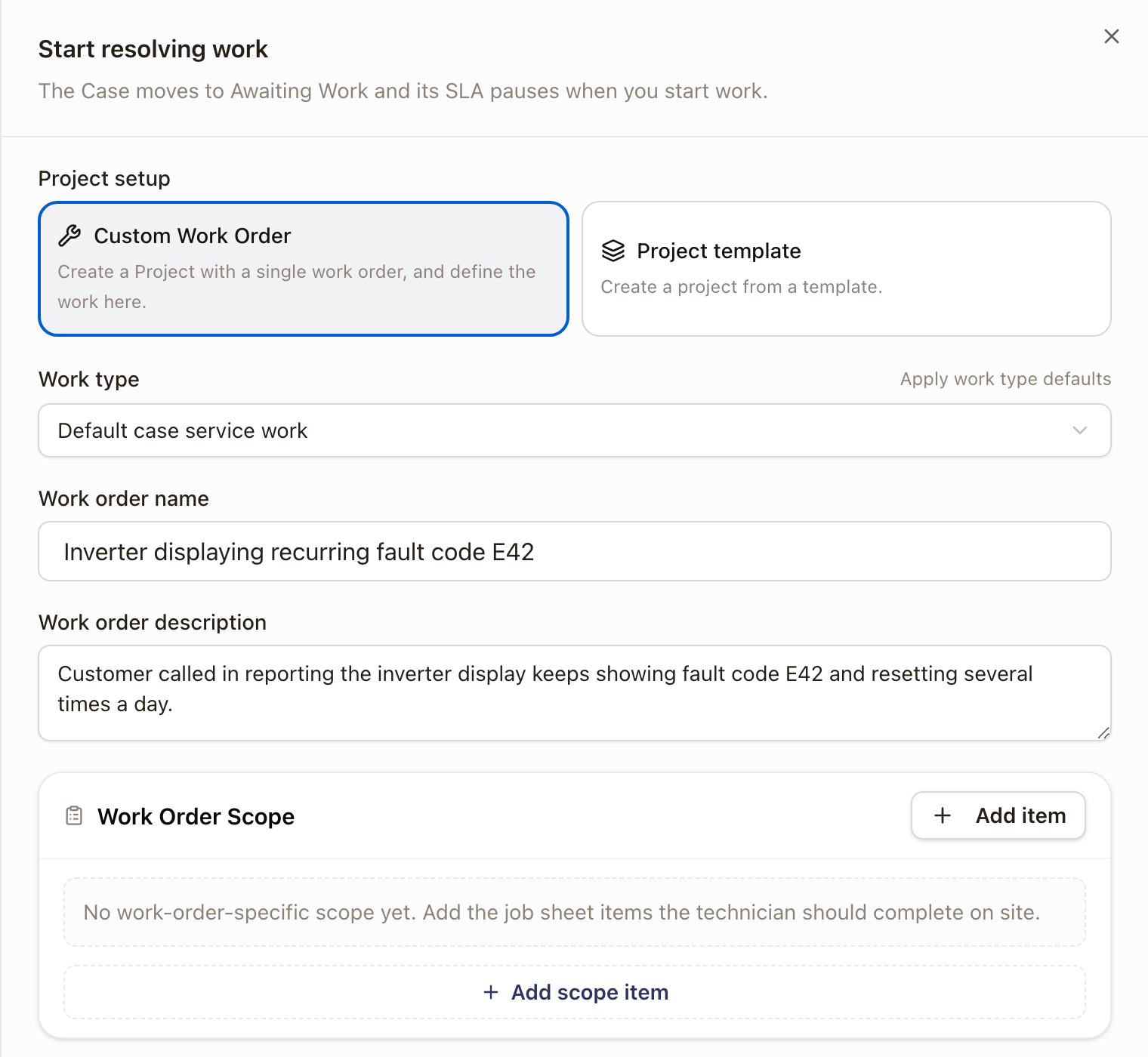
The case moves to Awaiting Work and its SLA pauses. The new work order shows on the case's Work tab, ready to schedule. That tab also lists the work orders on the case's linked projects, including work created from an accepted quote.
Link a project to the case
A case can be linked to one or more of the customer's projects, so the work on a project shows up in the case's activity. The project that Start resolving work creates is linked to the case automatically.
- On the case's Overview tab, find Related work and click Link existing project under Projects.
- Type in Find a project to narrow the list, then pick the project under Project to link. Projects that already belong to another case are marked and can't be picked.
- Click Link project.
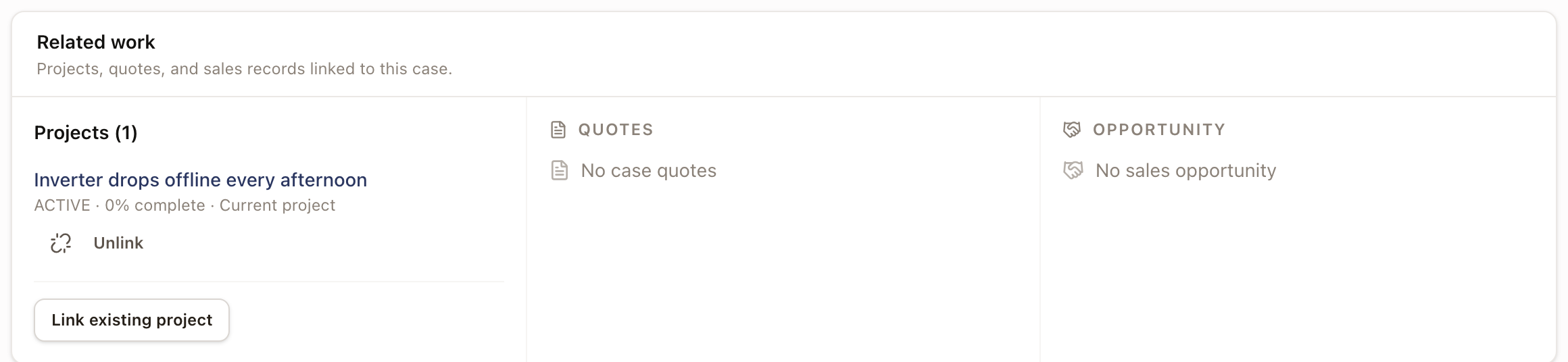
The project appears under Projects with its status and percent complete. Click Unlink beside it to remove the link. The project's own page also has a Case section where you can pick a case to link or click Unlink case. To move a project to another case, unlink it first.
Read and edit the case's fields
The Field snapshot card on the Overview tab shows the fields your company shows on cases. It sits in the right column, under External records. Property lists the property's answers, such as Roof Type. Case lists the answers kept on this case. A field with no answer yet reads Not set.
- Click Edit Fields.
- Change an answer. Under Case, click Add Field to answer another field.
- Click Save Fields.
Answers under Property belong to the property. While you edit, the card tells you that saving changes them on every case and work order at that property. You need to be able to edit customers to change them. Answers under Case stay on this case. To choose which fields show here, tick Cases in the Field library.
See everything on the case
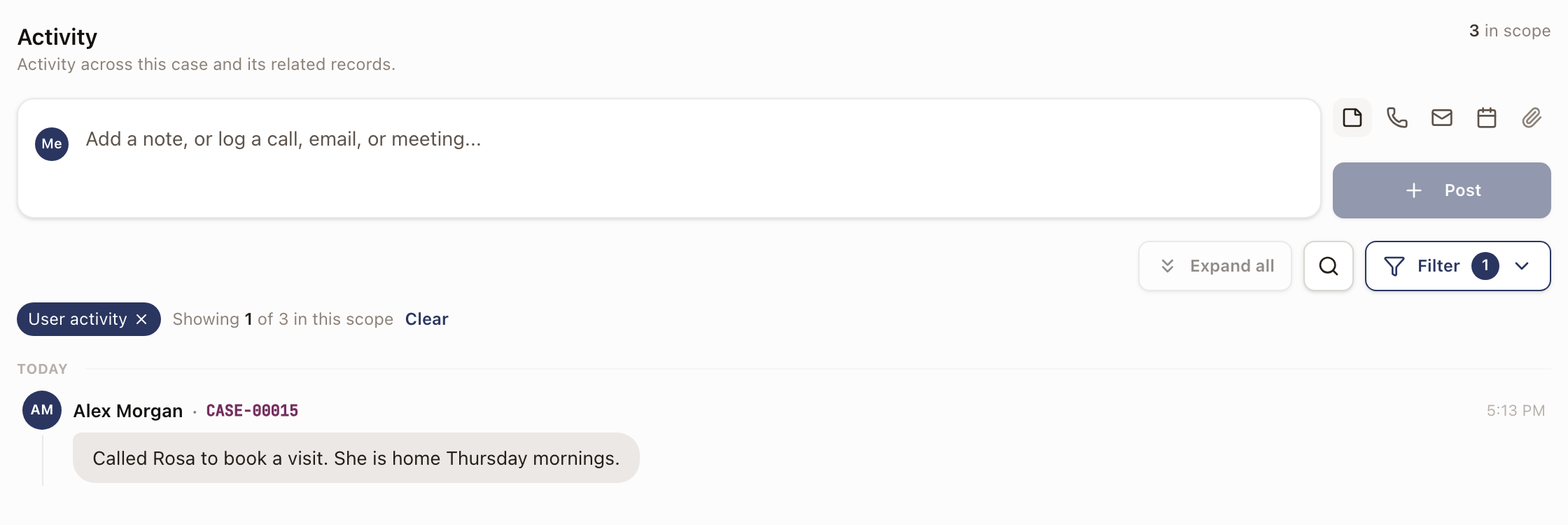
The Activity tab shows one feed for the case and its related records: notes, calls, and emails on the case, plus what happened on its work orders and linked projects, such as submitted and reviewed reports. It opens on User activity. Use Filter to switch Record type in this scope (for example Work Order or Project) or Activity source (All, User, or System).
To add to the feed, type in the box at the top and click Post. Use the icons beside the box to log a call, email, or meeting, or to attach files. To copy a note, hover over it and click the copy icon. Long notes expand in place.
Merge duplicate cases
When a customer reports the same problem twice, merge the cases into one instead of closing one by hand. Open either case, click the ⋯ menu, and pick Merge duplicates…. See Merge duplicate cases.
Close a case
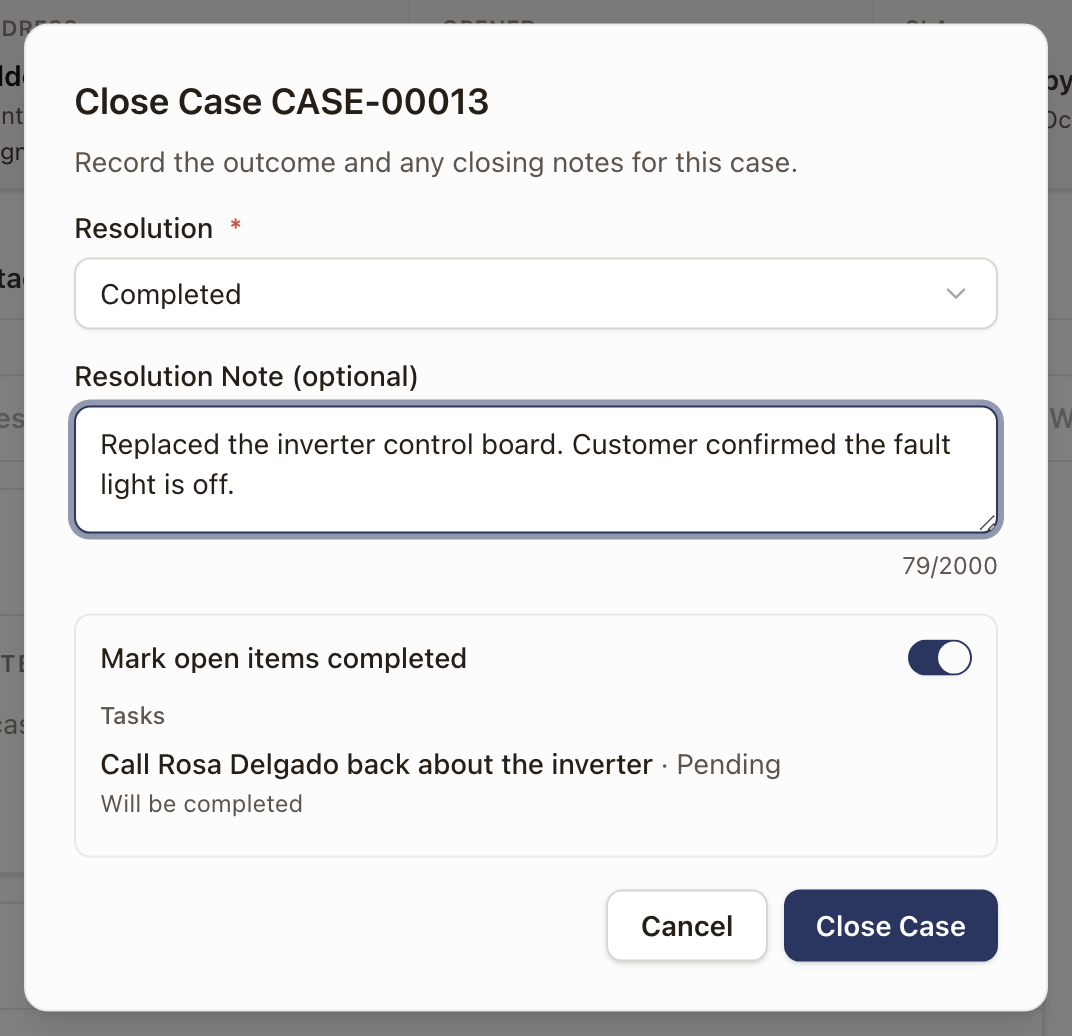
- From the case, click Resolve & close (or pick Closed on the status strip).
- Pick a Resolution. The list is your company's own; a new company starts with Completed, No action required, Other, and No customer response. If you pick Other, describe it in the note, which is then required. See Set up case categories and case resolutions.
- Add a Resolution Note if useful.
- If the case has open tasks, work orders, projects, quotes, or opportunities, the dialog lists them under Mark open items completed, which is on by default. With it on, closing completes the tasks, work orders, and projects that are allowed to finish, cancels open quotes, and closes open opportunities as lost. An item that can't finish stays open, and the dialog says why: no visit booked, it needs a submitted report, required steps aren't done, or it's on hold. RMAs are listed but never changed. Turn the switch off to leave everything as it is.
- Click Close Case.
Merged and Converted to sale are resolutions solarOS sets when you merge cases or hand a case to sales. You don't pick them here.
Check it worked
The case's status badge shows Closed, a closure banner shows the resolution and note, and the Overview tab's Activity & timeline shows the Closed date. If any items stayed open, a message says how many. The Activity tab starts on User activity, so change Filter → Activity source to System or All to see which items were completed, cancelled, closed lost, or left open. A manager can reopen a closed case if needed.
Common problems
- An item stayed open when I closed the case. Its row in the close dialog says why. Finish what it needs, such as booking a visit or submitting the report, then complete or cancel it from its own page.
- I can't close the case. Pick a Resolution first. If you picked Other, add a note too.