
Review submitted reports
Use Review Work to follow finished visits through Visit, Review, Follow-up, and Billing, and mark a technician's report reviewed.
Review Work tracks every work order from the technician's visit to the invoice. Each work order is a job with four stages: Visit, Review, Follow-up, and Billing. You open a job, read what the technician submitted, and decide what happens next. A job stays on the list until all four stages are done or not needed. Review Work covers work orders only.
Before you start
You need the Owner, Admin, or Operations Manager role.
What the four stages mean
| Stage | It is open when | It is done when |
|---|---|---|
| Visit | A visit is scheduled, or the visit finished without a submitted report. | The visit is finished and the report is submitted. |
| Review | A report is in and nobody in the office has decided on it. | Someone reads it and decides what's next. |
| Follow-up | A review found more work. | That work is quoted or booked. |
| Billing | This work earned a payment that isn't invoiced or sent, a milestone won't invoice on its own, the work has no invoice, or recorded hours are still unbilled. | It is billed, or someone confirms there's nothing to bill. Payment is tracked in Accounting. |
A blocked work order isn't a Visit job. It is listed under Blocked until someone unblocks it. See Work order statuses, blocking, and cancelling.
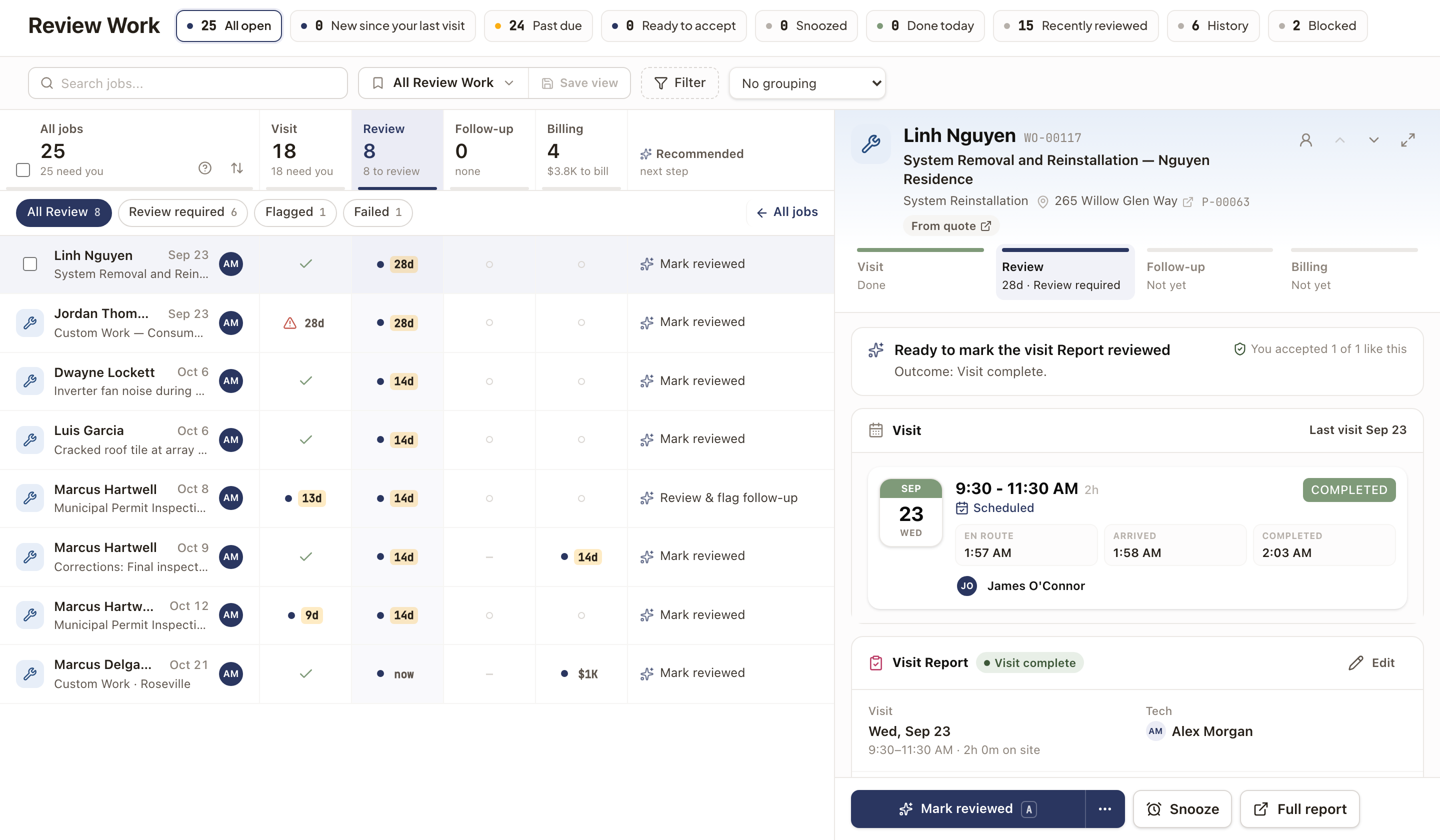
Click the ? next to All jobs at any time to see this list and the symbols used in each column. A dot means the office needs to act, a clock means the job is waiting on someone else, a check means done, and a dash means not needed. A number such as 13d is how many days the stage has been open.
Find a job
- Go to Operations → Review Work.
- Click All jobs to see every open job, or click Visit, Review, Follow-up, or Billing to show only the jobs open in that stage. Each heading shows how many jobs are open and how many need you.
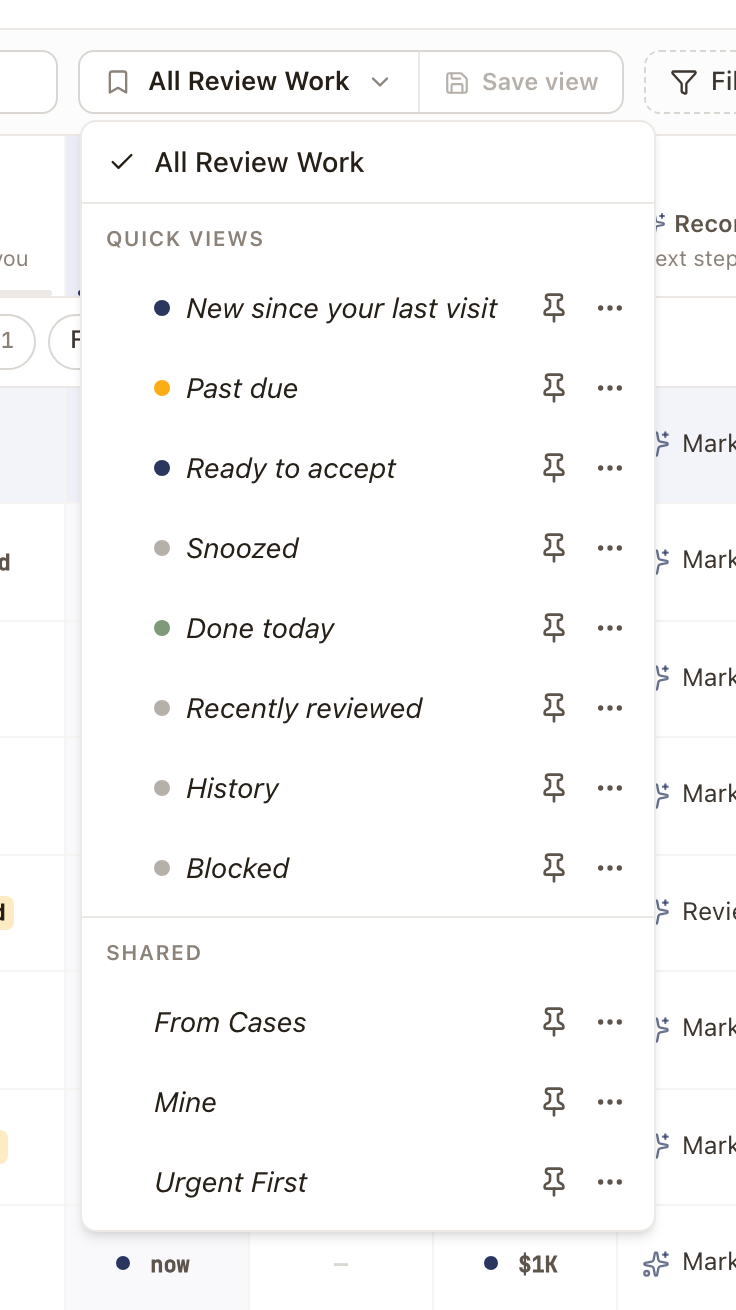
- Use the quick views across the top to narrow the list: All open, New since your last visit, Past due, Ready to accept, Snoozed, Done today, Recently reviewed, History, and Blocked.
- To narrow it further, type in Search jobs, open Filter (by person, stage, work type, city, origin, priority, recommended action, or visit date), or pick a Group jobs option: No grouping, Group by owner, or Group by work type. The sort button next to All jobs orders the list by Oldest first, Newest first, By check, Priority, or Largest amount.
Each row shows a date at the right of the customer's name. It is the date of the last completed visit. If no visit is completed, it is the most recent visit that has already passed, or else the next visit. Sorting and the Visit date filter use this date.
The All Review Work menu also holds saved views such as Mine, From Cases, and Urgent First.
See blocked work orders
Click Blocked to list every blocked work order with its reason, notes, expected date, how many days it has been blocked, the owner, and the technician. Blocked work orders aren't counted in All open or Past due.
To lift a block, open the ⋯ menu on the row and click Unblock. Open work order opens the work order itself.

Review a report
- In Review Work, click the Review stage and click a job.
- Read the panel on the right. The top shows the four stages for this job, then the recommended next step. Below it is the Visit card with every visit on the work order, showing the last visit and any next visit. Under it are the report with the technician's notes and photos, the accounting summary, and the activity and notes on the work order.
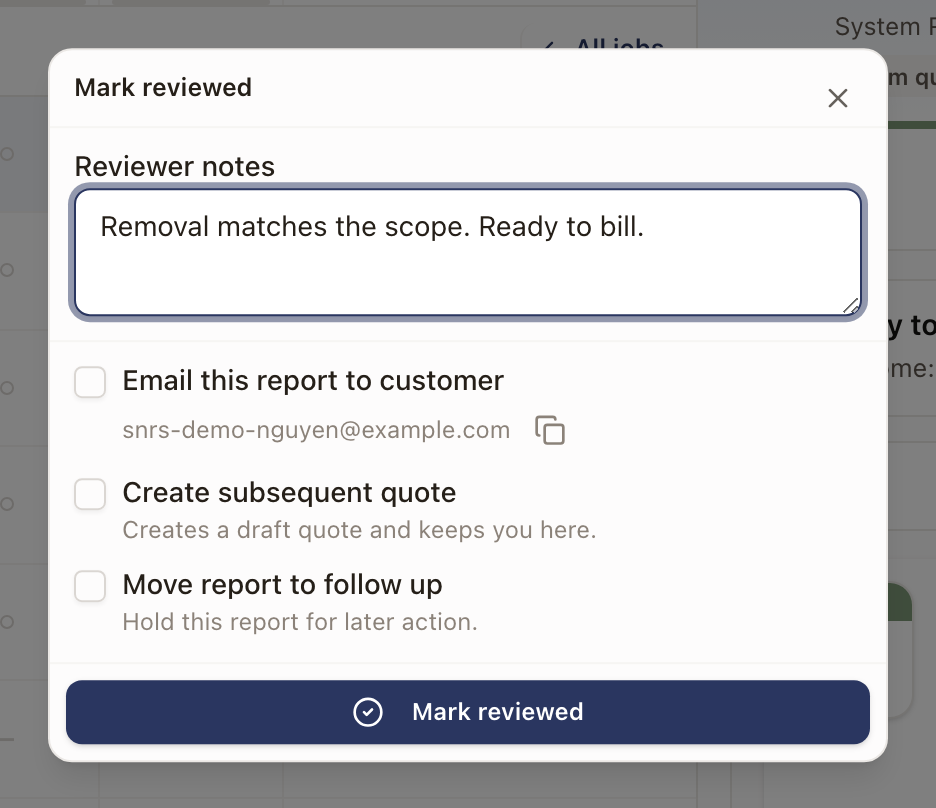
- Click Mark reviewed at the bottom of the panel.
- Add Reviewer notes if useful.
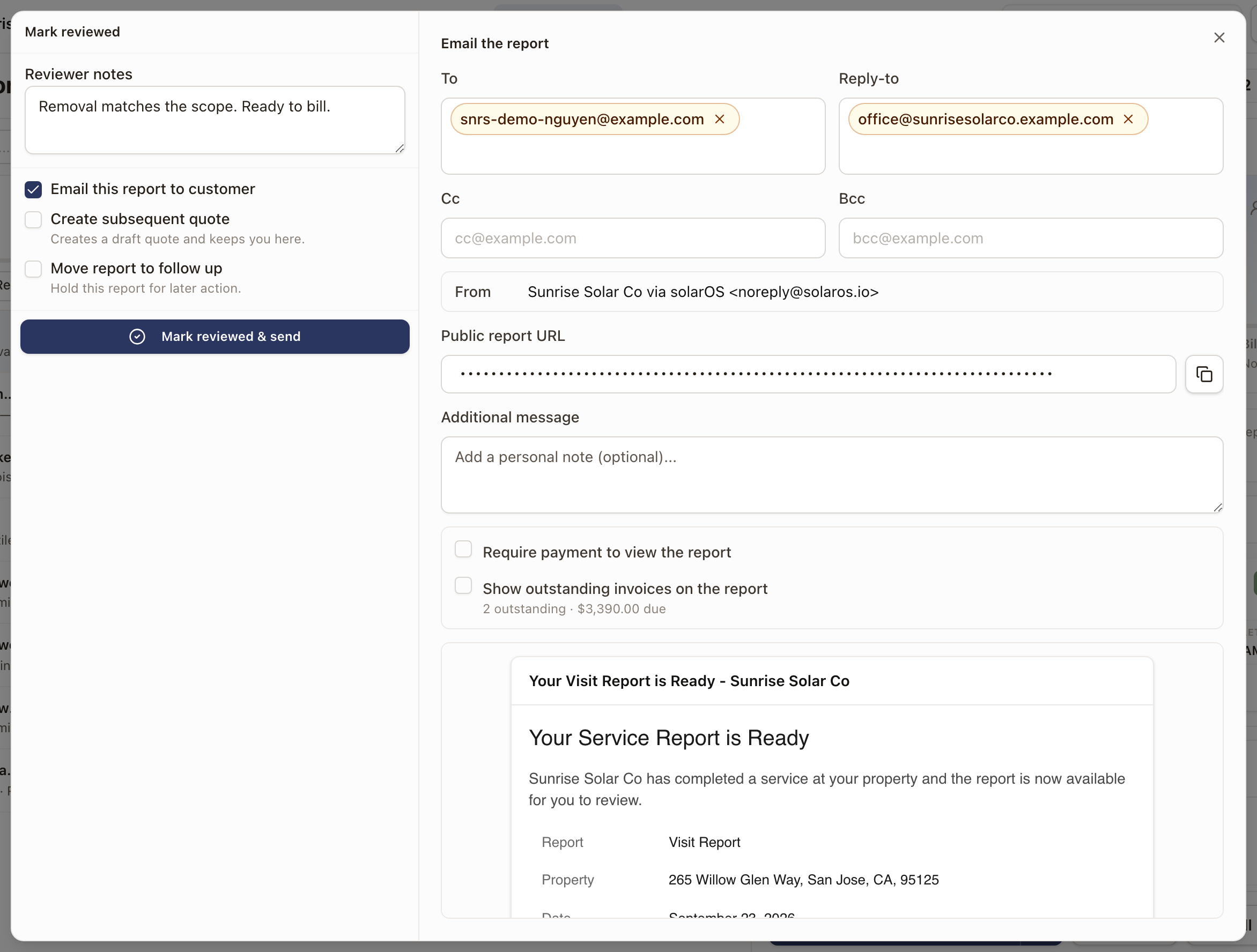
- To send the customer a copy, tick Email this report to customer. The email appears next to the dialog with the recipient, a message you can add to, and a preview. Check it, then continue.
- Click Mark reviewed. If you ticked the email box, the button reads Mark reviewed & send.
When you can see billing, the email also has Require payment to view the report and Show outstanding invoices on the report. Require payment to view the report is unavailable when the customer has no unpaid invoices. See Get paid before the customer sees the report.
The dialog has two more options. Create subsequent quote creates a draft quote. If the job leaves the list, Review Work stops on a card that names the quote, for example Q-1042 drafted for Jane Smith · WO-311. Click Open quote to open it in a new tab, or Next job to carry on. With no job left, the button reads Close. Move report to follow up holds the report for later action and opens the Follow-up stage on the job.
Open the full report
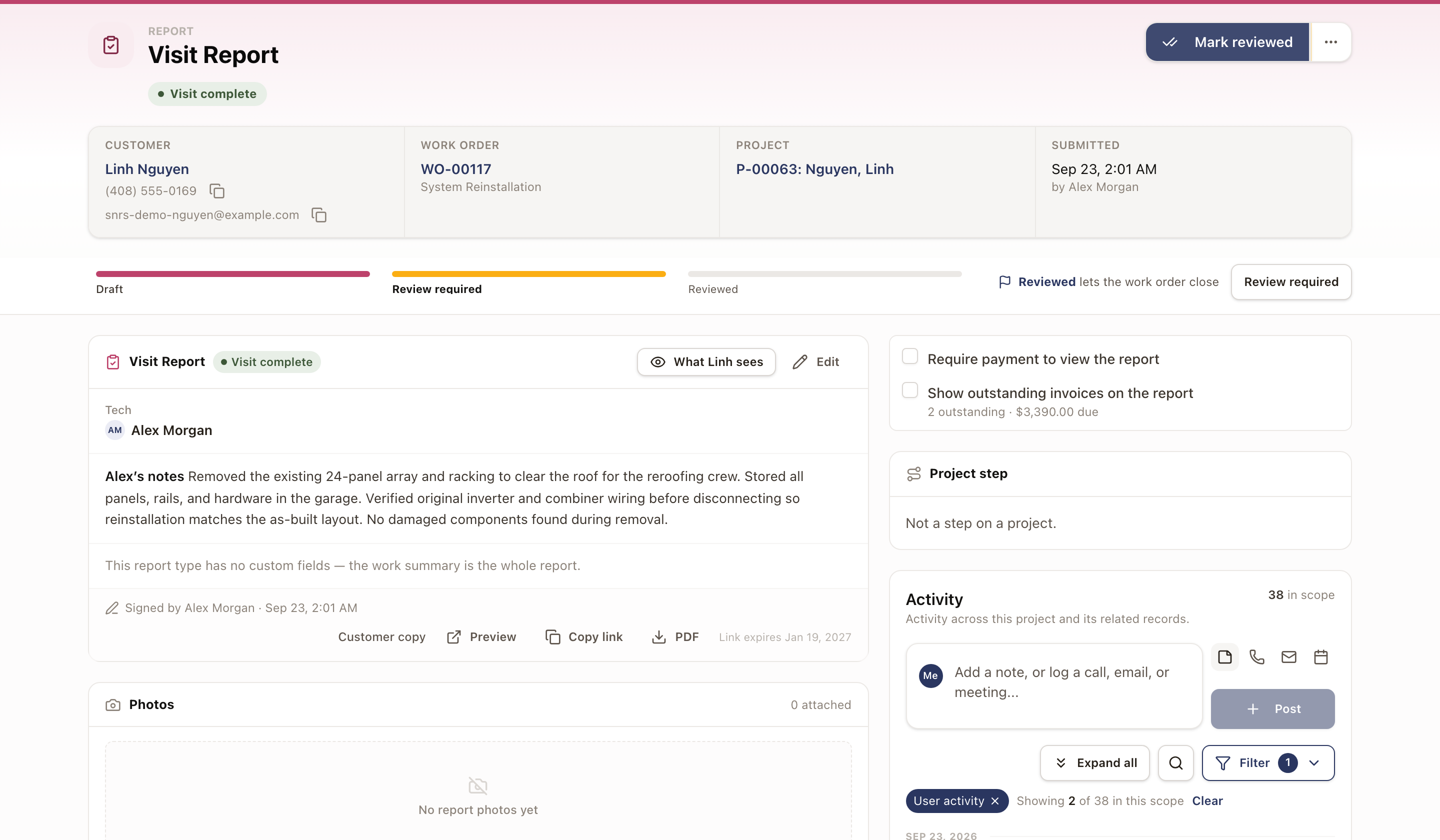
Click Full report at the bottom of the job panel to open the report on its own page. It shows the customer, work order, project, who submitted it and when, the technician's notes, photos, and the activity feed. A progress line shows Draft, Review required, and Reviewed. Mark reviewed is at the top right, and the customer copy has Preview, Copy link, and PDF options. Operations → Reports lists every report.
The page also shows the report's payment choices. You can change them here without sending the report again. While a report is locked, a notice reads Locked for the customer and names the invoice it waits on.
The same report opens in a side drawer from Operations → Reports, a work order, or a project. There the review button reads Complete Review. See Find and work with reports.
Other things you can do from a job
The button at the bottom of the panel is the recommended next step, for example Nudge the technician to submit a missing report, Complete work order, Mark reviewed, or Bill this work. The ⋯ menu next to it lists every action that applies to the job:
- Send back to tech: the technician fixes and resubmits the report.
- Send report to customer.
- Complete work order, Nudge technician, and Mark unblocked.
- Schedule another visit: same work order, same scope.
- Quote additional work, and Create follow-up work order for new or changed scope.
- Bill this work and Nothing to bill now. See Review and bill completed work.
- Add a note, Open work order, Cancel work order, and Copy link to this job.
- Close work order without resolving: ends the work order by override and asks for a reason. See Close out finished work.
Click Snooze to hide a job until a time you choose. Snoozed jobs are listed under the Snoozed quick view and come back on their own.
Nudge a technician
Nudge technician sends the technician a reminder and logs it on the work order's activity feed.
- Click Nudge technician on the job, or choose it from the ⋯ menu.
- Under Send by, choose Email or Slack. Slack is chosen first when the technician has a Slack channel linked.
- For Slack, the message is your company's nudge message for the situation, such as Report not submitted, filled in for this job and shown as a Slack preview. Click Edit to change it for this nudge only. For Email, the box starts with a suggested message you can change, and a link to the work order is included.
- Click Send nudge.
An Owner or Admin sets the Slack wording under Nudge messages on the Slack page. See Connect Slack.
Check it worked
The Review stage on the job turns to a check. The job stays on the list while its other stages are open, for example Billing. When every stage is done or not needed, the job leaves All jobs and counts under Done today.
Look back at what was decided
Click History to see every decision made in Review Work or on a report page, newest first: the time, who did it, the action (for example Report review completed or Invoice created), the work order, and the customer. Use Search history and Filter to narrow it. Recently reviewed lists the most recently reviewed reports as a reference.
Common problems
- A job is still on the list after I marked it reviewed. Review is one of four stages. Open the job and check its other stages. A job with a completed visit and no invoice shows No invoice under Billing until someone bills it or records Nothing to bill now.
- A job shows a report is missing. The Visit stage stays open until the technician submits the report. Use Nudge technician to remind them, or Send back to tech if a submitted report needs changes.
- A work order isn't in the list. If it's blocked, it's under Blocked, not in All open.