
Order materials for a job
Add a material order to a work order and move it from pending through received or picked up.
A Material Order tracks parts a job needs, from ordering through the vendor to the technician having them on site. You create a Material Order from a Work Order. A project's Material Request step can also name the work order it supplies, and its order is then tied to that work order.
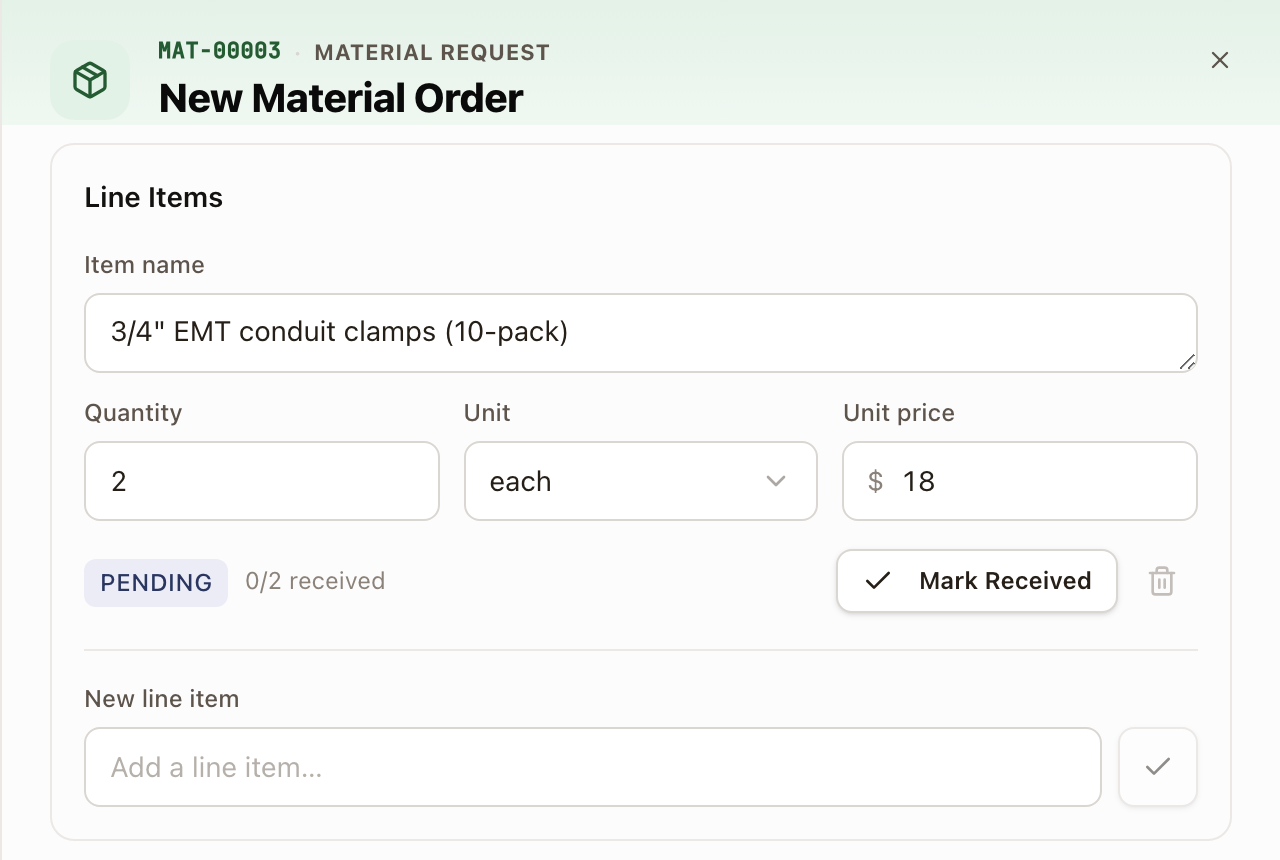
Each order has a number such as MAT-00003, shown beside the title.
Before you start
You need the Owner, Admin, Operations Manager, or Operations User role.
Steps
- On a work order, open the Materials tab.
- Click Add materials. This opens a new material order.
- Click Edit.
- Fill in the Vendor Name, and set an Assignee and Pickup Location if this order will be picked up rather than delivered.
- Under Line Items, type a part's name in New line item and press Enter, press Tab, or click the check button beside it. Each part becomes a line with its own Quantity, Unit, and Unit price. Fill those in, then repeat for the next part. A name still typed in the box when you click Save is added as a line automatically.
- Open Dates and set Needed By, and add Notes if useful.
- Click Save.
Check it worked
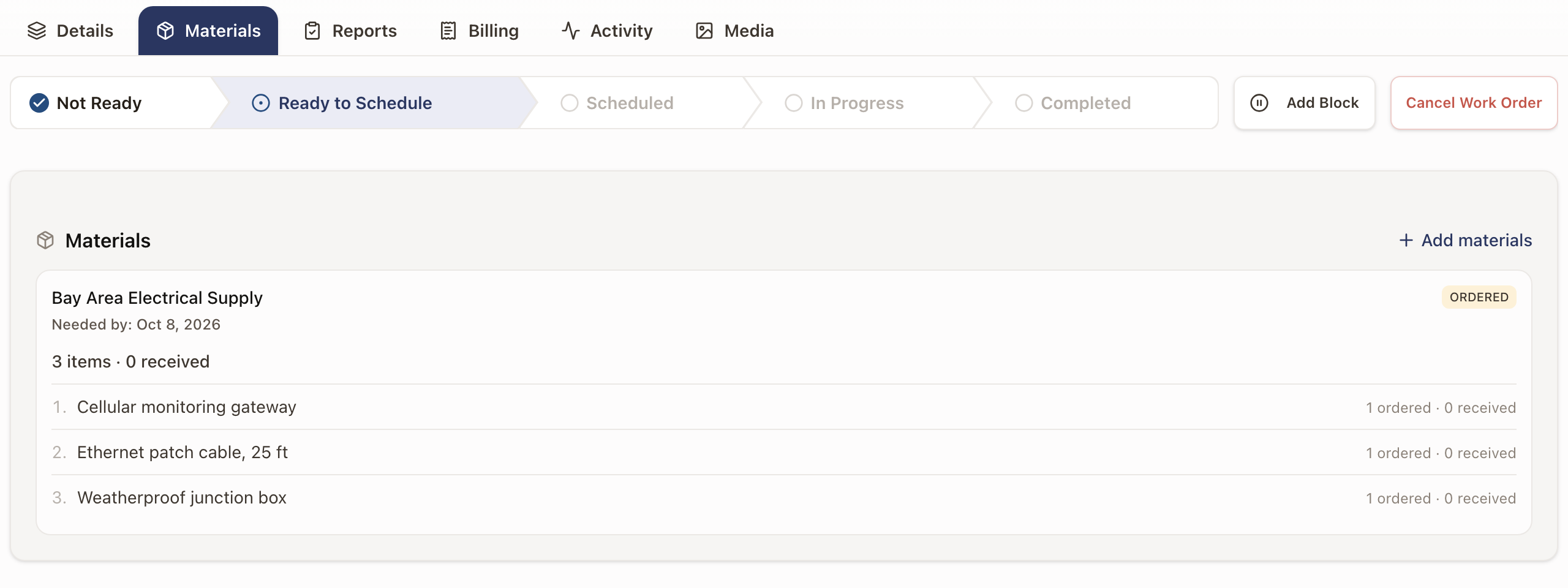
The order appears on the work order's Materials tab with its vendor, needed-by date, and item count.
Move it forward
Open the material order and use the contextual button for its stage: Mark Ordered, Mark Ready for Pickup, Mark Picked Up, or Mark Received. Technicians can confirm pickup even though they can't create or fully edit an order.
See all material orders
Operations → Materials opens the Material Requests list of every order across jobs, filterable by status and searchable by number, vendor, or item. There's no create button on this list; every order starts from its work order.
Common problems
- There's no vendor picker. Vendor is a free-text field; solarOS doesn't have a vendor catalog yet, so typos won't autocomplete against past vendors.
- An order with no vendor name shows as "Unnamed." Fill in the vendor name so the order is identifiable in the list.
Create and track an RMA
Track a piece of equipment out for a warranty return or replacement, from request through return, and invoice the manufacturer for the work.
How scheduling works
What an appointment is, who can be assigned to one, and how work moves from the Dispatch Board sidebar to a completed visit.