
Set up jurisdictions for permitting
Keep a directory of the permit offices you work with, their timelines, fees, and requirements.
If you pull permits, jurisdictions is your directory of the permit offices you deal with: contacts, typical timelines, fee schedules, inspection requirements, and known gotchas. solarOS already lists the cities and counties in California and Arizona. For other states, add your own. Permit steps and permit inspection steps in a project template use this information.
Before you start
You need the Owner or Admin role to add or edit a jurisdiction. Other roles can open a jurisdiction but can't change it.
Steps
- Go to Settings → Jurisdictions.
- Find the city or county. Search by name, or choose a state. If it's already listed with a solarOS tag, click its row to open it.
- Otherwise, click Add manual to start one from scratch.
- Fill in the tabs on the left:
- Location: name, state, county, city, whether it's a city or county, and zip codes.
- Contact: website, Online permits (SolarAPP+, Symbium, Its own system, None, or Exempt), portal address, phone, email, address, and contacts.
- Inspections: the inspections this office requires. See the next section.
- Permits & fees: typical permit, inspection, and PTO timelines, permit requirements, and the fee schedule. Avg Permit Days also sets how long a submitted permit can wait before it needs you. See Set expected times for waiting work.
- Forms: files your company keeps for this place. See Add forms. This tab shows once the jurisdiction is saved.
- Notes: anything your team should know.
- Click Save.
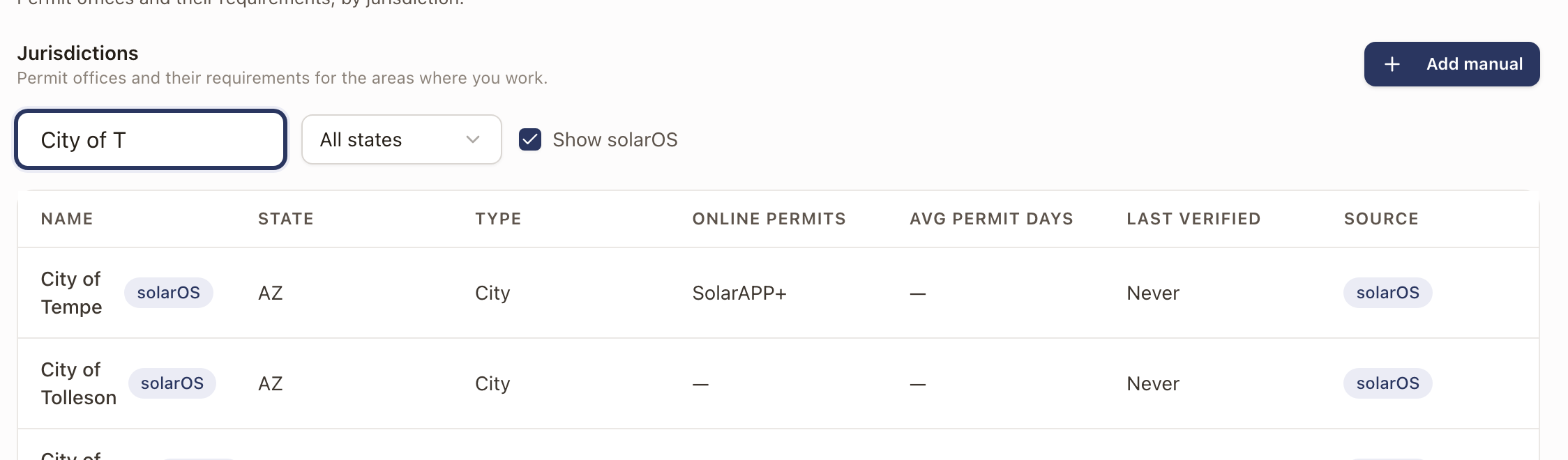
When you edit a solarOS jurisdiction, the drawer says Your changes are saved for your company. solarOS keeps its original, and you get a copy tagged Customized that your company uses from then on. To go back, open the copy and click Reset to solarOS defaults, then confirm. That removes your changes and your inspection requirements. Your forms stay.
On your own copy, click Mark as Verified at the top once you've confirmed the details with the permit office. The Last verified date updates.
Add inspection requirements
Inspection requirements tell a permit inspection step when to apply. They live on your company's own copy, so edit a solarOS jurisdiction first, or add your own.
- Open the jurisdiction and click the Inspections tab.
- Click Add inspection requirement.
- Choose the Inspection type, such as Rough, Final, Fire, or Trench. Each type can be listed once.
- Under Required, choose On every job or When a rule matches. For a rule, pick a field, an operator, and a value, as in Include when.
- Add Inspection notes and who it's Performed by if your team needs them.
- Click Save.
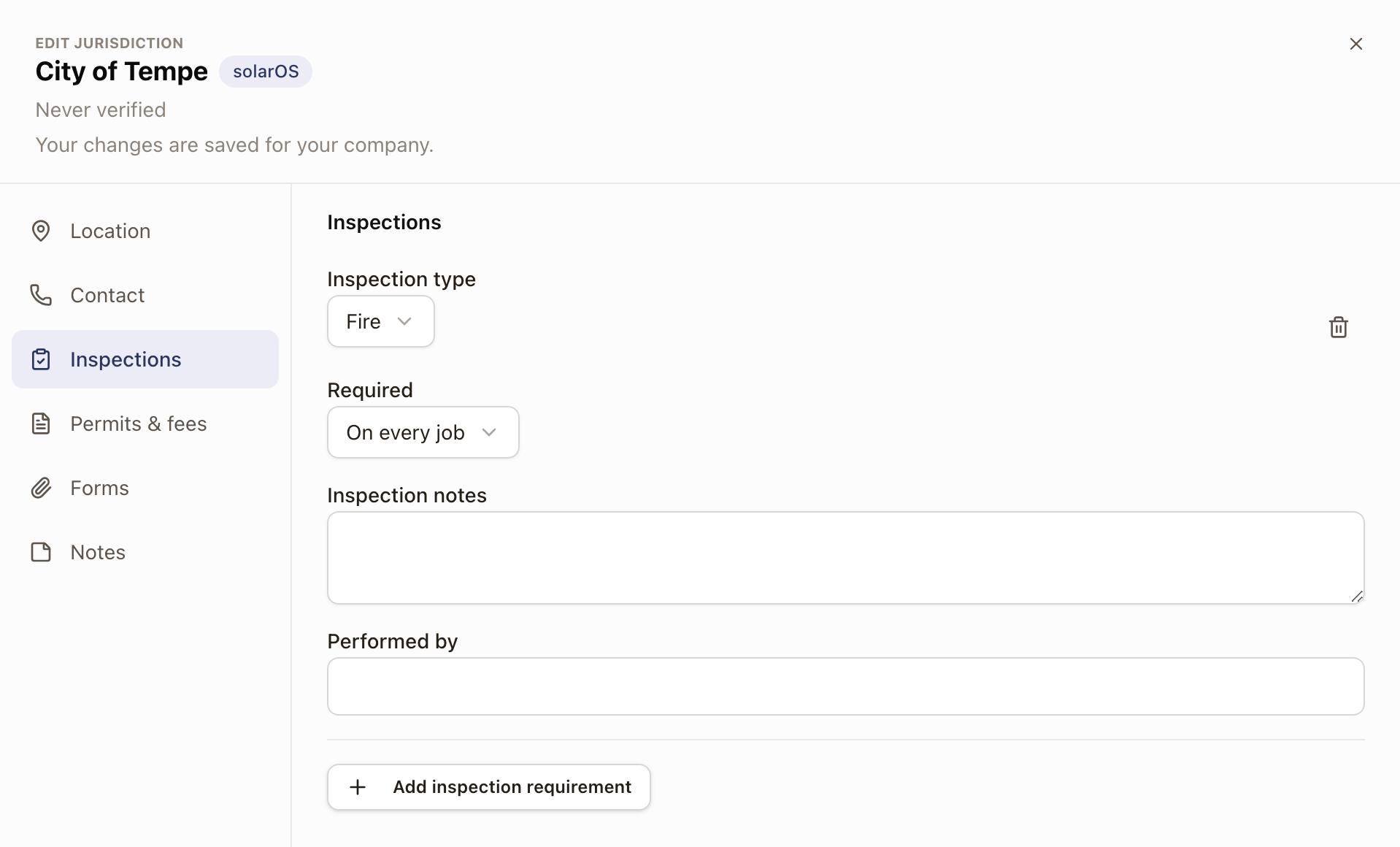
A permit inspection step can include itself only when the project's jurisdiction requires that type. See Set up permit inspections.
Add forms
Keep the prefilled forms a city or county asks for, such as a homeowner authorization, with the jurisdiction. Everyone in your company can then open them from any permit in that jurisdiction.
- Open the jurisdiction and click the Forms tab.
- Click Upload and choose the files.
Files save as they upload. You don't need to click Save. To open a form from a permit, open the permit and look in its AHJ section, on the Forms row. PDFs and photos open to read, and other files download. You need the Owner or Admin role to upload or remove forms.
Check it worked
The jurisdiction appears in the list with its state, type (City or County), online permit platform, average permit days, and a Last verified date. The Source column reads solarOS for solarOS records and Your company for your own. A copy of a solarOS jurisdiction shows a Customized tag. Open a permit for a project with that jurisdiction. Its AHJ section shows the details, with any warnings first.
Common problems
I can't find a solarOS jurisdiction. Check that Show solarOS is on and All states isn't set to another state. The solarOS list covers California and Arizona. For other states, click Add manual.
I can't change anything. Your role is view only. Ask an Owner or Admin.
I don't see "Jurisdiction profiles" under Planset studio in Settings. A separate, more advanced jurisdiction screen exists in Planset Studio (code cycles, wind and seismic design criteria). Planset Studio is a beta feature. Contact solarOS support to turn it on for your company.