
Work permit inspections on a project
Schedule an inspection, record a pass or fail, plan the corrections after a failed inspection, and re-inspect.
A permit inspection is the jurisdiction checking the install after the permit is approved. Each project has a Permit inspection step for it. Every try at the inspection is a visit work order. A pass completes the step. A fail makes the next visit right away. The office schedules the corrections, and the next visit can be scheduled once the correction work is done.
Before you start
You need the Edit Projects permission (Owner, Admin, Sales Manager, Operations Manager, and Operations User have it by default). The project's template needs a Permit inspection step. See Set up permit inspections.
Schedule the inspection
A Permit inspection step becomes ready when its permit is Approved. At that point it shows Ready to schedule on the Work tab.
- On the project's Work tab, click the permit and then Approve once the jurisdiction has approved it.
- Click the row marked Permit inspection. It reads the step's name and the visit's work order number, for example Final inspection · WO-00172. Click Schedule visit in the drawer. You can also open the work order and click Schedule visit.
- Pick the date, time, and technician, then click Schedule.
Check it worked: the inspection shows in Coming up on the project page and on the Dispatch Board. See Schedule a service visit.
Record the result
The technician files the step's report at the inspection. They pick one outcome:
- Pass: the step completes and the work behind it can start.
- Conditional pass: the step completes, and the corrections the inspector listed are recorded with the inspection.
- Fail: the step stays open, and the project asks the office to schedule the corrections.
The report also asks for the Inspector name. For Fail and Conditional pass, the technician adds each correction the inspector listed. Each one has a Description and a category, Plans or Field work. It can also have a Subcategory and photos. A Fail can't be submitted without at least one correction. To set up the subcategories, see Set up correction categories.
Record the result by hand
If the technician didn't file the report, the office can record the result from the permit. Open the permit and click its Inspections tab. Click the inspection to open it, then click Record result on the open visit. Choose the Result and type the Inspector. For Fail or Conditional Pass, click Add Correction for each one the inspector listed, with a Description and Plans or Field work. Then click Complete.
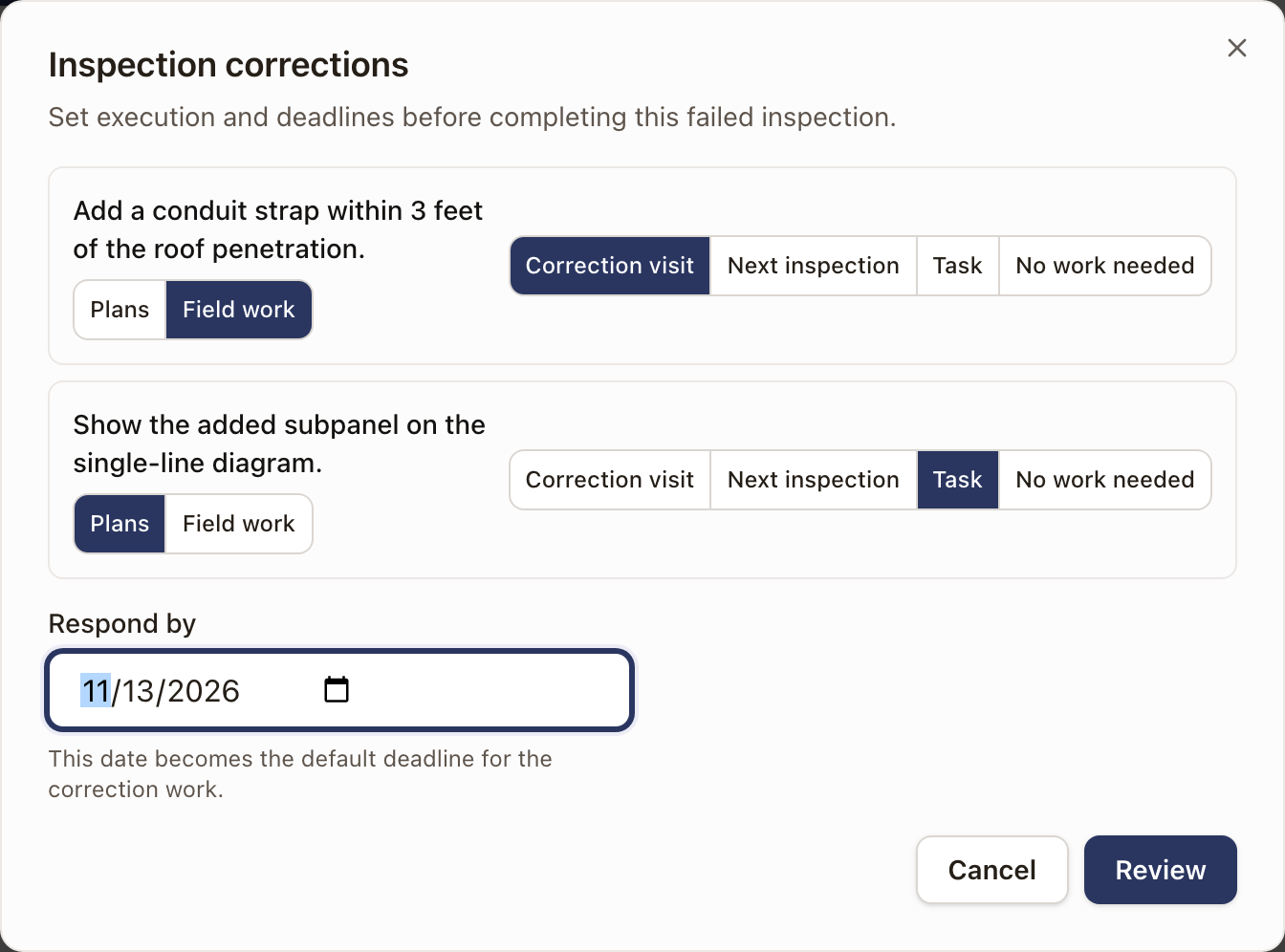
For a fail, a dialog titled Inspection corrections asks how each correction gets done and by when. For each one, choose Correction visit, Next inspection, Task, or No work needed. To file it under the other category, click Plans or Field work. Enter Respond by. If you chose Correction visit, click Review and check the visit. Then click Complete inspection and create correction work.
If the attempt's visit is still open, Record the result by hand? asks whether to cancel it. Cancel the visit is ticked. Click Record result to record the result and cancel the visit and its appointment, or Go back to leave everything as it was. Untick Cancel the visit to keep the visit.
The attempt then follows the same steps as a technician's report, starting at the corrections below.
Schedule the corrections after a failed inspection
After a failed inspection, the project asks the office to schedule the corrections. The next visit is made right away, but it can't be scheduled until the correction work is done. On the project's Work tab:
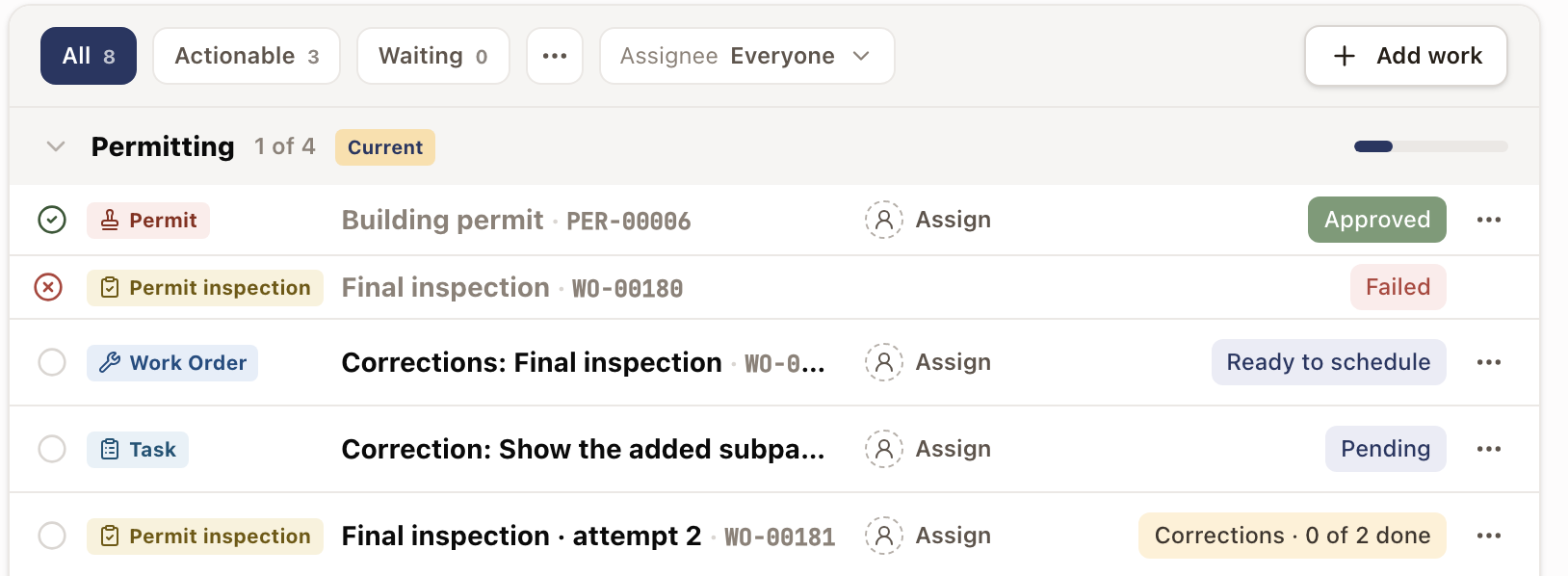
- The failed visit stays on the list as its own row, with its work order number and a red Failed. Click it to open that work order.
- The project's header reads 1 need you, the stage reads Needs you, and the Needs you filter lists the inspection step.
- The inspection step's row reads 2 to schedule. It is named for the new attempt, for example Final inspection · attempt 2.
- The main button at the top right of the project reads Schedule corrections. Point at it to read 2 corrections to schedule.
- Click Schedule corrections. You can also click it above the Corrections table when you open the inspection on the permit's Inspections tab, or on the inspection in My Work.
- For each correction, choose how it gets done:
- Correction visit: a work order for a technician. All corrections you choose this for share one work order.
- Next inspection: the correction is added to the next inspection's work order. It creates no work of its own and doesn't hold the next inspection back.
- Task: a task for someone in the office.
- Plan set revision: the person who drew the plans revises them. This choice shows when the project's plan set is Ready, Sent to client, or Approved, or already has a revision open.
- No work needed: close the correction without any work.
- To file a correction under the other category, click Plans or Field work above its choices. A Plans correction starts on Plan set revision when the plan set can take one, and on Task when it can't. A Field work correction starts on Correction visit.
- Set Respond by, the deadline for the correction work.
- If you chose Correction visit or Plan set revision, click Review. Check the visit's Title, Description, Work type, Report, and Assigned to, for example Repair for the work type. For a revision, choose Who revises the plans?. Click Back to change a choice.
- Click Schedule corrections.
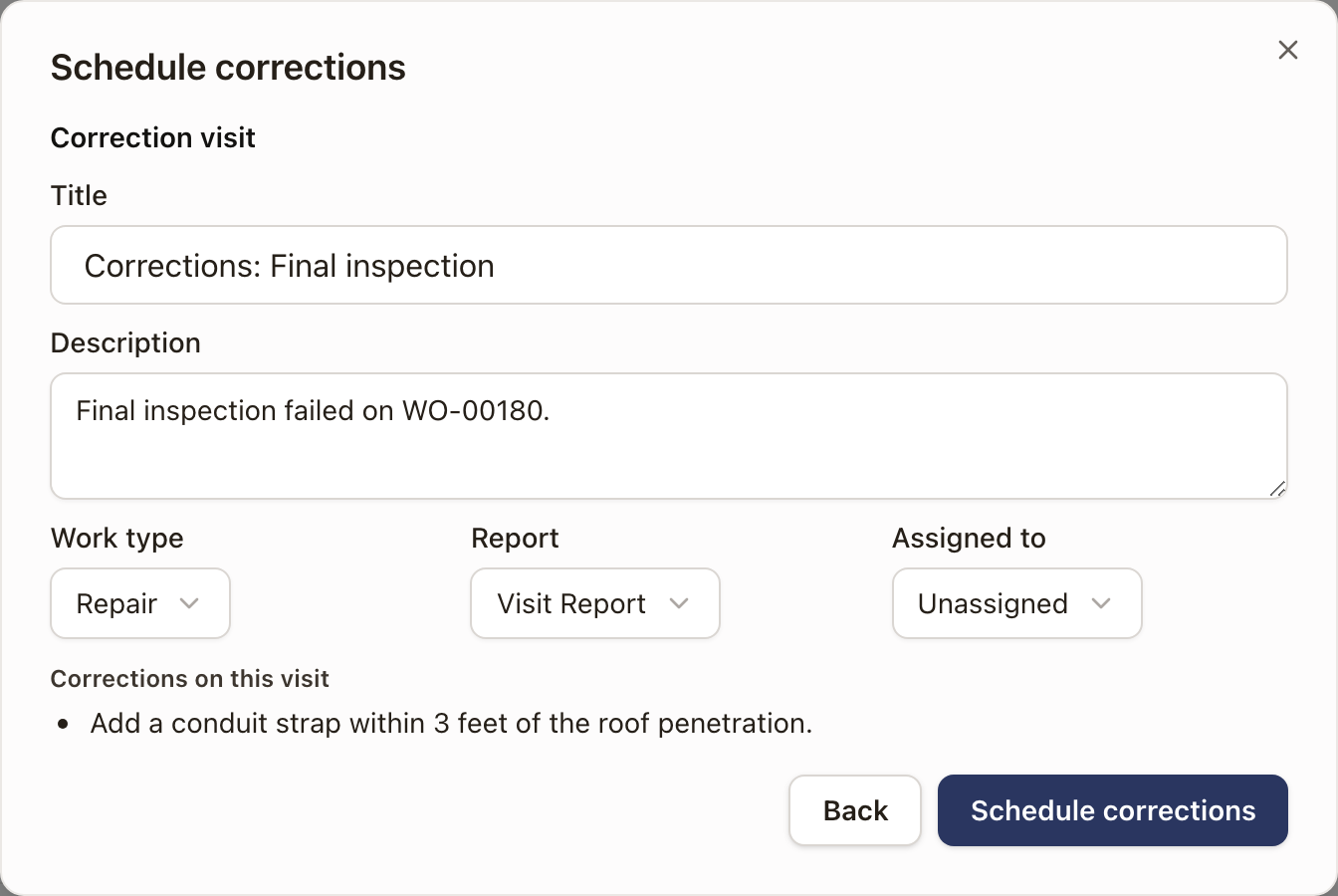
Check it worked: a message reads Corrections scheduled, and Needs you clears. The inspection step reads Corrections · 0 of 2 done, and the correction visit and the tasks appear above it in the stage. The inspection's Corrections table lists each correction with what it is tied to under Related, who it is Assigned to, and its Status, such as Not started.
Revise the plans
Plan set revision moves the plan set to Revision required and adds a Revise plans step. It goes to the person who drew the plans, or to the person you pick under Who revises the plans?. Plans corrections from one inspection share one revision. If the plan set already has a revision open, they join it, and Review says whose step they join.
The plan set lists them under Inspection corrections, each with a link to the inspection. They count as done when the designer closes the revision.
When the designer closes the revision with Back to Ready, Send revised plans to the client, or Back to Approved, a box asks Does the permit need resubmitting?
- No closes the revision.
- Yes sends the permit back to the jurisdiction too. The permit moves to Revision required, and a Resubmit permit step goes to the permit step's person. The next inspection waits for it. The step is done when someone clicks Mark resubmitted on the permit. If your company turned on Wait for re-approval after a resubmission, it is done when the permit is approved again. See Set up permit inspections.
To drop the revision, click Cancel revision on the plan set. Its corrections go back to unscheduled, and the inspection needs you again.
Re-inspect
Work each correction like any other work order or task. When the last one is done, the round closes on its own. You don't resolve anything by hand. The next visit, which was made when the inspection failed, becomes Ready to schedule, and the inspection step returns to Ready to schedule. A correction you set to Next inspection is done when that visit ends, whether it passes or fails. The project's activity records Ready for re-inspection.
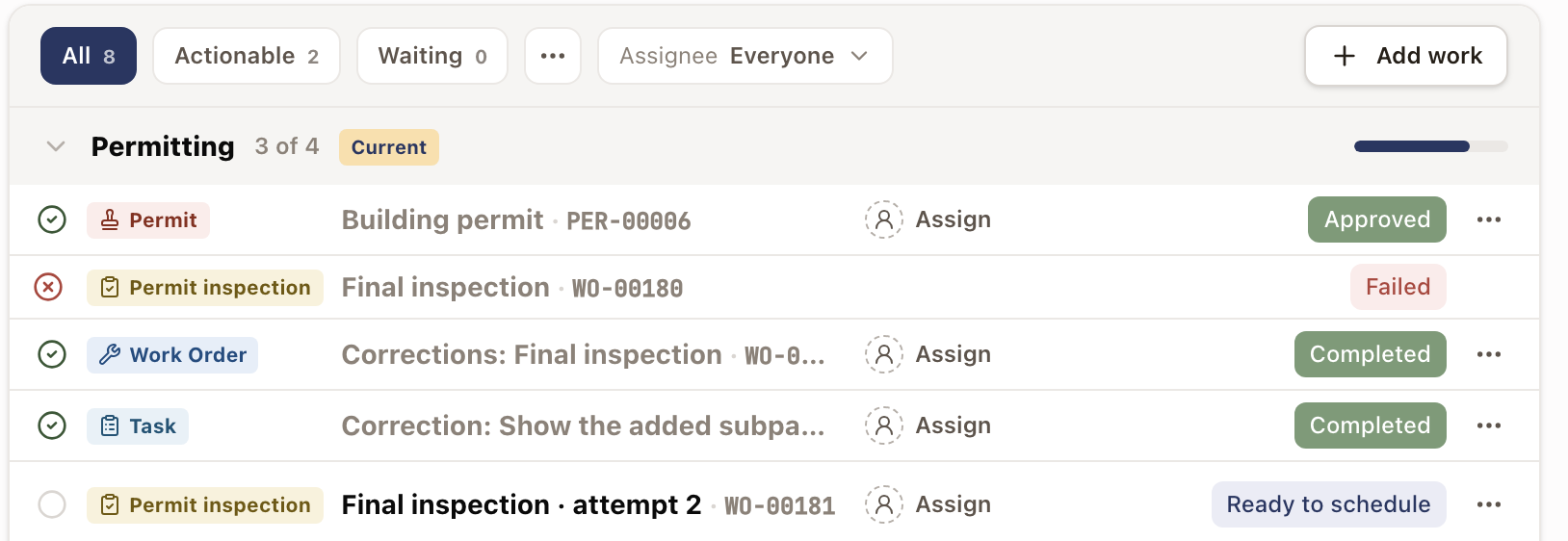
- Click the step, then Schedule visit in the drawer, and schedule the visit as before.
- When the technician submits the report with Pass, the step completes. The project's activity records Final inspection passed.
A project can go through more than one round. Each failed inspection opens a new set of corrections.
See every attempt
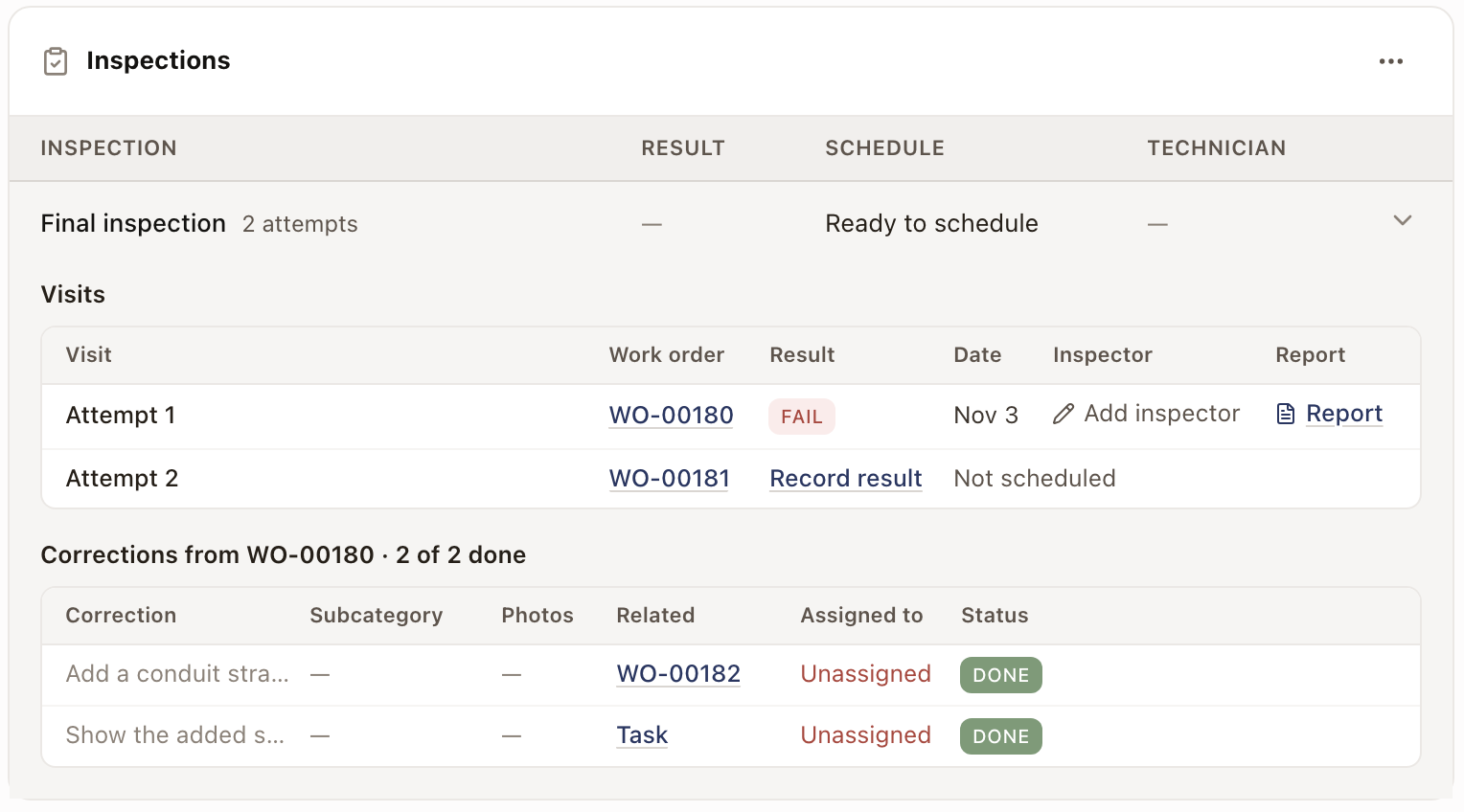
Open the project's permit and click its Inspections tab. It shows one row for each inspection, with its Result, its Schedule, and the Technician. An inspection that took more than one try reads, for example, 2 attempts, and its row shows the newest result. Schedule reads Not ready to schedule, Ready to schedule, Scheduled with the date, or Completed with the date.
Click a row to open it. Two tables show:
- Visits lists each try with its Work order, Result, Date, Inspector, and Report. Click Add inspector to type the inspector's name. An open visit shows Record result. A visit that isn't booked yet reads Not scheduled.
- Corrections lists what the inspector asked for. Its heading reads, for example, Corrections from WO-00903 · 0 of 2 done · Respond by Sep 2. Each row shows the Correction, its Subcategory, Photos, what it is tied to under Related, who it is Assigned to, and its Status. Click Mark done on a task, or Schedule on a correction visit that is ready to schedule. When the corrections come from more than one visit, a Found on column names the visit.
The same table shows at the top of the inspection visit's work order page, in the work order's drawer, in Review Work, and in My Work when the inspection is yours. A work order for a failed visit shows a red Inspection failed beside its priority, on its page and in its drawer.
Photos tagged to a correction show wherever the correction does: the report, the Schedule corrections dialog, the Corrections table, the correction visit's scope lines, and the plan set's Inspection corrections. Click a photo to enlarge it.
Add an inspection the template didn't plan
When the project's jurisdiction requires an inspection the project has no step for, a Needs you card at the top of the Work tab reads, for example, City of Rocklin requires a Final inspection. This project has none. Click Add inspection on the card. The Inspection type is already chosen.
If the project has no permit step, the card asks you to add one first.
You can also add one yourself. Open the permit, click its Inspections tab, open the ⋯ menu, and click Add inspection. Choose the Inspection type, Work type, Report, and Stage, then click Add inspection. It adds a Permit inspection step to this project only.
Common problems
- A Permit inspection step is waiting and won't schedule. Its permit isn't approved yet. Approve the permit first.
- The technician can't submit the report. After a Fail, at least one correction is required.
- The step stays open after the corrections are done. The step reopens for a re-inspection. It completes when an inspection passes.
- The next inspection says Not ready to schedule. It waits until the correction work you scheduled is done. A correction set to No work needed or Next inspection doesn't hold it back.
- A message says the permit can't be resubmitted from its current status. Click No, then update the permit from its page.
Read and manage a project's Billing tab
See what's sold, invoiced, and paid on a project, and manage its payment schedule, invoices, and pricing.
Work an application and its milestones
Send an application and work it through its milestones, fill in the fields it needs, read its status, and deny, expire, cancel, or reopen it.