
Complete a project
What has to be finished before a project can be marked Completed, and what happens after.
Marking a project Completed says the work is done. Closing it out says the money and paperwork are settled too. Both happen on the project page: complete it from the ⋯ menu, then close it from its Closeout section.
Before you start
You need the Edit Projects permission (Owner, Admin, Sales Manager, Operations Manager, and Operations User have it by default). The project must be Active, and it can't have an open hold. Resolve any holds first. See Place and resolve a project hold.
Complete the project
- Open the project's ⋯ menu.
- Click Complete Project.
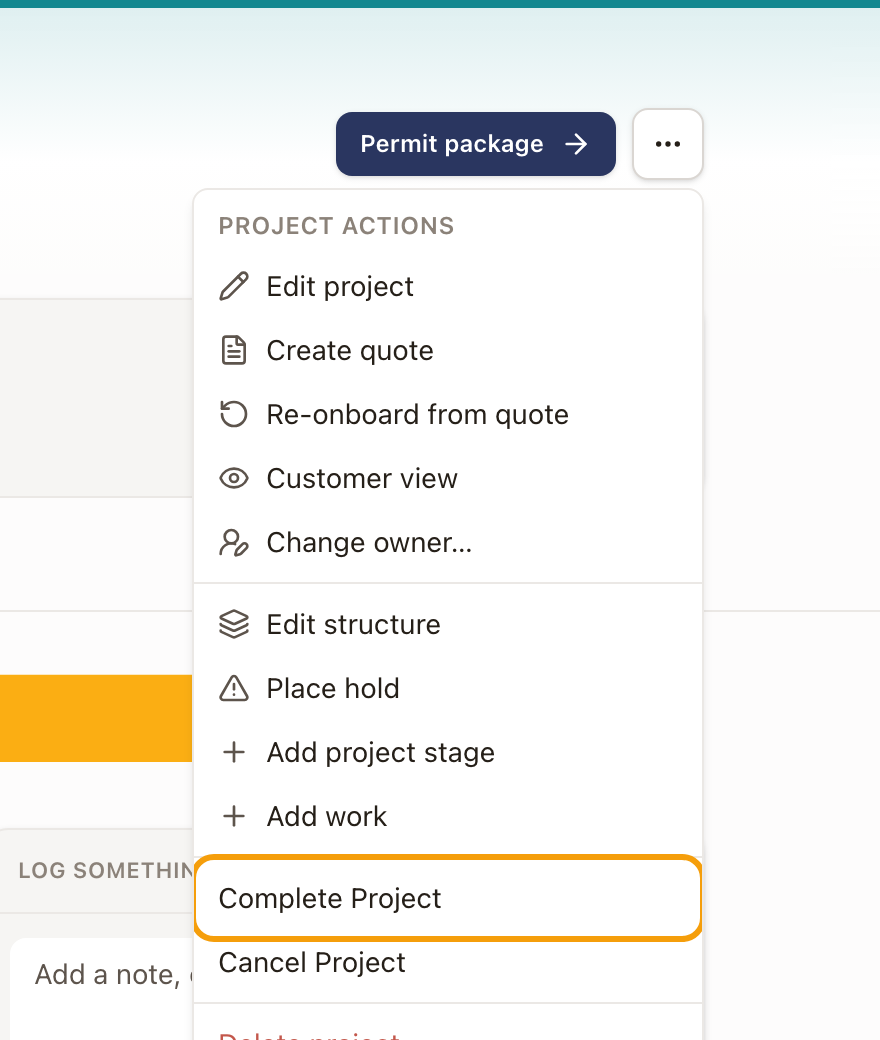
Check it worked: the project's status changes to Completed.
If you add work to a completed project, the project returns to Active while that work is unfinished.
The required-items gate
Every work item marked Required must be Completed or Skipped first. If any aren't, the action is blocked with an error naming how many required items are still open. Items that aren't required don't block completion.

Common problem: the error doesn't list which items are blocking it. Check the Work tab for open items and clear them, or mark the ones that don't apply as Skipped from the project structure page.
Pause or cancel instead
From the same ⋯ menu, Place hold pauses the whole project without finishing it: nothing new opens until you resolve the hold. Cancel Project ends it early. It asks you to confirm first. The box names the project and warns that a cancelled project can't be reopened. Click Cancel project to go ahead, or Keep project to leave it as it is. A project with an open hold can't be completed or cancelled: resolve its holds first. See Place and resolve a project hold.
Close out a completed project
Once a project is Completed, a Closeout section appears at the top of its Work tab. It lists what still stands between the project and Closed, and checks off what's done.
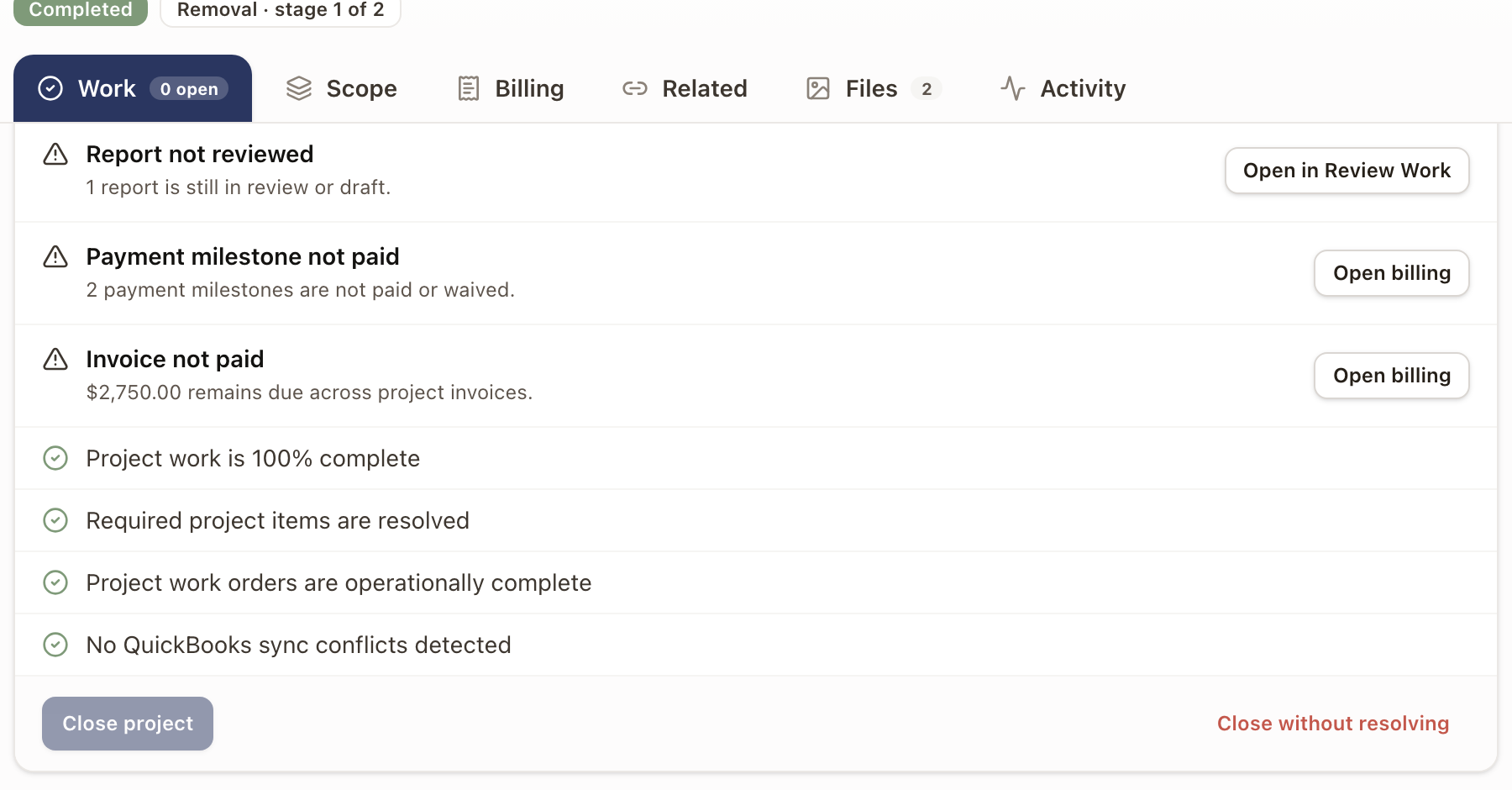
- Open the completed project and click Review closeout at the top right, or scroll to Closeout. The label at its top right reads Ready to close or N to resolve.
- Work through each open item. Its button takes you to where it's fixed:
- Report not reviewed: Open in Review Work.
- Payment milestone not paid, Invoice not paid, and Milestone marked Paid, invoice still unpaid: Open billing.
- Project work incomplete, Required items incomplete, and Work orders still open: Show open work.
- When every check passes, click Close project.
Checks that pass appear below the open items, for example Project work is 100% complete and No QuickBooks sync conflicts detected.
Check it worked: the project's status changes to Closed. A project that stays Ready to close also closes on its own within the hour.
Close without resolving
If an open item isn't going to be resolved, for example an invoice you've decided to write off, click Close without resolving. Type a Reason and click Close without resolving again. The project moves to Closed, and the reason is recorded on its activity. Invoices, reports, and work orders stay as they are. Keep open cancels.
You need the Edit Projects permission to close a project.