
Mark an appointment as cannot complete
End a visit you can't finish and hand it back to the office to reschedule.
Use this when you can't finish a visit at all, for example the homeowner isn't home or you can't safely access the equipment. It ends the visit and tells the office to reschedule it, rather than leaving it open.
Before you start
- The Technician role, and an appointment you're assigned to.
Steps
1. Open Log Issue / Cannot Complete
From the work order, tap the ⋯ beside Post Job Update, then tap Log Issue / Cannot Complete.
2. Choose Cannot complete this visit
The dialog offers two options. Log an issue tells the office about a problem but keeps the appointment active. Cannot complete this visit ends it.
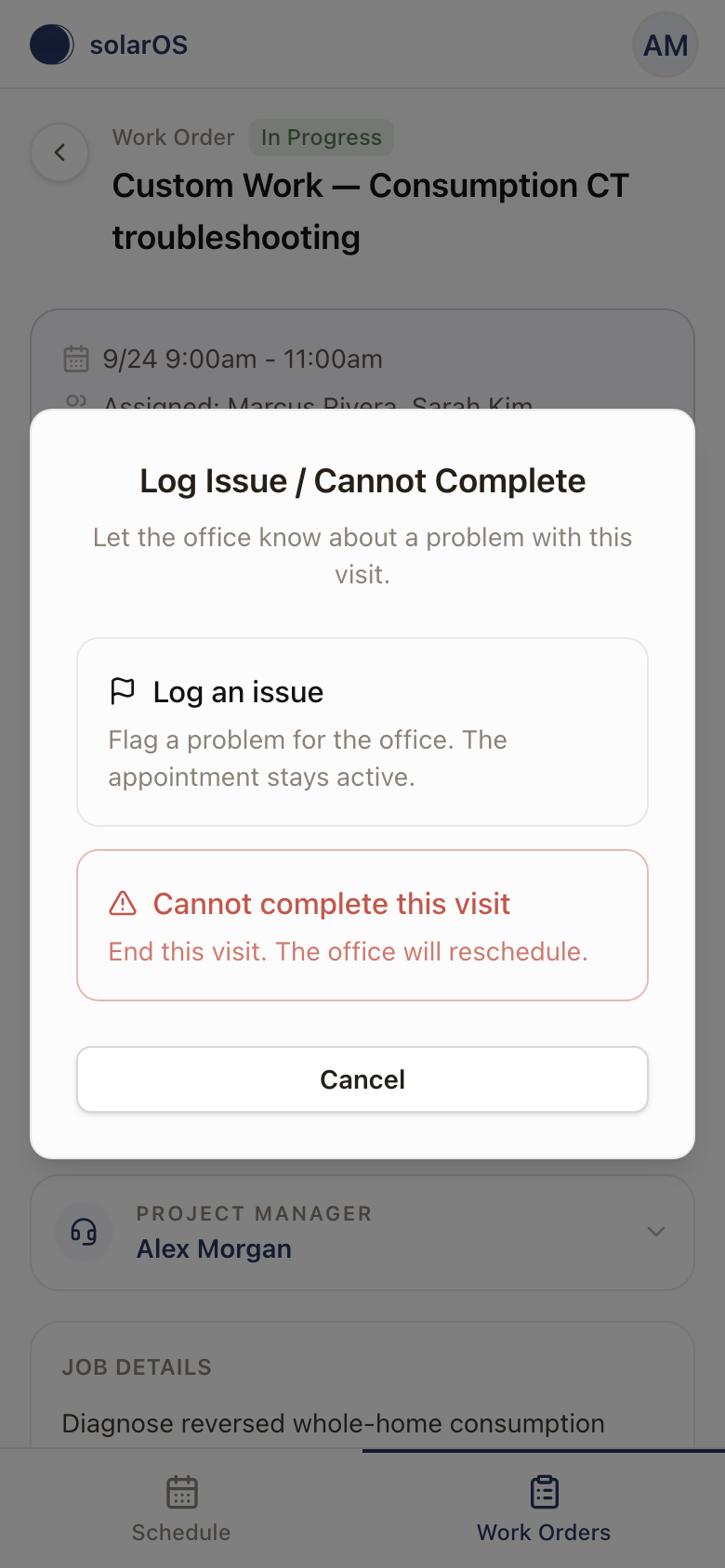
Tap Cannot complete this visit.
3. Give a reason
Pick a Reason: Homeowner not home, Access issue, Unsafe conditions, Missing equipment, Customer refused, or Other. Describe what happened in What happened?, this is required.
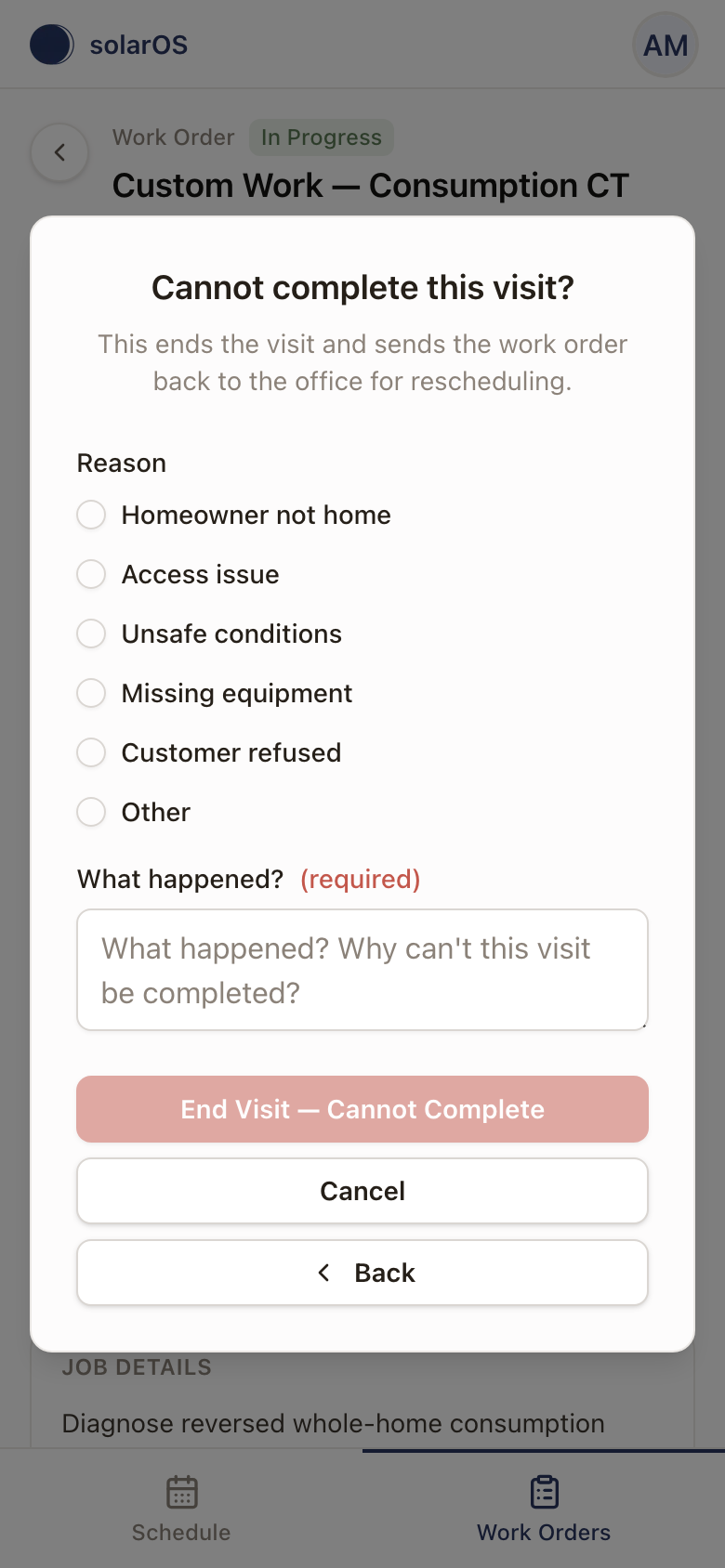
4. End the visit
Tap End Visit — Cannot Complete.
Check it worked
You'll see "Visit marked cannot complete, the office has been notified." The appointment shows status Could Not Complete, and the report submits automatically with that outcome. The work order stays open; it doesn't go back to Ready to Schedule on its own. Someone at the office schedules the follow-up visit.
Common problems
- I can still fix the problem. Use Log an issue instead. It tells the office without ending the visit, so you can keep working.
- I need to undo this. There's no undo once a visit is marked Cannot Complete. Contact your office to schedule the follow-up visit.