
Set pricing rules, tiers, and starting assumptions
Automate pricing conditions, size-based price-per-watt bands, and the org-wide values every new quote starts from.
Three settings feed pricing decisions across every quote template: pricing rules run automatically whenever a quote's pricing is calculated, pricing tiers set a base price-per-watt by system size, and pricing & assumptions hold the org-wide starting values every new quote seeds from.
Before you start
You need the Manage Pricing permission. Owner and Admin have this by default.
Add a pricing rule
A pricing rule pairs conditions (system size, panel count, roof type, current margin, and more) with an action: set a price per watt, margin, or package price, block the quote, require approval, or show a warning.
- Go to Settings → Pricing rules.
- Click Add Rule, or clone one of the starter templates (Equipment Cost from Catalog, System Size Tier Pricing, Minimum Margin Check) if it's close to what you need.
- Set the rule's Conditions and its Action.
- Use Test Rule to check the rule against sample values before saving.
- Save the rule. It's added to the priority-ordered list: rules run top to bottom, and for the same action type, the first match wins. Block Quote, Require Approval, and Show Warning actions all stack instead.

Add a pricing tier set
Pricing tiers set the base price per watt for any quote using the Tiered pricing method, based on system size.
- Go to Settings → Pricing tiers.
- Click Add Pricing Tier and name the set.
- Add bands with a Min kW, Max kW, and $/W. Bands must start at 0 kW, have no gaps between them, and only the last band can be left open-ended (no max).
- Optionally enter a Suggested $/W for a band, higher than its $/W. A new quote starts at the suggested rate, and the band's $/W stays the lowest price a rep can quote without confirming. Leave it empty and a new quote starts at the band's $/W.
- Save.
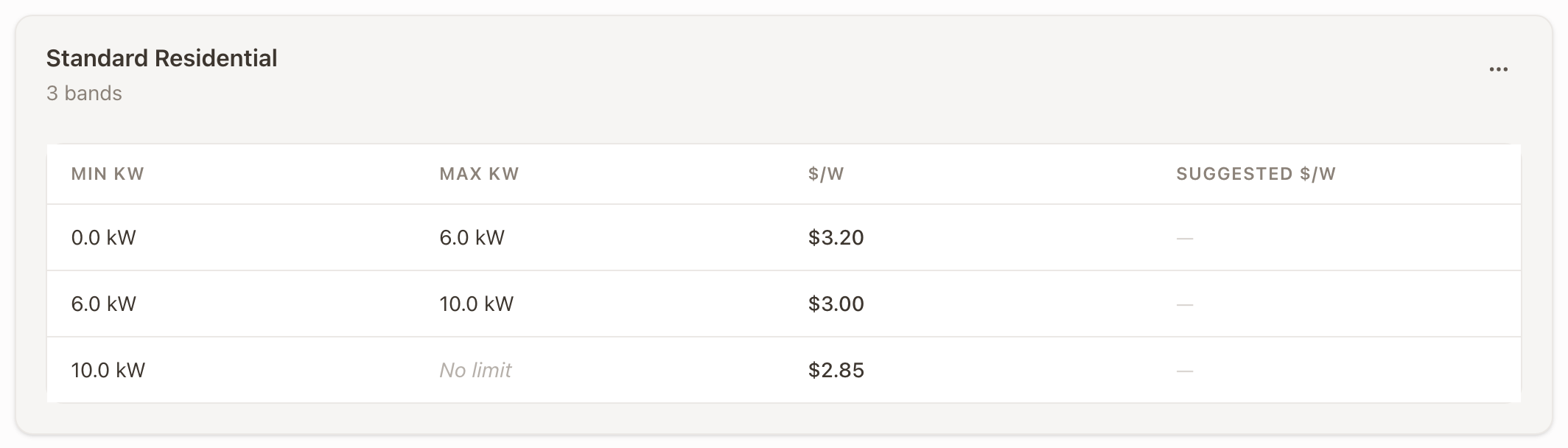
To make a set the one new quotes start from, click ⋯ on its card and choose Set as Default. The default set shows a Default badge. The same menu has Edit, Deactivate, and Delete. Existing quotes keep the pricing they have.
Set pricing & assumptions
Settings → Pricing & assumptions holds the values every new quote starts from. A quote still recalculates from its own pricing rules and line items on top of them. Change these when your baseline changes.
On a solar quote, the template's Solar defaults come first. Anything the template leaves on Company default uses these. See Build a quote template.
| Section | Fields |
|---|---|
| Pricing | Target price per watt, Default margin, Minimum margin (quotes below it need approval), Overhead, Overhead per job, Sales commission |
| Labor | Labor per watt, Labor per job, Electrician hourly rate |
| Tax and credits | Sales tax rate, Quoted prices already include sales tax |
| Fees passed to customers | Pass card processing and platform fees to customers |
| Dealer fees | Dealer fee on loans, Dealer fee on leases, Dealer fee on PPAs |
| Production and savings assumptions | Panel degradation per year, Utility rate increase per year, System losses, Grid emissions factor, Weather data year, Production timezone, Baseline territory |
| Usage for new solar quotes | Rate schedule (it sets the utility too), Generation, the generation supplier's service, Usage profile |
| Equipment for new designs | Panel, Inverter for solar-only designs, Battery, Inverter with the battery |
Tax credits and rebates, the federal credit included, are set up under Incentives & rebates, not here.
A rep can change two of these on a single quote. Utility rate increase per year is Rate increase on the quote's Usage tab. Panel degradation per year is Panel output loss, under Configure on the System tab.
Choose the equipment new designs start with
Under Equipment for new designs, pick a default for each row. Each list offers your active products of that kind.
- Panel is the panel a new design starts with.
- Inverter for solar-only designs is a micro or string inverter for designs without a battery. Microinverters are counted one per panel.
- Battery is the battery a new design starts with.
- Inverter with the battery is a hybrid or battery inverter, added with the default battery in place of the solar-only one. An inverter a rep picked stays.
Existing designs keep their equipment. Click Save changes when you finish.
Common problems
| Symptom | Cause |
|---|---|
| A new solar quote starts without a system price | No tier set is marked Default and no Target price per watt is set. Mark a set as the default, or enter a price per watt. |
| A rule never fires | Check its priority order: an earlier rule of the same action type may already be matching first. |
| Tiered pricing rejects a band | Bands must be contiguous from 0 kW with no gaps, and only the final band can be open-ended. |
Pricing rules and tiers apply automatically once saved. A quote template's own line items still control what's actually being priced: see Price a quote template.
Set up your product and service catalog
Activate or add the equipment, materials, and labor a quote template's line items can price from, and set who you bill for a manufacturer's RMAs.
Set up agreement templates and merge fields
Build the signature documents your team sends from quotes and change orders, and personalize them with merge fields.