
Price a quote template: line items and pricing rules
Add pricing lines to a quote template, and choose how each one calculates quantity and price.
The Pricing tab is where a quote template becomes something you can actually sell. Line items are grouped into sections. Each line has a quantity and a unit price, and together they make the line's total.
Before you start
Complete identity, scope, and job details first. If a line prices from a catalog product, have it set up.
Add a section and a line
- Open the template and go to Pricing.
- Click Add First Section (or Add section if one already exists).
- Click Add line. The line opens in a drawer.
- Under Item, name the line. Use Insert field if the name should include a merge-field token.
- Set the quantity and the price, as the next sections describe, then click Save line.
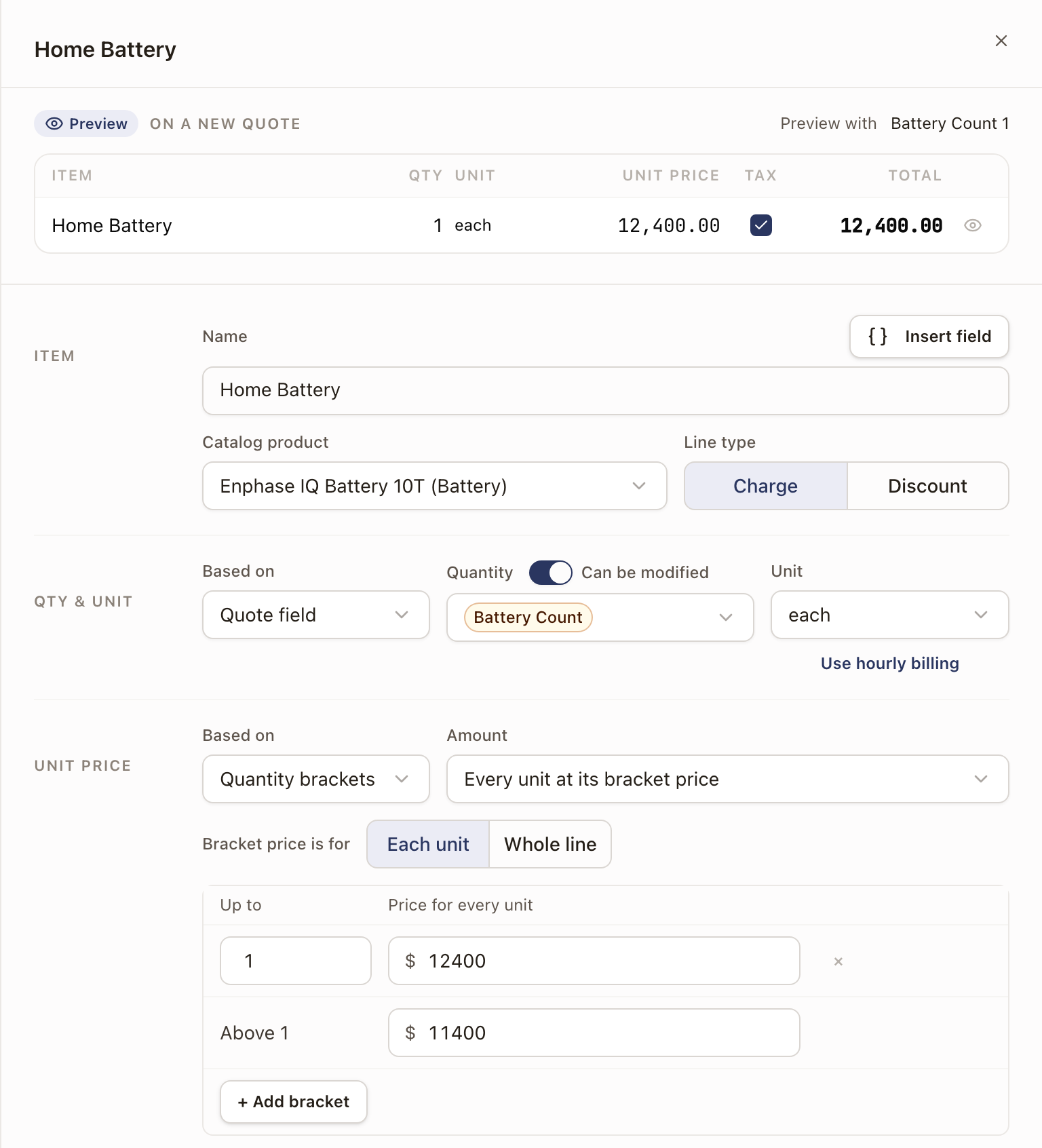
The top of the drawer shows a Preview of the line as it will look on a new quote, with Item, Qty, Unit, Unit price, and Total. Below it, the drawer has a section for each part of the line: Item, Qty & unit, Unit price, Tax, Customer view, and More. Tax shows only when the template charges tax. Click a figure in the preview to jump to the setting behind it.
If a line reads a quote field that has no default value, the preview asks for one. Enter a value next to Preview with to see a total. These values are only for checking your math. They aren't saved, and they start blank each time you open the template.
Set the quantity
Under Qty & unit, Based on sets where the quantity comes from:
- Number: the same quantity on every quote. A rep can still change it on the quote.
- Quote field: the quantity comes from a number field on Job Details, for example Battery Count. Pick the field from the list that appears.
- Formula: the quantity is calculated from a formula.
Next to Quantity, turn off Can be modified to set the quantity to 1. The amount you enter is then the price of the whole line, and Based on is greyed out. Turn the switch back on to get your earlier quantity back. The switch isn't shown on an hourly line.
Unit is next to the quantity. It offers each, ft, panel, kW, set, Hourly, and Custom unit….
Set the price
Under Unit price, Based on sets how the price is worked out:
-
Fixed amount: one price, entered under Amount.
-
Quote field: the price comes from a number field on Job Details.
-
Dropdown choice: a different price for each choice of a dropdown field, plus a price for choices added later. It also works with a Product field. The table then lists your active products of that type, with a price box for each. A product you leave blank takes the price in Products without a price. A retired product that has a price stays in the list, marked Inactive. Needs a dropdown or product field on the quote family, and isn't available when the quantity is a Formula.
-
Quantity brackets: price bands by quantity, in one of two modes:
- Every unit at its bracket price: every unit prices at whichever band the total quantity falls into. Under Bracket price is for, choose Each unit or Whole line. With Whole line, the band's amount is the price of the whole line, for example $250 for any distance from 50 to 100 miles.
- Each bracket at its own price: each unit prices at its own band, blending into one unit price.
Click + Add bracket for another band. The last row, Above the highest band, sets the price for anything beyond it. Bracket pricing needs a variable quantity, so it's only available when the quantity is based on a Quote field.
-
Cost plus markup: set a Unit cost and a Markup. A line linked to a catalog product takes its cost from the product, and a later cost change re-prices the line. Not available when the quantity is a Formula.
-
Formula: the price is calculated from a formula.
To build a formula, click the buttons under Insert a quote field. For a dropdown or product field, the button opens a list of choices to compare against. Reads as spells out the choices and price bands a formula uses. Formula reference lists the operators and functions.
Catalog product on a line
A line that is linked to a catalog product shows Catalog product under Item. Choose another product to switch it. The line takes the product's unit and cost. Choose No catalog product to unlink the line. The product's own screen lists the template under Quote Template Usage.
Price a line by the hour
A line can bill the hours worked instead of a fixed price. A template can have one hourly line.
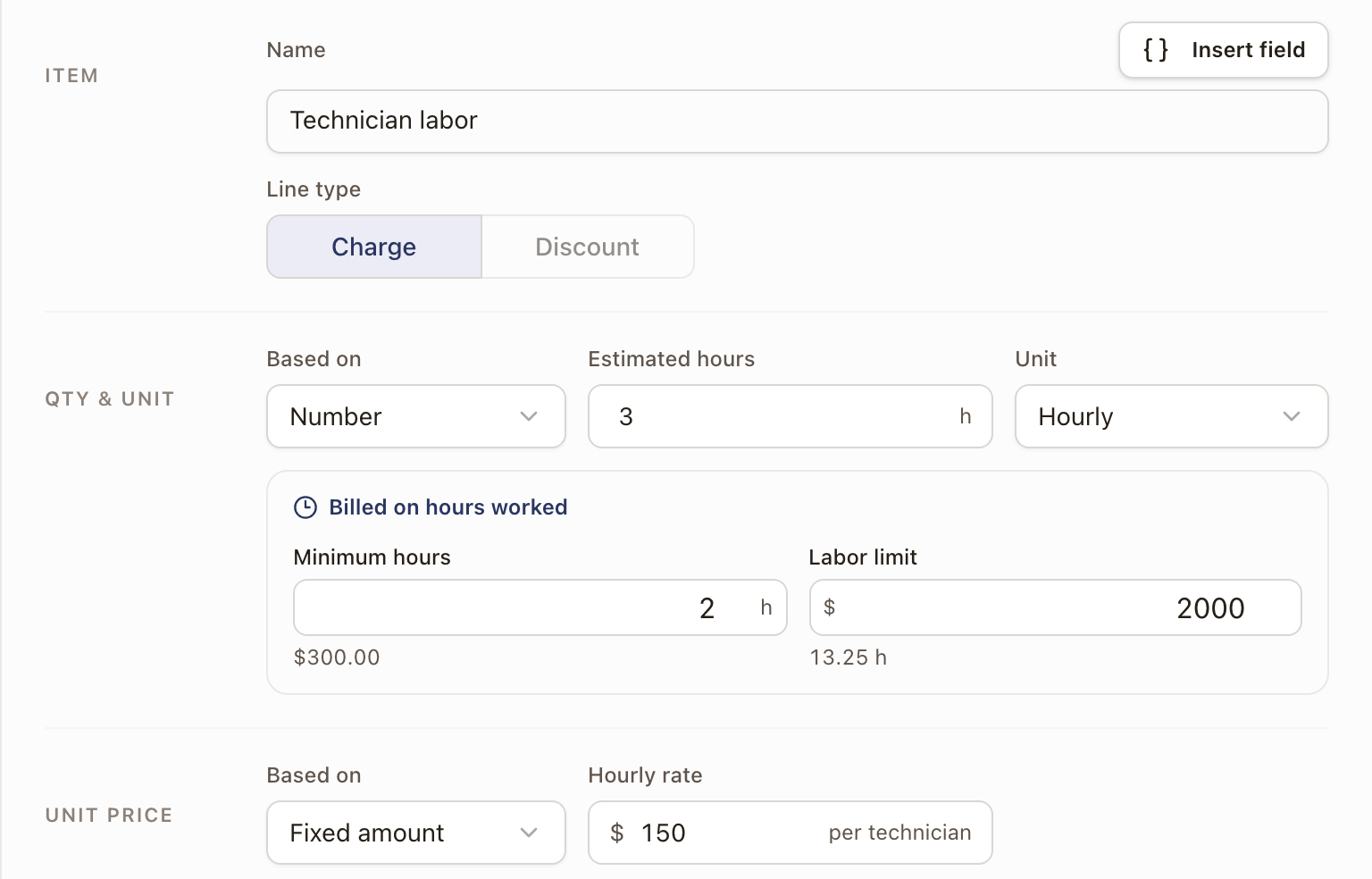
- Open the line. Under Qty & unit, open Unit and choose Hourly. You can also click Use hourly billing under Unit. If another line is already hourly, Hourly shows Taken by and that line's name, and can't be picked.
- Quantity now reads Estimated hours. Enter the hours you expect.
- Under Unit price, the amount reads Hourly rate, per technician. An hourly rate can be a Fixed amount, a Quote field, or a Formula.
- Under Billed on hours worked, fill in:
- Minimum hours, in quarter-hour steps. The line bills at least the rate times this many hours per project.
- Labor limit, the most the customer approves before more expense needs their approval. It must cover the minimum hours at the hourly rate.
- Click Save line.
An hourly line can't be a discount. Only Hourly bills on hours worked. See Hourly pricing and billing.
Add a pricing note
Under Unit price, type a Pricing note to explain how the line is priced, for example "Bigger arrays get a lower rate per panel." It can be up to 300 characters. The note is for your team only. It shows under the line's name in the template and under the rule in the line's calculation on a quote. Customers never see it. A quote made before you added a note doesn't show it.
Save the line
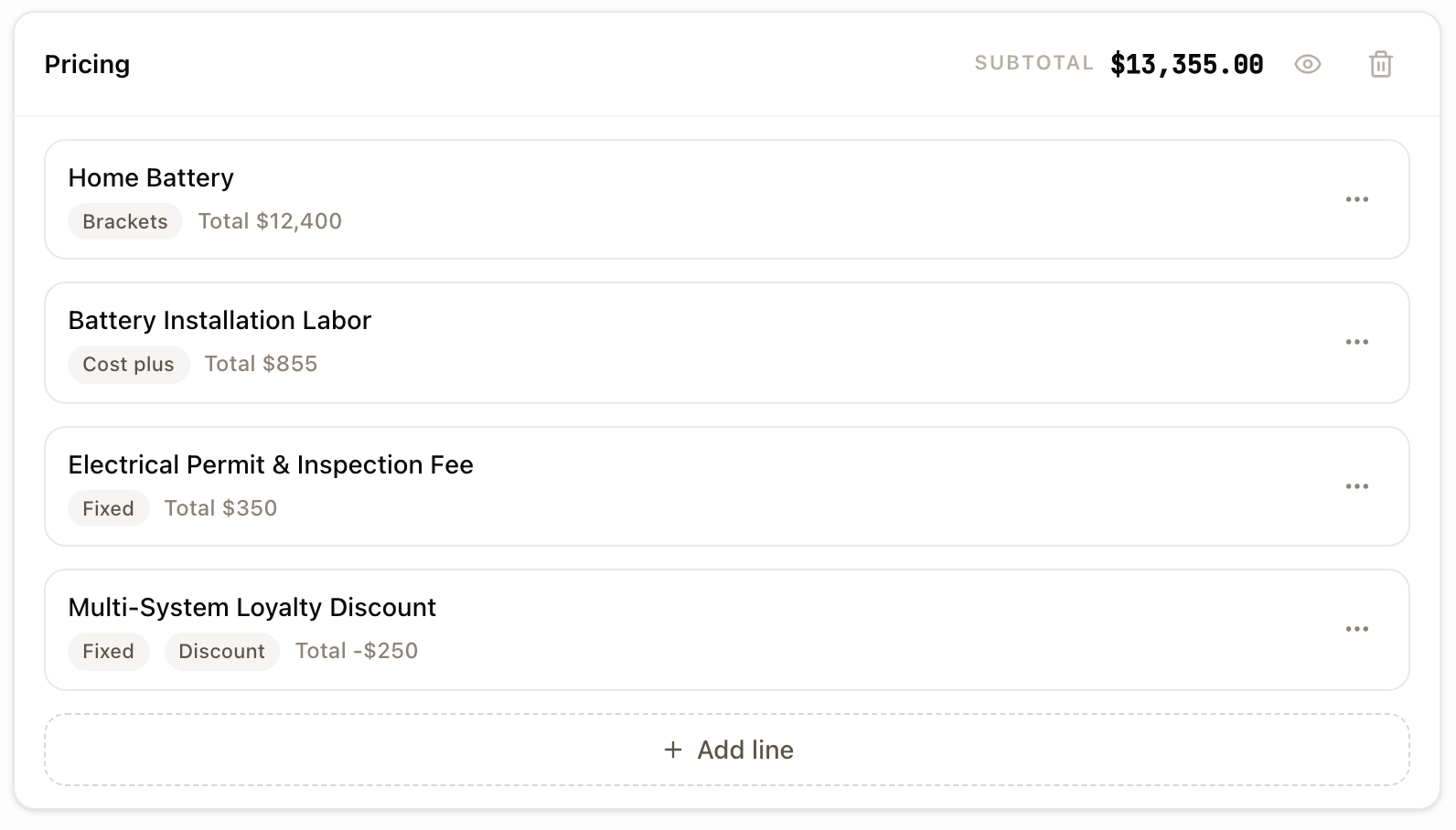
Click Save line. The line is added to its section, and the section's Subtotal updates. Each line in the list shows a tag for how it's priced: Fixed, Quote field, Dropdown, Brackets, Cost plus, Formula, or Hourly. A discount line also has a Discount tag. The line's total and its pricing note show beside it.
Check it worked
The Pricing Health card at the top of the tab shows Lines, Calculated (formula- or field-driven lines), Catalog (lines linked to a product), and a Formula status of OK or an error count. A line with a broken formula reads Formula error instead of a total.
Common problems
| Symptom | Meaning |
|---|---|
| Formula error on a line | That line's calculation is broken and won't price correctly. |
| A line shows no total in the list | It reads a quote field that has no default value. Reps fill the field on the quote, and the line prices then. To check the math here, open the line and enter a value next to Preview with. Those values aren't saved. |
| Quantity brackets is greyed out | Brackets need a quantity that varies. Set the quantity's Based on to Quote field. If Can be modified is off, turn it on first. |
| Dropdown choice or Cost plus markup is greyed out | The quantity is based on a Formula. Change it to Number or Quote field. Dropdown choice also needs a dropdown or product field on the quote family's Job Details. |
| Total shows $0.00 | A template with no pricing lines is sendable by design: it's just almost never what you meant. Add at least one line. |
Discounts, tax, and what the customer sees are covered in Set discounts, tax, and what the customer sees. Optional add-ons reps can attach are covered in Offer adders on a quote template. To charge for travel, see Price travel by distance or drive time.