
Set up quote families
Group quote templates under shared builders, fields, and fallback behavior.
A quote family is a shared-defaults container for one or more quote templates. It picks which builder its templates use, which job-detail fields they can capture, and the fallback agreement, payment schedule, and project-handoff behavior every template in the family inherits unless it overrides them. A template can't exist without a family.
Before you start
- You need the Owner or Admin role. Creating and editing quote families is restricted to these two roles, independent of any custom permission a role otherwise holds.
- Decide whether an existing family already fits (for example, group every service visit type under one Service family) or whether the new offering needs its own fallback behavior.
Create a quote family
- Go to Settings → Quote families.
- Click New Quote family.
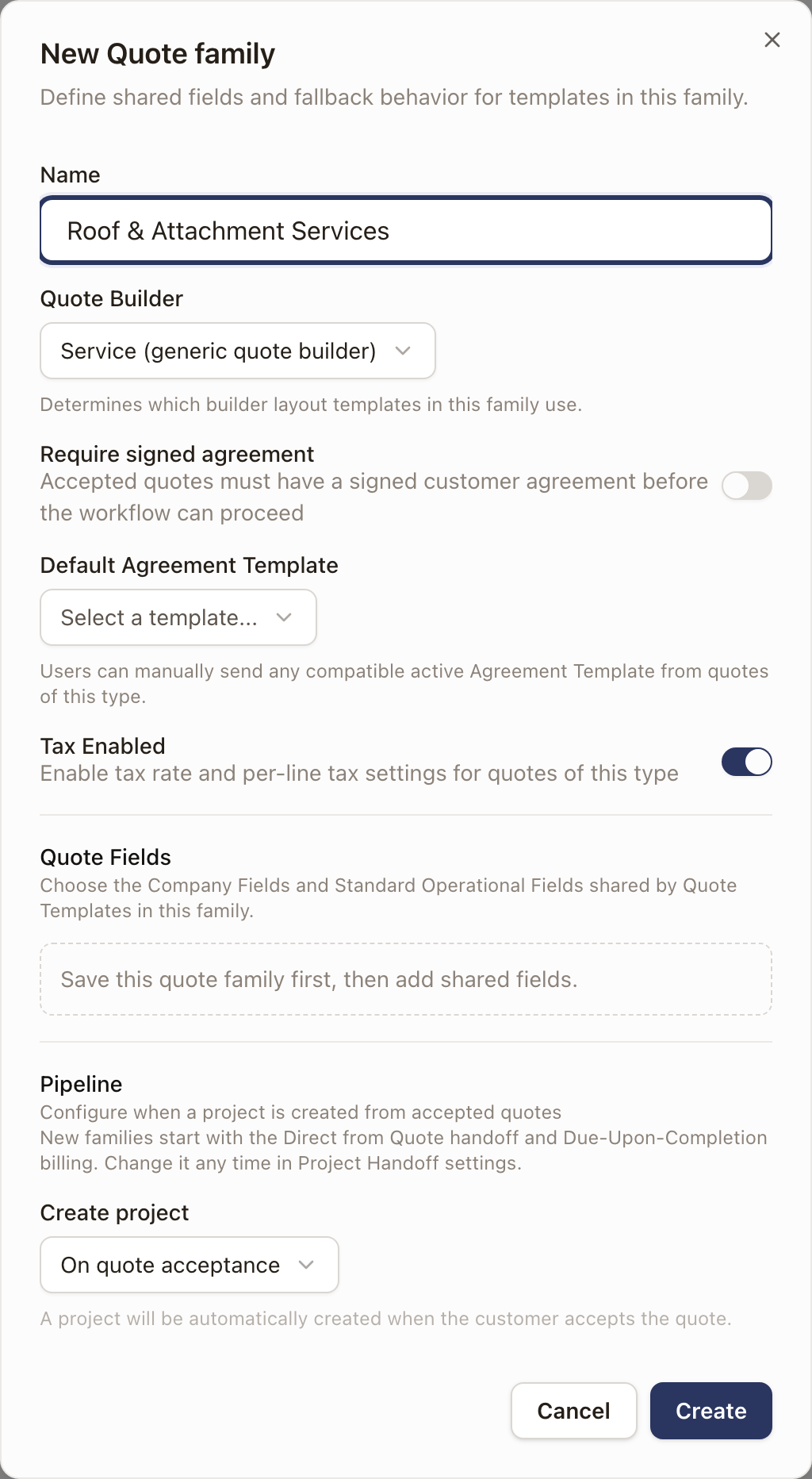
- Enter a Name.
- Choose the Quote Builder: Service (generic quote builder) or, if solar quoting is turned on for your company, Solar (with system design, production, and financing). This is locked after you save, so confirm it before continuing.
- Set Require signed agreement if every quote in this family must be signed before the workflow can proceed.
- Pick a Default Agreement Template. Only active templates compatible with this family are offered here: if none exist yet, leave this blank and come back after you build one. Once signing is required and a template is chosen, Auto-send agreement sends it when the customer accepts the quote.
- Set Tax Enabled if quotes in this family charge tax.
- Under Pipeline, choose when a project is created from an accepted quote under Create project: On quote acceptance, On agreement signing (only offered once signing is required), or Manual only. Manual only means a project manager creates the project by hand from the quote instead of it happening automatically. A new family starts with the Direct from Quote project handoff and Due Upon Completion billing.
- Click Create.
Add shared fields
Job-detail fields can only be added after the family is saved.
- Open the family and go to Job Details.
- Click Add existing to attach a field from your Field library, or New Field to create one on the spot. New Field opens the Add field drawer.
- Click Save changes.
A new field starts out showing on Work Orders only. To change where it shows, use Shows in in the Field library.
A calculated field from the Field library can be added here too. It shows on quotes with its worked-out value, has no default, and is never required.
Every template in the family can prefill, hide, or require these fields, but a template can never see fields the family hasn't placed here.
Choose the funding sources a family offers
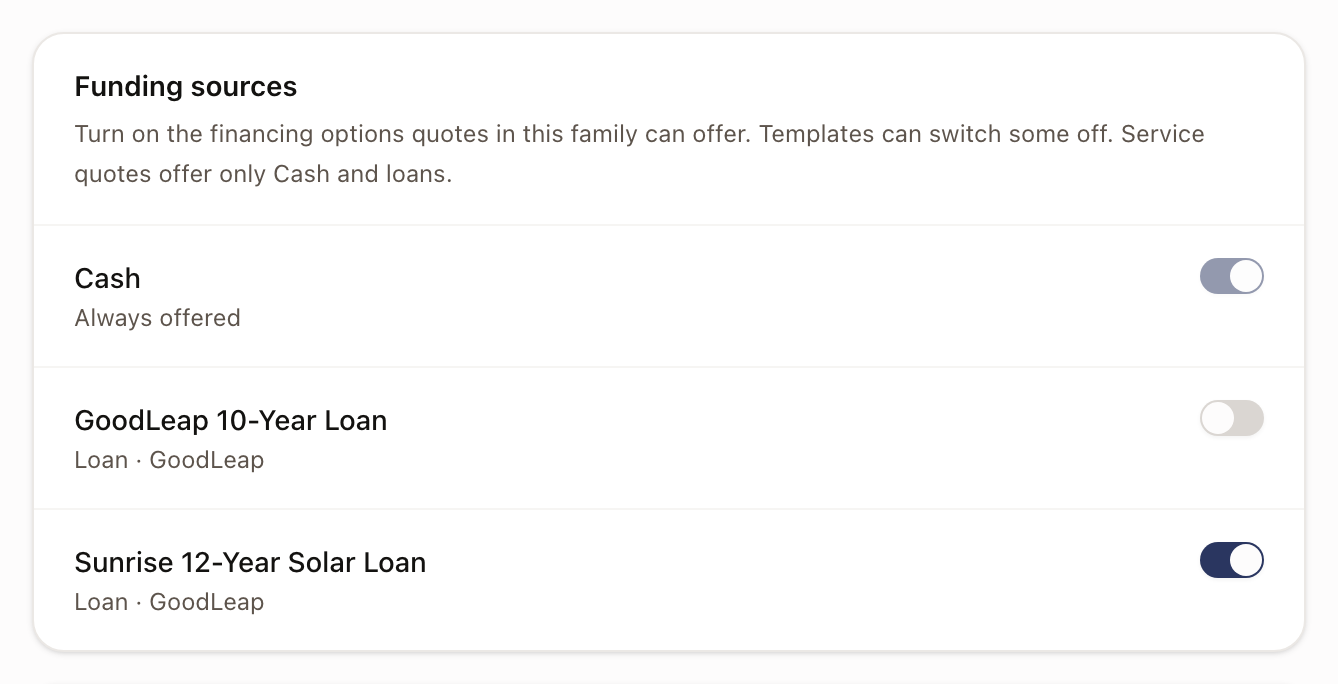
A funding source is how the customer pays. Cash is always offered. Each financing option you saved under Settings → Financing is off until a family turns it on.
- Open the family and go to Payment Schedule.
- Under Funding sources, switch on each financing option quotes in this family can offer. Cash is always on and can't be switched off. Each option reads its type and lender, for example Loan · GoodLeap.
Each switch saves at once. A template in the family can switch an option off, and picks the one new quotes start on. See Build a quote template.
A family that uses the Service builder offers only Cash and loans. If you haven't saved any financing options, the card links to Add one in Financing.
Set the default payment schedule
- Open the family and go to Payment Schedule.
- Choose the Default Payment Schedule. This is what a template uses unless it picks a specific schedule of its own.
- Under Available Payment Schedules, tick the schedules templates in this family can choose. The default is marked default.
- Click Save changes.
Check solar quoting setupBeta
When solar quoting is on, the top of Settings → Quote families shows a Solar quoting card. It lists what solar quotes need before the numbers come out right: Solar templates, Utility rates, System pricing, Equipment, Financing, and Agreement template. Each row shows what's missing and links to the screen where you fix it. See Set up solar quoting. Contact solarOS support to turn it on for your company.
Check it worked
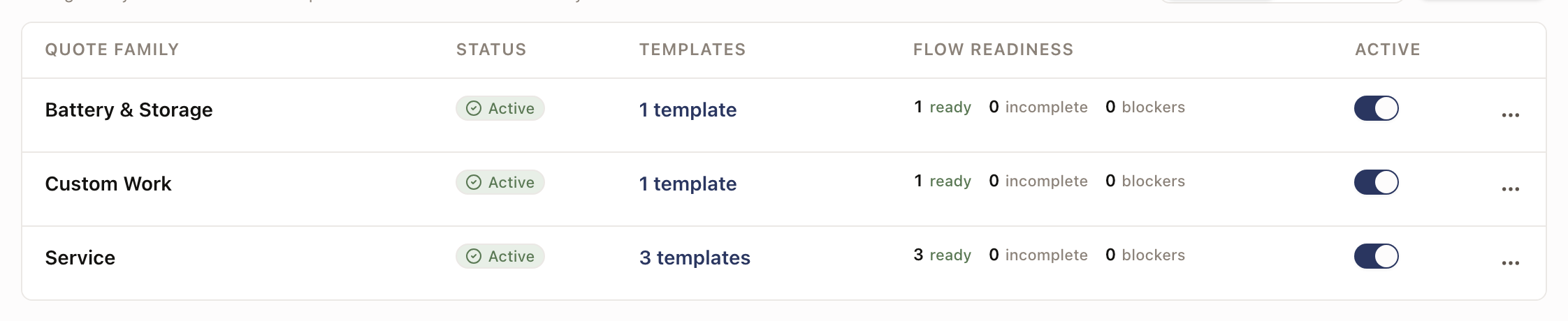
Go to Settings → Quote families. Your family appears with a Flow readiness column showing how many of its templates are ready, incomplete, or blocked. A brand-new family with no templates yet shows 1 blocker, labeled "Add an active flow-ready Quote Template": that clears once you build a template under it.
Common problems
| Symptom | Cause |
|---|---|
| Can't pick a Default Agreement Template | No active agreement template is compatible with this family yet. Create one, or leave the family without a required agreement. |
| A financing option isn't offered on quotes | The option is off for the family. Switch it on under Funding sources on the family's Payment Schedule section. |
| A template can't offer a job-detail field | The field isn't attached to the template's family. Add it under the family's Job Details tab first. |
| Quote family shows as unusable for new quotes | The family was set Inactive. Existing quotes are unaffected; reactivate it to let reps create new ones. |
Archiving a family
Archiving removes a family from the day-to-day list without deleting it or touching quotes that already exist. From the family row's actions menu, choose Archive. You can restore it later from the Archived tab.