
Manage monitoring subscriptions
Enroll a customer, review a new subscriber, and pause or cancel an existing subscription.
A monitoring subscription is what unlocks live monitoring for a Site. This guide covers enrolling a customer, reviewing a subscription once it activates, and pausing or cancelling one. Setting up the plans themselves (price, deliverables) happens in Settings → Monitoring setup: see Build a maintenance plan.
Before you start
You need the Owner, Admin, or Operations Manager role to enroll, review, or manage a subscription.
Enroll a customer
- Go to Monitoring → Subscriptions.
- Click Enroll Customer. This is disabled with a tooltip, "Connect Stripe to enroll customers in subscriptions," until your organization has completed Payments setup.
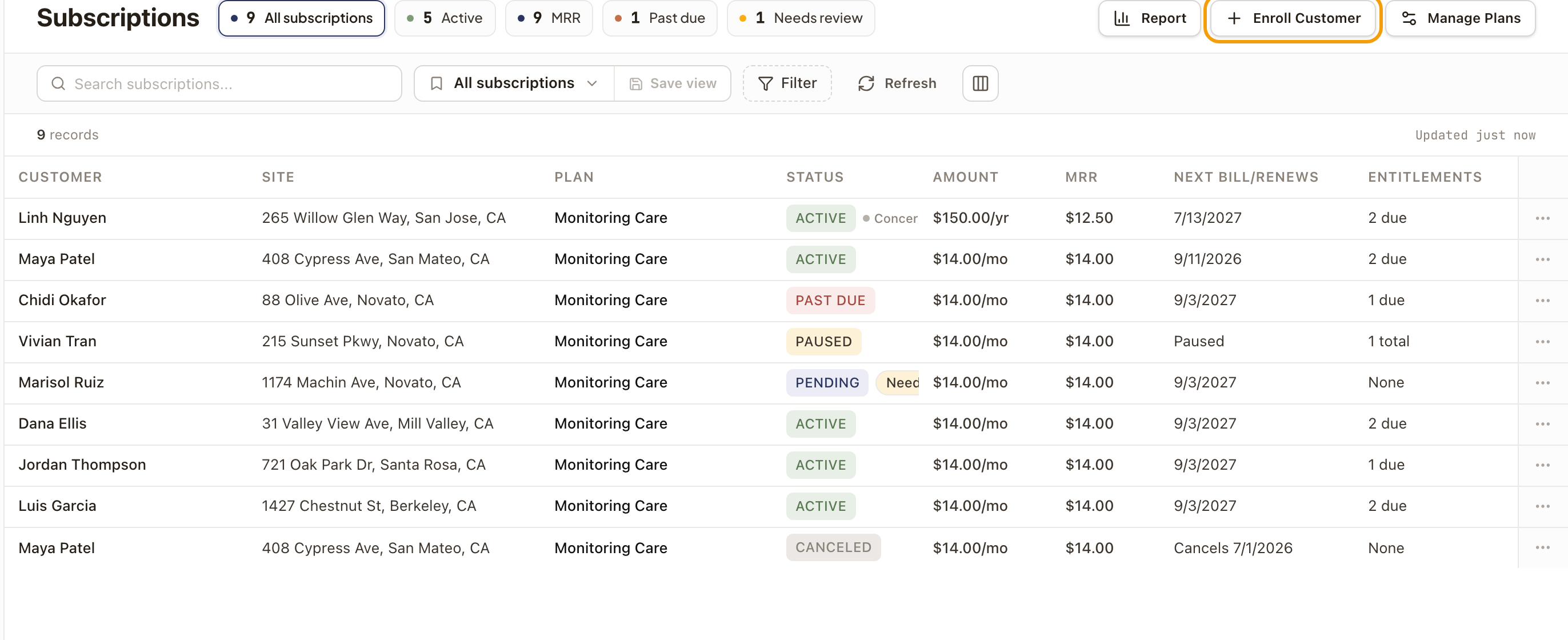
- Once enabled, pick the Customer, Subscription Plan, and Billing Interval (Annual is only available if the plan has a yearly price), and an optional number of Trial Days, then create it. If the plan includes monitoring, the property's monitoring gate opens right away so the customer can connect their system.
Review a new subscriber
A freshly-activated subscription needs review before it's treated as a long-term record. Find it from Command Center's "Subscriptions to review" queue, or from a site's Subscription & Entitlements tab, where it's badged Pending.
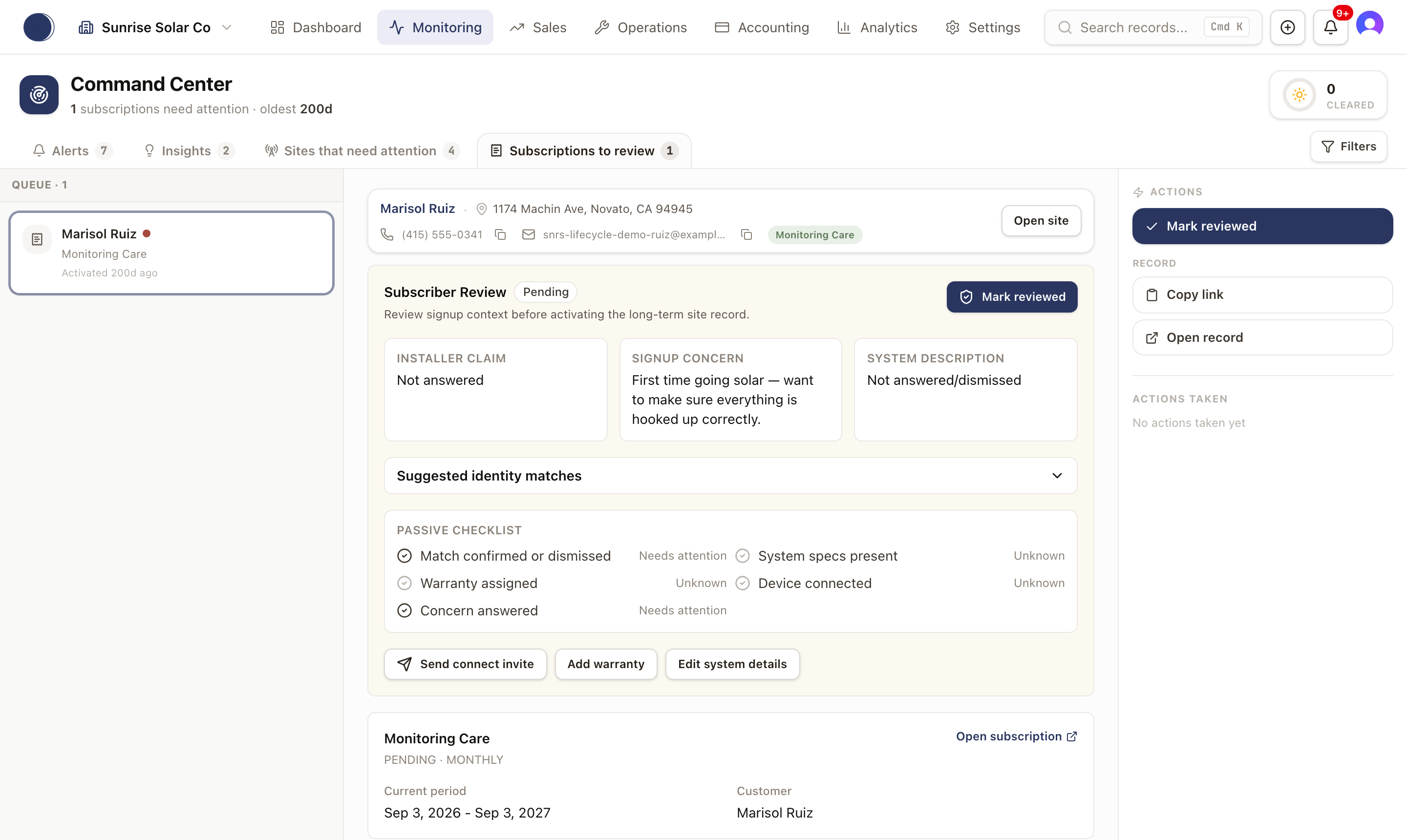
The panel shows what the customer told you at signup (installer claim, any concern they raised, their system description) and any suggested matches to an existing record. Of its passive checklist, only Match confirmed or dismissed and Concern answered reflect real status today.
From here you can Send connect invite, Add warranty, or Edit system details before clicking Mark reviewed. A reviewed subscription can be sent back to review again if needed.
Pause or cancel a subscription
Open a subscription (from its "Open subscription" link on the Subscription & Entitlements tab, or the row's "..." menu on the Subscriptions list) to reach its detail page. An active subscription shows Pause and Cancel buttons.
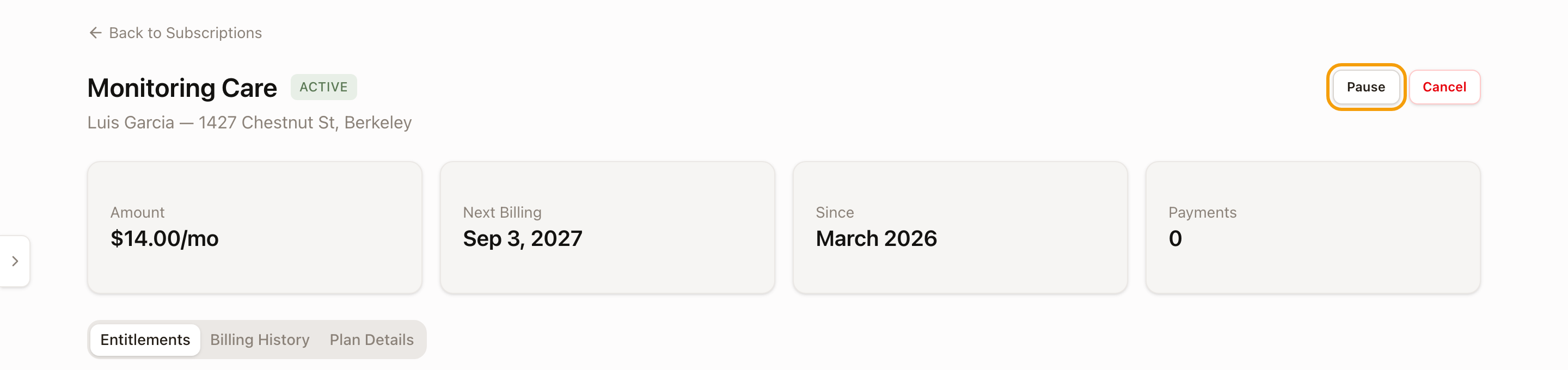
Pause stops billing immediately, with no new charges until you resume it. Cancel schedules the subscription to end at the close of the current paid period; the customer keeps their earned entitlements through then. Both ask you to confirm before applying.
A customer can also pause or cancel their own subscription from their portal's Manage Subscription dialog.
Check it worked
The subscription's Status on the Subscriptions list reflects the change (Paused, or Canceled with the cancellation date shown). A reviewed subscriber's badge flips from Pending to Reviewed and drops out of Command Center's queue.
Common problems
Enroll Customer is greyed out. Payments (Stripe) isn't connected for your organization; this can't be worked around from here.