
Triage with Command Center
Work through every open alert, insight, site, and subscription that needs attention from one screen.
Command Center gathers everything across Monitoring that needs a decision, so you can work through it one item at a time instead of checking four separate lists. It doesn't add any new kind of record; it's a queue over the same Alerts, Insights, Sites, and Subscriptions covered elsewhere in this section.
Before you start
Viewing Command Center needs Monitoring access, which every role has by default. Acting on an item needs the Owner, Admin, or Operations Manager role by default.
Steps
- Go to Monitoring → Command Center. The sidebar badge counts new alerts, new insights, and subscriptions waiting for review.
- Pick a queue: Alerts, Insights, Sites that need attention, or Subscriptions to review. Each queue lists its items on the left with the site and customer.
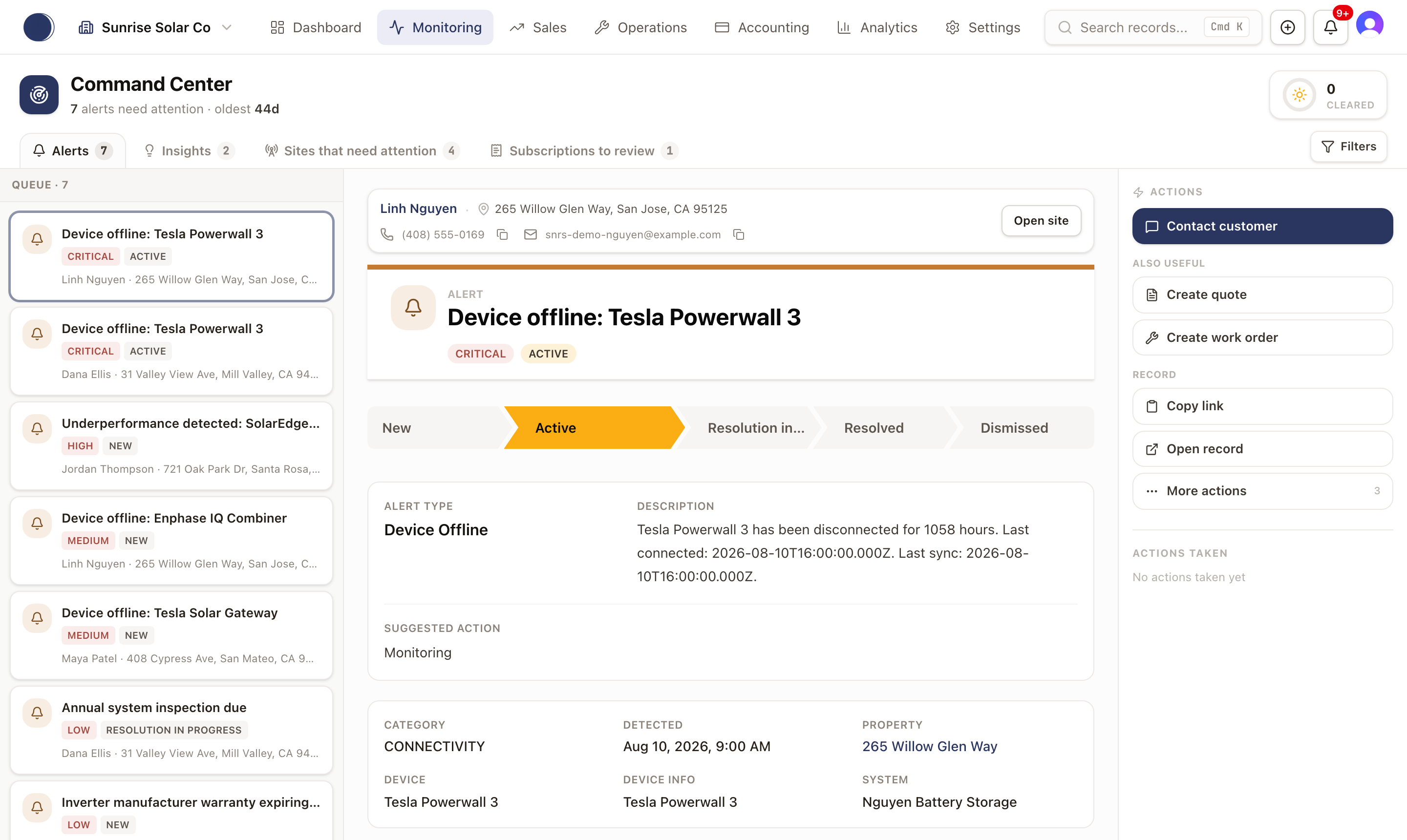
- Click an item to see its full detail and its Actions rail on the right. These are the same actions covered in their own guides: Read and work an alert, Work sales insights from your fleet, and Manage monitoring subscriptions.
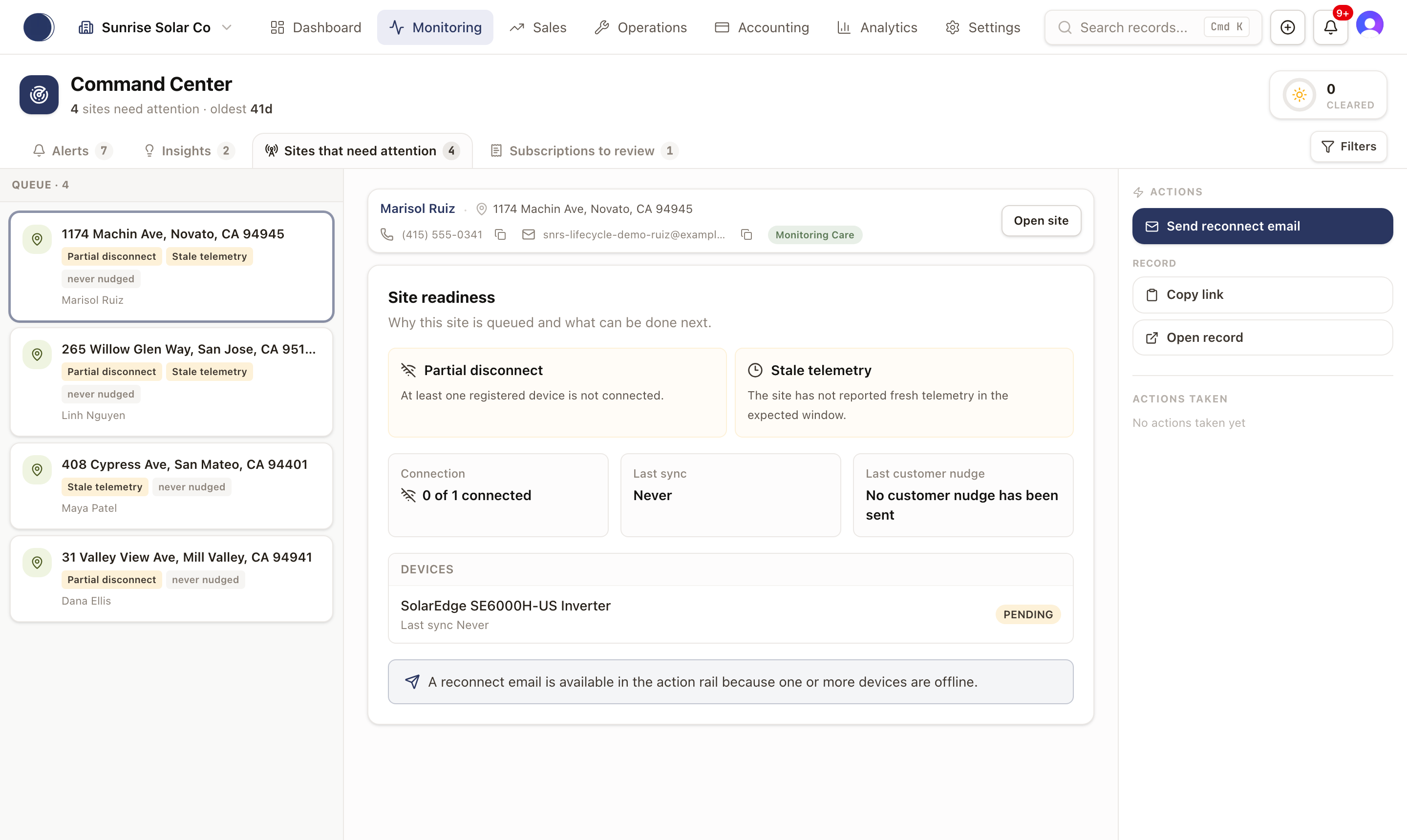
- Sites that need attention queues a site for reasons like Partial disconnect or Stale telemetry, and shows its connection status and last customer nudge. Its action rail offers Send reconnect email when a device is offline.
- Acting on an item clears it from its queue. Work through the queue until it's empty; each one shows its own message when there's nothing left (for example, "No alerts need triage").
Check it worked
The sidebar badge count drops as alerts and insights are acknowledged and subscriptions are reviewed. A queue that's fully worked shows an all-clear message instead of a list.
Was this page helpful?