
Read and work an alert
What each alert status means, and how to contact a customer, create work from it, or close it out.
solarOS raises an Alert whenever a Site's production readings show a real problem: a device offline, production underperforming, a warranty expiring, and so on. Nobody creates a health alert by hand; your team's job is to work the ones that come in.
Before you start
Anyone with Monitoring access can view Alerts. Contacting a customer, creating a Quote or Work Order, and changing an alert's status needs the Owner, Admin, or Operations Manager role by default.
Alert status
An alert's status shows on its detail page and as a STATUS column value on the Alerts list: New, Active, Resolution in Progress, or Resolved, or set aside as Dismissed.
- New: nobody has engaged with it yet.
- Active: someone has, by acknowledging it, contacting the customer, or starting a quote or work order.
- Resolution in Progress: a linked work order is scheduled or a linked quote is accepted. If that commitment falls through (the work order is cancelled, the quote is voided), the alert falls back to Active automatically.
- Resolved: the issue is closed out, either because the readings returned to normal or because someone resolved it by hand. A work order being completed does not resolve its alert automatically; someone still has to confirm it.
- Dismissed: set aside on purpose. A dismissed alert has a Reopen button that returns it to Active.
Severity (Critical, High, Medium, Low) and category (Performance, Connectivity, Maintenance, Safety, Opportunity) also show on every alert. An Opportunity-category alert appears on the Insights page instead of the Alerts page: see Work sales insights from your fleet.
Steps
- Go to Monitoring → Alerts. Use the status filter chips or Filter to narrow the list.
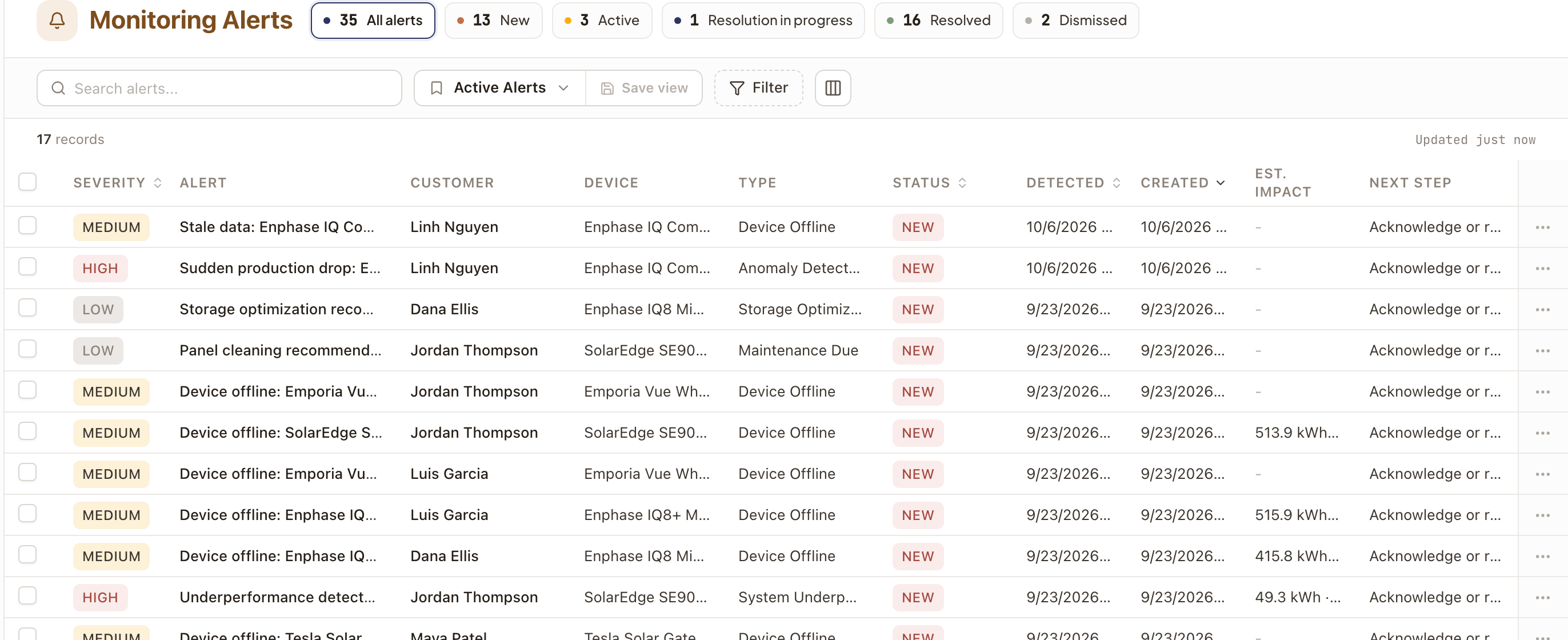
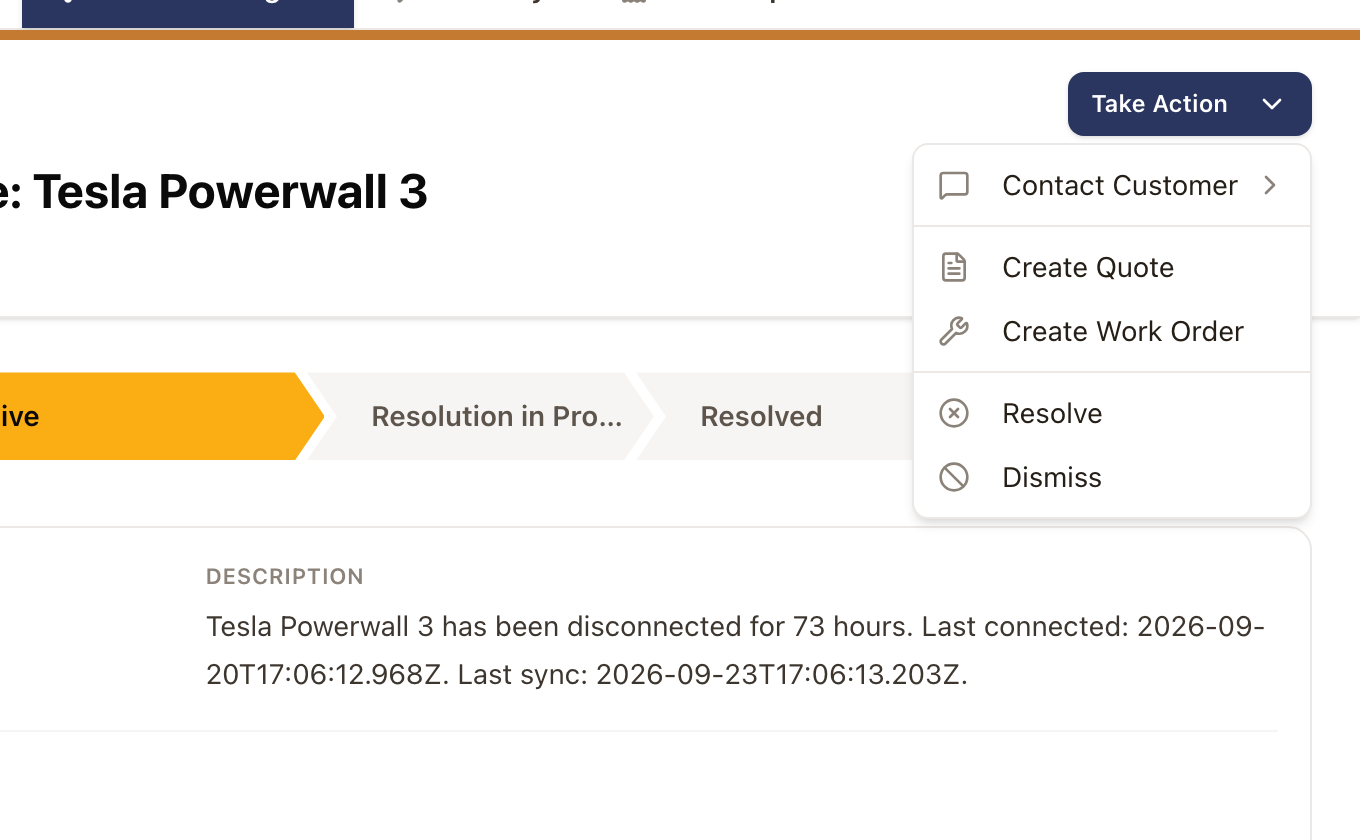
- Click an alert to open its detail, then click Take Action for what to do about it: Contact Customer (Send Email or Log a Call), Create Quote, Create Work Order, Acknowledge (only while New), Resolve, or Dismiss. A site under active warranty coverage shows a Warranty active note, since a work order would be covered while a quote stays billable.
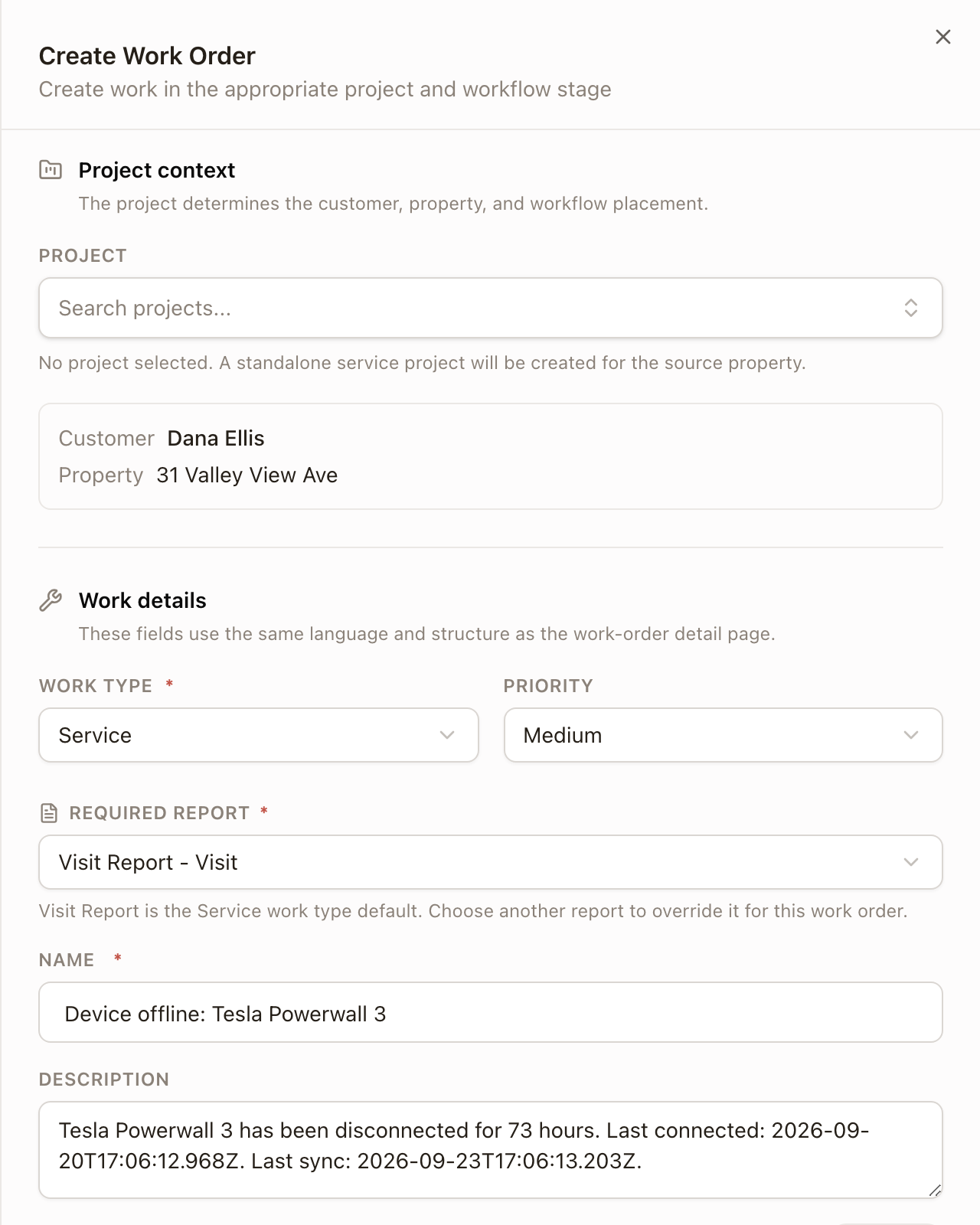
- Create Quote opens the standard New Quote form for the alert's customer, with an Opportunity picked or created automatically. Create Work Order opens the standard Create Work Order form, pre-filled with the alert's title, description, and property; if you don't pick a project, it creates a standalone service project for you.
- Resolve and Dismiss apply right away: Resolve marks the alert Resolved, Dismiss sets it aside as Dismissed. To record why, post a note on the alert's Activity tab.
- To act on several alerts at once, select their checkboxes on the list and use Acknowledge selected, Resolve selected, or Dismiss selected in the toolbar.
Check it worked
The alert's status updates immediately, and a resolved or dismissed alert drops out of the default Alerts view and out of Command Center's queue. Toggle Show resolved/dismissed (on a site's Alerts & Insights tab) or the Dismissed filter chip to find it again.
Common problems
An alert is stuck on Active even though its work order is done. This is expected: a completed work order never resolves its alert by itself. Open the alert and click Resolve.
I dismissed or resolved something by accident. Find it under the Dismissed or Resolved filter and, for a dismissed one, click Reopen to send it back to Active.