
Connect a system
What your team can do to get a customer's system connected, and what the customer does on their end.
Connecting a system's monitoring account is something the customer does themselves, in their own portal. Your team can't connect a device on a customer's behalf, but you can see connection status across your fleet and nudge a customer to finish it.
Before you start
Viewing connection status needs Monitoring access, which every role has by default. Sending a connect or reconnect email needs the Owner, Admin, or Operations Manager role by default.
What the customer does
A site's Connection shows on the Sites list as All connected, Partial, None connected, or Suspended. Behind each of those, the customer:
- Opens their portal and goes to the property's Monitoring tab. If nothing is connected yet, they see a Connect Your Solar System card with a Connect my system button. If a previously-active subscription has since paused or cancelled, the card instead reads Monitoring is paused, with a Manage subscription button; historical data stays visible, but nothing new syncs until the subscription is active again.
- Clicking Connect my system opens a hosted sign-in flow, powered by Texture, where they sign in with their equipment account. The card names Enphase, Tesla, and SolarEdge; FranklinWH and Emporia devices are also recognized once connected.
- After signing in, the portal shows Discovering your devices… for up to a few minutes while it looks for equipment on that account.
- If it works, devices appear as connected and energy data starts appearing (production syncs roughly hourly). If it stalls, the portal shows what happened (for example, taking longer than expected, or the account couldn't be found) with a Try connecting again button, and usually a Get help option that notifies you.
A site needs an active monitoring subscription before the customer sees a connect button at all; otherwise they see a prompt to start monitoring instead. See Manage monitoring subscriptions.
Check connection status and nudge a customer
- Go to Monitoring → Sites. Filter to Needs action or look for Needs connection or Partial in the Connection column.
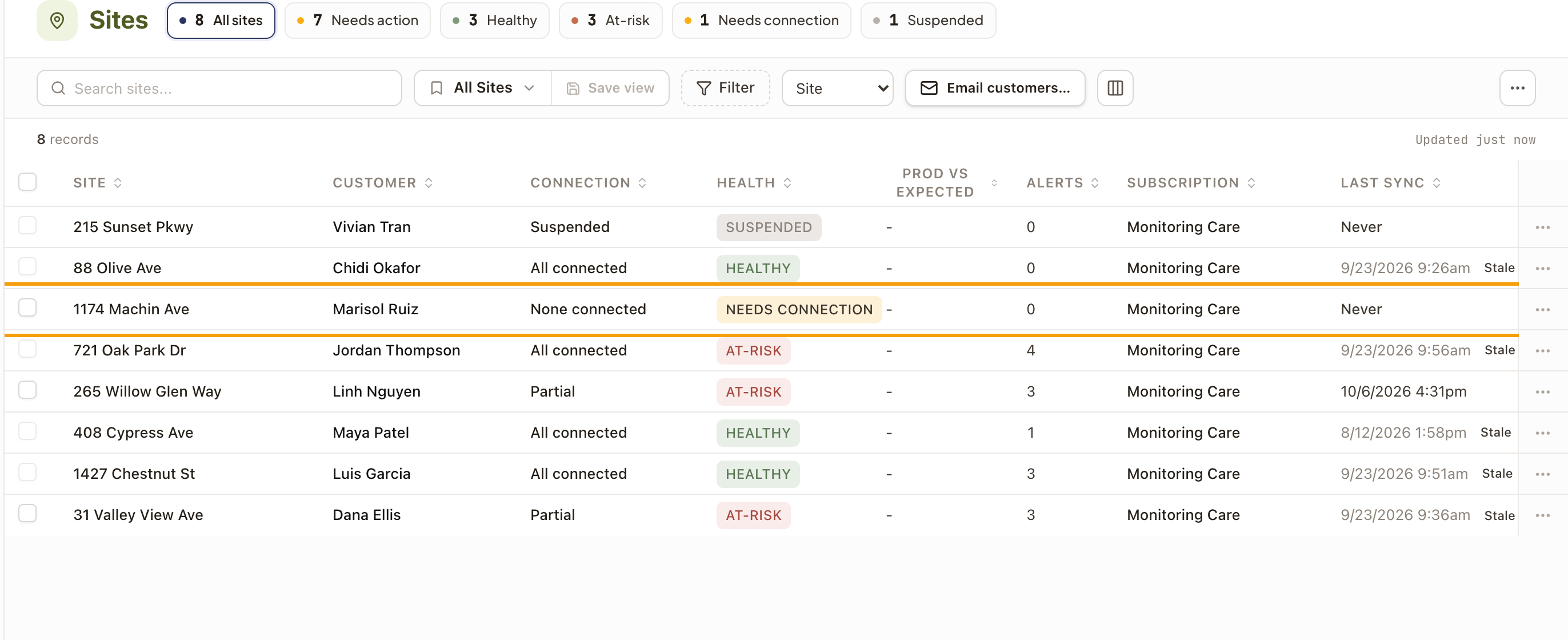
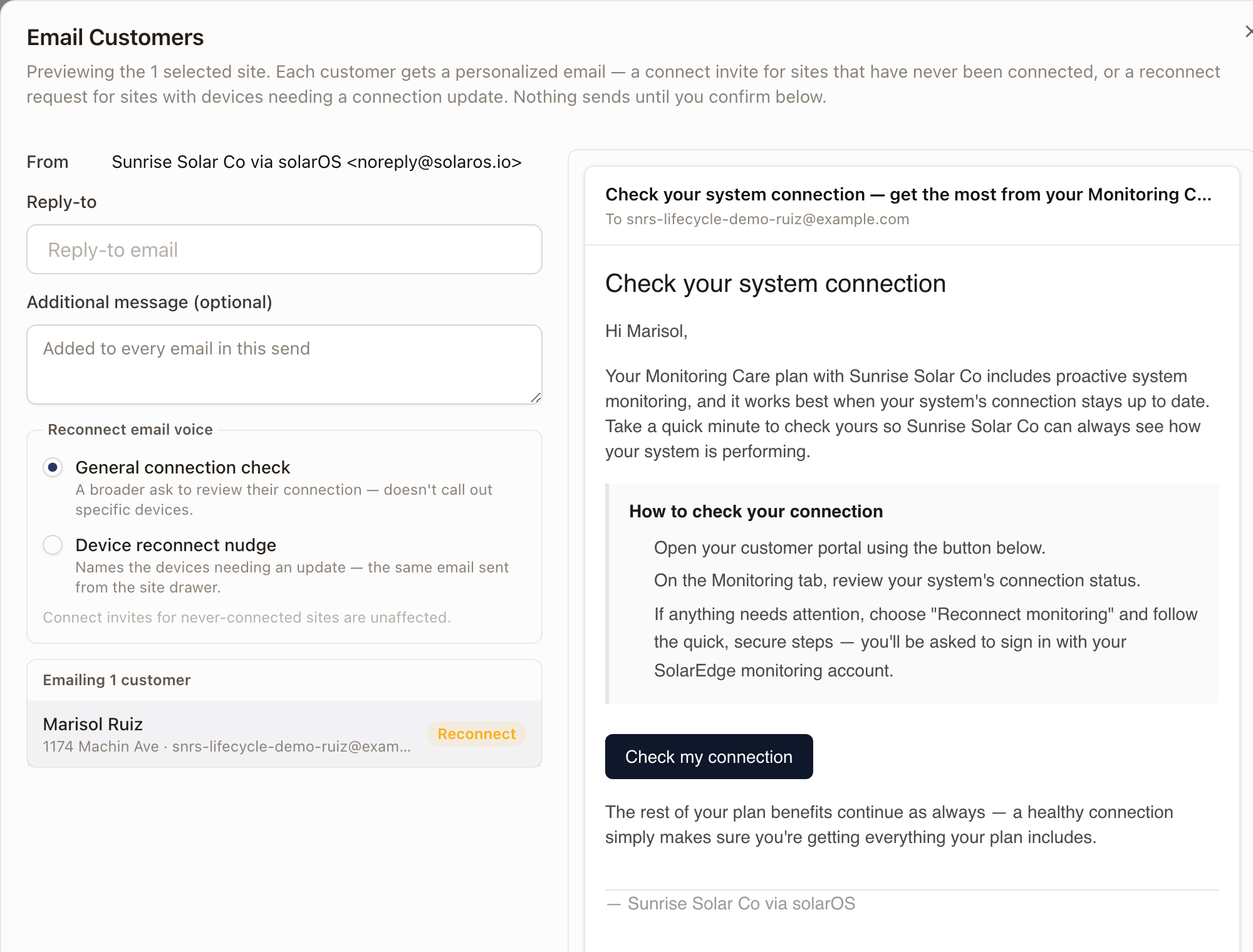
- Select one or more sites and click Email customers…. Each customer gets a personalized email: a connect invite for a site that's never connected, or a reconnect request for one with a device that's dropped. For reconnect emails, choose the Reconnect email voice: General connection check or Device reconnect nudge (which names the specific devices). Review the live preview, then Send.
- From a single site, you can send the same nudge from Command Center's "Sites that need attention" queue, or from the site's own drawer. See Triage with Command Center.
Check it worked
The site's Connection and Health on the Sites list update once the customer finishes connecting (allow up to an hour for the first sync). The Site Drawer's Overview tab lists each device with its own status.
Common problems
No connect button shows for a customer. The site's monitoring subscription probably isn't active yet; they'll see a prompt to start monitoring instead. See Manage monitoring subscriptions.
Customer says they connected, but no devices show up. They likely signed into a different account than the one on file with their equipment's own app. Have them try again with the right login.
A site sits on "Needs connection" for a while. Send a connect or reconnect email from the Sites list, Command Center, or the site drawer rather than waiting.