
Fulfill an entitlement
Deliver on a plan's promised benefit, either by creating its templated project or logging work done outside solarOS.
Each billing period, a subscription's plan mints an Entitlement for every deliverable it promises, like an annual inspection or panel cleaning. Fulfilling one is how that promise turns into scheduled, trackable work.
Before you start
You need the Owner, Admin, or Operations Manager role.
Steps
- Go to Monitoring → Entitlements. Use the filter views (Upcoming, Earned & Outstanding, Customer Requested, In Fulfillment, Expired) or All Entitlements to find one.
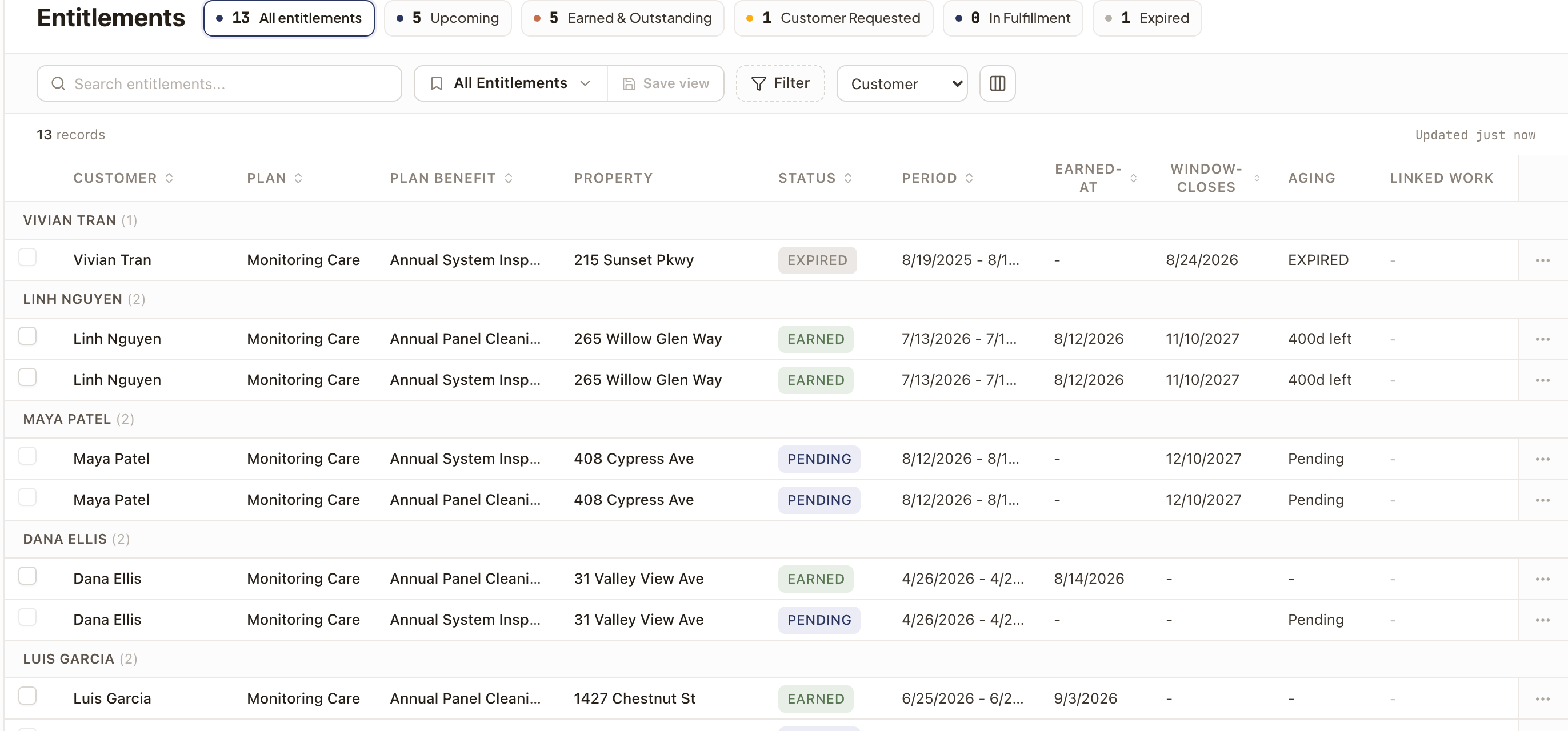
- On an Earned entitlement's row, click Fulfill.
- If the plan's deliverable has a Project Template, you'll see a preview: the customer, subscription, and property it's for, and the fulfillment project hydrated from that template, including its stage and work orders. Click Create Fulfillment Project to build it.
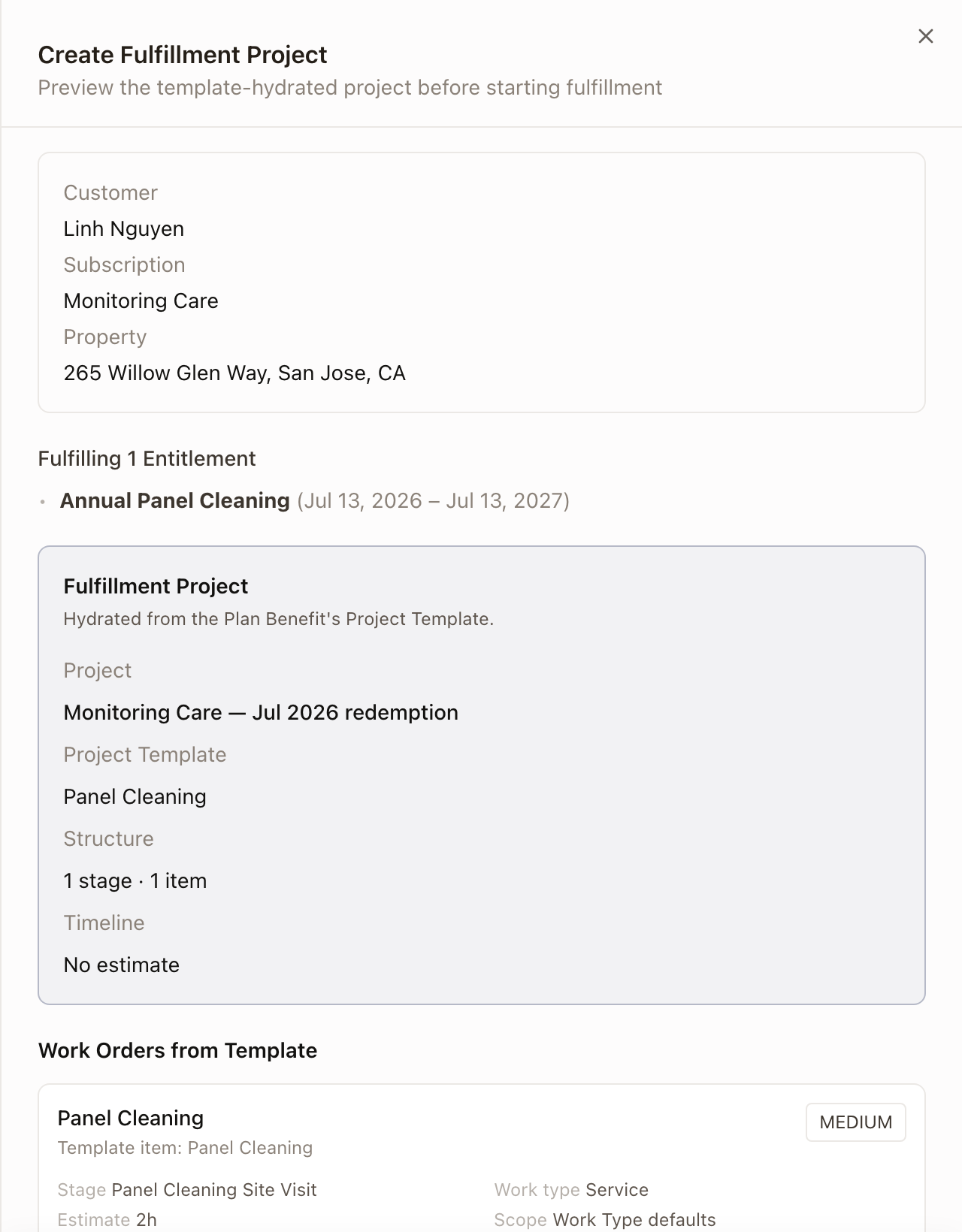
- If the deliverable has no template, or the work happened outside solarOS, click Mark as fulfilled instead and enter a date and optional notes.
Check it worked
The entitlement's status moves from Earned to In Fulfillment (once a project exists) and on to Fulfilled, with a link to the project or work order on its row.
Common problems
Fulfill is blocked with an inline error. This happens when the subscription has no property, the plan's deliverable has no project template, or you selected entitlements that use different templates. Fulfill them separately instead.