
Configure quote pricing
Set a quote's line items, adders, discounts, and what the customer sees.
The Pricing & Adders tab is where a quote's price comes together: line items from the template, any adders or discounts you add, and what the customer sees.
Before you start
You need the Sales User, Sales Manager, Owner, or Admin role to change pricing. Adding a write-in adder or discount, for one-off pricing not already in your catalog, needs its own permission that not every role has by default.
Line items and adders
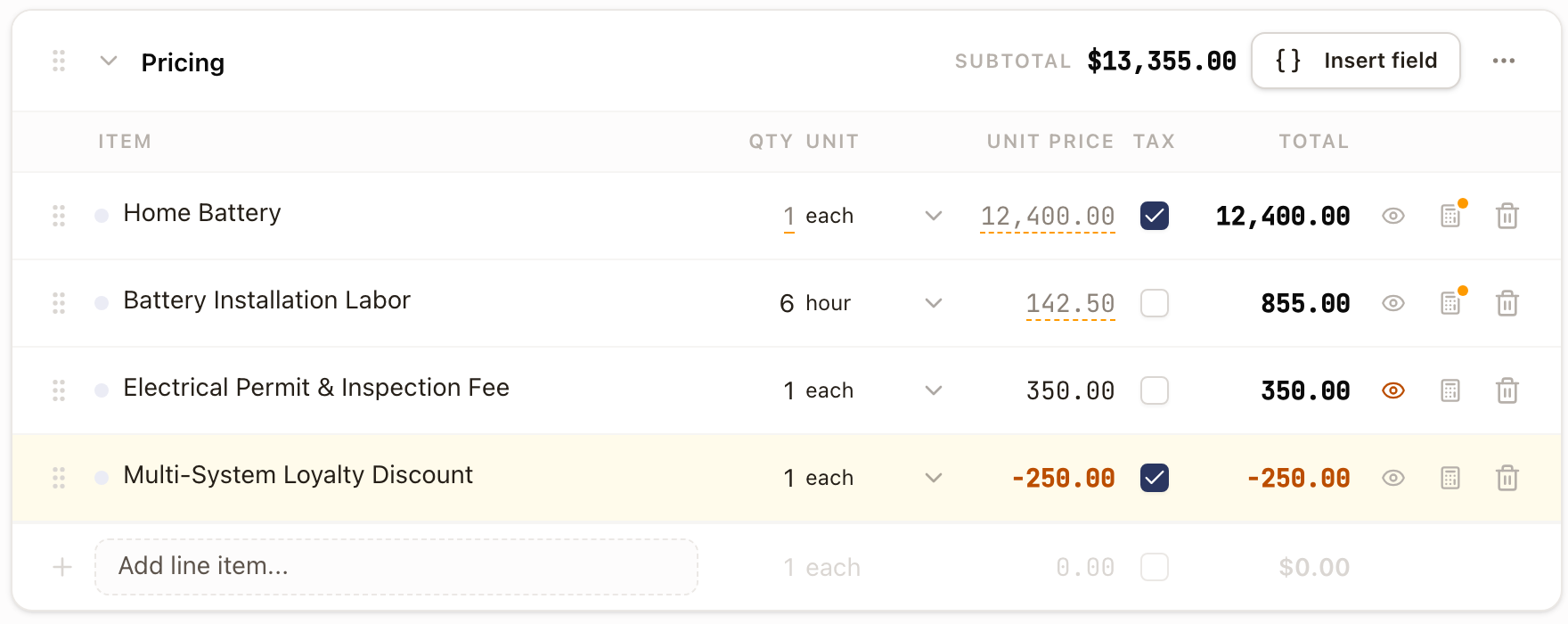
The Pricing & Adders tab lists line items with quantity, unit, unit price, and whether each is taxable. On a quote built from a priced template, some lines come filled in by the template's own pricing rules, such as a price that changes by quantity bracket or one calculated with cost plus markup. A line with a negative price is a discount.
-
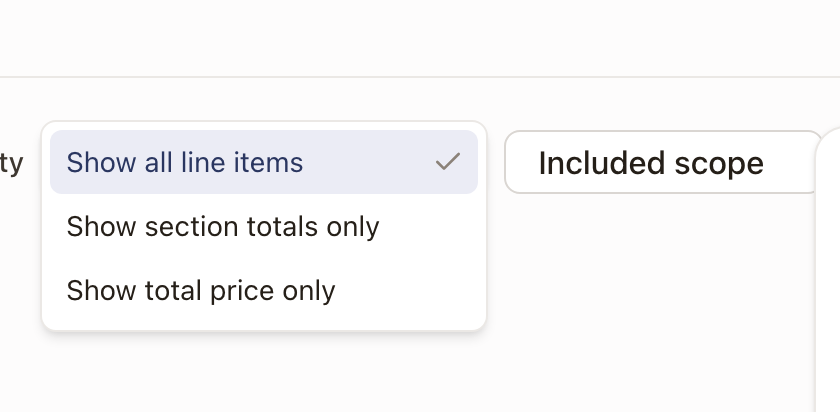
Customer pricing visibility controls what the customer's copy shows: Show all line items, Show section totals only, or Show total price only. Whatever's hidden, including any line the template has set to never show its price to the customer, rolls into one catch-all row, labeled "Included scope" by default. If the template leaves off lines with a quantity of 0, those lines don't show on the customer's copy either.
-
Unit offers each, ft, panel, kW, set, Hourly, and Custom unit…. Hourly bills the hours technicians record, on one line per quote. A line saved earlier with a plain hour unit keeps it as a fixed-price unit. See Hourly pricing and billing.
-
Work is taxable applies tax to that line item.
-
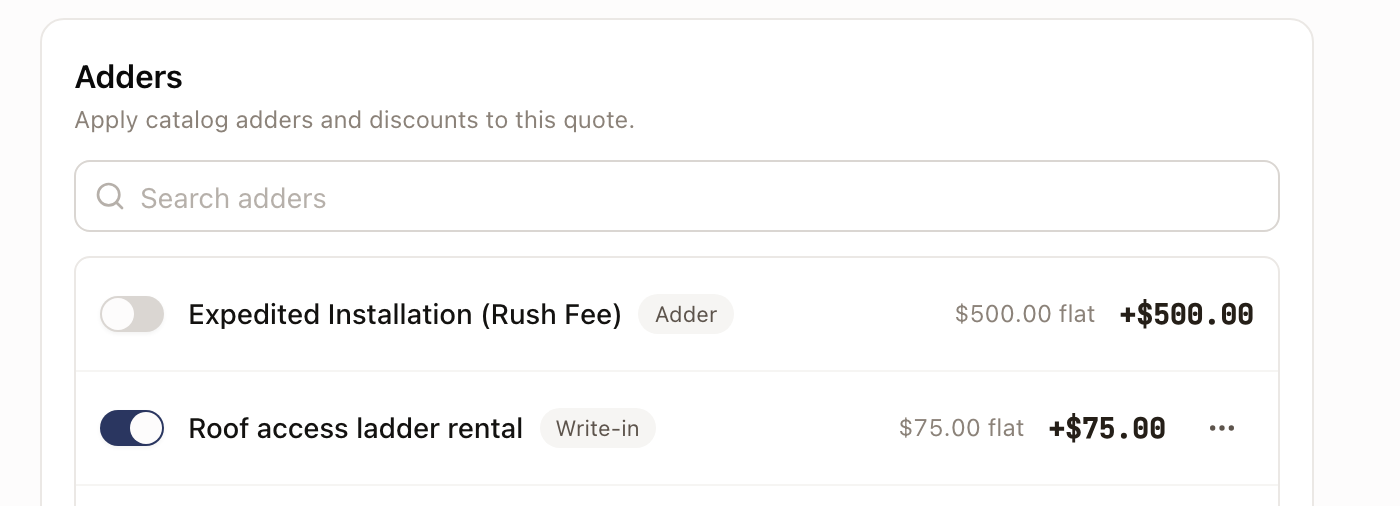
Adders, further down the tab, lists your organization's catalog adders and discounts for that template. Toggle one on to apply it at its set price. If none are enabled, or you need a one-off, use the write-in fields instead: enter a Name and Amount, choose Adder or Discount, and click Add.
See how a line was calculated
A line that came from the template has a calculator icon at the end of its row. Hover over it to read Show how this line is calculated, then click it.
The panel names the rule that priced the line, such as Quantity brackets · line total, Dropdown choice, Cost plus markup, Fixed amount, Quote field, or Formula. Under the name is the rule as a small table, in the words the template uses, with this quote's row marked This quote. If the template has a pricing note for the line, it shows under the rule's name.
A quantity or price that comes from a quote field reads lighter, with a dashed amber underline. Hover over it to see where it comes from, such as From Panel Count · 18. If the field has no answer yet, the number turns red and the panel reads Can't calculate: Panel Count has no value on this quote. Click Fill in Job Details to answer it.
To set a number yourself, type over it. The line stops following the template, and a message names what it no longer follows. The panel then reads Edited by hand, so it no longer follows the template. Click Reset to template, or the reset icon on the row, to bring the template's numbers back. Refresh doesn't change a number you typed.
For a line priced by travel, the panel also names the starting location and the date the distance was measured. See Price travel by distance or drive time.
Check it worked
The quote's total and payment schedule update to match what you entered, and the summary panel on the right reflects the new total.
Common problems
No adders show up to add. The message "No adders are enabled for this quote template" means your organization hasn't enabled any catalog adders for that template. Use the write-in fields instead, or ask whoever manages your sales catalog to enable some.