
Merge duplicate properties
Combine two or more records for the same address on a customer so the work and history stay on one record.
A customer can end up with the same address recorded twice, for example one typed by hand and one picked from the address search. Merging combines the records into one property. The work orders, quotes, media, and monitoring data from the duplicate move onto the one you keep, and the duplicate is removed from lists and search. Nothing is deleted.
Before you start
You need the Sales User, Sales Manager, Owner, or Admin role. The customer needs at least two properties.
Steps
-
Open the customer from Sales → Customers.
-
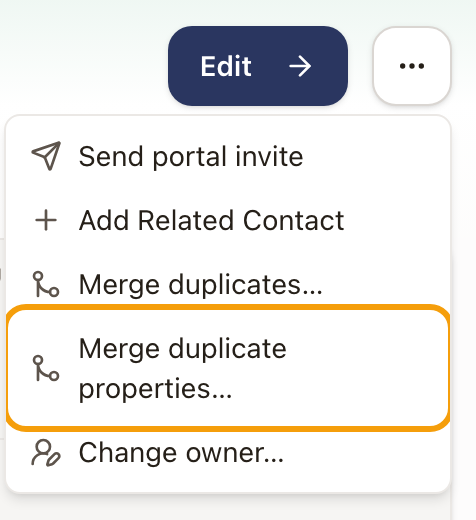
Click the ⋯ button, then Merge duplicate properties….
-
In the Merge duplicate properties drawer, pick what to merge. The drawer has three steps: Select, Review, and Confirm.
-
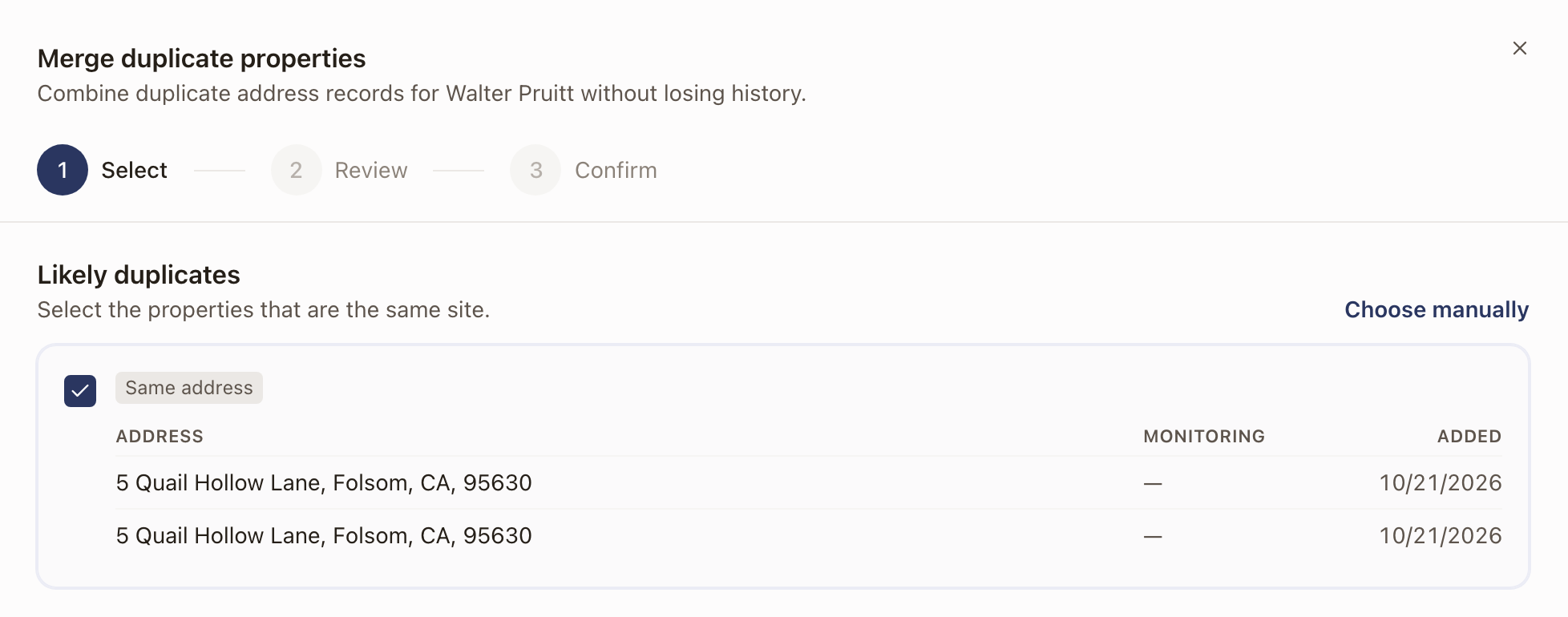
If solarOS finds properties that look like the same place, it lists them under Likely duplicates as suggested matches, tagged Same Google place or Same address. Each match shows its addresses, whether each one is monitored, and when it was added. Click a match to select it. Click it again to clear it. When there is only one suggested match, it starts selected.
-
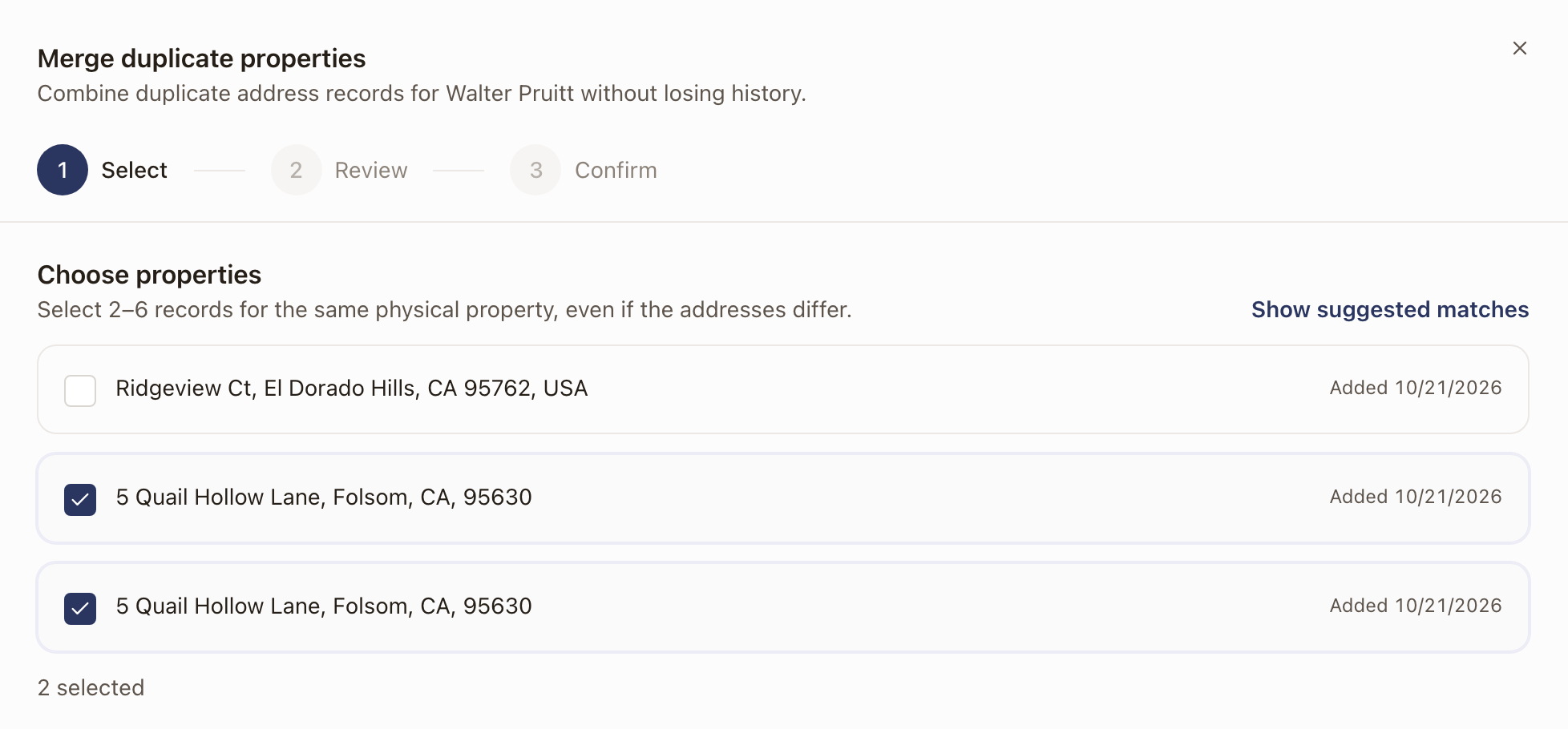
If the addresses are written differently and nothing is suggested, or the match you want isn't listed, click Choose manually. Under Choose properties, tick between two and six properties that are the same physical property, even if the addresses differ. The drawer opens in this view when it has no suggestions. Click Show suggested matches to go back.
-
-
Click Review 2 properties. The number matches how many you ticked.
-
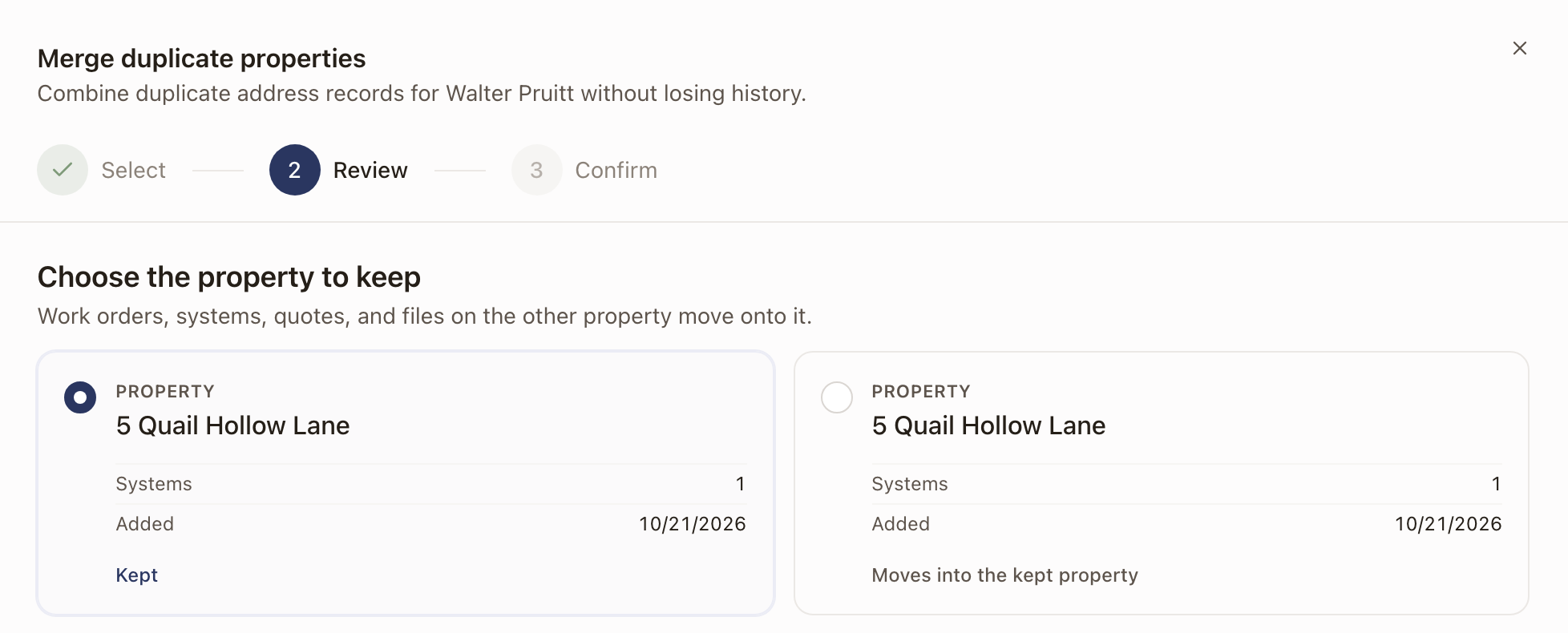
On Review, under Choose the property to keep, click the property you want to keep. Its card reads Kept. The other cards read Moves into the kept property. Each card lists what the property holds, such as work orders, quotes, systems, and invoices, so you can keep the one with the most history. Everything on the other properties moves onto the one you keep. Click Continue to confirm.
-
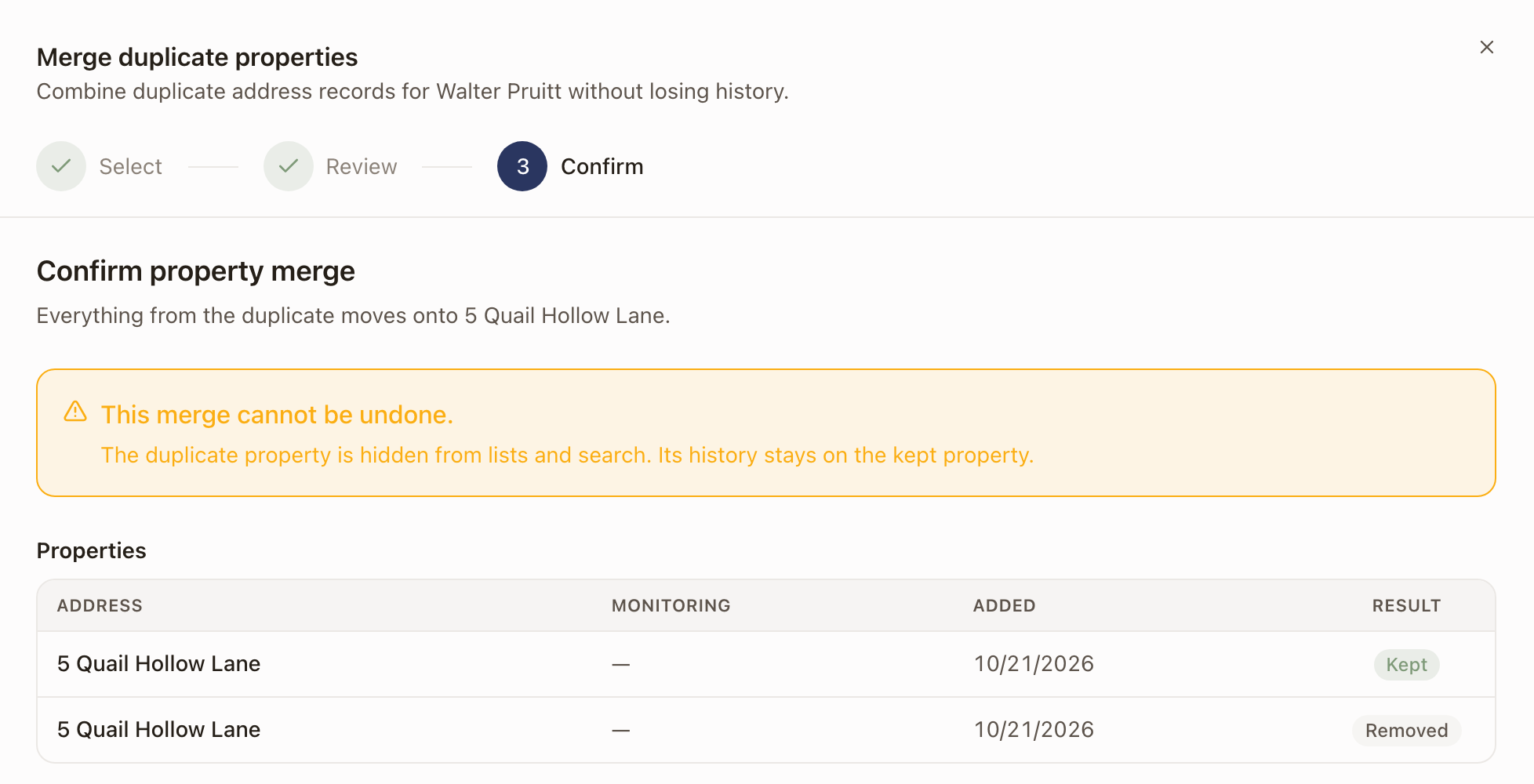
On Confirm, read the warning, This merge cannot be undone., and check the Properties table. The property you keep reads Kept, and the others read Removed. Click Merge 1 duplicate. The number matches how many duplicates you selected.
-
Each removed property changes from Removed to Merged, and the heading reads Merge complete. Click Done.
Check it worked
The customer page shows one property fewer, and the property you kept carries the work from both. The duplicate no longer appears in the property switcher.
Other things the review step tells you
When the merge does more than move records, Review lists it in an Also changes table. The table shows only when there is something to list.
- Alerts: a matching open alert on the removed property closes.
- Messages: messages move into the kept property's conversation.
- Service terms: the kept property's terms replace the removed property's.
- Location: missing location details fill in from the removed property.
A Monitored tag marks a property that is connected to monitoring. On Select, a Shared with another provider tag marks a property that another company also services.
Merge duplicate customers instead
If the whole customer is a duplicate, not just the address, merge the customer records. See Merge two records for the same customer. If the two customers each have a property at the same address, the customer merge has a Properties step where you can merge those properties in the same pass. If a pair can't merge, the last step shows why and a Review duplicate properties button that opens this drawer.
Common problems
The review step won't let me continue. A warning in a box explains why. It reads, for example, "One of these properties was already merged away.", "Another organization also services the property being removed.", or "Both properties have their own monitoring connection. Merging is blocked until one connection is removed." Fix the cause, or choose a different record to keep, then continue.
"At least two active properties you can access are needed to merge." The customer has only one property you can see. Open Merge duplicate properties… from a customer that has two or more.
Edit a customer and their contacts
Change a customer's details, give them a role, add a second email and phone, link the people who act for them, merge duplicates, and delete a record.
Add a contact or company, and promote a contact
Track a referral or property manager as a lightweight record, then promote it to a full customer when a deal starts.