
Add a customer
Create a customer and their first property directly, without going through a lead.
Use this when you already know who you're working with: a referral, a repeat customer, or anyone you don't need to run through the lead pipeline first.
Before you start
You need the Sales User, Sales Manager, Owner, or Admin role.
Steps
-
Go to Sales → Customers.
-
Click Add Customer.

-
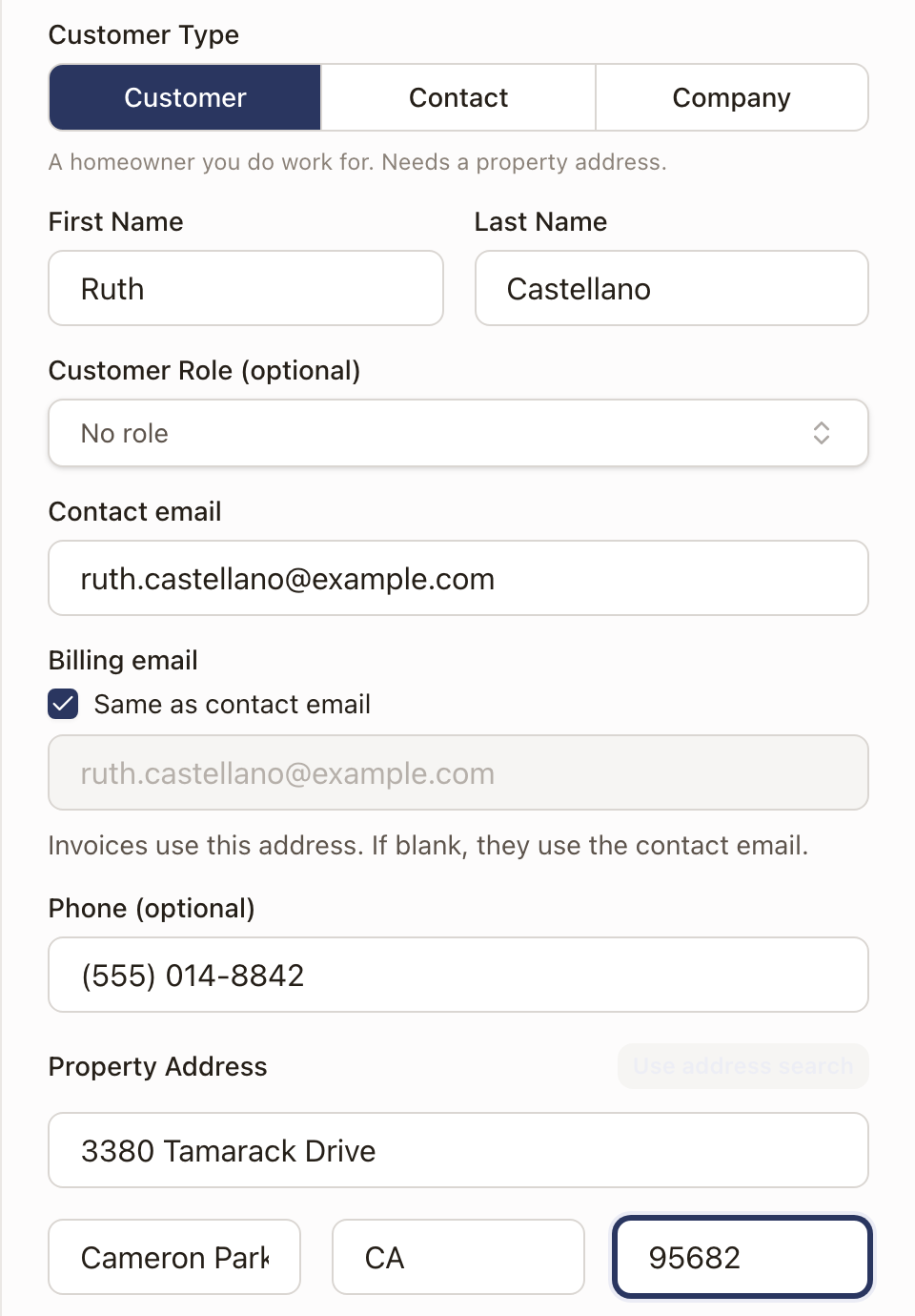
Choose the Customer Type: Customer, Contact, or Company. A line under the choice says what that type needs. A Customer is a homeowner you do work for and needs a property address. A Contact is someone to keep on file and needs only a name and email. A Company is a business, such as a property manager, and its address is optional. See Add a contact or company for when to use each.
-
Enter the name: First Name and Last Name, or Company Name for a Company. Last Name is optional for a Contact.
-
If the person has a part to play, such as Property Manager or Spouse, choose a Customer Role. Pick one from the list or type your own. Leave it as No role if it doesn't apply.
-
Enter the Contact email. Invoices go to the Billing email, which is the same as the contact email unless you clear Same as contact email and enter another address. Enter a Phone if you have one.
-
Enter the Property Address, either by typing it into the address search or clicking Enter manually to fill in the street, city, state, and ZIP as separate fields. This is required for a Customer and optional for a Company or Contact.
-
Check for a duplicate. If the name, email, phone, or address matches someone you already have, a banner appears under the address.
- It reads Existing customer found, or 2 possible existing customers when there is more than one. The closest match is listed first.
- Each match shows tags for what matched (Address, Phone, Email, Name), the address, phone, and email, and the customer's open work: open cases, quotes sent, work orders, or an active maintenance plan. A customer with none shows No open work.
- Click View to open that customer in a new tab.
- Click Use this Customer to add the address to that customer instead of creating a second record. It opens the Add Property drawer for them.
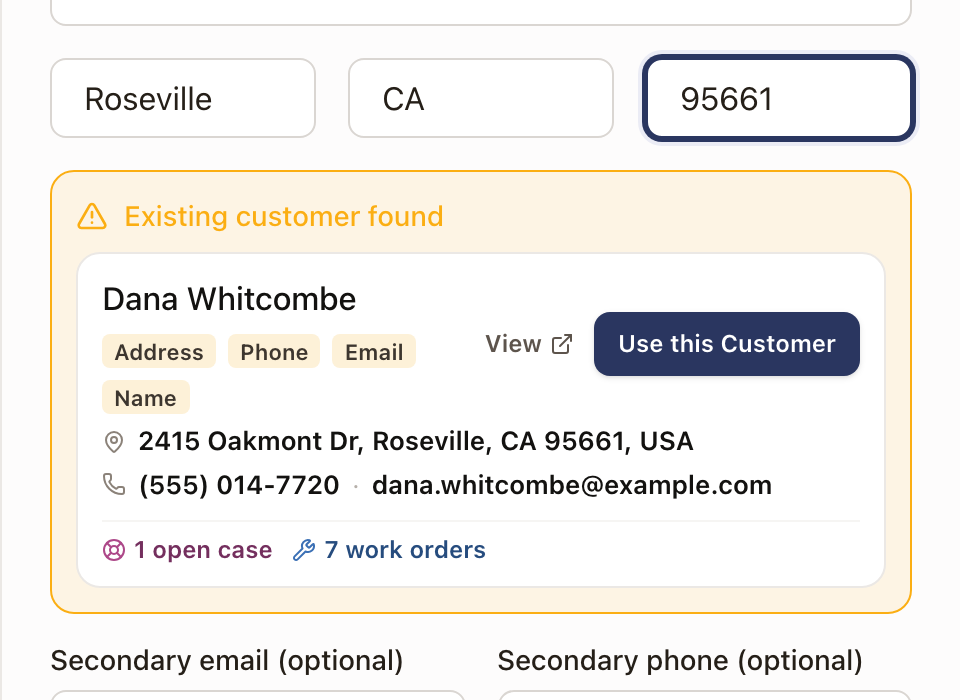
The banner doesn't stop you from saving, so you can still carry on when the match is a different person.
-
Add a Secondary email or Secondary phone if there is a second way to reach them. See Edit a customer and their contacts for what these are used for.
-
If this record belongs under another customer, such as a Contact who works for a Company, choose a Parent Customer. A suggestion chip lets you set the parent as the Billing Contact too. Otherwise leave Billing Contact as Same as customer.
-
Add a Description if you want a note on why this customer is coming to you.
-
Click Add Customer.
Check it worked
You land on the new customer's page. The strip under the name lists the Contact details, Service Address, Campaign Source, and Owner, plus the Parent Customer if you chose one. The main and secondary email and phone each have a copy button beside them, and so does the service address.
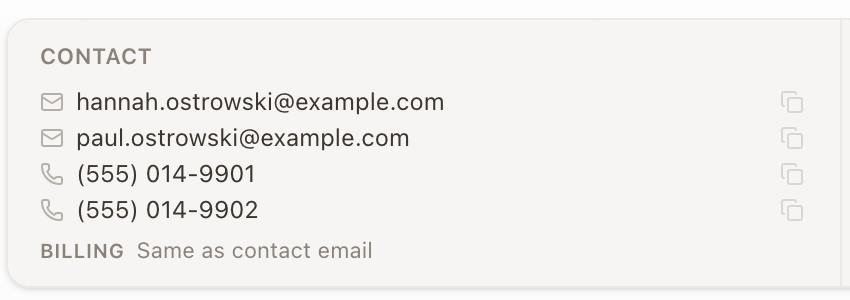
A Customer Role shows above the name, next to the record type. The property you entered appears in the Property card below, marked PRIMARY.
When the email is on file with another company
If the email you enter belongs to a customer of another company, your new customer holds only what you typed, and nothing from that customer's other records shows. The same goes for any other way of adding a customer by email, such as converting a lead or starting a new case, project, or opportunity. The customer page shows an Unconfirmed customer notice.
To connect the two, ask the customer to confirm:
- On the customer page, click Ask customer to confirm. solarOS emails a link to the address you entered. The notice then shows the date it was sent, and the button reads Send again.
- The customer opens the link and clicks Yes, that's me. The link works once, for 7 days.
Your work for them then joins their account, and the notice goes away. Their own name, email, and phone stay as they are.
Common problems
"Please complete the property address." A Customer needs the street, city, state as two letters, and a ZIP of at least five digits. A Company or Contact can leave the whole address empty, but a partly filled address isn't saved.
I need a second property for a customer that already exists. See Add a property instead. Don't create a duplicate customer.