
Configure monitoring alerts and notifications
Tune alert thresholds and org-wide service terms, and decide who gets told when a monitored system has a problem.
Monitoring alerts work at platform defaults the moment a site is subscribed; nothing here is required to turn them on. Use this screen to tune sensitivity, decide who's visible to customers, and choose who on your team gets told.
Before you start
You need the Owner or Admin role. Other roles can't open Settings unless a custom role gives them access. Everyone can view.
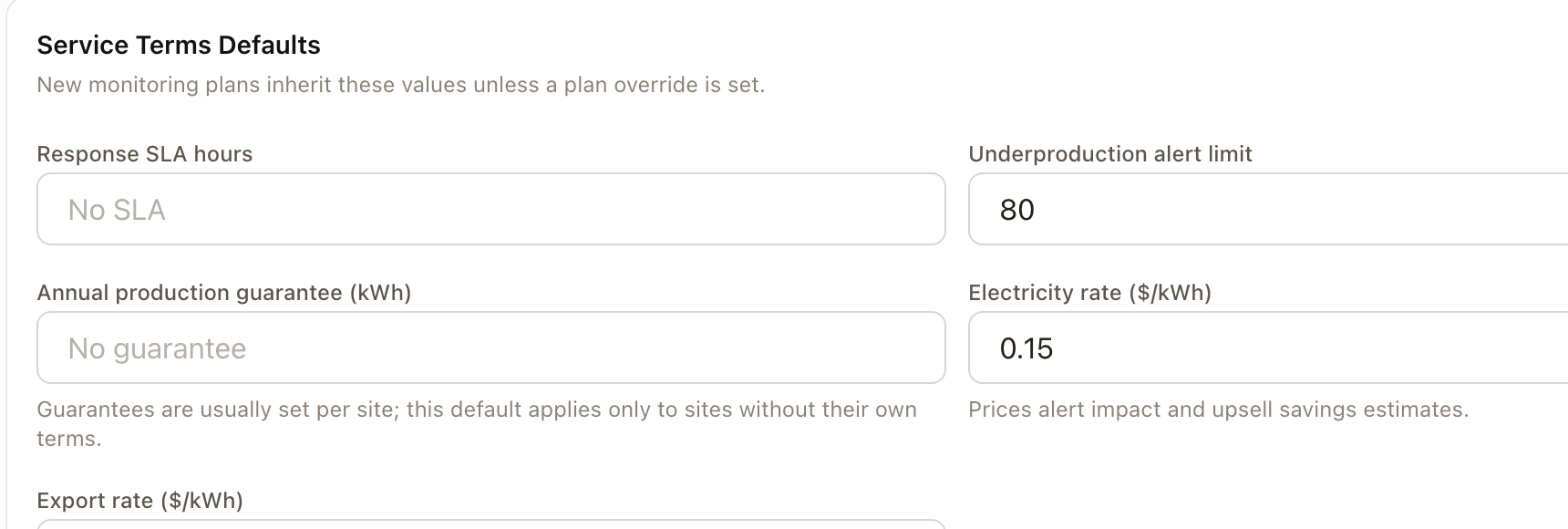
Set your org-wide service term defaults
Go to Settings → Monitoring alerts. The Service Terms Defaults card at the top sets what new monitoring plans inherit unless a plan sets its own override: Response SLA hours, Underproduction alert limit, Annual production guarantee (kWh), Electricity rate, and Export rate. These feed alert-impact and savings estimates, and apply only to sites that don't have their own terms.
Configure an individual alert type
Below the defaults card is the list of every alert type solarOS can raise (Device Offline, System Underperformance, Battery Level Low, and others). Click one to open its configuration:
- Toggle Enabled to turn that alert type on or off org-wide.
- Set a Severity Override if this alert should read differently than its default.
- Set any Alert Thresholds this type exposes (for example, how many hours offline before Device Offline fires).
- Under Visibility, toggle Customer Visible to decide if customers see this alert on their portal.
- Under Notifications, choose Notify Roles and whether to Notify Customer.
- Click Save Configuration.
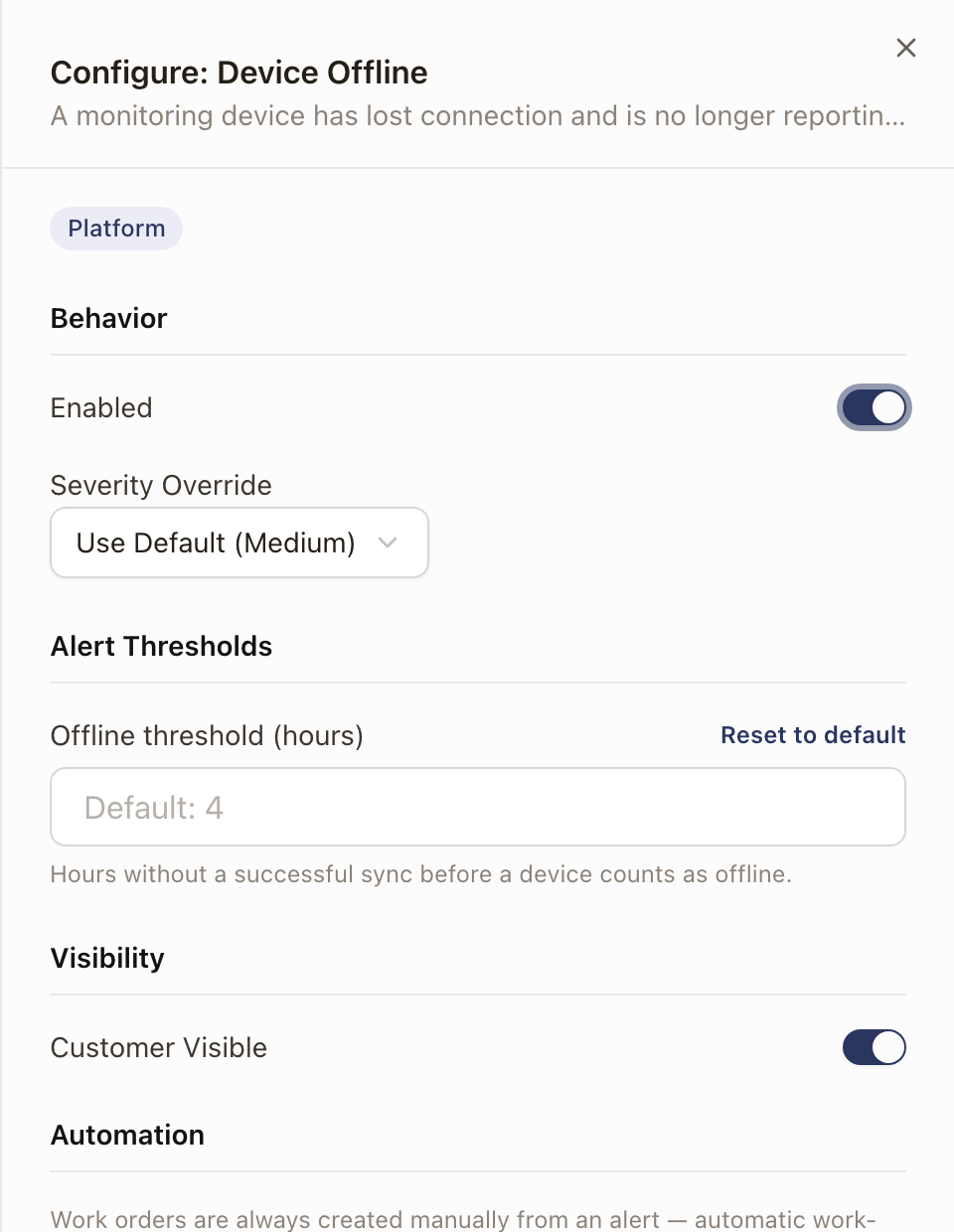
Work orders are never created automatically from an alert; that's intentional. Someone on your team reviews the alert and creates a work order from it by hand if it needs one.
Decide who gets told
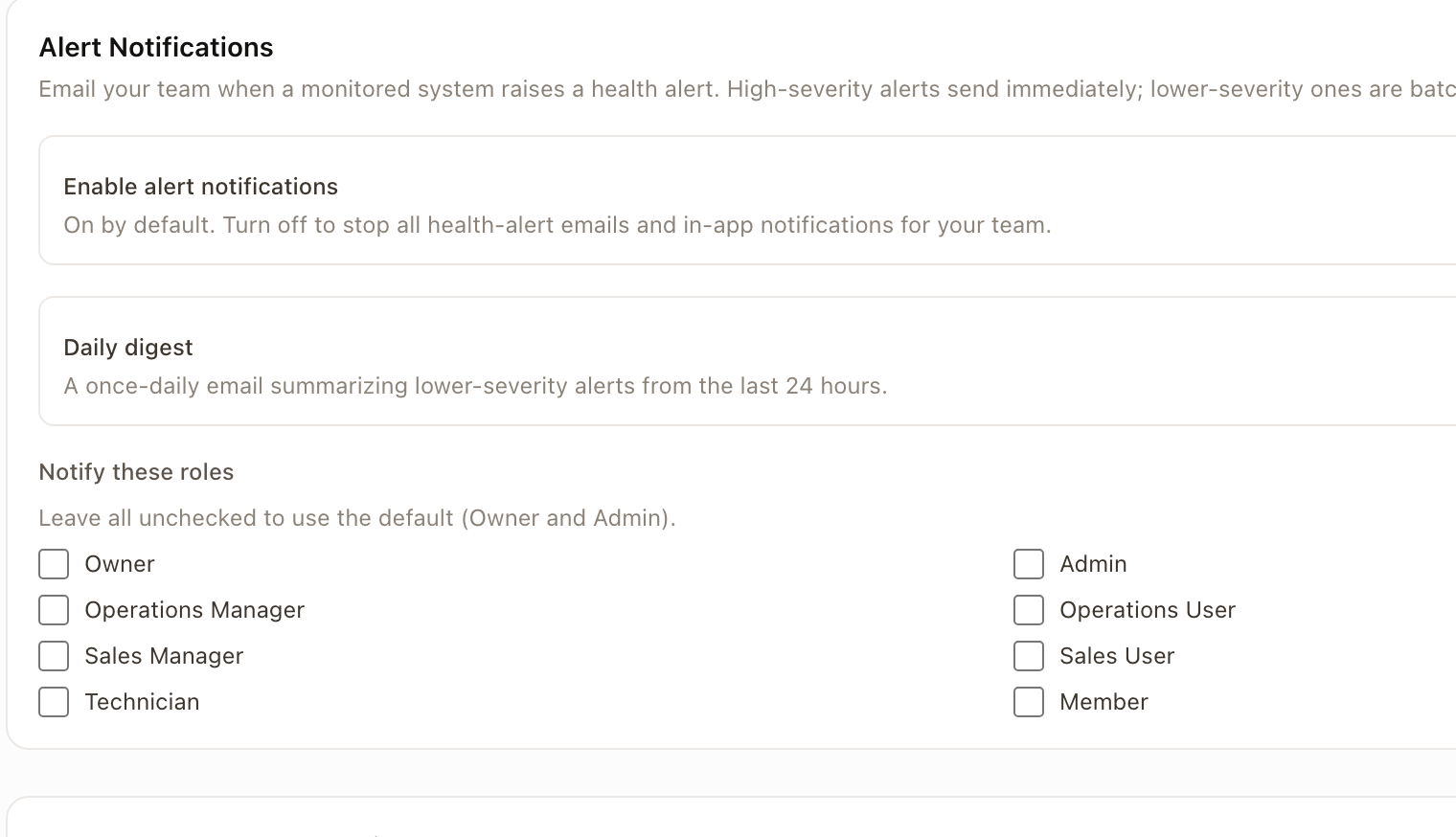
Go to the Notifications tab for two separate settings:
- Alert Notifications emails your team when a monitored system raises a health alert. High-severity alerts send immediately; lower-severity ones batch into a once-daily digest. Leave Notify these roles unchecked to use the default (Owner and Admin).
- Customer Reconnect Emails invite a customer to fix a device connection issue. These are off by default; turn on Send automatically only if you want them to go out on their own after a wait period you set, instead of being sent manually from a site.
Check it worked
Open Connection health to see a live view of every subscribed site's device-connection readiness. This is a dashboard, not a setup screen: it reflects the thresholds and alert types you've configured, it isn't something you configure directly.
Common problems
An alert doesn't show up for a customer even though it fired. Check that alert type's Customer Visible toggle; not every alert type is meant for the customer portal.
No one on my team got emailed about a high-severity alert. Check Notify these roles on the Notifications tab; if nothing is checked, only Owner and Admin get notified by default.
A reconnect email went out automatically and I didn't expect it. Check Send automatically under Customer Reconnect Emails; it's off by default, so this only happens if someone turned it on.